
Introduction
Welcome to your new Genérico Bluetooth Wireless Ultra-Thin ABNT2 Keyboard. This manual provides essential information for setup, operation, maintenance, and troubleshooting to ensure optimal performance and a comfortable typing experience. Please read this guide carefully before using your keyboard.
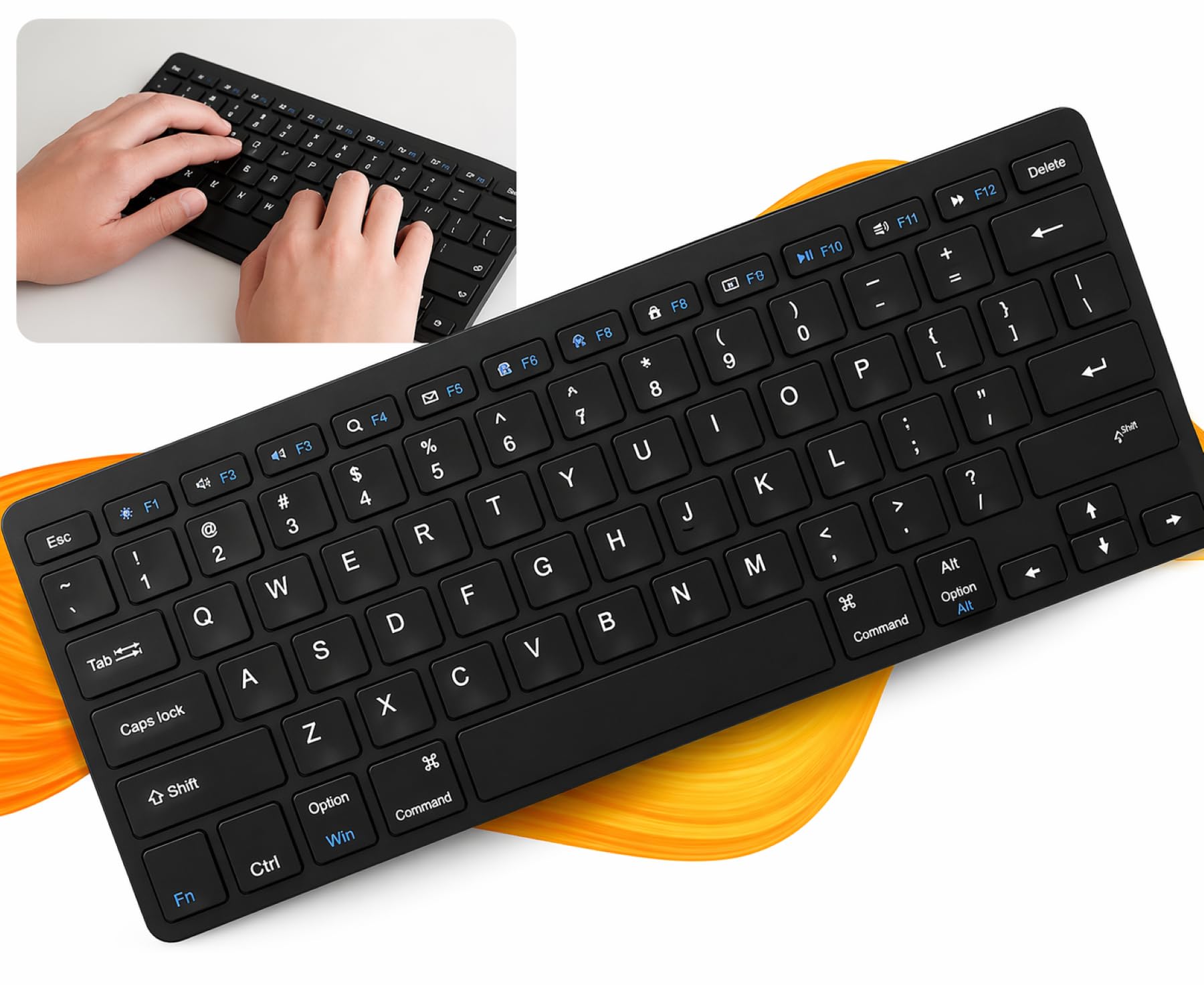
Image: The Genérico Bluetooth Wireless Ultra-Thin ABNT2 Keyboard, showcasing its sleek design.
Product Features
- Comfortable and Practical Typing: Ultra-thin design for enhanced comfort during work, study, and daily communication.
- Wireless Bluetooth Connection: Offers cable-free operation for an organized workspace and freedom of movement.
- ABNT2 Layout with 'Ç' Key: Features the Brazilian standard layout, facilitating typing in Portuguese.
- Multi-Device Compatibility: Ideal for notebooks, tablets, cell phones, iPads, and PCs equipped with Bluetooth.
- Ultra-Thin, Lightweight, and Portable: Compact design that fits easily into bags, perfect for mobility.
- Modern Black Design: Elegant, discreet, and professional aesthetic suitable for various environments.
- Increased Productivity: Enables faster and more comfortable typing compared to virtual keyboards.
- Functional and Intuitive Keys: Practical for daily tasks, navigation, content creation, and organization.
- Ideal for Home Office and Studies: Provides comfort for long periods of typing.
- Smart and Functional Choice: A versatile accessory for organization, comfort, and wireless freedom. Requires two AAA batteries (not included).

Image: The keyboard connected to a laptop, monitor, tablet, and smartphone, demonstrating multi-device compatibility.

Image: A side view of the keyboard highlighting its ultra-thin profile and compact dimensions.
Setup Guide
1. Installing Batteries
The keyboard requires two AAA batteries for operation (not included). Locate the battery compartment on the underside of the keyboard. Open the compartment cover, insert the batteries ensuring correct polarity (+/-), and then securely close the cover.
2. Bluetooth Connection
Follow these steps to connect your keyboard via Bluetooth:
- Activate Bluetooth: Turn on the Bluetooth function on your device (e.g., laptop, tablet, smartphone).
- Find the Keyboard: The device will search for available Bluetooth devices. Select "Teclado sem fio Bluetooth" from the list.
- Start Using: Once connected, your keyboard is ready for use.

Image: A visual guide showing the three steps for quick and practical Bluetooth connection: activating Bluetooth, selecting the keyboard, and successful connection.
Operating Instructions
Multimedia and Special Keys
The keyboard features dedicated multimedia and special function keys for enhanced convenience:
- Brightness Control: Adjust screen brightness.
- Media Playback: Control play/pause, previous, and next tracks.
- Volume Control: Adjust audio volume (mute, decrease, increase).
- Delete: Function for deleting content.

Image: The keyboard highlighting the multimedia shortcut keys (F1-F12) for brightness, media, volume, and delete functions.
System Compatibility
The keyboard is designed for broad compatibility across various operating systems. It includes specific keys to adapt to different system layouts:
- ABNT2 Layout: Includes the 'Ç' key for Portuguese language typing.
- Mac Compatibility: Features a 'Command' key.
- Android / iOS Switching: Dedicated keys for quick system layout changes between Android and iOS devices.

Image: The keyboard layout showing the ABNT2 standard with the 'Ç' key, along with 'Command', 'Android', and 'iOS' keys for system-specific functions.
Maintenance
- Cleaning: Use a soft, dry cloth to clean the keyboard surface. For deeper cleaning, a slightly damp cloth with mild soap can be used, ensuring no liquid enters the keyboard.
- Battery Care: Replace batteries when performance degrades. If the keyboard will not be used for an extended period, remove the batteries to prevent leakage. Consider using rechargeable AAA batteries for environmental and cost efficiency.
- Storage: Store the keyboard in a cool, dry place away from direct sunlight and extreme temperatures.
Troubleshooting
If you encounter issues with your keyboard, refer to the following table for common problems and solutions:
| Problem | Possible Cause | Solution |
|---|---|---|
| Keyboard not connecting via Bluetooth. | Bluetooth is off on the device; keyboard batteries are low or dead; keyboard is out of range. | Ensure Bluetooth is enabled on your device. Replace batteries. Move keyboard closer to the device (within 10 meters). Try re-pairing the keyboard. |
| Keys are not responding or typing incorrectly. | Low battery; connection interference; debris under keys; incorrect system layout selected. | Replace batteries. Ensure no other devices are causing interference. Clean the keyboard. Verify the correct system layout (Android/iOS/Mac) is selected. |
| High battery consumption. | Frequent use; low-quality batteries. | Use high-quality alkaline or rechargeable AAA batteries. Turn off the keyboard when not in use for extended periods. |
| Intermittent signal or disconnections. | Distance from device; interference; low battery. | Reduce distance to the connected device. Minimize other wireless devices nearby. Replace batteries. |
Specifications
| Feature | Detail |
|---|---|
| Brand | Genérico |
| Model Name | Teclado sem fio Bluetooth |
| Connectivity Technology | Bluetooth, USB (for charging/power, if applicable, though product states battery powered) |
| Compatible Devices | Game Console, Notebook, PC, Smart TV, Tablet |
| Keyboard Description | Membrane |
| Special Features | Bluetooth, Ergonomic, Portable, Wireless, Shortcut keys and media keys |
| Power Source | Battery Powered (2x AAA, not included) |
| Color | Black |
| Item Dimensions (L x W x H) | 28.5 cm x 12 cm x 2 cm |
| Material | Aluminum, Plastic |
| Part Number | AMZ-0004 |
| Country of Origin | China |
Warranty and Support
This Genérico Bluetooth Wireless Ultra-Thin ABNT2 Keyboard comes with a 3-month warranty against manufacturing defects. Please retain your proof of purchase for warranty claims.
For technical support or warranty inquiries, please refer to the seller's contact information provided at the time of purchase. You may also visit the product page on Amazon for further assistance.