
1. Introduction
The TIMBOOTECH CHD09H is a Type-C Wireless HDMI Transmitter and Receiver system designed for wireless video and audio transmission. It supports 4K input and outputs 1080P@60Hz, utilizing 5.8G+2.4G dual-band technology for stable connections up to 165 feet (50 meters). This device offers a plug-and-play solution for mirroring or extending content from various Type-C enabled devices to larger displays without the need for Wi-Fi, apps, or complex setups.
2. What's in the Box
Please verify that all items listed below are included in your package:
- Type-C Transmitter x 1
- HDMI Receiver x 1
- USB-C Cable x 2
- HDMI Cable x 1
- User Manual x 1

Image: Contents of the TIMBOOTECH CHD09H package, showing the transmitter, receiver, various cables, and the user manual.
Video: An unboxing video showcasing the contents of the TIMBOOTECH Type-C Wireless HDMI Transmitter and Receiver package.
3. Product Overview
The TIMBOOTECH CHD09H system consists of two main components: a Transmitter (TX) and a Receiver (RX).
- Transmitter (TX): This unit connects to your source device (e.g., smartphone, tablet, laptop) via its USB-C port. It wirelessly sends video and audio signals to the receiver.
- Receiver (RX): This unit connects to your display device (e.g., TV, monitor, projector) via its HDMI port. It receives the wireless signals from the transmitter and outputs them to the display.

Image: The TIMBOOTECH CHD09H Wireless HDMI Transmitter and Receiver units.
4. Setup
4.1. Connection Method 1: Transmitter and Receiver (Plug & Play)
This method provides a direct wireless connection without requiring Wi-Fi, apps, or Bluetooth.
- Connect the Receiver (RX): Plug the HDMI Receiver into an available HDMI port on your display device (TV, monitor, projector).
- Power the Receiver: Connect one of the provided USB-C cables to the receiver's power input and the other end to a 5V/2A USB power adapter (not included) or a USB port on your display that provides sufficient power.
- Connect the Transmitter (TX): Plug the Type-C Transmitter into the USB-C port of your source device (smartphone, tablet, laptop). Ensure your device's USB-C port supports DP Alt Mode (video output).
- Automatic Connection: The transmitter and receiver will automatically connect within 5-10 seconds, and your device's screen will be mirrored or extended to the display.

Image: Connection diagram for the wireless HDMI transmitter and receiver.
Video: A step-by-step guide on connecting the wireless HDMI transmitter and receiver units.
4.2. Connection Method 2: Receiver Only (Wireless Display Dongle)
The receiver can function independently as a wireless display dongle, allowing screen mirroring from various devices via Wi-Fi.
- Connect and Power the Receiver: Plug the HDMI Receiver into your display and power it using a USB-C cable and a 5V/2A power source.
- Access Receiver Settings: On your mobile device (phone/tablet), open Wi-Fi settings and connect to the receiver's Wi-Fi network (e.g., "AMB-XXX"). The default password is usually 12345678.
- Browser Setup: Open a web browser on your mobile device and enter the IP address displayed on the screen (e.g., 192.168.168.1) to access the receiver's settings interface.
- Connect to Home Wi-Fi (Optional): In the settings, you can connect the receiver to your home Wi-Fi network for internet access while mirroring.
- Initiate Screen Mirroring:
- For iOS/iPhone: Reopen Wi-Fi settings, select the same home Wi-Fi network (if connected), then use the 'Screen Mirroring' function and select "AMB-XXX" as the target.
- For Android: Find the 'Smart View' or 'Screen Mirroring' function in your phone's settings or quick panel and select "AMB-XXX" as the target.
- For Windows: Press 'Win + K' on your keyboard to initiate screen mirroring search and select "AMB-XXX" as the target device.

Image: Receiver-only mode setup for wireless screen mirroring.
Video: This video demonstrates the steps to use the receiver in standalone mode for screen mirroring from an iPhone.
Video: This video provides instructions on how to set up the receiver for screen mirroring from an Android device.
5. Operating Modes
5.1. Mirroring and Extended Display
The wireless HDMI system supports both mirroring and extended display modes, depending on your source device's capabilities and operating system settings.
- Mirroring Mode: Duplicates your source device's screen onto the larger display.
- Extended Display Mode: Extends your desktop space, allowing you to have different content on your source device and the external display. This is particularly useful for multitasking with laptops.
To switch between modes, refer to your operating system's display settings (e.g., for Windows, press 'Win + P' and select your preferred mode).

Image: Demonstrating screen mirroring and extended display modes.
5.2. Charging While Mirroring
The Type-C Transmitter features a charging port. In most cases, the transmitter can draw power directly from your source device. However, if your source device has low power or cannot adequately power the transmitter, you can connect a 5V/2A adapter to the transmitter's Type-C charging port using the provided USB-C cable.
When the transmitter is connected to an external power source via its Type-C port, it will power itself and simultaneously charge your connected phone, eliminating the need for an additional phone charger.
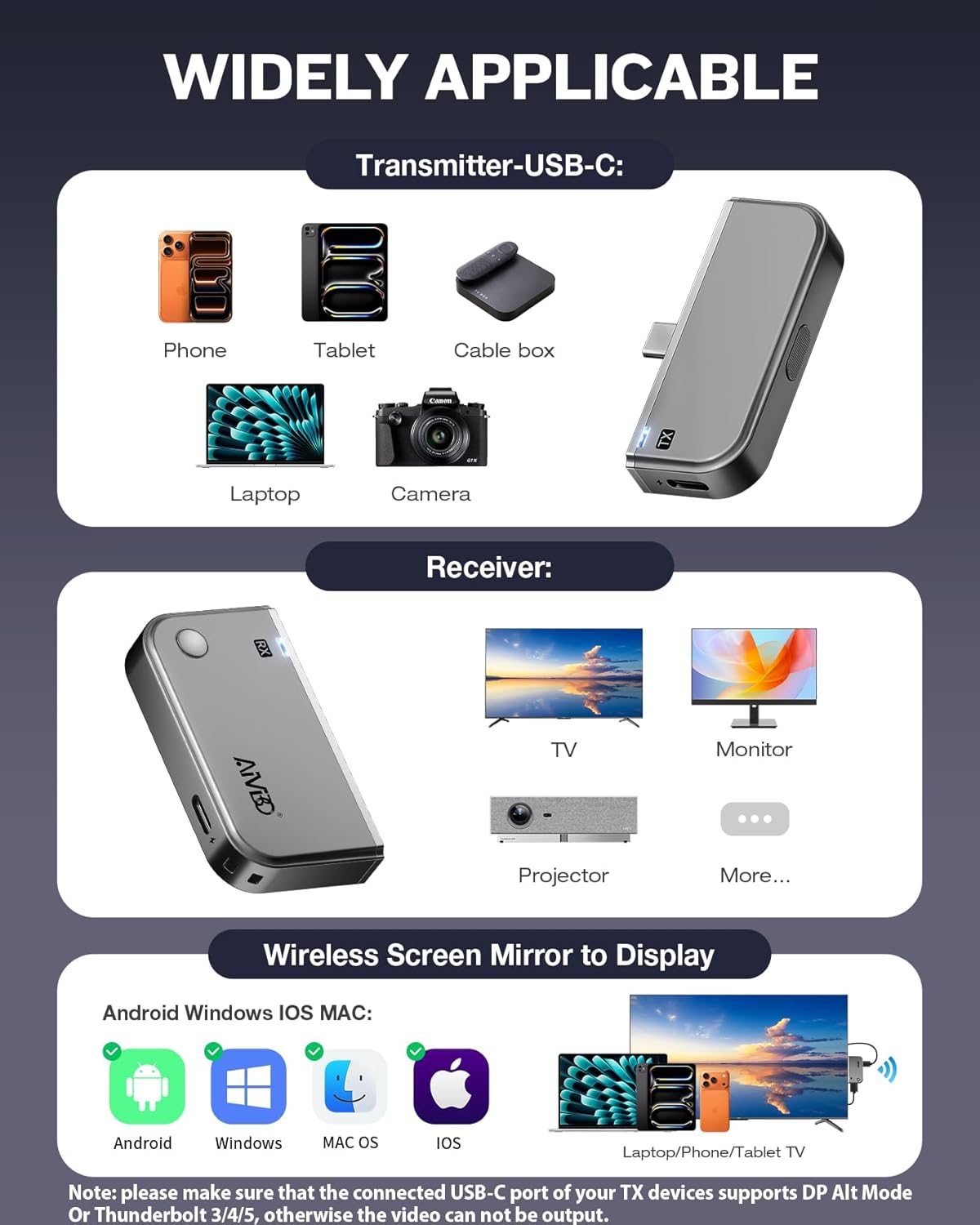
Image: The wireless HDMI transmitter charging a phone while mirroring content.
6. Specifications
| Feature | Description |
|---|---|
| Brand | TIMBOOTECH |
| Model Number | CHD09H |
| Connectivity Technology | Point to Point |
| Wireless Technology | 5.8G, 2.4G Dual-Band |
| Max Transmission Distance | 165FT / 50M |
| Input Resolution | Up to 4K |
| Output Resolution | 1080P@60Hz (Configurable up to 4K@60Hz in Receiver-Only mode) |
| Connector Type | HDMI, USB Type-C |
| Audio Output Mode | Stereo |
| Compatible Devices | Smartphones, Tablets, Laptops, PCs (with DP Alt Mode USB-C), Cameras, TV Set-top Boxes |
| Control Method | Push Button |
| Color | Gray |
7. Troubleshooting
If you encounter issues with your TIMBOOTECH CHD09H, please refer to the following common solutions:
- No Signal/Black Screen:
- Ensure both the transmitter and receiver are properly powered.
- Verify that the HDMI cable is securely connected to the receiver and the display.
- Confirm that your display is set to the correct HDMI input source.
- Check if your source device's USB-C port supports DP Alt Mode (video output). Not all USB-C ports support video output.
- Try restarting both the source device and the wireless HDMI system.
- Intermittent Connection/Poor Quality:
- Reduce the distance between the transmitter and receiver.
- Minimize obstacles (walls, furniture) between the units.
- Ensure there are no strong sources of interference (e.g., other 2.4G/5.8G wireless devices) nearby.
- Confirm the receiver is receiving adequate power (use a 5V/2A adapter if possible).
- Cannot Pair Transmitter and Receiver:
- Ensure both units are powered on.
- Press and hold the function button on the receiver until the indicator light flashes rapidly.
- Then, press and hold the function button on the transmitter for about 5 seconds until its indicator light becomes solid, indicating successful pairing.
- Receiver-Only Mode Connection Issues:
- Double-check the Wi-Fi network name and password for the receiver.
- Ensure your mobile device is connected to the receiver's Wi-Fi or the same home Wi-Fi network if configured.
- Verify that your mobile device's screen mirroring function is correctly activated and selecting the receiver.
8. Maintenance
To ensure the longevity and optimal performance of your TIMBOOTECH CHD09H, follow these maintenance guidelines:
- Cleaning: Use a soft, dry cloth to clean the device. Avoid liquid cleaners or abrasive materials.
- Storage: Store the device in a cool, dry place away from direct sunlight and extreme temperatures.
- Handling: Handle the units with care to prevent physical damage. Avoid dropping or subjecting them to strong impacts.
- Ventilation: Ensure the units have adequate ventilation during operation to prevent overheating.
9. Warranty and Support
TIMBOOTECH provides a 30-day warranty for this product. Additionally, lifetime after-sales service and technical support are available to assist you with any questions or issues you may encounter.
For support, please refer to the contact information provided in the packaging or on the manufacturer's official website.