
1. Introduction
This manual provides detailed instructions for the installation, operation, and maintenance of your KUNFINE 10.25" Octa Core 8G+128G Car CarPlay Android Auto Navigation Stereo. This unit is specifically designed for Audi Q3 models manufactured between 2013 and 2018, equipped with the RMC system. Please read this manual thoroughly before using the product to ensure proper functionality and safety.
2. Product Overview
Key Features:
- Integrated CarPlay & Android Auto: Seamless smartphone integration for navigation, music, and communication.
- Octa Core Processor: Ensures smooth and responsive performance.
- Android System: Provides access to a wide range of applications and enhanced functionality.
- 10.25" IPS Touchscreen: High-definition display with multi-touch support for clear visuals and intuitive control.
- GPS Navigation: Built-in GPS for accurate real-time navigation.
- Bluetooth Connectivity: For hands-free calling and audio streaming.
- Wi-Fi & Hotspot Sharing: Stay connected on the go.
- Steering Wheel Control Support: Maintain control of your unit without taking your hands off the wheel.
- USB Input: Supports various media formats and external devices.
- Rear View Camera Support: Compatible with aftermarket RCA type backup cameras.
What's in the Box:
- 1x Car Android Head Unit with Mask
- 1x GPS Antenna
- 1x Power Cable (Plug & Play)
- 2x USB Port Cable
- 1x RCA Expand Cable
- 1x RCA Connector for Reverse Camera
- 1x Install Kit (GIFT)
- 1x External Mic (GIFT)
- 1x AHD 720 Reverse Camera (GIFT)
3. Compatibility
This KUNFINE head unit is designed for Audi Q3 models from 2013 to 2018 that are equipped with the RMC system. It is crucial to verify your vehicle's system version before purchase and installation to ensure full compatibility.

The unit supports original car settings including steering wheel control, original camera, iDrive control, original speakers, and retains the original CD player and system functionality.

4. Setup & Installation
Installation of the KUNFINE head unit involves replacing the existing display. It is recommended that installation be performed by a qualified professional to ensure correct wiring and functionality.

Initial Setup:
- Power Connection: Connect the provided power cable to the unit and the vehicle's power source.
- Antenna Connection: Attach the GPS antenna for navigation functionality.
- USB & RCA Connections: Connect USB cables for external devices and RCA cables for the reverse camera as needed.
- System Boot-up: Turn on the vehicle ignition to power up the head unit.
System Switching:
The unit supports switching between the new Android system and the original car interface. This is typically done via a dedicated button or a specific gesture on the touchscreen. Refer to the video below for a demonstration.
AirPlay Setup:
To connect to Wireless AirPlay, ensure the AirPlay option is enabled in the unit's settings (Setup -> Smart Phone -> Smart Phone Setting). Then, connect your iPhone to the unit's Wi-Fi network and select AirPlay from your iPhone's Screen Mirroring options.
5. Operating Instructions
CarPlay and Android Auto:
The unit supports both Apple CarPlay and Android Auto for seamless integration with your smartphone. Connect your device via USB or wirelessly (if supported) to access navigation, music, calls, and messages directly on the head unit's display. Use voice commands for a safer driving experience.

Navigation:
Utilize the built-in GPS and supported navigation applications for accurate route guidance. The large 10.25-inch display provides clear map visuals, and voice commands can be used for destination input.

Multimedia Playback:
Enjoy audio and video playback through various sources, including USB, Bluetooth streaming from your phone, and pre-installed Android applications. The IPS touchscreen ensures a vibrant and clear viewing experience.
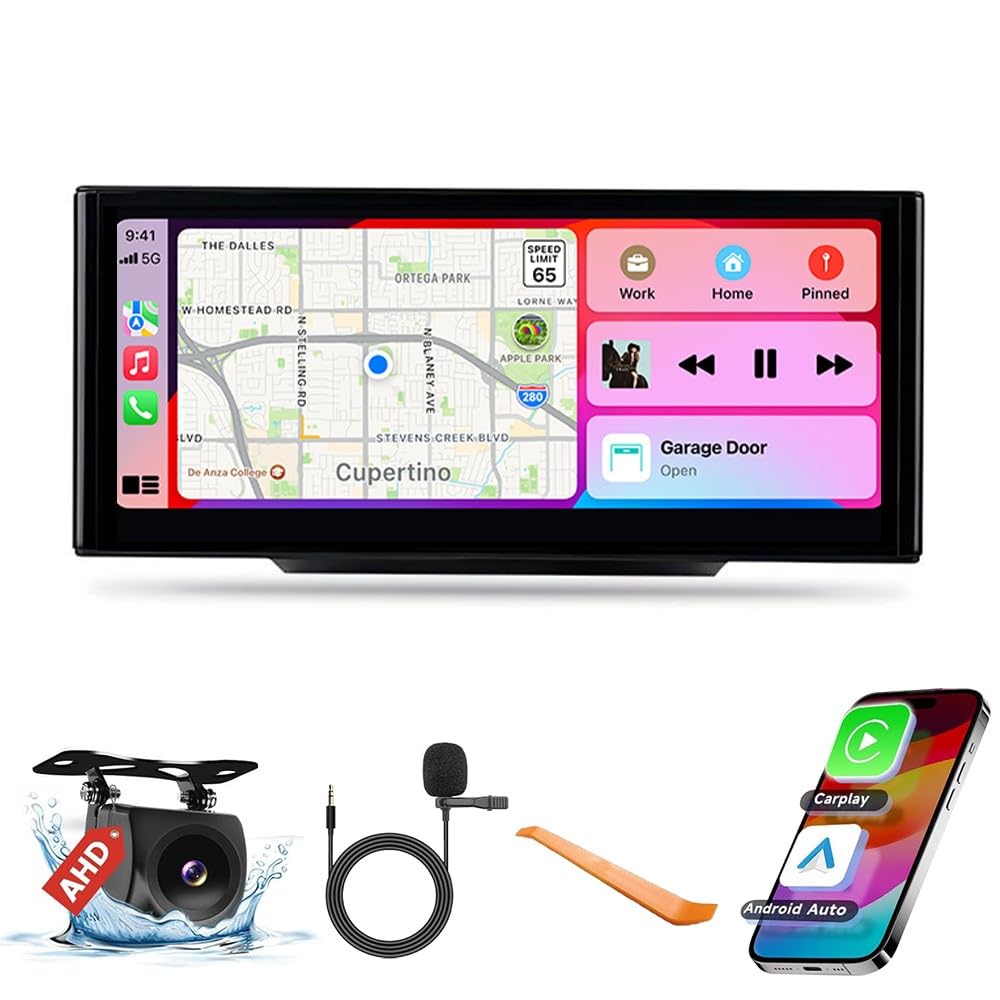
Display Quality:
The 10.25-inch IPS touchscreen offers a high resolution for superior visual clarity and color brightness compared to standard displays.

360 Rear View Camera (Optional):
The unit supports an optional 360-degree rear view camera system, providing comprehensive visibility around your vehicle for enhanced safety during parking and maneuvering.

6. Maintenance
To ensure the longevity and optimal performance of your KUNFINE head unit, follow these maintenance guidelines:
- Cleaning: Use a soft, dry cloth to clean the screen and exterior. Avoid abrasive cleaners or solvents that may damage the display or finish.
- Software Updates: Periodically check for and install software updates to ensure the system runs efficiently and has the latest features and security patches.
- Environmental Conditions: Avoid exposing the unit to extreme temperatures, direct sunlight for prolonged periods, or excessive moisture.
- Cable Connections: Ensure all cables are securely connected. Loose connections can lead to intermittent functionality.
7. Troubleshooting
If you encounter any issues with your KUNFINE head unit, refer to the following common troubleshooting steps:
- No Power: Check all power connections. Ensure the vehicle's ignition is on. If issues persist, consult a professional installer.
- No Sound: Verify volume settings on both the head unit and your connected device. Check audio cable connections. Ensure the correct audio source is selected.
- Touchscreen Unresponsive: Try restarting the unit. If the problem continues, a factory reset might be necessary (refer to system settings).
- CarPlay/Android Auto Not Connecting: Ensure Bluetooth and Wi-Fi are enabled on your phone and the head unit. Check USB cable integrity if using a wired connection. Verify that the AirPlay/Android Auto option is enabled in the unit's settings.
- GPS Signal Loss: Ensure the GPS antenna is properly installed and has a clear view of the sky.
- System Lag/Freezing: Close unnecessary applications. A system restart or factory reset may resolve persistent performance issues.
For complex issues not covered here, please contact KUNFINE customer support.
8. Specifications
| Feature | Detail |
|---|---|
| Display Size | 10.25 Inches |
| Operating System | Android |
| CPU | Octa Core |
| RAM | 8 GB |
| ROM | 128 GB |
| Connectivity Technology | USB |
| Voice Command | Touch Pad, Touchscreen |
| Special Features | CarPlay/Android Auto Integration, Voice Recognition, Real-time Traffic Updates, Third-party App Integration |
| Mounting Type | Dashboard Mount |
| Map Type | North America |
9. Warranty & Support
Your KUNFINE head unit comes with a one-year warranty covering non-human damage. We are committed to providing excellent after-sales support. If you have any questions, concerns, or require assistance, please do not hesitate to contact the seller directly. Your inquiries are always welcome, and our support team will assist you promptly.