
1. Introduction
The TP-Link Archer TBE401UH is a Tri-Band Wi-Fi 7 Wireless USB 3.0 Adapter designed to enhance the wireless capabilities of your desktop or laptop PC. This adapter provides significant improvements in network coverage, speed, and overall capacity, enabling a next-generation network experience with faster data transfer and more stable connections.
Key features include:
- Wi-Fi 7 Technology: Unlocks the 6 GHz band when paired with a compatible tri-band Wi-Fi 7 router, offering enhanced wireless performance with 160MHz bandwidth, Multi-RUs, and 4K-QAM.
- Tri-Band Speed: Achieves speeds up to 2,882 Mbps on the 6 GHz band, 2,594 Mbps on the 5 GHz band, and 688 Mbps on the 2.4 GHz band for high-speed data transfer, streaming, and gaming.
- Superior Wi-Fi Reception: Utilizes OFDMA and MU-MIMO technologies to support more devices simultaneously and improve Wi-Fi efficiency.
- Extended Coverage: Features two high-gain antennas and Beamforming technology to direct Wi-Fi signals, improving reception and connection stability over longer distances.
- USB 3.0 Super Speed: Offers data transfer rates up to 10 times faster than USB 2.0, with backward compatibility.
- Advanced WPA3 Security: Strengthens encryption for Wi-Fi passwords and defends against brute-force attacks, ensuring a secure connection.
- Plug and Play: Includes a preloaded driver for straightforward installation on Windows 11/10.

Figure 1: TP-Link Archer TBE401UH Wi-Fi 7 USB Adapter in its cradle.
2. Setup
2.1 Package Contents
Verify that your package contains the following items:
- 1 x BE6200 Wi-Fi 7 High Gain Wireless USB Adapter (Archer TBE401UH)
- 1 x Quick Installation Guide
- 1 x USB 3.0 Cradle
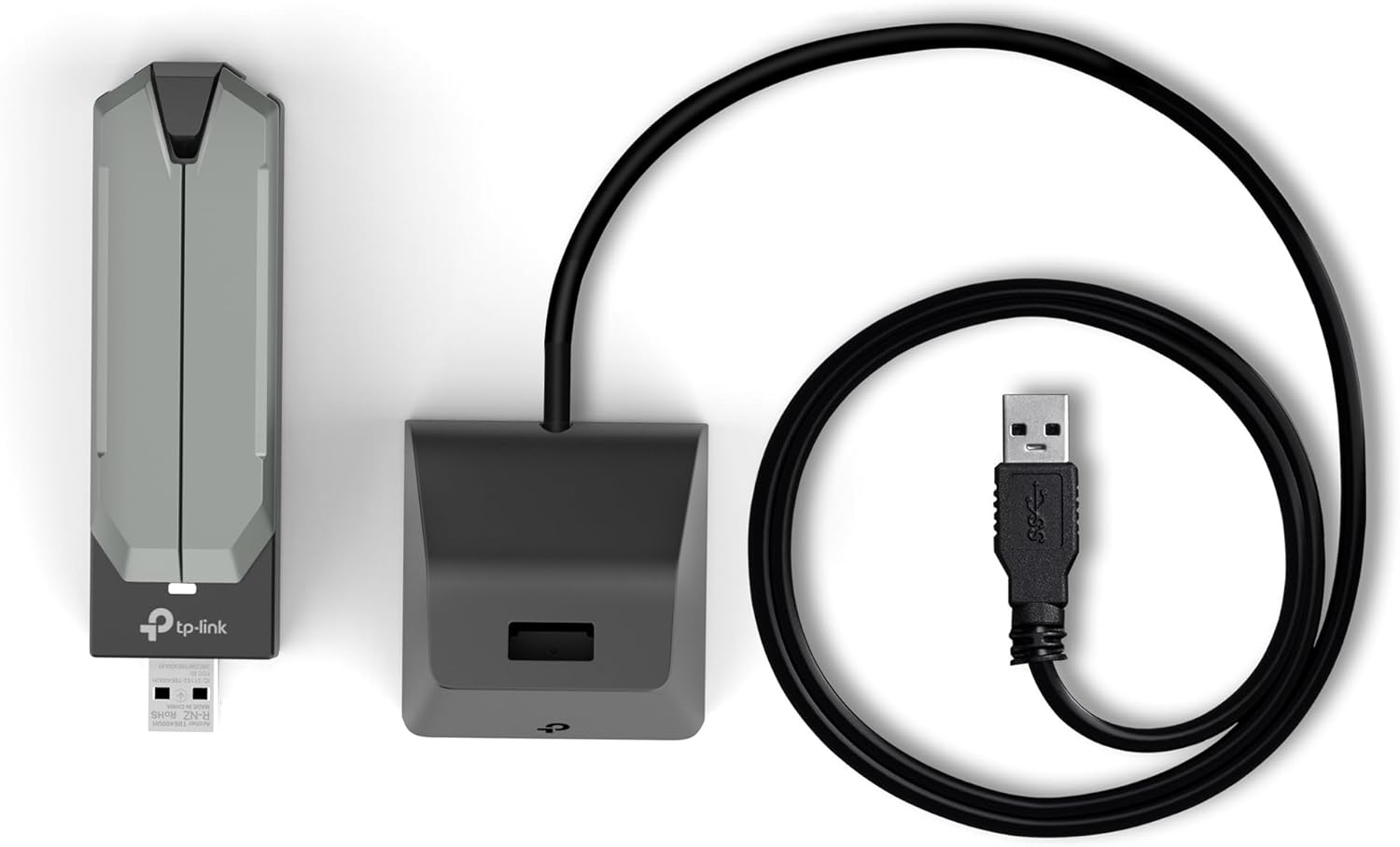
Figure 2: Package contents including the adapter, cradle, and USB cable.
2.2 Driver Installation
The Archer TBE401UH is designed for effortless installation with a preloaded driver. It is compatible with Windows 11 and Windows 10.
- Plug and Play: For most Windows 11/10 systems, simply plug the adapter into an available USB 3.0 port. The system should automatically detect and install the necessary drivers.
- Using the Provided CD: If automatic installation does not occur, or if you are using an older system with a CD drive, insert the provided driver CD into your computer's CD-ROM drive and follow the on-screen instructions to install the driver.
- Downloading from Website: If your computer lacks a CD drive and automatic installation fails, you can download the latest drivers from the official TP-Link support website. If your current computer cannot access the internet, you may need to download the driver on another internet-connected computer, save it to a USB flash drive, and then transfer it to the target PC for installation.
2.3 Hardware Installation
Once the drivers are installed, connect the Archer TBE401UH adapter to your computer:
- Direct Connection: Plug the adapter directly into an available USB 3.0 port on your desktop or laptop.
- Using the USB Cradle: For flexible positioning and optimal signal reception, connect the adapter to the provided USB 3.0 cradle. Then, connect the cradle's USB cable to a USB 3.0 port on your computer. This allows you to place the adapter in a location with better Wi-Fi signal strength. The 3.9ft (1.2m) cable offers convenience for desktop setups.
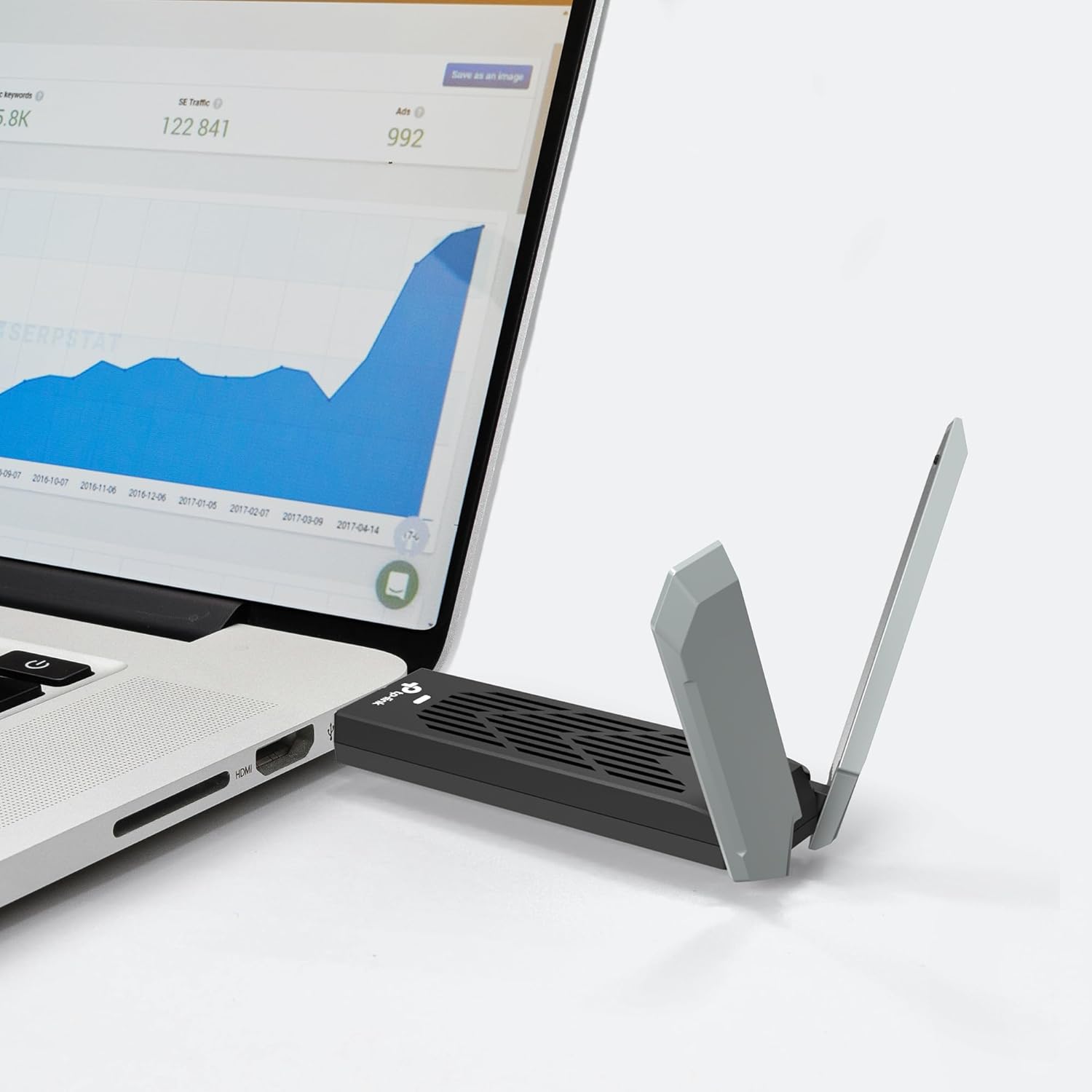
Figure 3: Adapter connected directly to a laptop.

Figure 4: Adapter in cradle connected to a desktop PC.
3. Operating the Adapter
3.1 Connecting to a Wi-Fi Network
After successful driver installation and hardware connection, your computer should automatically detect available Wi-Fi networks. Follow these steps to connect:
- Click on the Wi-Fi icon in your system tray (usually in the bottom-right corner of the screen).
- Select your desired Wi-Fi network from the list.
- Enter the network security key (password) if prompted.
- Click 'Connect'.
3.2 Understanding Tri-Band Operation
The Archer TBE401UH supports three frequency bands:
- 6 GHz Band: Offers the highest speeds (up to 2,882 Mbps) and lowest interference, ideal for demanding applications like 4K/8K streaming and online gaming. Requires a Wi-Fi 7 compatible router.
- 5 GHz Band: Provides high speeds (up to 2,594 Mbps) suitable for most high-bandwidth activities.
- 2.4 GHz Band: Offers wider coverage and better penetration through walls (up to 688 Mbps), suitable for general internet use and connecting devices further away.
Your adapter will automatically select the best available band for optimal performance. For best results, ensure your router also supports tri-band Wi-Fi.

Figure 5: Overview of Wi-Fi 7 speeds and features.
3.3 Advanced Features
The adapter incorporates advanced technologies to optimize your wireless experience:
- OFDMA (Orthogonal Frequency Division Multiple Access): Improves network efficiency by allowing multiple devices to share a single channel, reducing latency.
- MU-MIMO (Multi-User Multiple-Input Multiple-Output): Enables the router to communicate with multiple devices simultaneously, enhancing overall network capacity and speed.
- Beamforming: Focuses the Wi-Fi signal directly towards your connected devices, improving signal strength and range.

Figure 6: Enhanced Wi-Fi reception range with the Archer TBE401UH.
4. Maintenance
To ensure the longevity and optimal performance of your Archer TBE401UH adapter, consider the following maintenance tips:
- Keep Drivers Updated: Regularly check the TP-Link support website for the latest drivers to ensure compatibility and performance enhancements.
- Physical Care: Keep the adapter and cradle clean and free from dust. Avoid exposing them to extreme temperatures or humidity.
- Proper Handling: When unplugging the adapter, grasp the body of the adapter or the USB connector, not the cable.
5. Troubleshooting
If you encounter issues with your Archer TBE401UH adapter, try the following solutions:
- No Wi-Fi Connection:
- Ensure the adapter is securely plugged into a USB 3.0 port.
- Verify that the drivers are correctly installed. Reinstall them if necessary.
- Restart your computer and router.
- Check if your Wi-Fi network is visible and you are entering the correct password.
- Slow Wi-Fi Speed:
- Ensure you are connected to the optimal Wi-Fi band (6 GHz or 5 GHz for faster speeds).
- Position the adapter using the cradle to achieve better signal strength, especially if your computer is far from the router.
- Minimize interference from other electronic devices.
- Confirm your router supports Wi-Fi 7 or Wi-Fi 6E/6 for optimal performance with this adapter.
- Internal Wi-Fi Driver Issues: If your computer's built-in Wi-Fi driver is malfunctioning or has failed, the Archer TBE401UH can serve as an effective external replacement. Install its drivers as described in Section 2.2, and then plug in the adapter. This can restore internet connectivity even if the internal Wi-Fi hardware is inoperable.
6. Specifications
| Feature | Detail |
|---|---|
| Product Dimensions | 1.2 x 0.7 x 4.21 inches (30.5 x 17.8 x 106.9 mm) |
| Item Weight | 4.8 ounces (0.14 kg) |
| Hardware Interface | USB 3.0 |
| Data Link Protocol | Wi-Fi (802.11be/ax/ac/n/a/g/b) |
| Data Transfer Rate | Up to 6200 Mbps (2882 Mbps on 6GHz, 2594 Mbps on 5GHz, 688 Mbps on 2.4GHz) |
| Compatible Devices | Desktop, Laptop |
| Compatible Operating System Family | Windows (Windows 11/10) |
| Operating Temperature | 32°F to 104°F (0°C to 40°C) |
| Operating Humidity | 10% to 90% non-condensing |
| Regulatory Certifications | FCC / CE |
| UPC | 810142824811 |
7. Warranty and Legal Information
7.1 Warranty
The TP-Link Archer TBE401UH comes with a 2-year warranty. Please refer to the official TP-Link website or the product packaging for specific warranty terms and conditions.
7.2 Legal Disclaimer
Maximum wireless signal rates are physical rates derived from IEEE Standard 802.11 specifications. Actual wireless data throughput and wireless coverage are not guaranteed and will vary as a result of operating systems and access point limitations. The 160 MHz bandwidth might not be available on the 5 GHz band in some regions/countries due to regulatory limits on the spectrum, hence the theoretical speeds may vary. Use of WPA3 requires APs to also support the corresponding feature. Use of Wi-Fi 7 (802.11be), Wi-Fi 6E (802.11ax), Wi-Fi 6 (802.11ax), and other features including 4K-QAM, Multi-RUs, OFDMA, MU-MIMO requires the operating systems and access points to also support the corresponding features. Functionality of Archer TBE401UH may be restricted on some operating systems and platforms. Please try to update the device's driver for feature compatibility.
7.3 Cybersecurity Commitment
TP-Link is a signatory of the U.S. Cybersecurity and Infrastructure Security Agency’s (CISA) Secure-by-Design pledge. This device is designed, built, and maintained with advanced security as a core requirement.

Figure 7: TP-Link's commitment to cybersecurity.
8. Support
For further assistance, updated drivers, or additional product information, please visit the official TP-Link support website. You can also refer to the Quick Installation Guide included in your product package.


