
Genius Ergo 8250S
Genius Ergo 8250S Wireless Vertical Ergonomic Silent Mouse
User Manual
1. Introduction
The Genius Ergo 8250S Wireless Vertical Ergonomic Silent Mouse is designed to provide a natural and comfortable posture for your right hand, reducing fatigue and muscle strain in the forearm and shoulder. This advanced mouse features 6 buttons, selectable DPI settings, silent click technology, a concealed receiver slot, and a stable wireless connection up to 10 meters.

Figure 1.1: Top-down view of the Genius Ergo 8250S mouse, showcasing its ergonomic design and Champagne Gold accent.
2. Features
- Natural Ergonomic Posture: Designed with a comfortable thumb rest to promote a natural hand position.
- Stable Wireless Connection: Utilizes 2.4G wireless technology for a reliable connection up to 10 meters.
- Multi-Button Functionality: Equipped with 6 buttons: left click, right click, scroll wheel (center click), forward, reverse, and DPI switch.
- Adjustable DPI: Easily switch between 800, 1200 (standard), and 1600 DPI for customized cursor sensitivity.
- Silent Click: Reduces click noise for a quieter working environment.
- Receiver Card Slot: Conveniently store the USB receiver within the mouse when not in use.
- USB Plug and Play: Simple setup without the need for additional drivers.
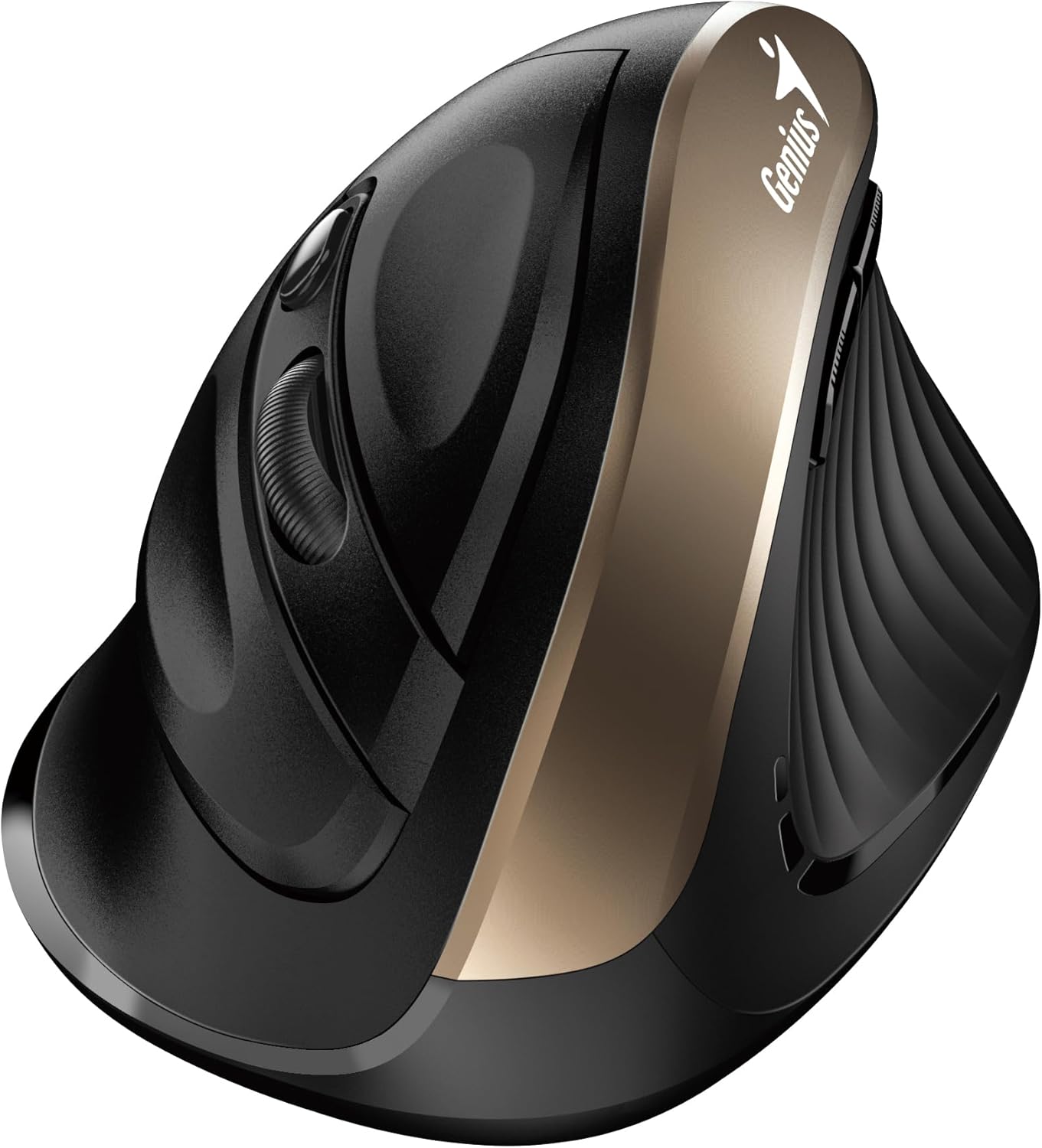
Figure 2.1: Side view highlighting the vertical ergonomic design and thumb rest of the mouse.
3. Package Contents
Please check the package carefully to ensure all items are present:
- Genius Ergo 8250S Wireless Vertical Ergonomic Silent Mouse
- USB Receiver
- AA Alkaline Battery (1 included)
- Quick Guide

Figure 3.1: Product packaging displaying the mouse, its features, and package contents.
4. System Requirements
To ensure proper functionality, your computer system must meet the following requirements:
- Operating System: Windows® 8, 10, 11 or later
- Operating System: Mac OS X 10.8 or later
- Port: Available USB port
5. Setup
- Install Battery: Open the battery compartment cover on the bottom of the mouse. Insert the provided AA alkaline battery, ensuring correct polarity (+/-). Close the cover securely.
- Connect USB Receiver: Locate the USB receiver stored in its slot on the bottom of the mouse. Remove it and plug it into an available USB port on your computer.
- Power On: Turn on the mouse using the power switch located on the bottom. The mouse should automatically connect to your computer.
- Driver Installation (Automatic): Your operating system will automatically detect and install the necessary drivers. This process may take a few moments.
6. Operating Instructions
The Ergo 8250S mouse features multiple buttons for enhanced productivity:

Figure 6.1: Top view of the mouse, indicating the positions of the various buttons.
- Left Click Button: Standard primary click function.
- Right Click Button: Standard secondary click function, typically opening context menus.
- Scroll Wheel / Middle Click: Scroll through documents and web pages. Pressing the wheel acts as a middle click.
- Forward Button: Navigates forward in web browsers or file explorers. (Located on the side, near the thumb rest)
- Reverse Button: Navigates backward in web browsers or file explorers. (Located on the side, near the thumb rest)
- DPI Switch Button: Press this button to cycle through DPI settings (800/1200/1600). The default setting is 1200 DPI.
7. Maintenance
- Cleaning: Use a soft, dry cloth to clean the mouse. For stubborn dirt, slightly dampen the cloth with water or a mild cleaning solution. Avoid harsh chemicals or abrasive materials.
- Battery Replacement: When the mouse performance degrades or the indicator light (if present) signals low battery, replace the AA battery. Ensure the mouse is powered off before replacing the battery.
- Storage: When not in use for extended periods, turn off the mouse to conserve battery life. Store the USB receiver in its dedicated slot on the mouse to prevent loss.
8. Troubleshooting
| Problem | Possible Cause | Solution |
|---|---|---|
| Mouse not responding |
|
|
| Cursor erratic or jumps |
|
|
| Buttons not working |
|
|
9. Specifications
| Feature | Detail |
|---|---|
| Model | Ergo 8250S |
| Brand | Genius |
| Connectivity | 2.4G Wireless |
| Operating Distance | Up to 10 meters |
| Buttons | 6 (Left, Right, Middle/Scroll, Forward, Reverse, DPI Switch) |
| DPI Settings | 800 / 1200 (Standard) / 1600 |
| Click Type | Silent Click |
| Power Source | 1 x AA Battery (included) |
| Color | Champagne Gold |
| First Available Date | June 12, 2025 |
10. Warranty and Support
For warranty information and technical support, please refer to the official Genius website or contact their customer service. Keep your purchase receipt as proof of purchase for warranty claims.
Manufacturer: Genius
Website: www.geniusnet.com (Please note: This is a general link and may not be the exact support page for your region or product. Refer to your product packaging or quick guide for specific support contacts.)
Related documentsErgo 8250S


Ask a question about this manual
Ask about setup, troubleshooting, compatibility, parts, safety, or missing instructions. Manuals+ will review the question and use this page’s manual context to help answer it.