
1. Introduction and Overview
The Bakoor Fitness Tracker is designed to help you monitor your daily activity and health metrics. It features a 1.10-inch AMOLED HD touch color screen, offering a clear visual and interactive experience. This device tracks various aspects of your health and fitness, including heart rate, blood oxygen, sleep patterns, and steps taken. It also provides smart notifications and supports multiple sports modes to enhance your fitness journey.
The tracker is lightweight and comfortable for all-day wear, designed to integrate seamlessly into your daily routine.
2. What's in the Box
- Bakoor Fitness Tracker (Model B0F48LGWFH)
- Charging Cable
- User Manual
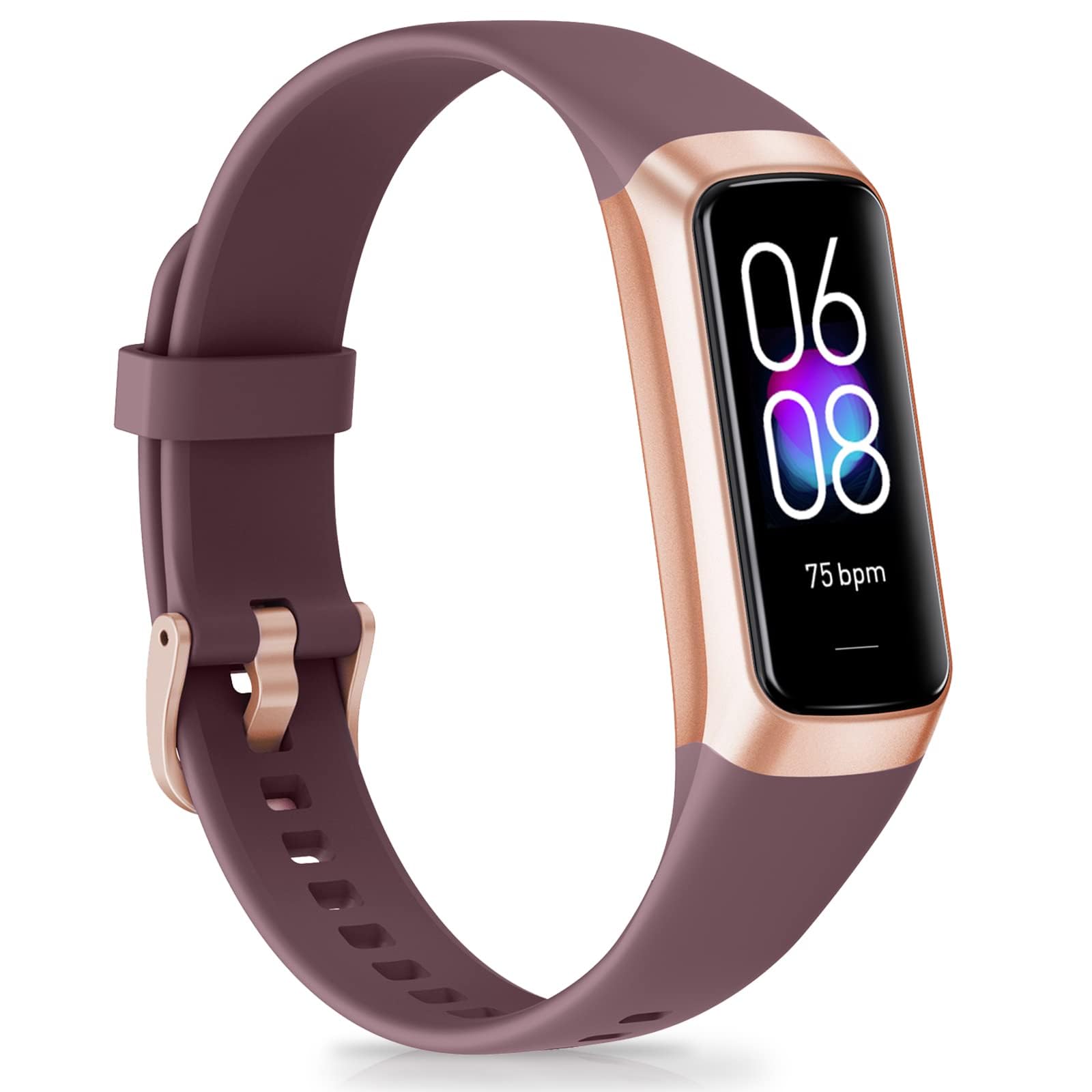
Image: Bakoor Fitness Tracker in bordeaux color, shown with its packaging.
3. Setup
3.1 Initial Activation and Charging
Upon first receiving your Bakoor Fitness Tracker, it is recommended to charge the device to activate it. Connect the provided charging cable to the charging port on the back of the tracker and plug the USB end into a compatible power source.

Image: A hand connecting the magnetic charging cable to the back of the fitness tracker.
3.2 App Download and Connection
- Search for and download the "KeepHealth" app from your device's app store (App Store for iOS or Google Play Store for Android).
- Ensure your phone's Bluetooth is turned on.
- Open the "KeepHealth" app, create an account, and log in.
- Navigate to the "Device" page within the app and select "Add a Device" to find and connect to your Bakoor Fitness Tracker (e.g., C60-XXX).
- Accurately fill in basic information such as gender, weight, and height in the app to ensure more accurate measurement results.
Note: The fitness tracker cannot be directly connected with Apple Health. Ensure app permissions for messages, calls, etc., are allowed for notifications to function correctly.
Video: Demonstrates the easy setup and navigation of the Bakoor Fitness Tracker, including connecting to the app and accessing various features.
4. Operating the Device
4.1 Basic Navigation
The Bakoor Fitness Tracker features a touch-sensitive AMOLED screen for navigation. Swipe up, down, left, or right to browse through different functions and menus. A short press on the screen typically selects an option or confirms an action.
4.2 Changing Watch Faces
To change the watch face, press and hold the power button for 3 seconds. You can also customize watch faces through the "KeepHealth" app, choosing from over 70 stylish options or creating your own DIY dials.

Image: A selection of customizable watch faces available for the Bakoor Fitness Tracker.
4.3 Accessing Functions
From the main watch face, swipe to access various functions such as:
- Step Count: Displays your daily steps, calories burned, and distance.
- Temperature: Measures your body temperature.
- Heart Rate: Initiates heart rate monitoring.
- Blood Pressure: Initiates blood pressure monitoring.
- Blood Oxygen: Initiates blood oxygen level monitoring.
- Workout: Select from 25 sports modes to track your exercise.
- Stopwatch: Access the stopwatch function.
- More: Contains additional settings and information about the device.
Video: A demonstration of navigating through the Bakoor Fitness Tracker's interface to access various features like time, steps, heart rate, and more.
5. Health Monitoring Features
5.1 Heart Rate, Blood Oxygen, and Blood Pressure Monitoring
The Bakoor Fitness Tracker provides 24/7 continuous heart rate monitoring, blood oxygen level tracking, and blood pressure monitoring. These features help you understand your body's trends and better estimate calorie burn. To ensure accurate readings, wear the watch one finger below the wrist bone, ensuring it is not too loose or too tight. Keep your arm still and flat after entering the measurement mode.
Note: This equipment is not a medical device. The data should be used for reference only and does not replace a doctor's advice.

Image: The fitness tracker displaying graphs for heart rate, blood pressure, and blood oxygen monitoring, with individuals exercising in the background.
5.2 Sleep Tracking
The fitness watch automatically measures your fall asleep and awake times, as well as periods of light and deep sleep. You can review your sleep quality and duration in the "KeepHealth" app to gain insights into your sleep patterns.

Image: The fitness tracker and its companion app showing detailed sleep tracking data, including deep sleep, light sleep, fall asleep, and awake times.
6. Sports Modes
The Bakoor Fitness Tracker offers 25 sports modes to track various exercises, including running, cycling, skipping, badminton, table tennis, and more. For each mode, it records relevant data such as steps, calories, distance, heart rate, and exercise time, helping you exercise more scientifically. With connected GPS via your phone, it can also record your workout route.

Image: The fitness tracker displaying icons for 25 different sport modes, with people engaged in various physical activities.
7. Smart Features & Notifications
Stay connected with intelligent notifications directly on your fitness tracker. You can receive alerts for calls, SMS messages, and social media notifications from platforms like Facebook, WhatsApp, Instagram, and Twitter. Additional smart features include weather updates, remote camera control, hydration and sedentary reminders, and female health tracking, all designed to help you maintain a balanced daily routine.

Image: The fitness tracker showing icons for message reminders, phone finder, remote picture taking, remote music control, sedentary reminder, and alarm clock, alongside social media app notifications.
8. Customization
Personalize your Bakoor Fitness Tracker with a variety of watch faces. The "KeepHealth" app offers over 70 stylish watch faces, and you can also create customizable DIY watch dials to match your personal style.
9. Charging & Battery Life
The Bakoor Fitness Tracker takes approximately 2 hours to fully charge. Once charged, you can enjoy up to 7 days of active use or 15 days of standby time, depending on usage patterns and feature activation.

Image: The fitness tracker displaying battery life information (up to 7 days use, 15 days standby) and compatibility with iOS and Android devices.
10. Water Resistance
The Bakoor Fitness Tracker features an IP68 water-resistant design, allowing it to withstand daily activities such as hand washing, rain, and splashes. It is designed to be water-resistant up to 1.5 meters. This ensures you can wear it confidently in various conditions.
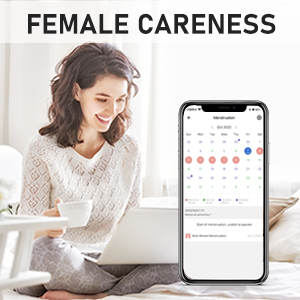
Image: The fitness tracker shown with water splashing around it, illustrating its 5 ATM water-resistant capability.
11. Specifications
| Feature | Specification |
|---|---|
| Operating System Compatibility | Android 5.0+ & iOS 9.0+ |
| Display Type | AMOLED Touch Color Screen |
| Screen Size | 1.1 Inches |
| Battery Capacity | 160 Milliamp Hours (Lithium Polymer) |
| Battery Charge Time | 2 Hours |
| Battery Life | Up to 7 days (active use), 15 days (standby) |
| Water Resistance Level | IP68 (1.5 Meters Depth) |
| Connectivity | Bluetooth |
| Metrics Measured | Heart Rate, Sleep Duration, Blood Oxygen |
| Special Features | Activity Tracker, Alarm Clock, Lightweight, Sedentary Reminder, Female Health Tracking |
| Band Material | Silicone |
12. Maintenance
To ensure the longevity and optimal performance of your Bakoor Fitness Tracker, follow these maintenance guidelines:
- Cleaning: Regularly clean the device and strap with a soft, damp cloth. Avoid using harsh chemicals or abrasive materials.
- Drying: After exposure to water, ensure the device is completely dry before charging or prolonged use.
- Storage: Store the tracker in a cool, dry place away from direct sunlight and extreme temperatures.
- Avoid Impact: Protect the device from strong impacts or drops, which can damage the screen or internal components.
13. Troubleshooting
Here are solutions to common issues you might encounter:
- Why can't your watch receive SMS and notifications?
Ensure the permissions for the "KeepHealth" app, messages, and calls are allowed on your phone. In the app, go to the "Device" page, then "Message Notification," and turn on "Notification." Notifications will only be received when this setting is enabled. - How to wear the watch and measure heart rate, blood pressure, and blood oxygen?
Connect the watch with your phone in the "KeepHealth" app. Wear the watch one finger below the wrist bone, ensuring it is not too loose or too tight. Keep your arm still and flat after entering the measurement mode to get more accurate readings. - Is there a way to reset the time on the watch?
The watch cannot set time manually. It will update its time when you connect it with your smartphone. If you do not wish to use it with a smartphone continuously, connect it once to update the time, then you can disconnect it. The watch time will remain correct. - Inaccurate measurements or unavailability:
External factors such as arm hair or tattoos may affect measurement accuracy. For high accuracy, the fitness tracker will only begin to count steps after walking for a short period.
14. Warranty & Support
This product does not come with a specified warranty. For any support or inquiries regarding your Bakoor Fitness Tracker, please contact the seller, Hailianhua Tech, through the platform where you made your purchase.