
1. Introduction
This manual provides essential information for setting up, operating, maintaining, and troubleshooting your DUNHOO Y11 laptop. Please read this manual thoroughly to ensure proper use and to maximize the lifespan of your device.
2. Setup
2.1 Unboxing and Initial Inspection
Upon receiving your DUNHOO Y11 laptop, carefully unpack all components. The package should include:
- DUNHOO Y11 Laptop
- AC Adapter
- Instruction Manual (this document)
Inspect the laptop and accessories for any signs of damage. If any items are missing or damaged, contact customer support immediately.
2.2 Initial Power On and Charging
Before first use, ensure the laptop is fully charged. Connect the AC adapter to the charging port on the laptop and then to a power outlet. The charging indicator light will illuminate.
To power on the laptop, open the lid and press the power button located on the keyboard. Follow the on-screen instructions to complete the initial Windows 11 Pro setup.
2.3 Connecting Peripherals
The DUNHOO Y11 laptop offers various ports for connecting external devices:
- USB 3.0 Ports (x3): For connecting USB devices such as mice, keyboards, or external storage.
- Type-C Port (x1): For data transfer and potentially charging (check adapter compatibility).
- HDMI Port (x1): For connecting to external displays or projectors.
- TF Card Slot: For expanding storage with a microSD card (supports up to 128GB).
- 3.5mm Headphone Jack: For connecting headphones or external speakers.
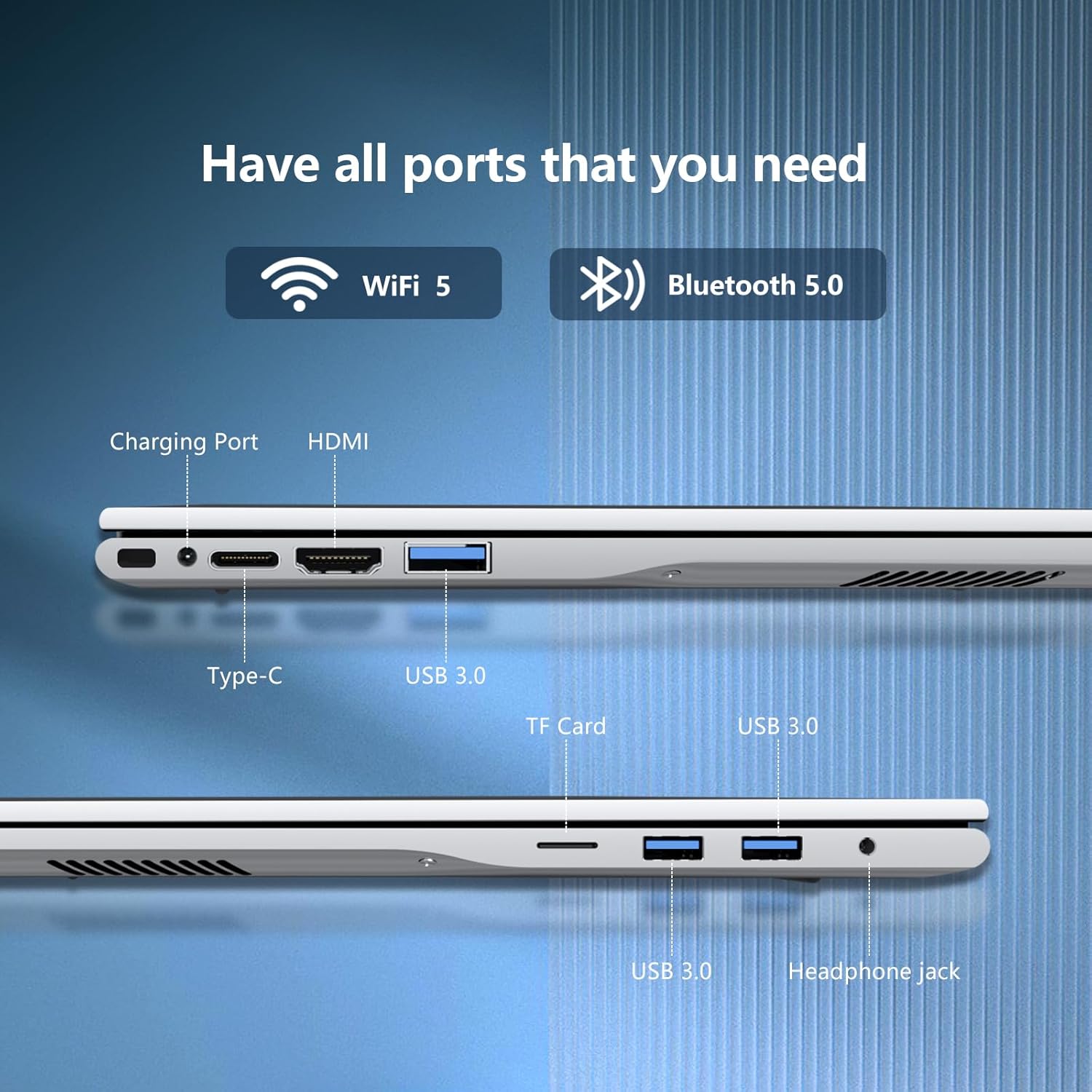
Image: Side view of the DUNHOO Y11 laptop illustrating the available ports for connectivity.
3. Operating Your Laptop
3.1 Power On/Off and Sleep Mode
- Power On: Open the lid and press the power button.
- Power Off: Click the Windows Start button, then Power > Shut down.
- Sleep Mode: Close the lid or click the Windows Start button, then Power > Sleep.
3.2 Display
The laptop features a 15.3-inch Full HD (1920x1200) IPS display. The screen can open up to a 180-degree angle for flexible viewing. Adjust brightness using the function keys (Fn + Fx) or through Windows display settings.

Image: The laptop's 15.3-inch Full HD IPS display, showcasing its visual clarity.
3.3 Keyboard and Touchpad
The integrated keyboard provides a comfortable typing experience. The touchpad supports multi-touch gestures for navigation. Refer to Windows settings for customizing touchpad sensitivity and gestures.
3.4 Wireless Connectivity
- Wi-Fi 5 (802.11ac): Connect to wireless networks for internet access. Access Wi-Fi settings via the taskbar icon or Windows Settings > Network & Internet > Wi-Fi.
- Bluetooth 5.0: Pair with Bluetooth-enabled devices such as headphones, speakers, or mice. Access Bluetooth settings via Windows Settings > Bluetooth & devices.
3.5 Camera and Audio
The laptop includes a 100W HD front camera for video calls and a built-in microphone. Dual stereo speakers provide audio output. Adjust volume using the function keys or the volume icon in the taskbar.

Image: Overview of the laptop's communication features, including the HD front camera, dual speakers, and microphone.
4. Maintenance
4.1 Battery Care
The laptop is equipped with a 5000mAh lithium polymer battery, providing an average battery life of up to 8 hours. To prolong battery life:
- Avoid extreme temperatures.
- Do not fully discharge the battery frequently.
- Store the laptop with a partial charge (around 50%) if not used for extended periods.
- Use only the provided AC adapter for charging.

Image: Visual representation of the laptop's 5000mAh battery capacity.
4.2 Cleaning
- Use a soft, lint-free cloth to clean the screen and exterior.
- For stubborn marks, dampen the cloth with water or a screen-safe cleaner.
- Avoid harsh chemicals or abrasive materials.
- Ensure the laptop is powered off and unplugged before cleaning.
4.3 Software Updates
Regularly update your Windows 11 Pro operating system and drivers to ensure optimal performance and security. Access updates via Windows Settings > Windows Update.
5. Troubleshooting
This section addresses common issues you might encounter with your DUNHOO Y11 laptop.
5.1 Laptop Does Not Power On
- Ensure the AC adapter is securely connected to both the laptop and a working power outlet.
- Verify the power outlet is functional by plugging in another device.
- If the battery is completely drained, it may take a few minutes of charging before the laptop can power on.
5.2 Slow Performance
- Close unnecessary applications running in the background.
- Check for and install any pending Windows updates.
- Ensure sufficient free space on the 512GB SSD.
- Run a system scan for malware or viruses.
5.3 Wi-Fi Connectivity Issues
- Ensure Wi-Fi is enabled in Windows settings.
- Restart your router and modem.
- Check if other devices can connect to the same Wi-Fi network.
- Update Wi-Fi drivers if available.
5.4 Overheating
- Ensure the laptop's vents are not obstructed.
- Use the laptop on a hard, flat surface rather than soft materials like blankets.
- Reduce the number of demanding applications running simultaneously.
6. Specifications

Image: Detailed view of the Intel Core i5 processor, emphasizing its core specifications.
| Feature | Detail |
|---|---|
| Model Name | Y11 |
| Processor | Intel Core i5 (1.7 GHz, up to 3.6 GHz) |
| RAM | 24 GB LPDDR3 |
| Storage | 512 GB SSD (eSATA interface) |
| Display | 15.3-inch FHD (1920x1200) IPS |
| Graphics Coprocessor | Intel UHD Graphics 600 (Integrated) |
| Operating System | Windows 11 Pro |
| Wireless Connectivity | Wi-Fi 5 (802.11a/b/g/n/ac), Bluetooth 5.0 |
| Ports | 3x USB 3.0, 1x Type-C, 1x HDMI, 1x TF Card Slot, 1x 3.5mm Headphone Jack |
| Battery | 5000mAh Lithium Ion (up to 8 hours average) |
| Front Camera | 100W HD |
| Dimensions (LxWxH) | 13.38 x 9.25 x 0.7 inches |
| Item Weight | 4.71 pounds |
7. Warranty Information
Your DUNHOO Y11 laptop is covered by a manufacturer's warranty. Please refer to the warranty card included in your product packaging or visit the official DUNHOO website for detailed terms and conditions regarding warranty coverage, duration, and service procedures. Keep your proof of purchase for warranty claims.
8. Customer Support
If you encounter issues not covered in this manual or require further assistance, please contact DUNHOO customer support. Contact information can typically be found on the official DUNHOO website or on the product packaging.
When contacting support, please have your laptop's model number (Y11) and serial number ready. The serial number is usually located on a sticker on the bottom of the laptop.