
BNCF NewBook 11
BNCF NewBook 11 2-in-1 Laptop User Manual
Model: NewBook 11 | Brand: BNCF
Introduction
This manual provides essential information for setting up, operating, maintaining, and troubleshooting your BNCF NewBook 11 2-in-1 Laptop. Please read this guide thoroughly to ensure optimal performance and longevity of your device.
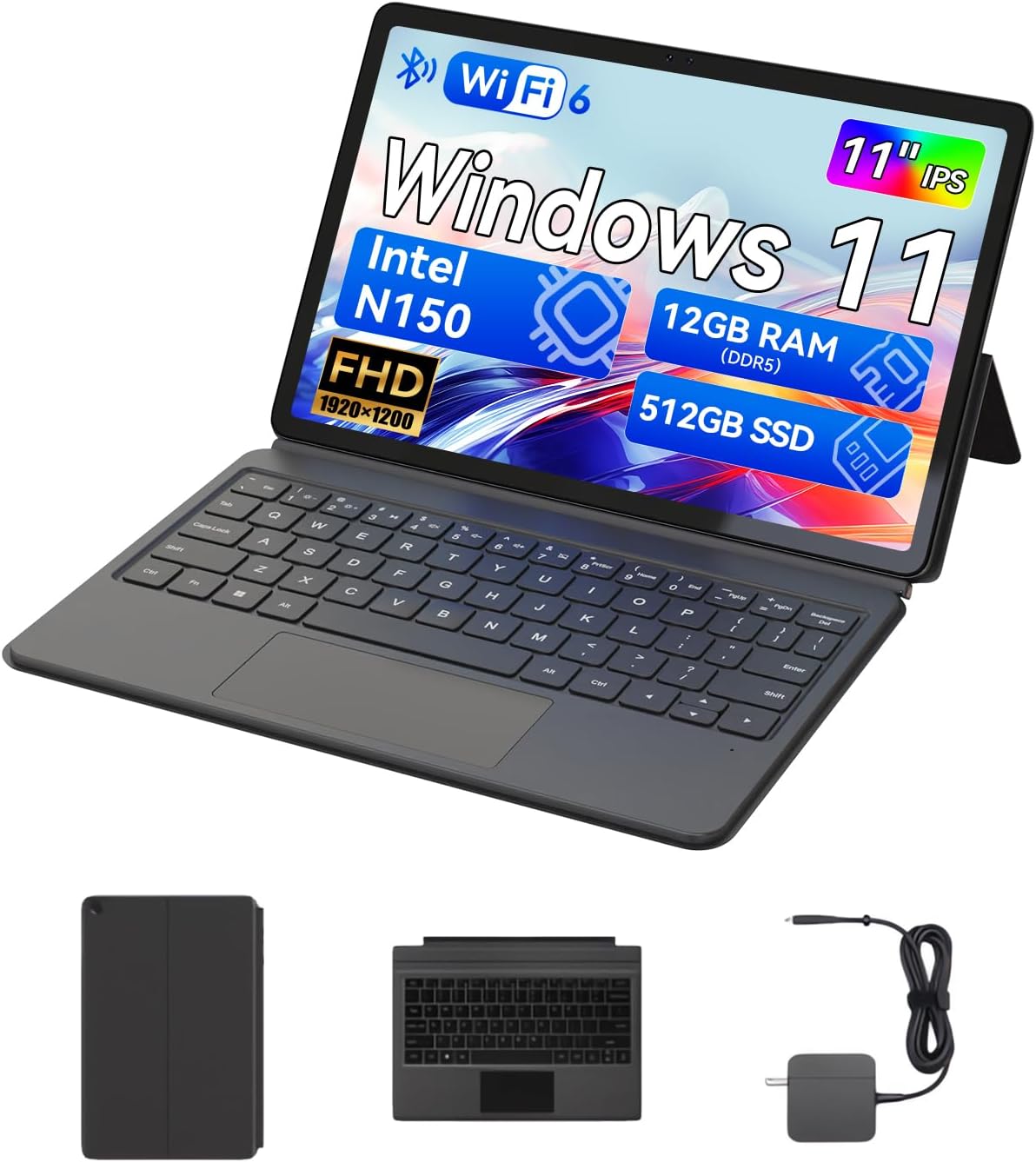
The BNCF NewBook 11 2-in-1 Laptop, shown here in its laptop configuration, featuring an 11-inch display, detachable keyboard, and kickstand.
1. Setup Guide
1.1 Unboxing and Initial Inspection
Upon receiving your BNCF NewBook 11, carefully unpack all components. Ensure the following items are present:
- BNCF NewBook 11 2-in-1 Laptop
- Magnetic Keyboard
- Kickstand
- Power Adapter (12V/3A)
- User Manual (this document)
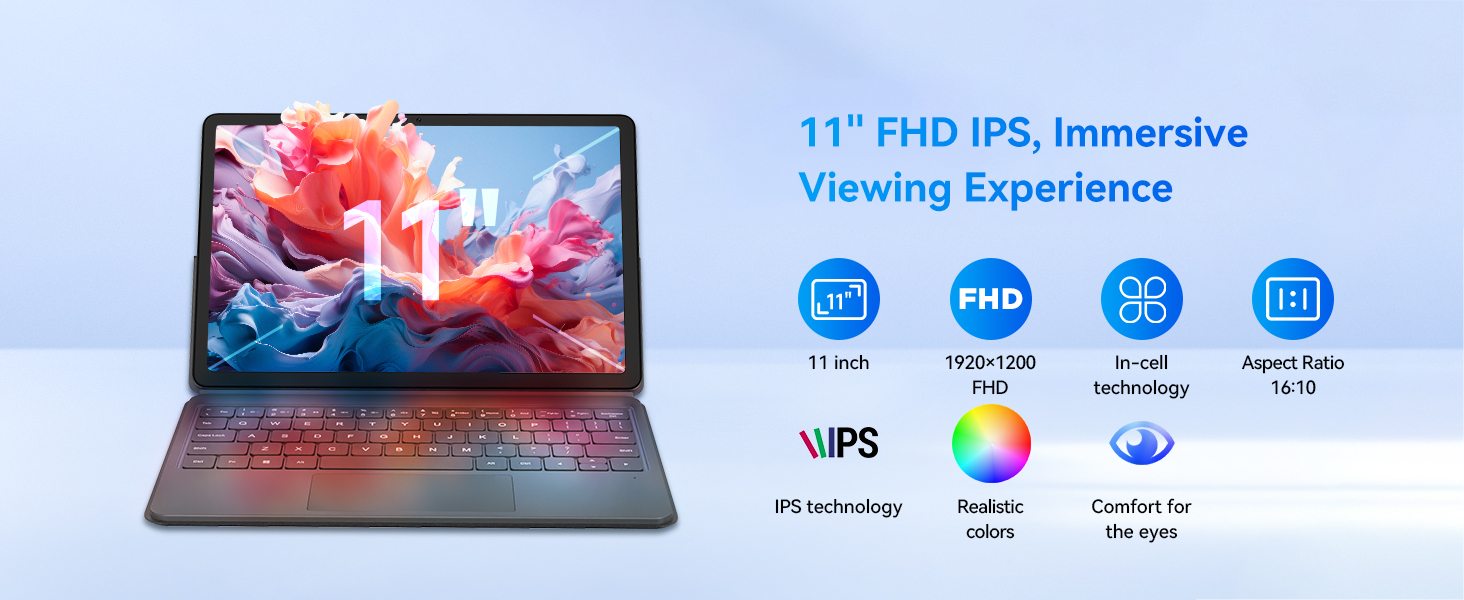
Illustration of the items included in the BNCF NewBook 11 package, including the main unit, keyboard, kickstand, and power adapter.
1.2 Charging the Device
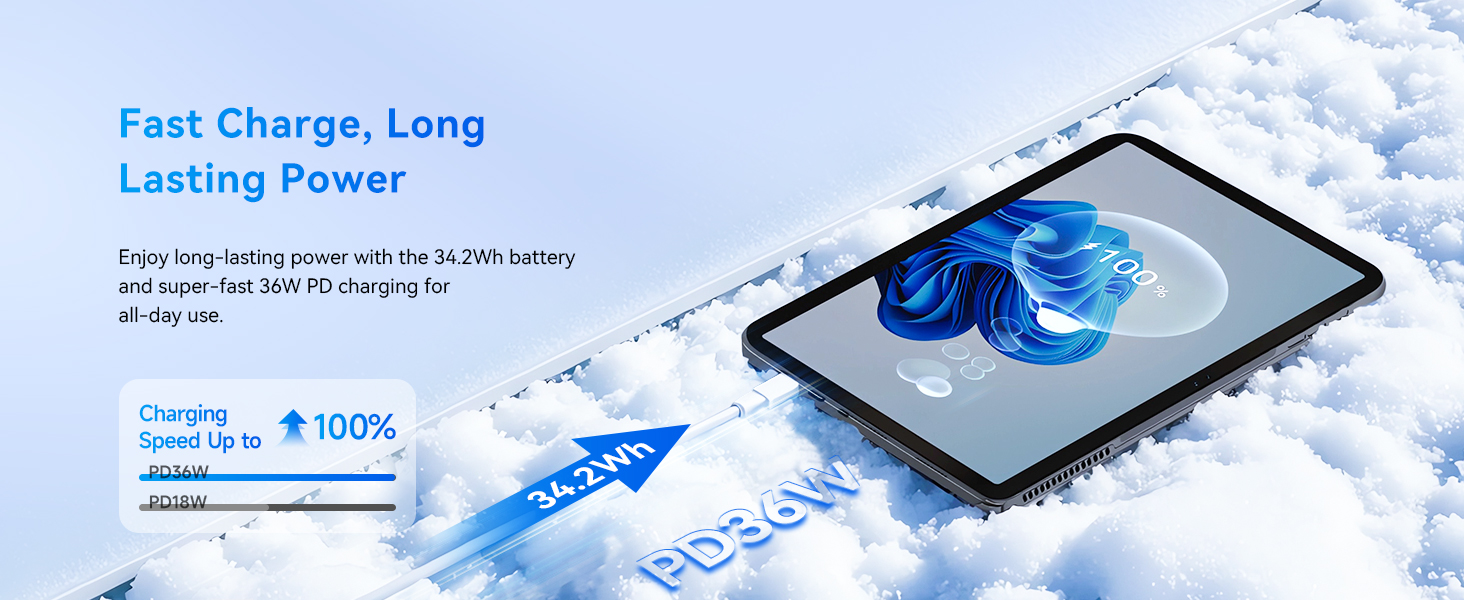
Before first use, fully charge your NewBook 11. Connect the provided power adapter to the Type-C charging port on the device and then to a power outlet. The charging indicator will illuminate.
1.3 Attaching the Keyboard and Kickstand
The magnetic keyboard and kickstand are designed for easy attachment and detachment:
- Keyboard: Align the magnetic connector on the keyboard with the docking port at the bottom edge of the tablet. The magnets will secure it in place.
- Kickstand: The kickstand attaches magnetically to the back of the tablet. Position it to achieve your desired viewing angle. Note that frequent adjustments may require re-aligning the kickstand.

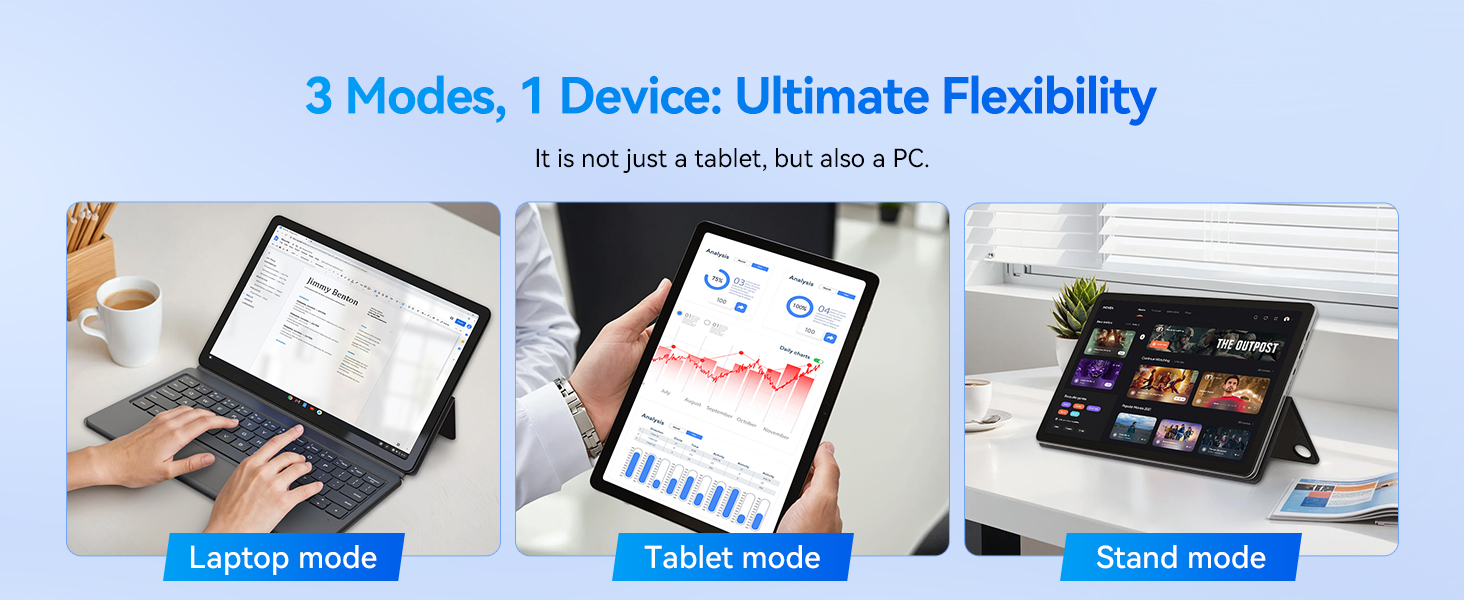
The BNCF NewBook 11 demonstrating its three flexible modes: laptop, tablet, and stand, enabled by the magnetic keyboard and kickstand.
1.4 Initial Power-On and Windows 11 Setup
Press and hold the power button located on the side of the device until the screen illuminates. Follow the on-screen instructions to complete the Windows 11 initial setup, including language selection, network connection, and user account creation.
2. Operating Instructions
2.1 2-in-1 Functionality
The BNCF NewBook 11 offers versatile usage modes:
- Laptop Mode: With the keyboard and kickstand attached, use the device as a traditional laptop for productivity tasks.
- Tablet Mode: Detach the keyboard to use the device as a standalone tablet for touch-based interactions, browsing, or media consumption.
- Stand Mode: Use the kickstand to prop up the tablet without the keyboard, ideal for watching videos or presentations.
2.2 Touchscreen and Display
The 11-inch FHD IPS In-Cell touchscreen (1920x1200 resolution) provides clear visuals and responsive touch input. Utilize multi-touch gestures for navigation within Windows 11.
The 11-inch FHD IPS In-Cell display of the NewBook 11, designed for clear and vibrant visuals.
2.3 Connectivity
The device features various ports and wireless options:
- USB-C Ports (2): One for charging/data, one full-featured.
- USB 3.0 Port (1): For connecting peripherals.
- Micro HDMI Port (1): For external display output (supports 1080P HD).
- 3.5mm Audio Jack (1): For headphones or external speakers.
- Wi-Fi 6: For high-speed wireless internet connectivity (2.4/5GHz).
- Bluetooth 5.0: For connecting wireless accessories.
Detailed view of the BNCF NewBook 11's ports and external features, highlighting its comprehensive connectivity options.
2.4 Cameras
The device includes dual cameras: a 5MP front camera and an 8MP rear camera, suitable for video calls and basic photography.
3. Maintenance and Care
3.1 Cleaning
- Screen: Use a soft, lint-free cloth specifically designed for electronics. Dampen slightly with water or a screen cleaner if necessary. Avoid harsh chemicals.
- Body: Wipe the metal chassis with a soft, dry cloth.
3.2 Battery Care
To prolong battery life:
- Avoid fully discharging the battery frequently.
- Do not expose the device to extreme temperatures.
- Use only the provided BNCF power adapter for charging.
3.3 Cooling System
The NewBook 11 features an active cooling system with a PC-level fan and dual-copper heat pipe. Ensure the air vents are not obstructed to maintain optimal performance and prevent overheating.
An illustration of the internal active cooling system, showing the PC-level fan and copper heat pipe designed to maintain stable device temperature.
4. Troubleshooting
This section addresses common issues you might encounter with your BNCF NewBook 11.
4.1 Device Not Powering On
- Ensure the device is fully charged. Connect the power adapter and wait a few minutes before attempting to power on again.
- Press and hold the power button for 10-15 seconds to perform a hard reset.
4.2 Short Battery Life
- Adjust screen brightness to a lower setting.
- Close unnecessary background applications.
- Ensure Wi-Fi and Bluetooth are turned off when not in use.
- Check for Windows updates, as power management improvements may be included.
4.3 Display Issues (e.g., Washed Out Colors)
- Check display settings in Windows 11 (Settings > System > Display) for color calibration options.
- Ensure graphics drivers are up to date.
4.4 Keyboard or Trackpad Not Responding
- Ensure the magnetic keyboard is securely attached to the tablet's docking port.
- Detach and reattach the keyboard.
- Restart the device.
- If issues persist, contact BNCF support.
4.5 General Performance Slowdown
- Close unused applications and browser tabs.
- Check for sufficient free storage space on the 512GB SSD.
- Run a system scan for malware.
- Ensure Windows 11 is updated to the latest version.
5. Specifications
| Feature | Detail |
|---|---|
| Model Name | NewBook 11 |
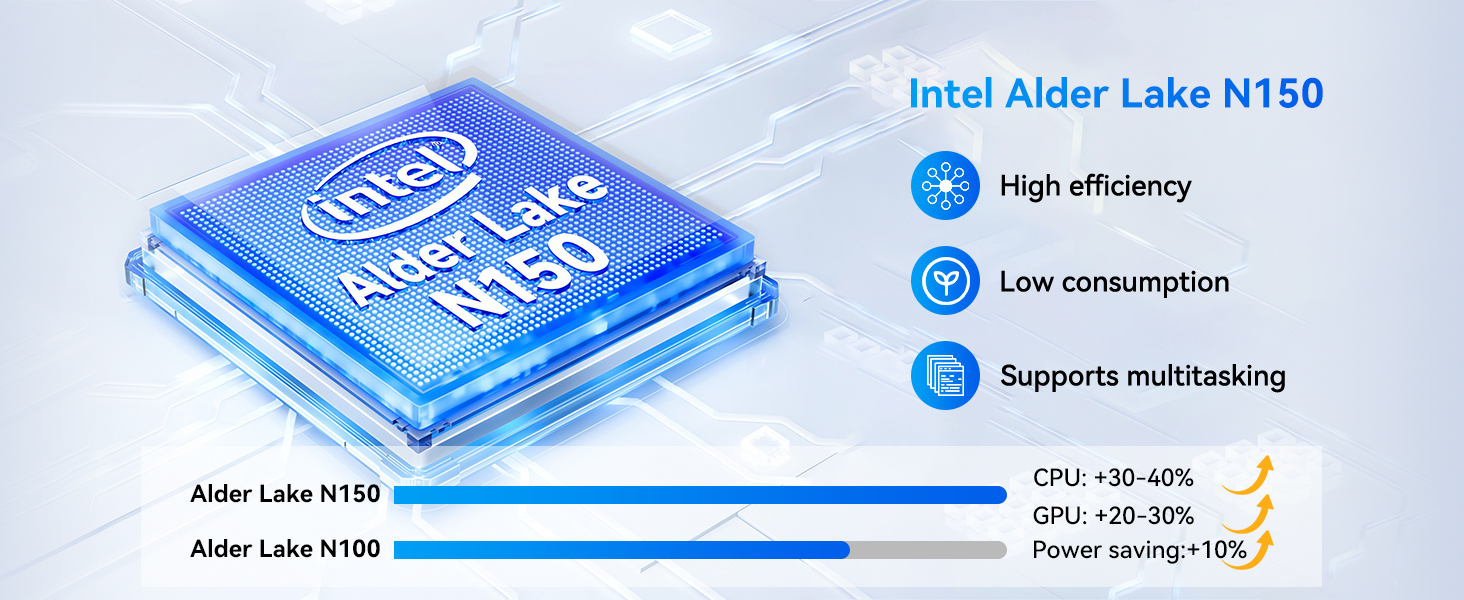
| Processor | Intel Alder Lake N150 (Quad-core, up to 3.6 GHz) |
| Graphics | Intel UHD Graphics |
| RAM | 12GB DDR5 |
| Storage | 512GB NVMe SSD |
| Operating System | Windows 11 Pro |
| Display | 11-inch FHD IPS In-Cell Touchscreen (1920x1200 pixels) |
| Cameras | Front: 5MP, Rear: 8MP |
| Wireless Connectivity | Wi-Fi 6 (2.4/5GHz), Bluetooth 5.0 |
| Ports | 2x Type-C (charging/data, full-featured), 1x USB 3.0, 1x Micro HDMI, 1x 3.5mm Audio Jack |
| Battery | 34.2Wh, supports PD 36W fast charging |
| Dimensions (Tablet) | 10.12 x 6.61 x 0.38 inches |
| Weight (Tablet) | 635g (1.4 lbs) |
| Weight (Total with Keyboard/Kickstand) | 1106g (2.44 lbs) |
6. Warranty and Support
BNCF is committed to providing high-quality products and customer satisfaction.
6.1 Warranty Information
Your BNCF NewBook 11 comes with a one-year warranty. This warranty covers manufacturing defects and ensures that your device meets BNCF's quality standards. For specific details regarding the RMA (Return Merchandise Authorization) policy, please refer to the official BNCF website or contact customer support.
6.2 Technical Support
BNCF offers lifetime technical support for its products. If you encounter any issues or have questions regarding your device, please contact BNCF customer service. You can expect a response within 24 hours.

BNCF provides a one-year warranty and dedicated support to ensure customer satisfaction.
Ask a question about this manual
Ask about setup, troubleshooting, compatibility, parts, safety, or missing instructions. Manuals+ will review the question and use this page’s manual context to help answer it.