
1. Product Overview
This manual provides instructions for the Oskkude TISU Car Stereo Radio, designed for Toyota Sienna models from 2011 to 2014. This unit features a 9-inch IPS touchscreen, Android 13.0 operating system, Wireless CarPlay, Android Auto, GPS navigation, WiFi connectivity, steering wheel control compatibility, Bluetooth, FM/RDS radio, split-screen functionality, and support for a backup camera.

Image 1.1: Comparison of the Toyota Sienna dashboard before and after installation of the Oskkude Car Stereo.
2. Safety Information
- Read all instructions carefully before installation and operation.
- Professional installation is recommended to avoid damage to the vehicle or the unit.
- Do not operate the unit in a manner that distracts you from driving. Always prioritize road safety.
- Ensure all wiring connections are secure and properly insulated to prevent short circuits.
- Keep the unit away from water and excessive heat.
3. Package Contents
Verify that all items are present in the package:
- Oskkude TISU Car Stereo Unit
- Power Cable
- RCA Input/Output Cables
- USB Cables (2)
- Camera Input Cable
- GPS Antenna
- Instruction Manual
- Backup Camera (if included with purchase)

Image 3.1: Main unit and included accessories.
4. Installation
Before beginning installation, ensure the vehicle's battery is disconnected. This unit is designed for Toyota Sienna 2011-2014 models. Confirm the dimensions and shape of your vehicle's center console for proper fitment.
4.1 Wiring Connections
Connect the provided cables to the corresponding ports on the car stereo and your vehicle's wiring harness. Refer to your vehicle's wiring diagram for specific connections. Ensure all connections are secure.
- Power Cable: Connect to the vehicle's power supply.
- RCA Input/Output: For external audio/video devices.
- USB Cables: For connecting USB devices or wired CarPlay/Android Auto.
- Camera Input: Connect the backup camera cable here.
- GPS Antenna: Mount the GPS antenna in a location with a clear view of the sky for optimal signal reception.
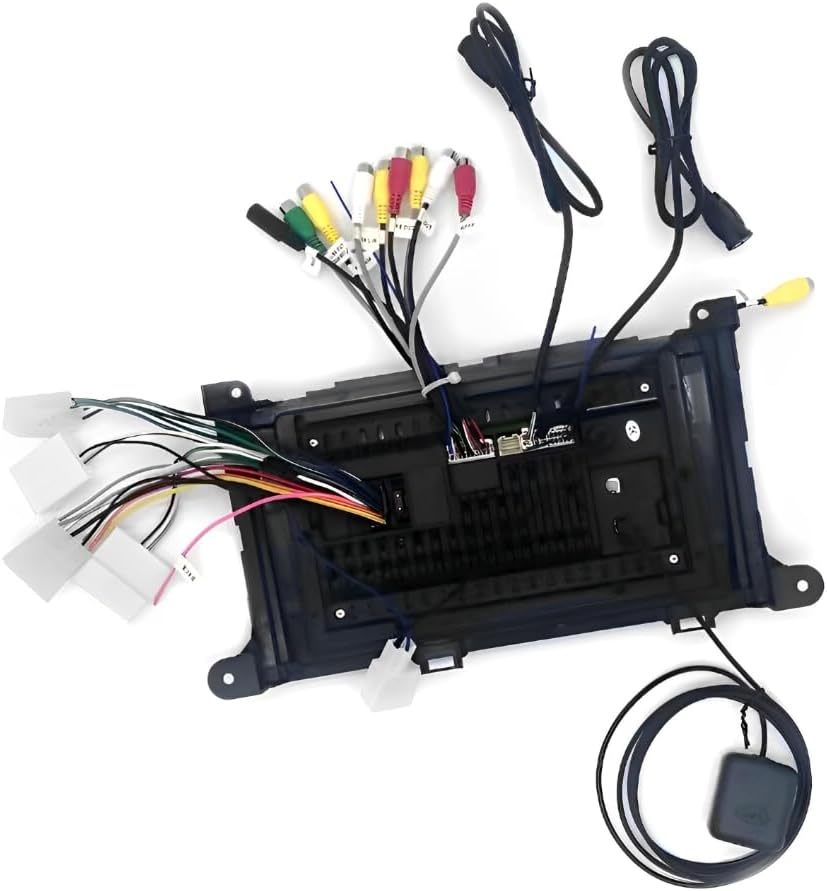
Image 4.1: Rear view of the car stereo with wiring connections.
4.2 Unit Mounting
Once wiring is complete, carefully mount the car stereo into the dashboard opening. Secure it using the appropriate mounting brackets and screws. Reconnect the vehicle's battery and test the unit.
5. Operating Instructions
5.1 Initial Power On and Basic Settings
After installation, turn on the vehicle's ignition. The unit will power on. Follow any on-screen prompts for initial setup, such as language selection and time zone.
Video 5.1: Demonstrates how to start the car navigation system on the unit.
5.2 Wireless CarPlay and Android Auto
The unit supports both Wireless CarPlay and Android Auto for seamless smartphone integration. This allows access to navigation, calls, messages, and music directly from the car stereo display.
- Ensure Bluetooth is enabled on your smartphone.
- On the car stereo, navigate to the 'ZLINK' application.
- Follow the on-screen instructions to pair your phone via Bluetooth.
- Once Bluetooth is connected, the system will prompt you to enable CarPlay or Android Auto.
- If the connection is not successful, manually connect your phone to the car stereo's WiFi hotspot (found in Android Settings > Network & Internet > Hotspot & tethering > Wi-Fi hotspot). After connecting to WiFi, delete the history record in ZLINK and try again.

Image 5.2: Wireless CarPlay and Android Auto interfaces.
Video 5.3: Instructions on how to connect Wireless CarPlay.
5.3 GPS Navigation & WiFi
The unit includes a built-in GPS module and supports online/offline maps. An offline map of North America is pre-installed. Connect to WiFi to use online maps and download additional applications from the Application Store.

Image 5.4: GPS Navigation and WiFi connectivity.
5.4 Bluetooth Connectivity
Connect your smartphone via Bluetooth for hands-free calling and audio streaming. Access the Bluetooth menu on the unit to pair your device.
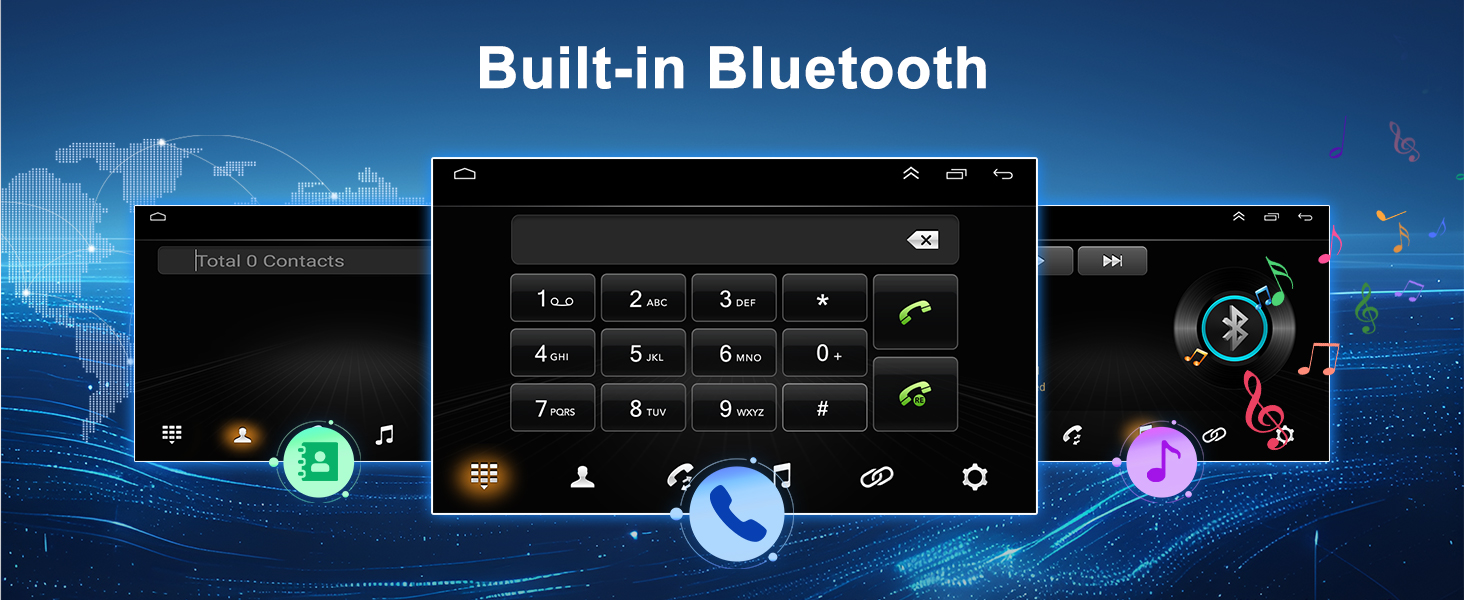
Image 5.5: Built-in Bluetooth interface for calls and music.
5.5 Steering Wheel Control (SWC)
The unit supports original steering wheel control functions, allowing you to manage songs, channels, and volume without taking your hands off the wheel. Access the 'Steering Learn' option in the settings to configure the controls.

Image 5.6: Steering Wheel Control configuration screen.
5.6 Backup Camera
The unit supports a backup camera with night vision and a 170° wide field of view. When the vehicle is in reverse, the camera feed will automatically display on the screen.
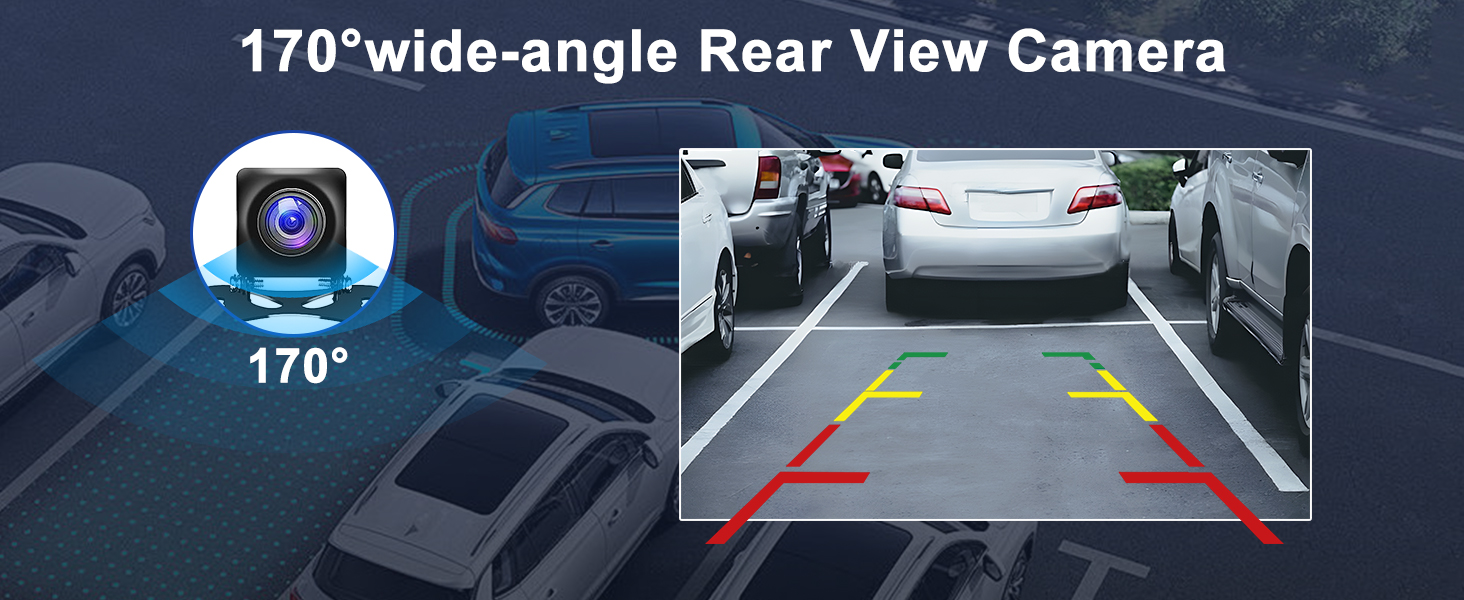
Image 5.7: Rear View Camera display.
5.7 FM/RDS Radio
The built-in FM/RDS radio supports automatic and manual station searching. You can save your favorite stations for quick access.
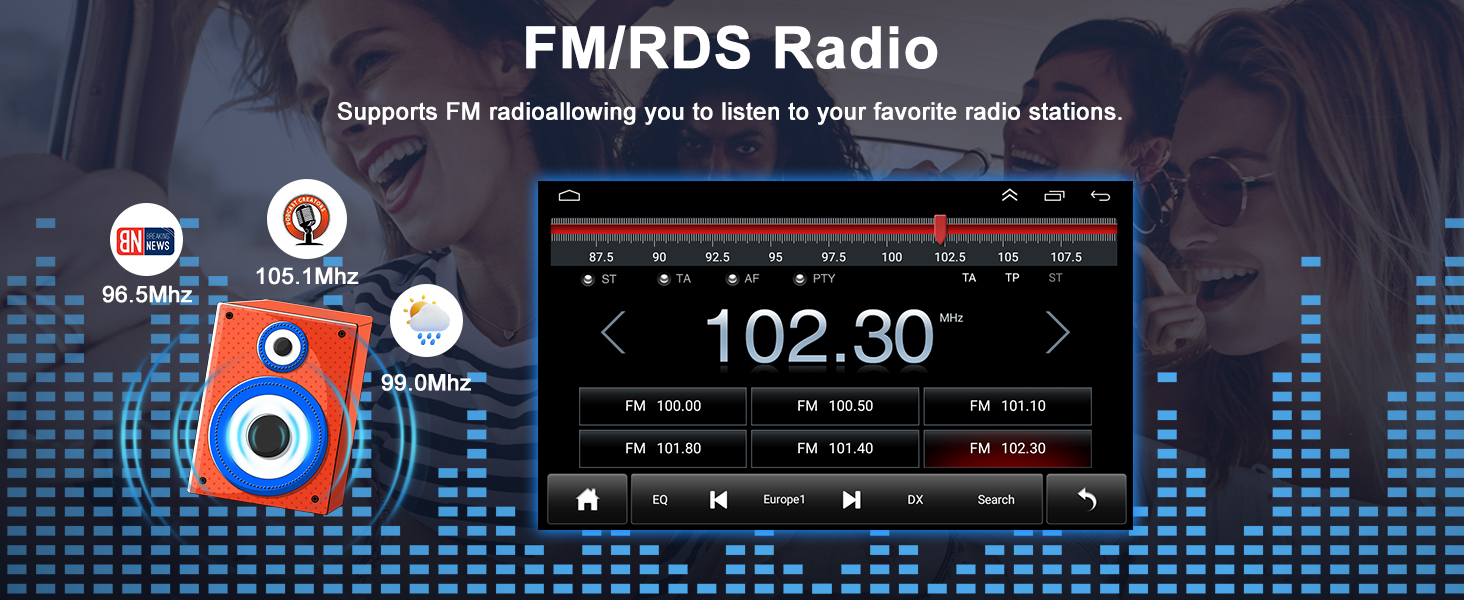
Image 5.8: FM/RDS Radio interface.
5.8 Split Screen
Utilize the split-screen function to operate two applications simultaneously, such as navigation while listening to music.
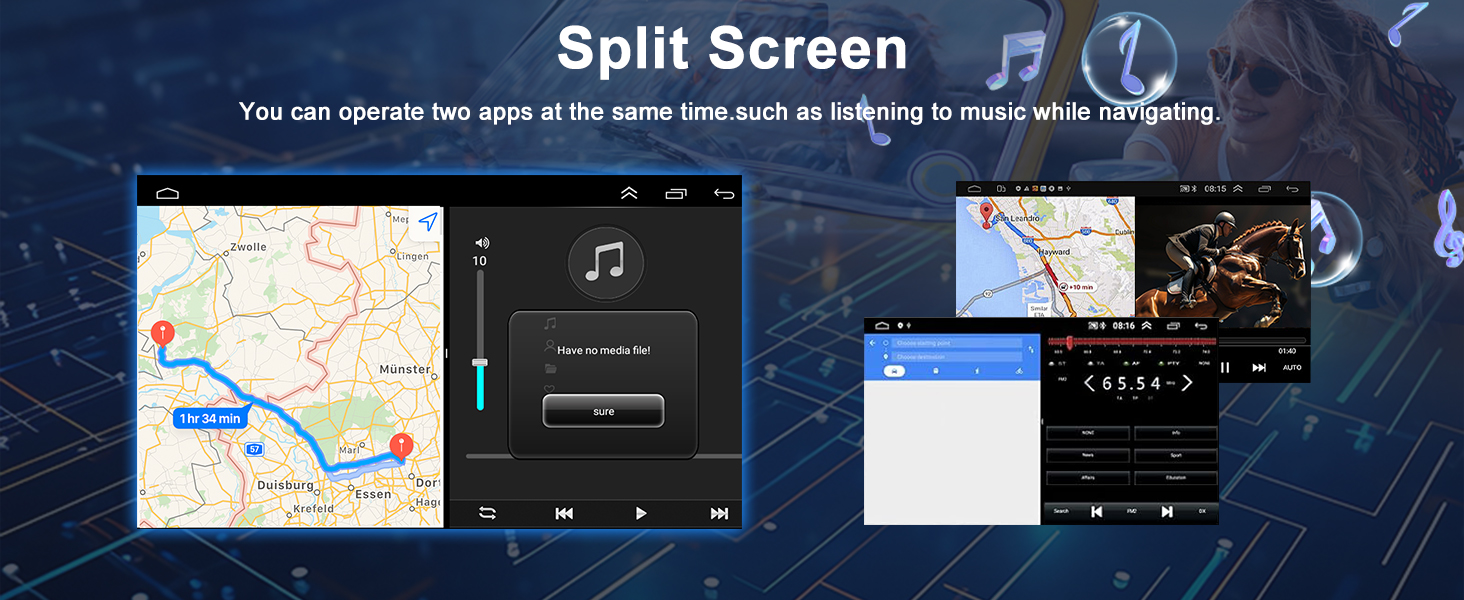
Image 5.9: Split Screen functionality.
5.9 Mirror Link
The Mirror Link feature allows you to display your smartphone screen directly onto the car stereo, enabling access to navigation, videos, and other content.
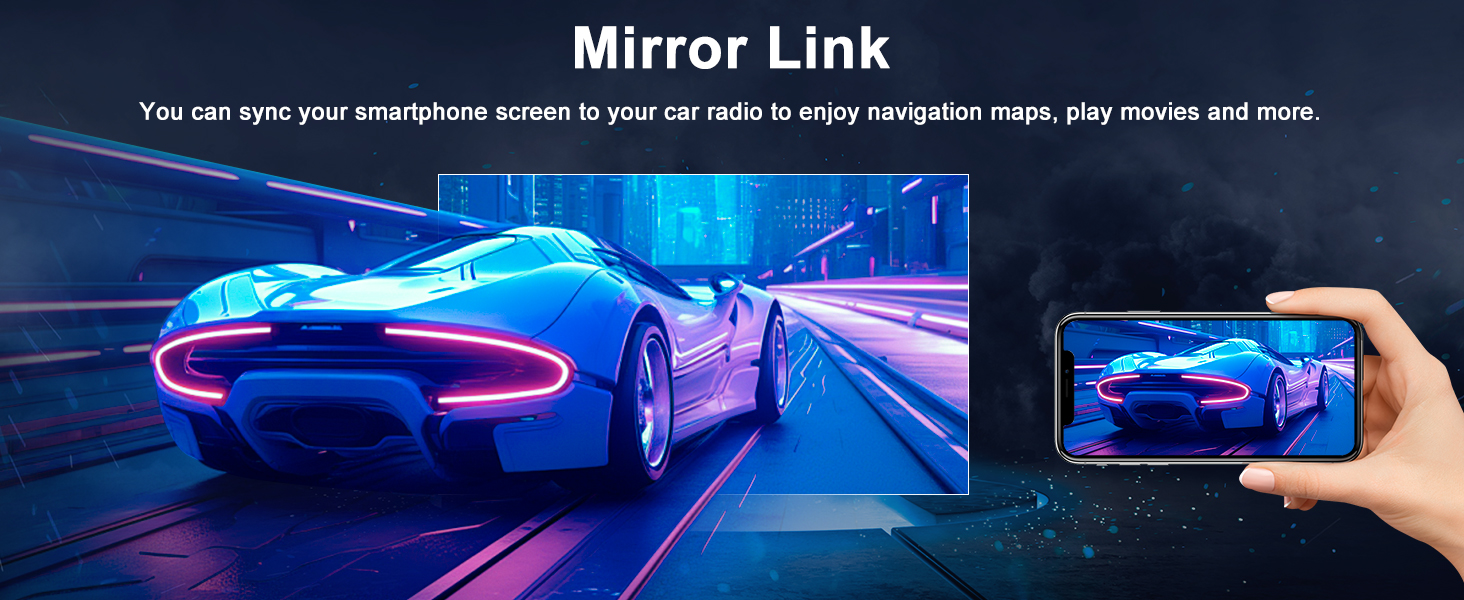
Image 5.10: Mirror Link feature.
6. Maintenance
- Screen Cleaning: Use a soft, lint-free cloth to clean the touchscreen. Avoid abrasive cleaners or harsh chemicals.
- Software Updates: Periodically check for available software updates to ensure optimal performance and access to new features. Updates can typically be found through the unit's settings or the manufacturer's website.
- General Care: Protect the unit from direct sunlight for extended periods and extreme temperatures.
7. Troubleshooting
- No Power: Check all power connections and the vehicle's fuse box. Ensure the ignition is on.
- No Sound: Verify speaker connections, volume settings, and audio source selection. Check if the mute function is active.
- Bluetooth Not Connecting: Ensure Bluetooth is enabled on both the unit and your phone. Delete previous pairings and try re-pairing. Check the Bluetooth settings on the unit for device visibility.
- GPS Signal Loss: Ensure the GPS antenna is properly installed and has a clear view of the sky. Move the vehicle to an open area if signal is weak.
- CarPlay/Android Auto Not Starting: Confirm Bluetooth and/or WiFi connections are stable. Restart the ZLINK application or the car stereo. Ensure your phone's operating system is up to date.
- Touchscreen Unresponsive: Try restarting the unit. If the issue persists, a factory reset might be necessary (note: this will erase all user data).
8. Specifications
| Feature | Specification |
|---|---|
| Brand | Oskkude |
| Model Name | TISU |
| Vehicle Service Type | Car (Toyota Sienna 2011-2014) |
| Screen Size | 9 Inches |
| Operating System | Android 13.0 |
| Memory Storage Capacity | 32 GB |
| Connectivity Technology | Bluetooth, USB, Wi-Fi |
| Special Features | Wireless CarPlay, Android Auto, Steering Wheel Control, GPS Navigation, IPS Touchscreen, Split Screen, AHD Backup Camera, FM/AUX, AV IN, RCA, RLV |
| Map Type | Worldwide (Offline North America included) |
| Audio Output Mode | Stereo |
| Item Weight | 1480 Grams |
9. Warranty and Support
This Oskkude product comes with a standard manufacturer's warranty. For specific warranty details, including coverage and duration, please refer to the warranty card included in your package or contact Oskkude customer support. If you encounter any issues or require technical assistance, please visit the Oskkude store on Amazon or contact their customer service directly. Keep your purchase receipt as proof of purchase for warranty claims.