
THOMSON B210
THOMSON B210 Bluetooth Soundbar User Manual
Model: B210
1. Safety Information
Please read all safety instructions carefully before using this product. Retain this manual for future reference.
- Do not expose the soundbar to rain, moisture, or extreme temperatures.
- Do not block any ventilation openings.
- Use only attachments/accessories specified by the manufacturer.
- Unplug the soundbar during lightning storms or when unused for long periods.
- Refer all servicing to qualified service personnel.
2. Package Contents
Verify that all items are present in the package:
- THOMSON B210 Bluetooth Soundbar
- Remote Control
- Power Adapter
- User Manual
- Audio Cables (e.g., Optical, AUX - specific cables may vary)
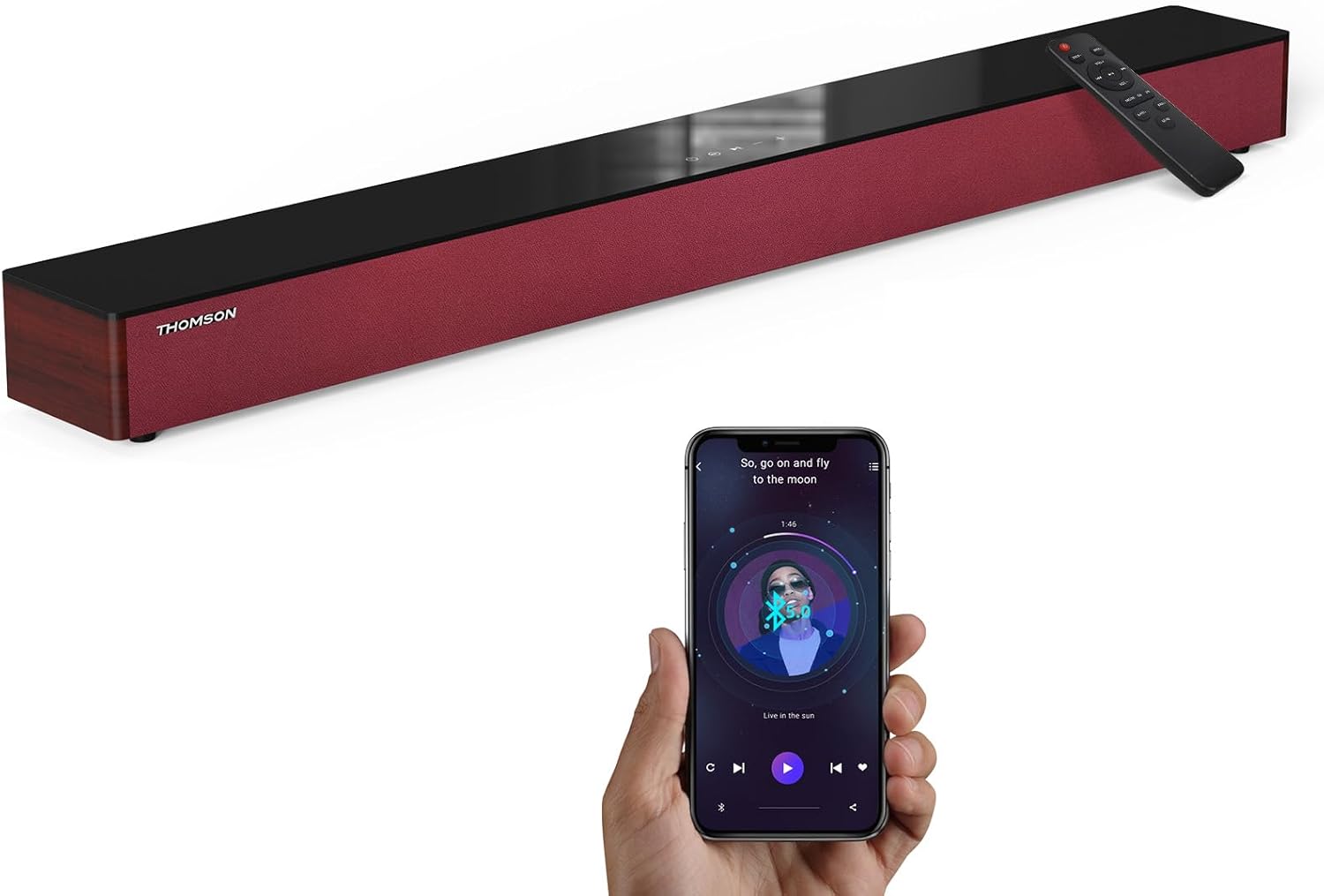
Image: The THOMSON B210 Soundbar, its remote control, and a smartphone demonstrating Bluetooth connectivity.
3. Product Overview
3.1 Front and Top Panel
The soundbar features intuitive controls on its top panel for easy access.
3.2 Rear Panel Connections
The rear panel provides various input ports for connecting to different audio sources.

Image: Detailed view of the soundbar's rear connection ports, including AUX IN, COAXIAL, OPTICAL, HDMI ARC, USB, and DC IN.
3.3 Remote Control
The included remote control allows for convenient operation of all soundbar functions.

Image: A hand operating the soundbar with its remote control, demonstrating wireless command over the device.
4. Setup
4.1 Placement
Place the soundbar on a stable, flat surface directly in front of your television for optimal sound dispersion. Ensure there is adequate space around the soundbar for ventilation.
4.2 Power Connection
- Connect the power adapter to the DC IN port on the rear of the soundbar.
- Plug the other end of the power adapter into a wall outlet.
5. Operating Instructions
5.1 Power On/Off
Press the Power button on the soundbar's top panel or the remote control to turn the unit on or off.
5.2 Volume Control
Use the Volume Up (+) and Volume Down (-) buttons on the soundbar or remote control to adjust the audio level.
5.3 Input Selection
Press the 'MODE' button on the soundbar or remote control to cycle through available input sources: ARC, Optical, AUX, USB, and Bluetooth.
5.4 Equalizer Modes
The soundbar offers three distinct equalizer modes to optimize audio for different content types:
- Music Mode: Enhances musical clarity and bass.
- Movie Mode: Provides a more immersive cinematic experience.
- News Mode: Optimizes dialogue for clear speech.
Press the corresponding EQ button on the remote control to select your desired mode.

Image: Visual representation of the soundbar's optimized audio modes for Music, Movie, and News content.
6. Connections
The THOMSON B210 Soundbar supports multiple connection types for versatility.

Image: The soundbar demonstrating its compatibility with multiple devices such as projectors, PCs, game consoles, and smartphones.
6.1 HDMI ARC Connection
For the best audio quality and control, connect your TV to the soundbar using an HDMI cable via the ARC port.
- Connect one end of an HDMI cable to the HDMI ARC port on your TV.
- Connect the other end to the HDMI ARC port on the soundbar.
- Select 'ARC' as the input source on the soundbar.
6.2 Optical Connection
Use an optical cable for a high-quality digital audio connection.
- Connect one end of an optical cable to the Optical OUT port on your TV or audio device.
- Connect the other end to the OPTICAL port on the soundbar.
- Select 'Optical' as the input source on the soundbar.
6.3 AUX Connection
For analog audio devices, use an AUX cable.
- Connect one end of a 3.5mm audio cable to the headphone jack or AUX OUT port on your device.
- Connect the other end to the AUX IN port on the soundbar.
- Select 'AUX' as the input source on the soundbar.
6.4 USB Connection
Play audio files directly from a USB storage device.
- Insert a USB drive into the USB port on the soundbar.
- Select 'USB' as the input source on the soundbar.
- The soundbar will automatically begin playing compatible audio files.
6.5 Bluetooth Pairing
Connect your smartphone, tablet, or other Bluetooth-enabled device wirelessly.
- Turn on the soundbar and select 'Bluetooth' mode using the 'MODE' button. The Bluetooth indicator will flash.
- Enable Bluetooth on your device and search for available devices.
- Select 'THOMSON B210' from the list.
- Once paired, the Bluetooth indicator will stop flashing and remain solid.

Image: A family enjoying entertainment with the soundbar, illustrating seamless Bluetooth connectivity from a smartphone.
7. Maintenance
To ensure the longevity and optimal performance of your soundbar, follow these maintenance guidelines:
- Cleaning: Use a soft, dry cloth to clean the surface of the soundbar. Do not use liquid cleaners or abrasive materials.
- Storage: If storing the soundbar for an extended period, unplug it from the power outlet and store it in a cool, dry place.
- Ventilation: Ensure that the ventilation openings are not obstructed to prevent overheating.
8. Troubleshooting
If you encounter issues with your THOMSON B210 Soundbar, refer to the following common problems and solutions:
| Problem | Possible Cause | Solution |
|---|---|---|
| No power | Power cable not connected; Power outlet not active | Ensure power cable is securely connected; Try a different power outlet |
| No sound | Incorrect input source; Volume too low; Mute activated; Cable connection issue | Select correct input source; Increase volume; Deactivate mute; Check audio cable connections |
| Bluetooth pairing fails | Soundbar not in pairing mode; Device Bluetooth off; Device too far | Ensure soundbar is in Bluetooth mode (flashing indicator); Enable Bluetooth on device; Move device closer to soundbar |
| Remote control not working | Batteries depleted; Obstruction between remote and soundbar | Replace remote control batteries; Remove any obstructions; Ensure remote is pointed at the soundbar's sensor |
9. Specifications
Detailed technical specifications for the THOMSON B210 Soundbar:
- Model: B210
- Brand: THOMSON
- Product Dimensions: 36.5"D x 4.7"W x 2.9"H (92.7 cm x 11.8 cm x 7.3 cm)
- Item Weight: 11 pounds (approximately 5 kg)
- Speaker Maximum Output Power: 50 Watts
- Mounting Type: Tabletop Mount
- Bluetooth Version: 5.3
- Signal-to-Noise Ratio: 70dB
- Speakers: 4 Full Range Speakers, 2 Woofers (Advanced Bass Diaphragms)
- Input Connections: ARC (HDMI), Optical, AUX, USB, Bluetooth

Image: Physical dimensions of the soundbar, showing length, width, and height in centimeters, along with a view of the rear ports.

Image: Internal component diagram of the soundbar, detailing its 4 high-performance drivers and 2 advanced bass diaphragms for enhanced audio.
10. Warranty and Support
THOMSON products are manufactured to high-quality standards. For warranty information and technical support, please refer to the warranty card included with your product or visit the official THOMSON support website.
For further assistance, please contact THOMSON customer service.
Related documentsB210


Ask a question about this manual
Ask about setup, troubleshooting, compatibility, parts, safety, or missing instructions. Manuals+ will review the question and use this page’s manual context to help answer it.