1. Introduction
This manual provides detailed instructions for the installation, operation, and maintenance of your VCHOO Keyless Entry Door Lock with Handle, Model SL02. Please read this manual thoroughly before installation and use to ensure proper function and safety. Keep this manual for future reference.
2. Product Overview
2.1 Key Features
- Multiple Unlocking Methods: App control, 100 user codes, one-time codes, and 2 physical keys.
- Smart Life App Control: Manage access, set passwords, and view access logs remotely.
- Anti-Peeping Password: Enter random digits before or after your actual code to prevent unauthorized viewing.
- Auto-Lock Function: Configurable auto-lock after 10-30 seconds for enhanced security.
- One-Touch Lock: Instantly lock the door with a single press.
- Low Battery Alert & Emergency Charging: Visual alert for low battery and a Type-C port for emergency power.
- Durable Construction: Made from zinc alloy.
- Weatherproof Design: IP54 rated for outdoor use, operating in temperatures from -4°F to 140°F (-20°C to 60°C).
2.2 Package Contents
Verify that all components are present before beginning installation.

Image Description: This image displays all the components included in the VCHOO Keyless Entry Door Lock package. It shows the deadbolt rear lock, deadbolt front lock (keypad), two door knobs, three physical keys, various screws (labeled A, B, C, D, E), two lock latches, and a screwdriver. This visual guide helps users confirm they have all necessary parts for installation.
- Deadbolt Rear Lock (x1)
- Deadbolt Front Lock (Keypad) (x1)
- Door Knob (x2)
- Door Key (x3)
- Lock Latch (x2)
- Various Screws (A, B, C, D, E)
- Screwdriver (x1)
3. Installation Guide (Setup)
Installation typically takes 15-30 minutes with basic tools. No locksmith is required.
3.1 Door Compatibility Check
Ensure your door meets the following specifications:
- Door Thickness: 1.31" - 2.16" (33mm - 55mm)
- Backset: 2-3/8" or 2-3/4" (60mm or 70mm)
- Latch Hole Diameter: 2-1/8" (54mm)

Image Description: This image provides a detailed diagram illustrating the required door dimensions and compatibility for installing the VCHOO smart lock. It shows measurements for door thickness, backset, and latch hole diameter, along with visual examples of compatible and incompatible door types (e.g., chiseled, not chiseled, single cylinder, mortise, integrated, rim cylinder).

Image Description: This image visually guides users on door compatibility, showing examples of latch holes (chiseled and not chiseled) and different door lock types (single cylinder, mortise, integrated, rim cylinder). It indicates which types are compatible (single cylinder, chiseled/not chiseled latch holes) and which are not, ensuring the user's door is suitable for the VCHOO smart lock.
3.2 Installation Steps
- Prepare the Door: Ensure the door is properly prepped according to the dimensions above. The lock is compatible with both left and right-hand doors.
- Install the Latch: Insert the latch into the door edge and secure it with screws.
- Install the Exterior Assembly: Place the exterior keypad assembly onto the door, ensuring the spindle passes through the latch.
- Install the Interior Mounting Plate: Secure the interior mounting plate to the exterior assembly using the provided screws.
- Connect Cables and Install Interior Assembly: Connect the cable from the exterior assembly to the interior assembly. Mount the interior assembly onto the mounting plate and secure it.
- Install Door Knobs: Attach the door knobs to both sides of the door.
- Insert Batteries: Open the battery cover on the interior assembly and insert 4 AA batteries (not included).
- Test the Lock: Manually test the lock and unlock functions to ensure smooth operation.

Image Description: This image depicts a person using a power drill to install the VCHOO smart lock on a door, highlighting the ease of installation with common tools. The lock's exterior keypad and interior knob are visible on the door.
4. Operation Instructions
4.1 Unlocking Methods
- App Control: Use the Smart Life app on your smartphone to unlock the door. (See Section 5 for details).
- User Codes: Enter a pre-programmed 4-8 digit user code on the keypad, followed by the '#' key.
- One-Time Codes: Generated via the app for temporary access.
- Physical Keys: Use one of the provided physical keys as a backup.
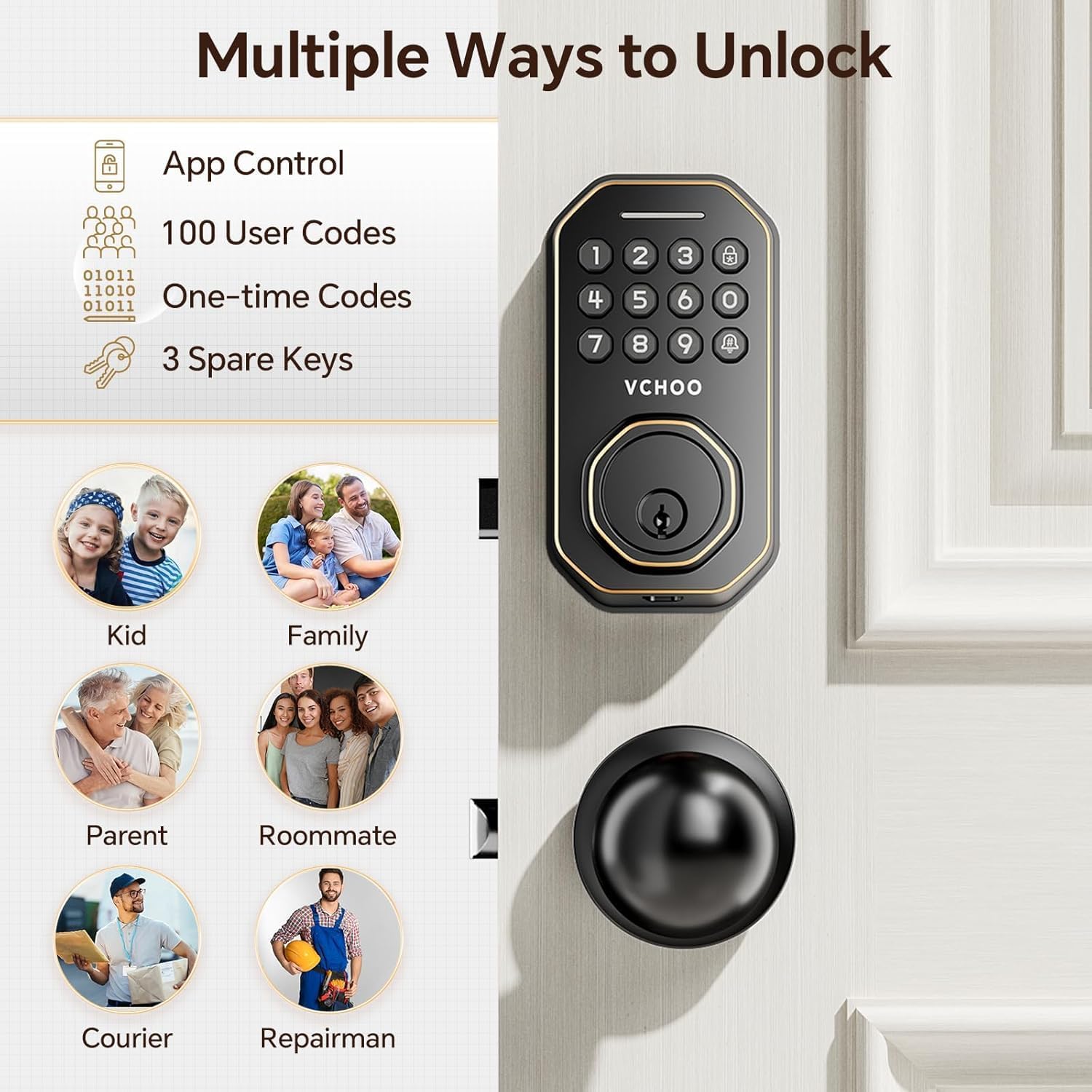
Image Description: This image visually represents the various methods available to unlock the VCHOO smart lock. It shows icons for App Control, 100 User Codes, One-time Codes, and 3 Spare Keys, along with images of people (kid, family, parent, roommate, courier, repairman) who might use these different access methods.
4.2 Locking Methods
- Auto-Lock: The lock can be configured to automatically lock after a set period (10-30 seconds) once closed.
- One-Touch Lock: Press and hold the '#' key on the keypad for 2 seconds to instantly lock the door.
- Manual Lock: Rotate the interior knob to lock the door from the inside.

Image Description: This image illustrates the convenience of the VCHOO smart lock's auto-lock and one-touch lock features. It shows a family entering their home, with an inset demonstrating the auto-lock mechanism engaging and a finger pressing the lock button for one-touch locking.
4.3 Anti-Peeping Password
To enhance security, you can enter any random digits before or after your actual password. The lock will still recognize the correct sequence within the longer entry.

Image Description: This image visually explains the anti-peeping password feature. It shows a keypad with a sequence of numbers, highlighting how random digits can be entered before and after the actual password (e.g., 37956 252368 37956) to obscure the real code from onlookers.
5. App Control
The VCHOO Keyless Entry Door Lock integrates with the Smart Life app for advanced control and monitoring.
5.1 App Setup
- Download the Smart Life app from your device's app store.
- Register or log in to your account.
- Follow the in-app instructions to add your VCHOO smart lock. Ensure Bluetooth is enabled on your smartphone during the pairing process.
5.2 App Features
- Remote Lock/Unlock: Control your door from anywhere (requires a separate gateway for remote access).
- User Management: Add, modify, or delete user codes for family members, guests, or service providers.
- One-Time Passwords: Generate temporary access codes for visitors.
- Access Logs: View a comprehensive history of who entered and when.
- Low Battery Alerts: Receive notifications when the lock's battery is low.

Image Description: This image features the VCHOO smart lock installed on a door, alongside a hand holding a smartphone displaying the Smart Life app. The app interface shows options for Authorized Admin, Keyless Entry, Share Access Code, Manage Locks, and View History, illustrating the comprehensive control available through the application.

Image Description: This image presents three smartphone screens, each showing a different aspect of the Smart Life app's control over the VCHOO smart lock. The screens illustrate the main lock status, temporary unlock code generation, and member management, demonstrating real-time monitoring and access control capabilities.
5.3 Remote Functions (Gateway Required)
For remote control and monitoring when you are away from home, a separate gateway device is required. The gateway connects your lock to your home Wi-Fi network, enabling full remote functionality via the Smart Life app.

Image Description: This diagram illustrates how a gateway device extends the functionality of the VCHOO smart lock. It shows the smart lock connecting via Bluetooth to a gateway, which then connects to a Wi-Fi router, enabling remote control and monitoring through the app from any location. A note indicates that the gateway is a separate purchase.
6. Maintenance
6.1 Battery Replacement
The lock requires 4 AA batteries (not included). When the battery level is low, the lock will provide a visual alert (green light). Replace all four batteries promptly to ensure continuous operation.

Image Description: This image displays three key aspects of the VCHOO smart lock's power management: the replaceable battery compartment (showing 4 AA batteries), a visual representation of the low battery alert on the keypad, and the Type-C charging port for emergency power, all set against the backdrop of the lock installed on a door.
6.2 Emergency Charging
In case of complete battery depletion, you can use a portable power bank connected to the Type-C charging port on the exterior assembly to temporarily power the lock and gain entry.
6.3 Cleaning and Care
Wipe the lock's exterior with a soft, damp cloth. Avoid using abrasive cleaners or solvents, as these can damage the finish and electronic components. The lock is IP54 weatherproof, designed to withstand various weather conditions.

Image Description: This image depicts the VCHOO smart lock installed on a front door during rainy weather, emphasizing its IP54 waterproof rating and ability to operate in various temperatures (140°F/60°C to -4°F/-20°C). This illustrates the lock's durability and suitability for outdoor use.
7. Troubleshooting
- Lock Not Responding: Check battery levels. If batteries are low, replace them or use the emergency Type-C charging port.
- Keypad Not Working: Ensure the keypad is clean and free from debris. If the issue persists, try replacing the batteries.
- App Connectivity Issues: Ensure Bluetooth is enabled on your phone and you are within range of the lock. If using remote access, verify your gateway is properly connected to Wi-Fi. Restart the app or your phone if necessary.
- Incorrect Code Entry: Double-check the user code. Remember the anti-peeping feature allows extra digits, but the core code must be correct.
- Door Not Locking/Unlocking Smoothly: Check for any obstructions around the door frame or latch. Ensure the lock is properly aligned and installed.
- Physical Key Not Working: Ensure the key is fully inserted and turned correctly. If the key is bent or damaged, do not force it.
8. Specifications
| Feature | Specification |
|---|---|
| Brand | VCHOO |
| Model Name | SL02 |
| Lock Type | Deadbolt |
| Material | Zinc |
| Color | Oil Rubbed Bronze |
| Item Dimensions (L x W x H) | 2.8 x 2.3 x 5.8 inches |
| Item Weight | 3.39 pounds (1.54 Kilograms) |
| Special Features | Anti-Peeping Password, Auto-Lock, One-Touch Lock |
| Power Source | 4 AA Batteries (not included) |
| Emergency Power | Type-C Charging Port |
| Door Thickness Range | 1.31" - 2.16" |
| Backset | 2-3/8" or 2-3/4" |
| Weather Resistance | IP54 |
9. Warranty Information
For detailed warranty information, please refer to the product packaging or visit the official VCHOO website. Keep your proof of purchase for warranty claims.
10. Customer Support
If you encounter any issues or have questions not covered in this manual, please contact VCHOO customer support through their official website or the contact information provided with your product packaging.


