
1. Introduction
This manual provides detailed instructions for the setup, operation, and maintenance of your iSinbox YG381 4K Outdoor Projector. Please read this manual thoroughly before using the product to ensure proper function and to extend its lifespan. Keep this manual for future reference.

Image 1.1: The iSinbox YG381 Projector on its adjustable stand.
2. Important Safety Information
To reduce the risk of electric shock, fire, or injury, always observe the following safety precautions:
- Do not block ventilation openings. Ensure adequate space around the projector for proper airflow.
- Do not expose the projector to rain or moisture. Avoid placing liquids near the unit.
- Use only the power cord supplied with the projector.
- Do not attempt to open or service the projector yourself. Refer all servicing to qualified personnel.
- Avoid direct eye exposure to the projector lens when the lamp is on.
- Place the projector on a stable, level surface to prevent it from falling.
- Unplug the projector from the power outlet during lightning storms or when unused for long periods.
3. Package Contents
Verify that all items are present in your package:
- iSinbox YG381 Projector
- Power Cord
- Remote Control (AAA batteries not included)
- User Manual
4. Product Overview
4.1 Front View
Image 4.1: Front view of the projector, highlighting the projection lens and various sensors for auto-adjustment features.
- Projection Lens: Emits the image.
- Auto-Focus Sensor: Detects distance for automatic focus adjustment.
- AI Sensors: Used for auto keystone, obstacle avoidance, and screen alignment.
4.2 Rear and Side Views (Ports)
The projector features various ports for connectivity:
- HDMI Port: For connecting external devices like gaming consoles, laptops, or streaming sticks.
- USB Ports: For media playback from USB drives or connecting peripherals.
- Audio Out: For connecting external audio systems.
- Power Input: For connecting the power adapter.
5. Setup
5.1 Placement
Position the projector on a stable surface. The YG381 features AI Auto Magic+ for automatic image adjustments, detecting front, rear, or ceiling placement and adjusting the image within 3 seconds. It also includes smart obstacle avoidance and screen alignment.

Image 5.1: The projector automatically adjusting focus, keystone, avoiding obstacles, and aligning the screen.
The adjustable stand allows for flexible projection angles, including ceiling projection. Digital zoom (50-100%) enables screen resizing without moving the projector.

Image 5.2: The portable design allows for easy setup in various environments, such as outdoor movie nights.
5.2 Power Connection
Connect the supplied power cord to the projector's power input port, then plug the other end into a suitable electrical outlet.
5.3 Initial Power On
Press the power button on the projector or the remote control to turn on the device. Follow the on-screen prompts for initial setup, including language selection and network configuration.
5.4 Network Connection (Wi-Fi)
To access online streaming services and updates, connect the projector to your Wi-Fi network:
- Navigate to the "Settings" menu on the home screen.
- Select "Network" or "Wi-Fi Settings".
- Choose your desired Wi-Fi network from the list.
- Enter the Wi-Fi password using the on-screen keyboard and confirm.

Image 5.3: The projector supports Wi-Fi 6 for stable and fast streaming, ideal for gaming and high-resolution content.
5.5 Bluetooth Pairing
The projector supports Bluetooth 5.3 for connecting external audio devices or using the projector as a Bluetooth speaker:
- Go to "Settings" and select "Bluetooth".
- Enable Bluetooth and search for available devices.
- Select your Bluetooth speaker or headphones from the list to pair.
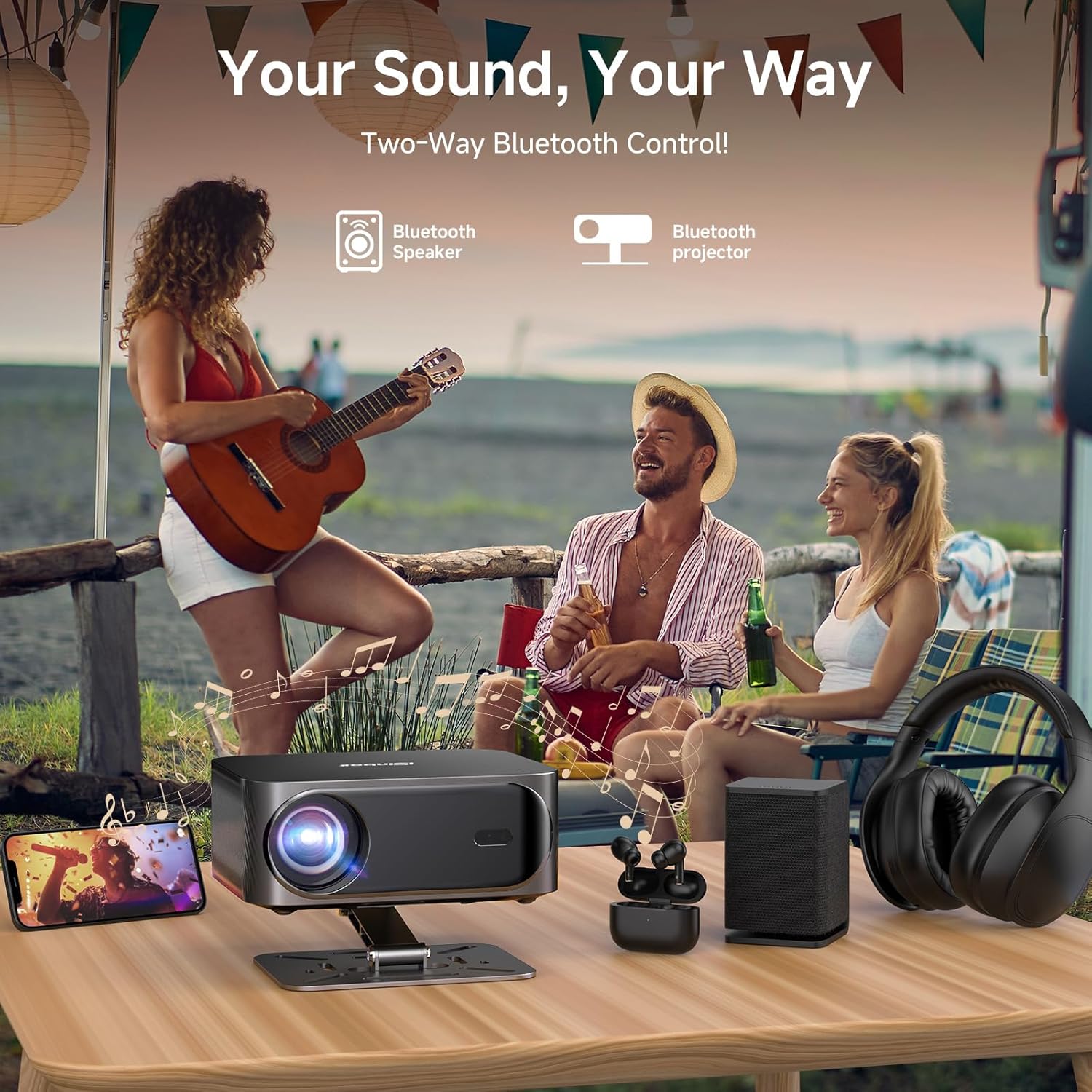
Image 5.4: The projector can connect to various Bluetooth audio devices, or function as a standalone Bluetooth speaker.
6. Operation
6.1 Navigating the Movin 2.0 Smart OS
The projector runs on the Movin 2.0 operating system. Use the remote control to navigate through menus, select applications, and adjust settings. The interface is designed for intuitive use, similar to a smart TV.

Image 6.1: The Movin 2.0 Smart OS offers enhanced fluidity, reliability, and intelligence compared to previous versions and other chips.
6.2 Using Built-in Applications
The projector comes with pre-installed applications such as Prime Video, YouTube, Disney+, TikTok, and Apple TV. Select the desired app from the home screen to begin streaming content. Ensure a stable internet connection for optimal performance.

Image 6.2: The Movin 2.0 OS provides direct access to popular streaming services.
6.3 Connecting External Devices
Use the HDMI port to connect devices like laptops, gaming consoles, or other media players. The projector supports 4K input and HDR10+ for enhanced visual quality.
- Connect an HDMI cable from your external device to the projector's HDMI input.
- Select the corresponding HDMI input source from the projector's input menu.
6.4 Audio Settings
The projector supports Dolby Audio and DTS Audio decoding. For external audio, use the Bluetooth pairing feature or the eARC HDMI port for lossless audio transmission to compatible sound systems.

Image 6.3: The projector integrates Dolby Audio and DTS for a rich sound experience.
6.5 Projection Adjustments
- Auto-Focus: The projector automatically adjusts focus. If needed, manual focus adjustment options are available in the settings.
- Auto Keystone Correction: The projector automatically corrects trapezoidal distortion.
- Digital Zoom: Adjust the screen size from 50% to 100% via the settings menu without moving the projector.
- 360° Projection: The projector can be positioned for various projection angles, including ceiling projection.
7. Maintenance
7.1 Cleaning
- Lens: Use a soft, lint-free cloth specifically designed for optical lenses. Do not use abrasive cleaners or solvents.
- Exterior: Wipe the projector's exterior with a soft, dry cloth. For stubborn marks, a slightly damp cloth can be used, followed by a dry cloth.
- Ventilation Openings: Periodically check and gently clean the ventilation openings to prevent dust buildup, which can affect performance and lifespan. Use a soft brush or compressed air.
7.2 Storage
When not in use for extended periods, store the projector in a cool, dry place, away from direct sunlight and extreme temperatures. Use the original packaging or a protective case to prevent dust and damage.
8. Troubleshooting
| Problem | Possible Cause | Solution |
|---|---|---|
| No image displayed | Power cable disconnected; Incorrect input source; Lens cap on. | Ensure power cable is securely connected; Select correct input source (HDMI, App); Remove lens cap. |
| Image is blurry | Out of focus; Projector moved. | Allow auto-focus to adjust; Manually adjust focus if needed via settings. |
| No sound | Volume too low; Muted; Incorrect audio output selected; Bluetooth device not connected. | Increase volume; Unmute; Check audio output settings; Re-pair Bluetooth device. |
| Wi-Fi connection issues | Incorrect password; Router too far; Network interference. | Verify Wi-Fi password; Move projector closer to router; Restart router. |
| Remote control not working | Batteries depleted; Obstruction between remote and projector. | Replace AAA batteries; Ensure clear line of sight to the projector's IR receiver. |
9. Specifications
| Brand | iSinbox |
| Model | YG381 |
| Display Technology | LCD |
| Image Brightness | 1200 ANSI Lumens |
| Native Resolution | 1920 x 1080 (Full HD) |
| Supported Resolution | Up to 3840 x 2160 (4K) |
| Image Contrast Ratio | 20000:1 |
| Aspect Ratio | 16:9, 4:3 |
| Special Features | Movin Smart Operating System (Movin 2.0), AI-Powered Visuals, 4K Support, HDR10+, Auto-Focus, 6D Keystone, Auto Screen Alignment, Dolby & DTS Audio, MTK9660 Chip, Wi-Fi 6, Bluetooth 5.3 |
| Connectivity Technology | Wireless (Wi-Fi 6, Bluetooth 5.3), HDMI |
| Compatible Devices | Gaming Console, Laptop, Smartphone, Tablet, Television |
| Noise Level | 32 Decibels |
| Product Dimensions | 20 x 16 x 8 cm |
| Item Weight | 2.09 kg (approx. 4.6 lbs) |
10. Warranty and Support
The iSinbox YG381 Projector comes with a 1-year free replacement warranty and 3 years of technical support. For any product inquiries, technical assistance, or warranty claims, please contact iSinbox customer support. Refer to the contact information provided on the product packaging or the official iSinbox website.
Please note that AAA batteries for the remote control are not included and should be purchased separately.


