
1. Introduction
Thank you for choosing the EUQQ Q10 AI Translation Earbuds. These advanced earbuds are designed to revolutionize communication with real-time language translation, high-fidelity audio, and intelligent noise cancellation. This manual provides detailed instructions for setup, operation, maintenance, and troubleshooting to ensure you get the most out of your device.

Image: The EUQQ Q10 AI Translation Earbuds resting in their open charging case, displaying the digital battery indicator.
2. Safety Information
Please read all safety warnings before using the earbuds to prevent injury or damage.
- Do not expose the earbuds or charging case to extreme temperatures, humidity, or liquids.
- Avoid dropping, impacting, or disassembling the device.
- Use only the provided charging cable and a certified power adapter.
- Prolonged listening at high volumes may cause hearing damage. Adjust volume to a safe level.
- Do not use the earbuds in situations where inability to hear ambient sounds could be dangerous (e.g., driving, cycling, walking in traffic).
3. What's in the Box
Verify that all components are present:
- 2 x AI Language Translation Earbuds
- 1 x Charging Case
- 1 x Charging Cable (USB Type-C)
- 3 x S/M/L Ear Caps (one set pre-installed)
- 1 x User Manual (this document)
4. Setup
4.1 Charging the Earbuds and Case
Before first use, fully charge the earbuds and charging case.
- Place the earbuds into the charging case, ensuring they are correctly seated.
- Connect the USB Type-C charging cable to the charging port on the case and plug the other end into a USB power source (e.g., wall adapter, computer USB port).
- The digital display on the charging case will indicate the battery level. A full charge takes approximately 1 hour for the earbuds and case.

Image: The earbuds and charging case with a USB-C cable connected, illustrating the charging process and battery life.
4.2 Pairing with Your Device (Bluetooth)
The earbuds use Bluetooth 5.4 for a stable and efficient connection.
- Open the charging case. The earbuds will automatically enter pairing mode (indicated by flashing lights on the earbuds).
- On your smartphone or Bluetooth-enabled device, go to Bluetooth settings and turn Bluetooth on.
- Search for available devices and select "Q10 AI" from the list.
- Once connected, the earbud lights will stop flashing, and you will hear a confirmation tone.
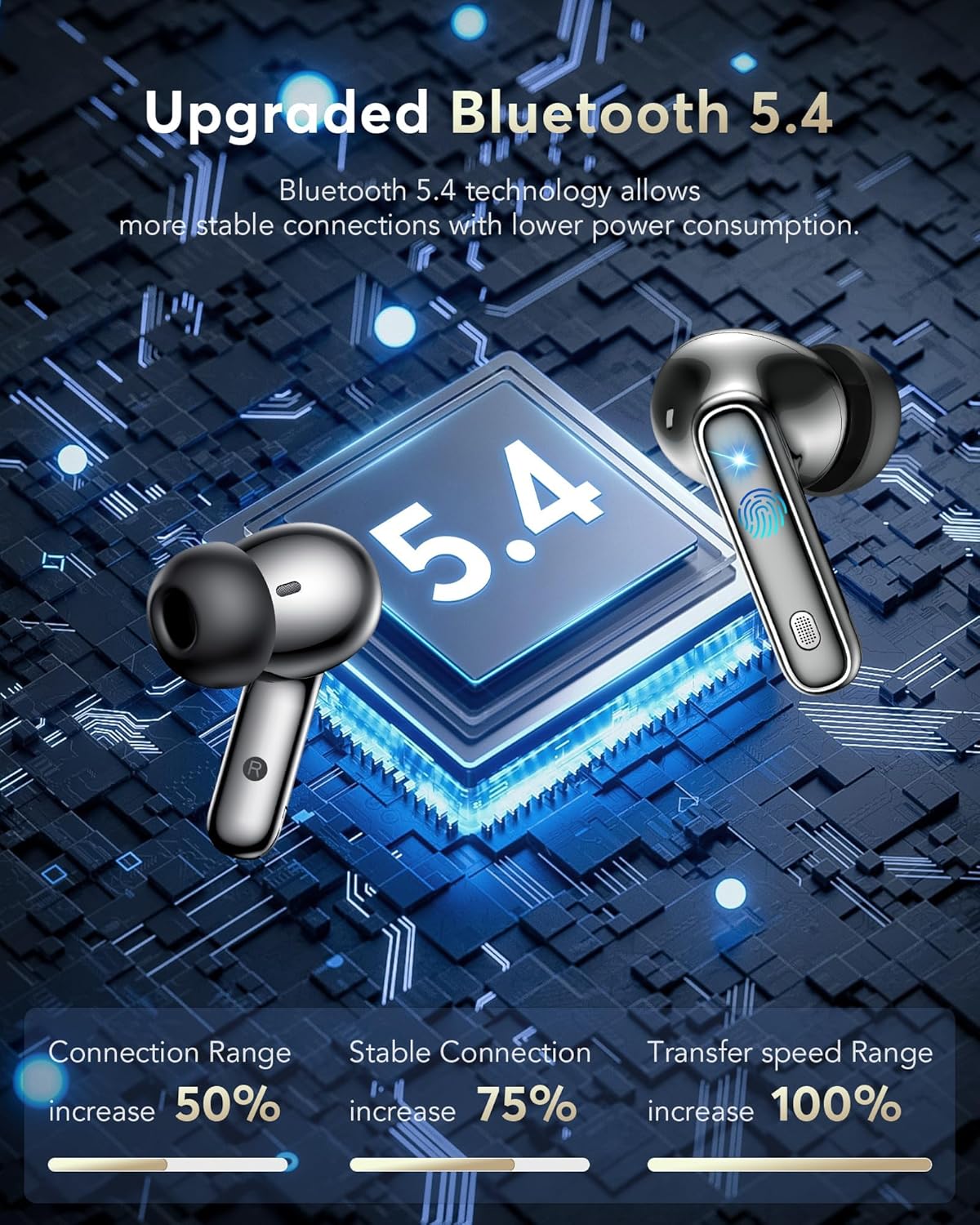
Image: A visual representation of upgraded Bluetooth 5.4 technology, highlighting increased connection range, stability, and transfer speed.
4.3 App Installation and Connection
For full translation functionality, download and connect to the "NebulaBuds" app.
- Scan the QR code provided in the charging case or user manual, or search for "NebulaBuds" in your device's app store (iOS/Android).
- Install the "NebulaBuds" app.
- Ensure your phone's Bluetooth is on and the earbuds are connected.
- Open the "NebulaBuds" app. It will automatically detect the earbuds and prompt for connection. Follow the on-screen instructions to allow necessary permissions (e.g., microphone access).
- Once connected, the app will display a "Connected" status, and you can access all translation features.

Image: A four-step guide showing how to download the NebulaBuds app, turn on Bluetooth, open the app, and connect the earbuds.
5. Operating Instructions
5.1 Smart Touch Control
The earbuds feature intuitive touch controls for various functions:
- Click MFB key: Pause/Play music.
- Double-click the left/right MFB buttons: Next/Previous track (depending on app settings).
- Click MFB button: Answer/End a call.
- Long press the MFB button: Reject a call.
- Press and hold the right MFB button for 2 seconds: Activate Siri/Voice Assistant.
- Press and hold the left MFB button for 2 seconds: Switch between ANC (Active Noise Cancellation) mode, Normal mode, and Transparency mode.
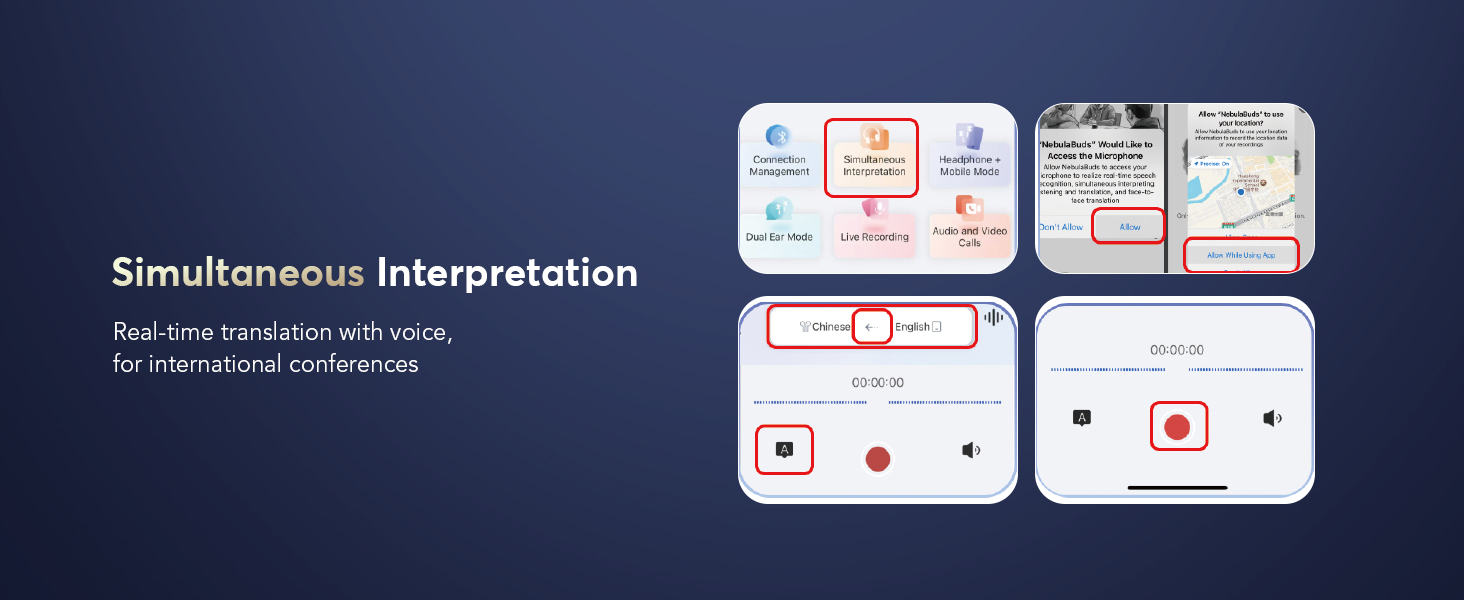
Image: Diagram illustrating the various touch control functions on the earbuds, such as play/pause, call management, and voice assistant activation.
5.2 Translation Modes
The earbuds offer multiple translation modes via the NebulaBuds app:
5.2.1 Touch Mode
Ideal for fluent, turn-based conversations. Each person wears an earbud. Touch your earbud before speaking, and the other person will hear the translation in their earbud.
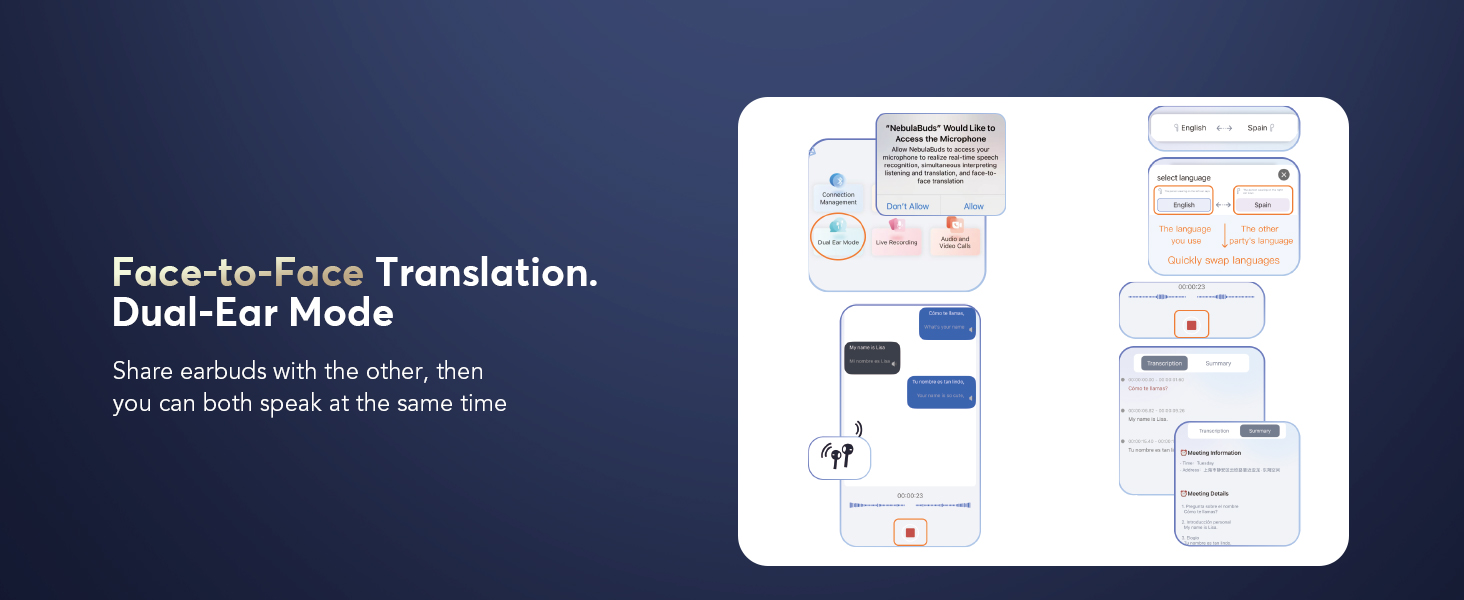
Image: Two individuals in a business setting, each wearing an earbud, demonstrating the Touch Mode for fluent conversation.
5.2.2 Free Speech Mode
For in-depth, one-on-one conversations. Each person wears an earbud and talks as normal without touching, allowing for hassle-free communication.
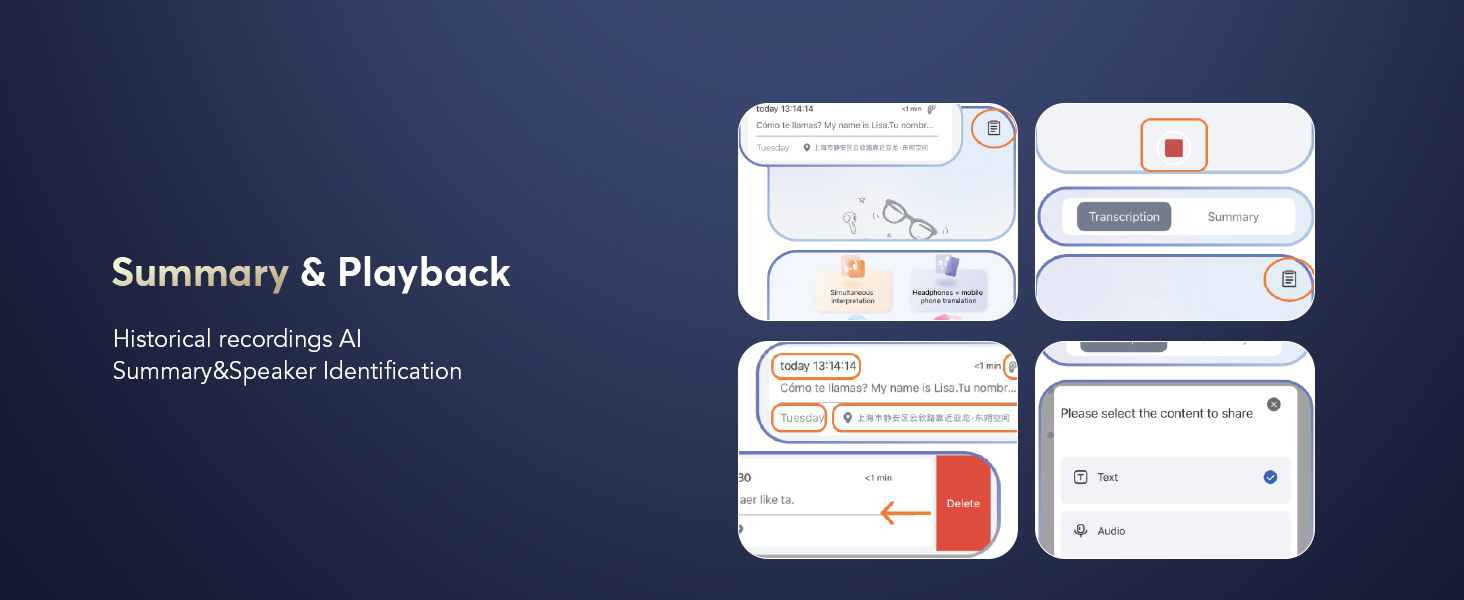
Image: Two men in business attire, one holding a phone, engaged in conversation using earbuds in Free Speech Mode.
5.2.3 Speaker Mode
Useful for directions or ordering food. Wear one earbud yourself and speak; the translated results will be played through your phone's speaker, allowing others to hear.

Image: A man and woman in a car, demonstrating Speaker Mode for translation, with the woman looking at a laptop.
5.2.4 Offline Mode
Supports offline translation in most parts of the world, allowing communication without an internet connection. Ensure necessary language packs are downloaded in the app beforehand.

Image: Two men sitting outdoors, conversing, illustrating the use of Offline Mode for translation.
5.2.5 Simultaneous Interpretation
Provides real-time translation with voice, ideal for international conferences or lectures. The app interface allows you to select source and target languages and view the translated text.

Image: A collage showing scenarios for Live Recording, Simultaneous Interpretation, and Face-to-Face Translation with the earbuds.

Image: Screenshots of the app interface demonstrating Simultaneous Interpretation, including language selection and microphone access prompts.
5.2.6 Live Recording
Convert spoken content to text for meeting notes or transcription. The app allows you to record and then transcribe the audio into text, which can be summarized or played back.
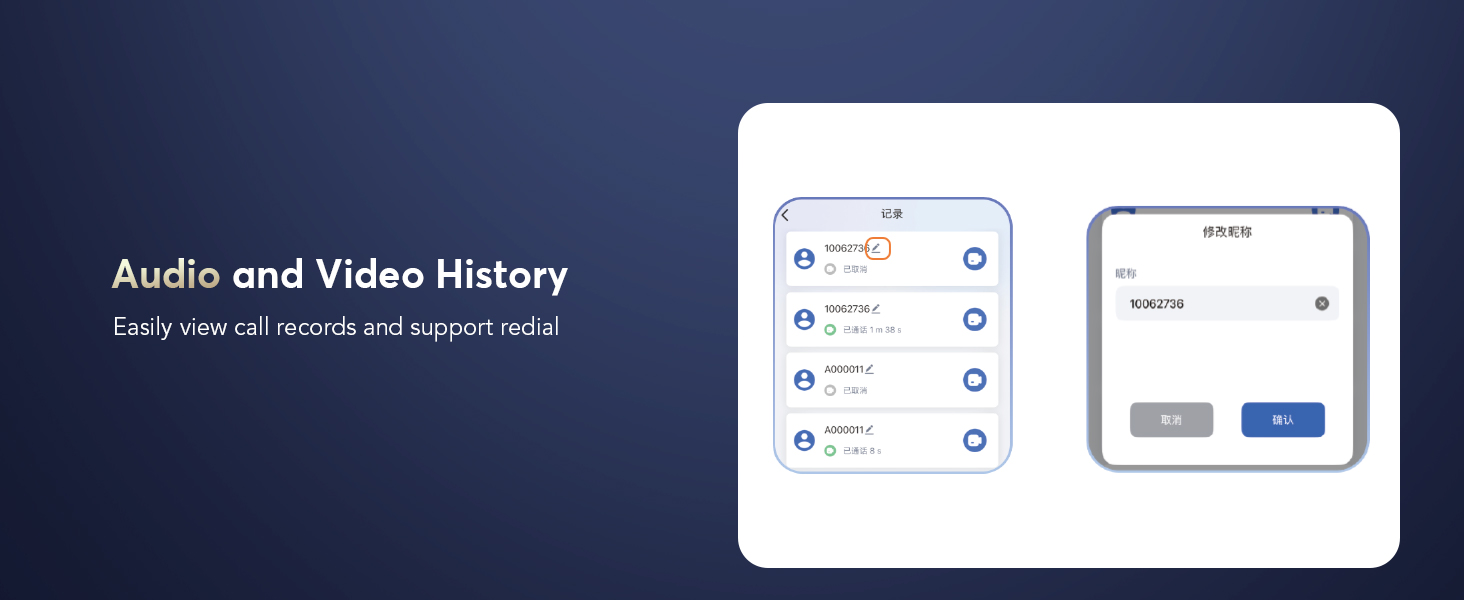
Image: Screenshots of the app interface for Live Recording, showing the recording function and language selection.
5.2.7 Face-to-Face Translation (Earphones + Mobile Phone)
Enables two-way translation with voice for global negotiations or travel. One person speaks into the earbud, and the translation appears on the phone screen and is spoken aloud, or vice versa.

Image: Screenshots of the app interface for Face-to-Face Translation, showing language swapping and conversation flow.
5.2.8 Face-to-Face Translation (Dual-Ear Mode)
Share earbuds with another person, allowing both to speak and hear translations simultaneously for seamless conversation.
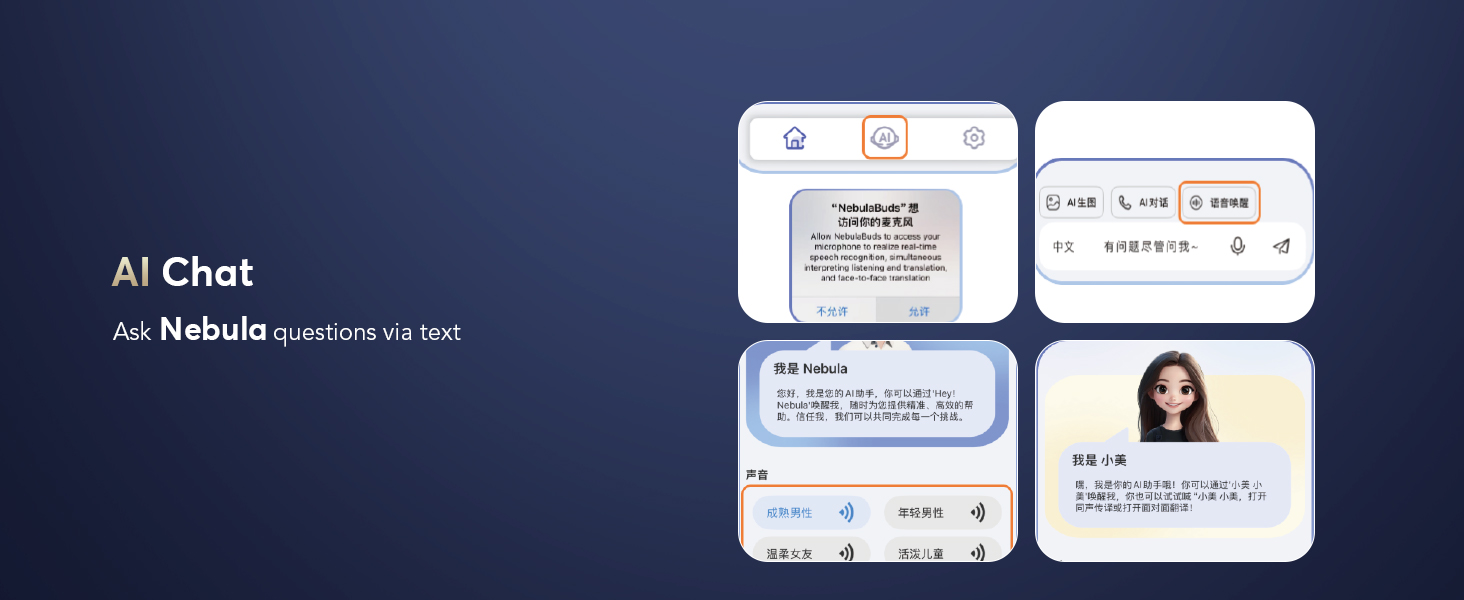
Image: Screenshots of the app interface for Dual-Ear Mode, illustrating how two users can share earbuds for simultaneous translation.
5.2.9 Audio and Video Call Translation
Conduct online calls with real-time translation. No app is needed for the other party, enabling effortless communication across language barriers.
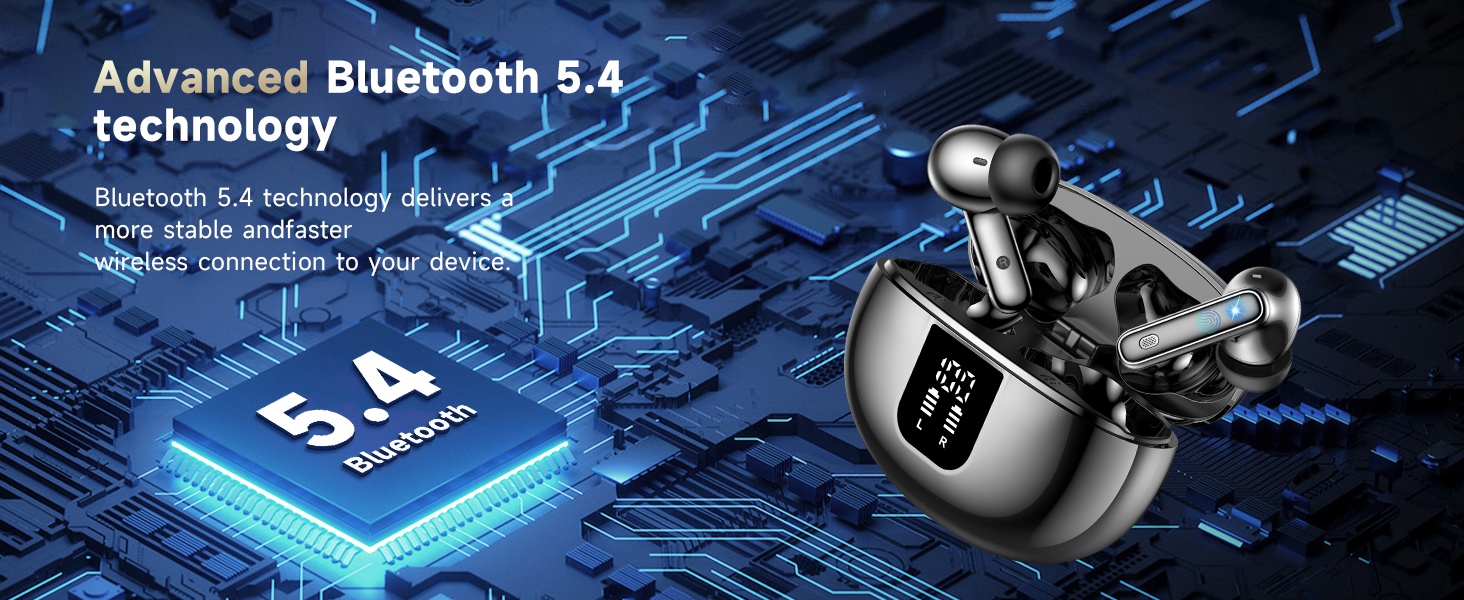
Image: A phone screen showing an ongoing video call with real-time translation displayed on the interface.
5.3 Noise Control Modes (ANC/Transparency)
The earbuds offer three versatile modes to adapt to different environments:
- Active Noise Cancellation (ANC): Blocks out distractions, immersing you in rich, undisturbed sound. Ideal for noisy environments.
- Normal Mode: Standard audio experience without active noise cancellation or transparency.
- Transparency Mode: Allows you to stay aware of your surroundings without removing the earbuds, balancing ambient sounds for safety and seamless interaction.
Switch between modes by pressing and holding the left MFB button for 2 seconds.
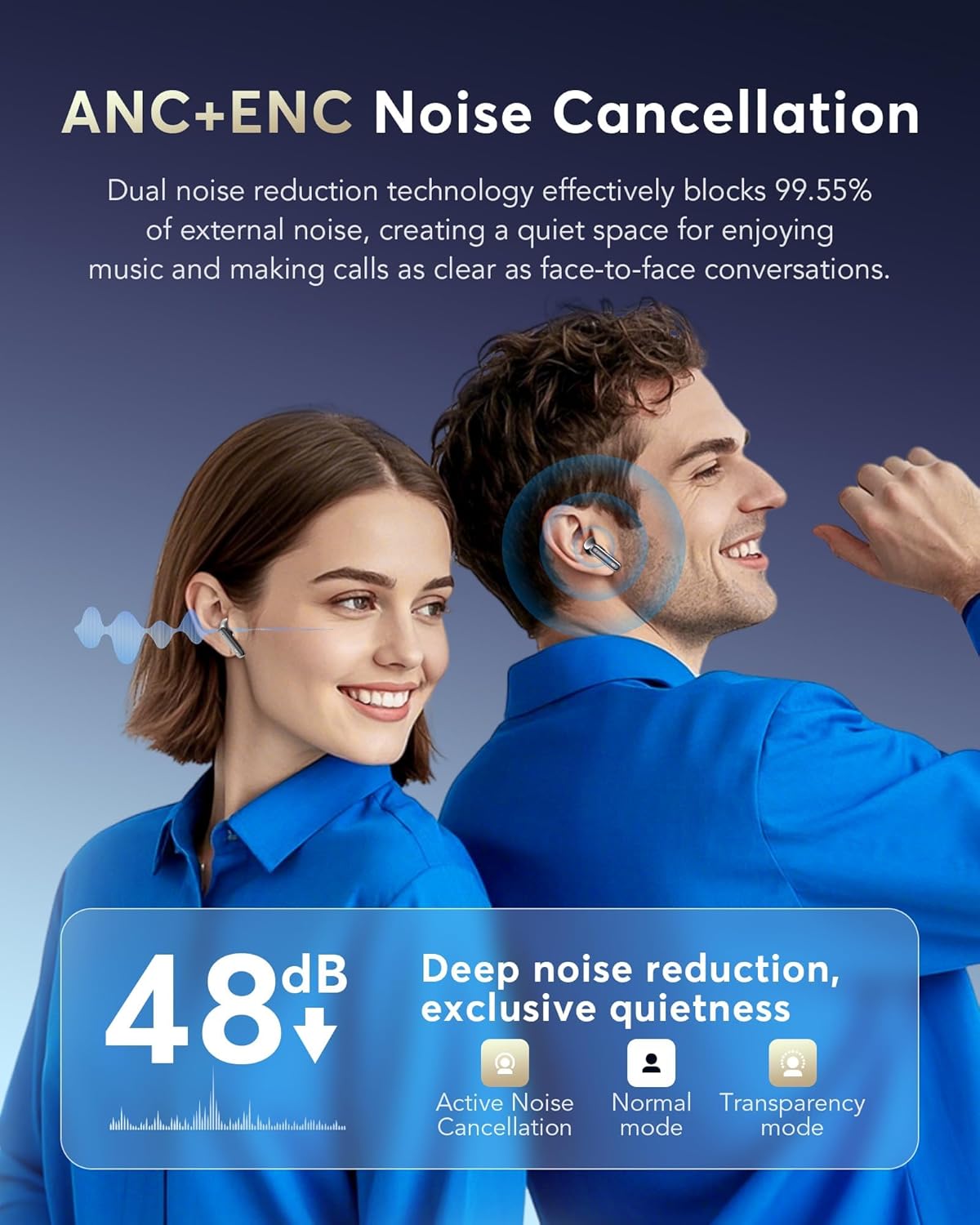
Image: Diagram illustrating ANC+ENC Noise Cancellation, showing a 48dB noise reduction and icons for Active Noise Cancellation, Normal mode, and Transparency mode.
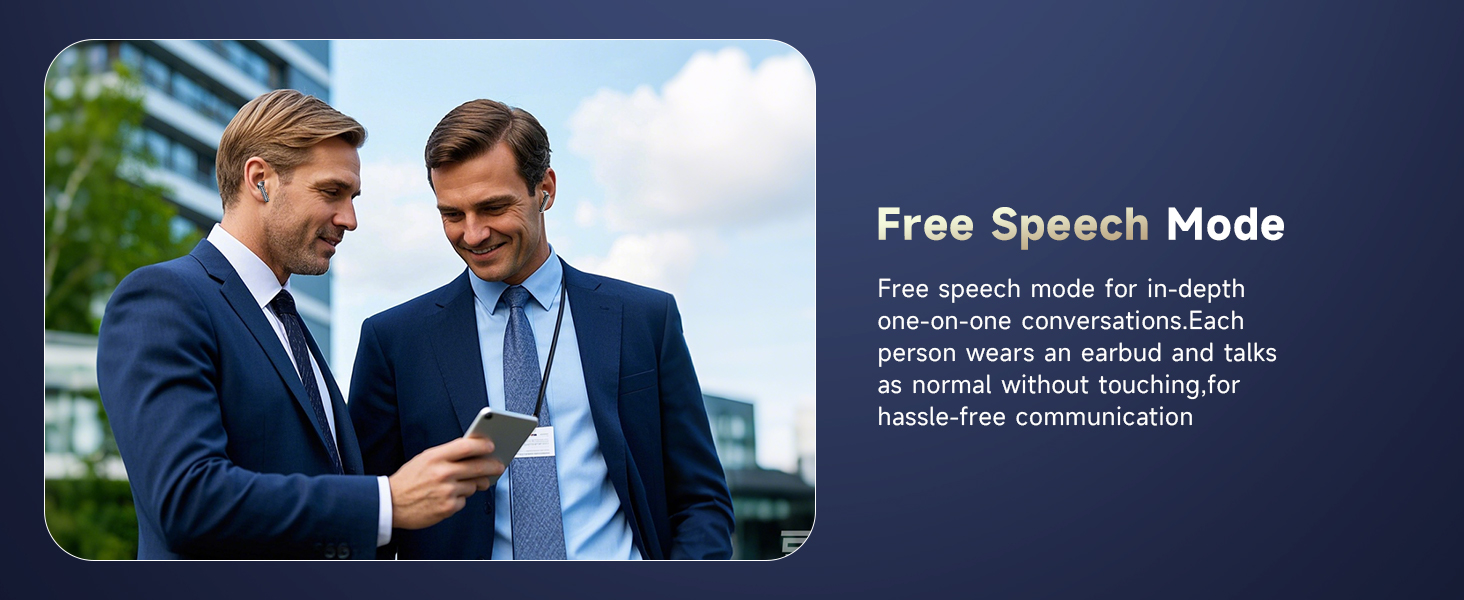
Image: A visual showing the seamless switching between Active Noise Cancellation, Normal mode, and Transparency mode on the earbuds.
6. Maintenance
6.1 Cleaning
- Wipe the earbuds and charging case with a soft, dry, lint-free cloth.
- Do not use abrasive cleaners, alcohol, or chemical solvents.
- Gently clean the charging contacts on the earbuds and inside the case with a dry cotton swab if needed.
6.2 Storage
- Store the earbuds in their charging case when not in use to protect them and keep them charged.
- Store in a cool, dry place away from direct sunlight and extreme temperatures.
7. Troubleshooting
| Problem | Possible Cause | Solution |
|---|---|---|
| Earbuds not pairing | Low battery; Bluetooth off; Earbuds not in pairing mode; Device too far. | Charge earbuds/case; Turn on Bluetooth; Open case to enter pairing mode; Move closer to device. |
| No sound from earbuds | Volume too low; Not connected; Earbuds dirty. | Increase device volume; Reconnect earbuds; Clean earbud mesh/contacts. |
| Translation not working | App not connected; Incorrect language selected; Microphone permission denied; No internet (for online modes). | Ensure app is connected; Verify language settings; Grant microphone access in phone settings; Check internet connection. |
| Poor call quality | Weak signal; Background noise; Microphone obstructed. | Move closer to device; Activate ANC; Ensure microphone is clear. |
| Earbuds not charging | Cable/adapter faulty; Contacts dirty; Earbuds not seated correctly. | Try different cable/adapter; Clean charging contacts; Reseat earbuds firmly in case. |
8. Specifications
| Feature | Detail |
|---|---|
| Model Name | Q10 AI |
| Wireless Communication Technology | Bluetooth 5.4 |
| Bluetooth Range | Up to 15 meters |
| Battery Life (Earbuds) | 6-7 hours (single charge) |
| Total Playtime (with Charging Case) | Up to 36 hours |
| Charging Time | Approx. 1 hour (earbuds and case) |
| Noise Control | Active Noise Cancellation (ANC) |
| Microphone | 4 ANC Microphones |
| Material | Acrylonitrile Butadiene Styrene (ABS) |
| Control Type | Touch Control |
| Water Resistance Level | Waterproof |
| Supported Languages | 144 languages and accents (via app) |
| Compatibility | iOS & Android devices (Bluetooth enabled) |
9. Warranty and Support
EUQQ products are manufactured to high-quality standards. For warranty information, technical support, or customer service inquiries, please refer to the contact details provided on the product packaging or the official EUQQ website. Keep your purchase receipt as proof of purchase for warranty claims.