
1. Product Overview
The CallToU WT42 DBM 2-Way Wireless Intercom system provides reliable communication over long distances without the need for Wi-Fi or cellular service. Designed for ease of use, it features a VOX hands-free function, a durable build, and a rechargeable battery, making it suitable for various communication needs, including caregiver monitoring and family coordination.
Key Features:
- 3300ft Wireless Range: Ensures stable communication across rooms, floors, and outdoor areas.
- VOX Hands-Free Operation: Allows communication without pressing buttons, ideal for multi-tasking.
- Durable Design: Built to withstand spills and general use.
- 1000mAh Rechargeable Battery: Provides up to 36 hours of standby time with Type-C charging.
- No Network Required: Operates independently, free from monthly fees or app requirements.
- Multiple Channel Options: 16 channels available to avoid interference.
- Keypad Lock: Prevents accidental channel changes.
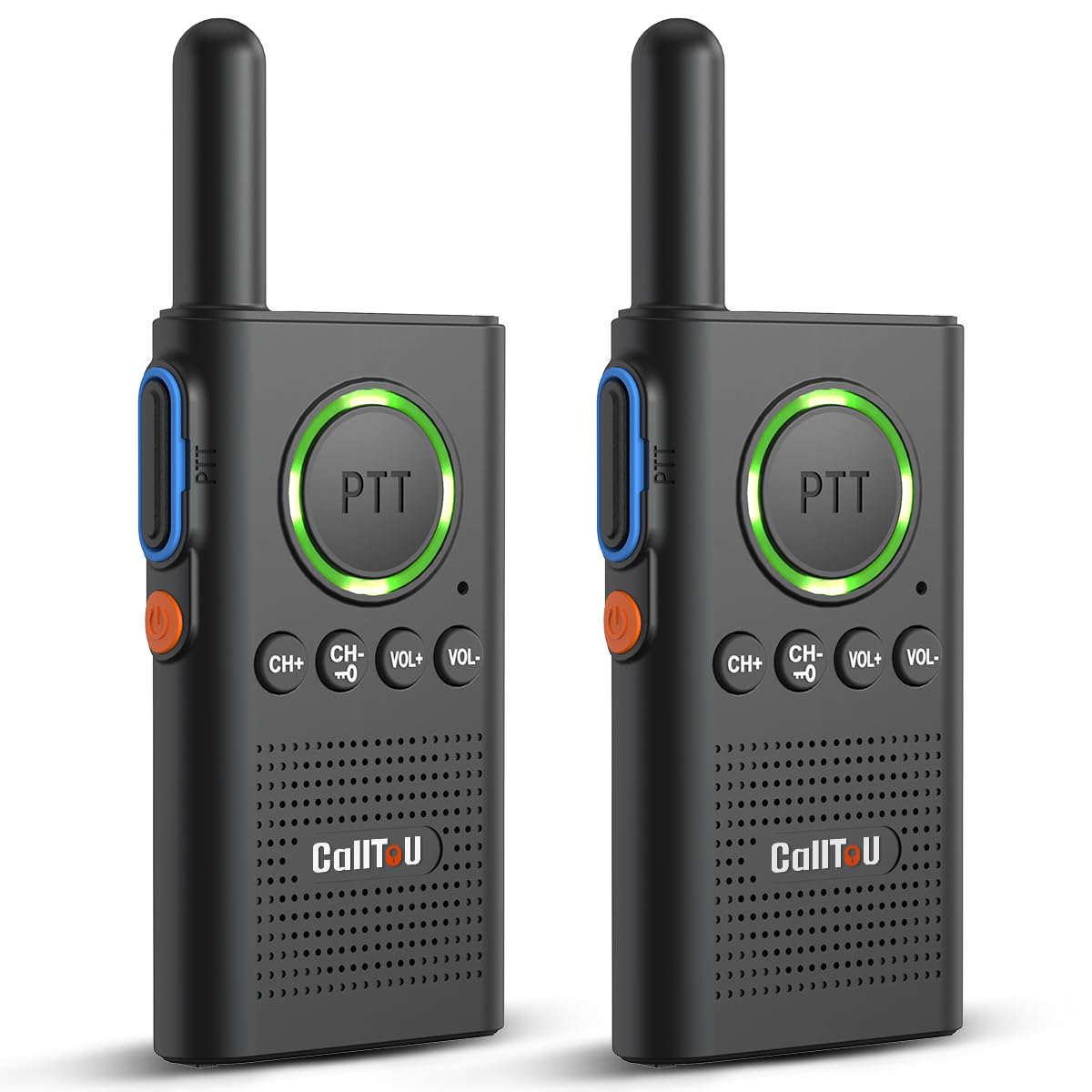
This image displays a single CallToU WT42 DBM intercom unit, highlighting its compact design and front-facing controls.

This image illustrates the CallToU wireless intercom system being used by an elderly person and a caregiver in a home setting, emphasizing its role in facilitating communication.
2. Setup Instructions
2.1 Initial Charging
Before first use, fully charge both intercom units. The units come with a 1000mAh rechargeable battery and a Type-C charging cable.
- Ensure the radio is turned OFF before charging.
- Connect the Type-C charging cable to the intercom unit and a compatible power adapter. Use only the original charger and cable provided.
- Observe the indicator light for charging status:
- Getting Ready (First 2 minutes): Solid Green light. The radio is checking the battery.
- Charging (After 2 minutes - 6 hours): Solid Red light. The battery is charging.
- Fully Charged (After 6 hours): Solid Green light (for over 3 minutes). The battery is full. You can now unplug the radio and turn it on.
- A low battery alert will sound as a "di-di-di" alert every 20 seconds, accompanied by a flashing green light (blinks once per second). It is recommended to charge the radio before bed to avoid disturbance.

This image illustrates the visual and auditory indicators for a low battery on the intercom unit.

This image shows the correct procedure for connecting the charging cable to the intercom unit.

This image details the different indicator light behaviors during the charging process, from initial connection to full charge.
2.2 Pairing Intercom Units
For two or more units to communicate, they must be set to the same channel.
Video 2.1: How to Pair CallToU Wireless Home Intercom Units. This video demonstrates the steps required to pair two CallToU intercom units by setting them to the same channel for communication.
- Turn on both intercom units by pressing and holding the power button.
- Press the "CH+" or "CH-" buttons to select a desired channel. Ensure both units are set to the identical channel.
- Confirm both intercom channels are matched.
3. Operating Instructions
3.1 Basic Communication (PTT)
To speak, press and hold the PTT (Push-To-Talk) button. Release the button to listen.

This image highlights the large PTT button on the intercom unit, designed for easy pressing during communication.

This image shows the intercom unit featuring a double PTT button for convenient operation.
3.2 VOX Hands-Free Function
The VOX (Voice Operated Exchange) function allows you to transmit your voice without pressing the PTT button. This is useful when your hands are occupied.

This image illustrates the VOX function, showing an elderly person communicating hands-free from their bed, and a caregiver responding.
How to Set the VOX Function:
- Press "CH+" or "CH-" to select the same channel on both units.
- Hold the power button to turn off both walkie-talkies.
- Hold "CH+" and the power button together until you hear a "beep" and see the flashing light. This activates VOX.
- To disable VOX, turn off the walkie-talkie, then hold "CH+" and the power button together until you hear a "beep beep".

This image provides a visual step-by-step guide on how to activate and deactivate the VOX hands-free function on the intercom unit.
3.3 Adjusting Volume
The intercom features 8 adjustable volume levels.
- Press the "VOL+" button to increase the volume.
- Press the "VOL-" button to decrease the volume.

This image shows an elderly person using the intercom with headphones, illustrating the 8 adjustable volume levels.
3.4 Keypad Lock
The keypad lock feature prevents accidental button presses that could change channels or settings.
Video 3.1: How to Lock Keyboard on CallToU WT42 Intercom. This video provides a demonstration of how to activate and deactivate the keypad lock feature on the intercom unit.
- To lock the keypad, hold the "CH-" button until you hear a "DI" sound.
- To unlock the keypad, hold the "CH-" button again until you hear a "DIDI" sound.

This image shows a child using the intercom, with an overlay explaining how the keypad lock prevents accidental presses.
3.5 Indicator Light Alerts
- Transmitting/Charging: The PTT button light will be red.
- Receiving: The PTT button light will be green.

This image displays the intercom unit and explains the meaning of the red (transmitting/charging) and green (receiving) indicator lights.
Video 3.2: How to Use CallToU Wireless Home Intercom. This video provides a comprehensive guide on the general usage of the CallToU wireless intercom system.
4. Maintenance
4.1 Cleaning
To clean the intercom units, use a soft, dry cloth. Do not use abrasive cleaners or solvents, as these can damage the unit's surface.
4.2 Battery Care
To prolong battery life, avoid fully discharging the units frequently. Charge them regularly, especially when the low battery alert is activated. Store the units in a cool, dry place when not in use for extended periods.

This image illustrates the internal components, highlighting the upgraded chip for stronger anti-interference and increased charging current for better battery performance.
5. Troubleshooting
| Problem | Possible Cause | Solution |
|---|---|---|
| No communication between units. | Units are on different channels. | Ensure both units are set to the same channel (refer to Section 2.2). |
| Weak or intermittent signal. | Units are out of range or obstructed. | Move units closer together or to an area with fewer obstructions. Ensure no large metal objects are between units. |
| Loud beeping sound. | Low battery alert. | Plug the unit into the charger immediately. Keep units charged to avoid this alert. |
| Unit not charging. | Incorrect charger/cable or faulty connection. | Use only the original Type-C charger and cable. Ensure the cable is securely connected to both the unit and the power source. Check if the unit is turned OFF before charging. |
| Constant static noise. | Interference on the current channel. | Switch to a different channel to find a clearer frequency. The system offers 16 channels. |
| Keypad buttons unresponsive. | Keypad is locked. | Unlock the keypad by holding the "CH-" button until you hear a "DIDI" sound (refer to Section 3.4). |
6. Specifications
| Feature | Detail |
|---|---|
| Brand | CallToU |
| Model Number | WT42 DBM |
| Color | Black |
| Number of Channels | 16 |
| Talking Range Maximum | 3300 Feet |
| Battery Capacity | 1000mAh (Rechargeable) |
| Battery Average Life (Standby) | Up to 36 hours |
| Charging Time | Approximately 6 hours for full charge |
| Connectivity Protocol | UHF |
| Water Resistance Level | Water Resistant |
| Noise Level | 30 Decibels |
| Included Components | User Manual, Type-C Charging Cable |
7. Warranty & Support
7.1 Manufacturer's Warranty
The CallToU WT42 DBM 2-Way Wireless Intercom comes with a 1-Year Manufacturer's Warranty from the date of purchase. This warranty covers defects in materials and workmanship under normal use. Please retain your proof of purchase for warranty claims.
7.2 Customer Support
For technical assistance, warranty claims, or general inquiries, please contact CallToU customer support through the following channels:
- Website: www.calltou.com
- Email: service01@calltou.com
- Facebook: Calltou Caregiver Pager

This image provides the official website, email, and Facebook page for CallToU customer support.
