
Introduction
Thank you for choosing the Bestoss S201 128GB 2.5 Inch SATA III Internal Solid State Drive. This manual provides essential information for the proper installation, operation, maintenance, and troubleshooting of your new SSD. Please read this manual thoroughly before use to ensure optimal performance and longevity of your device.
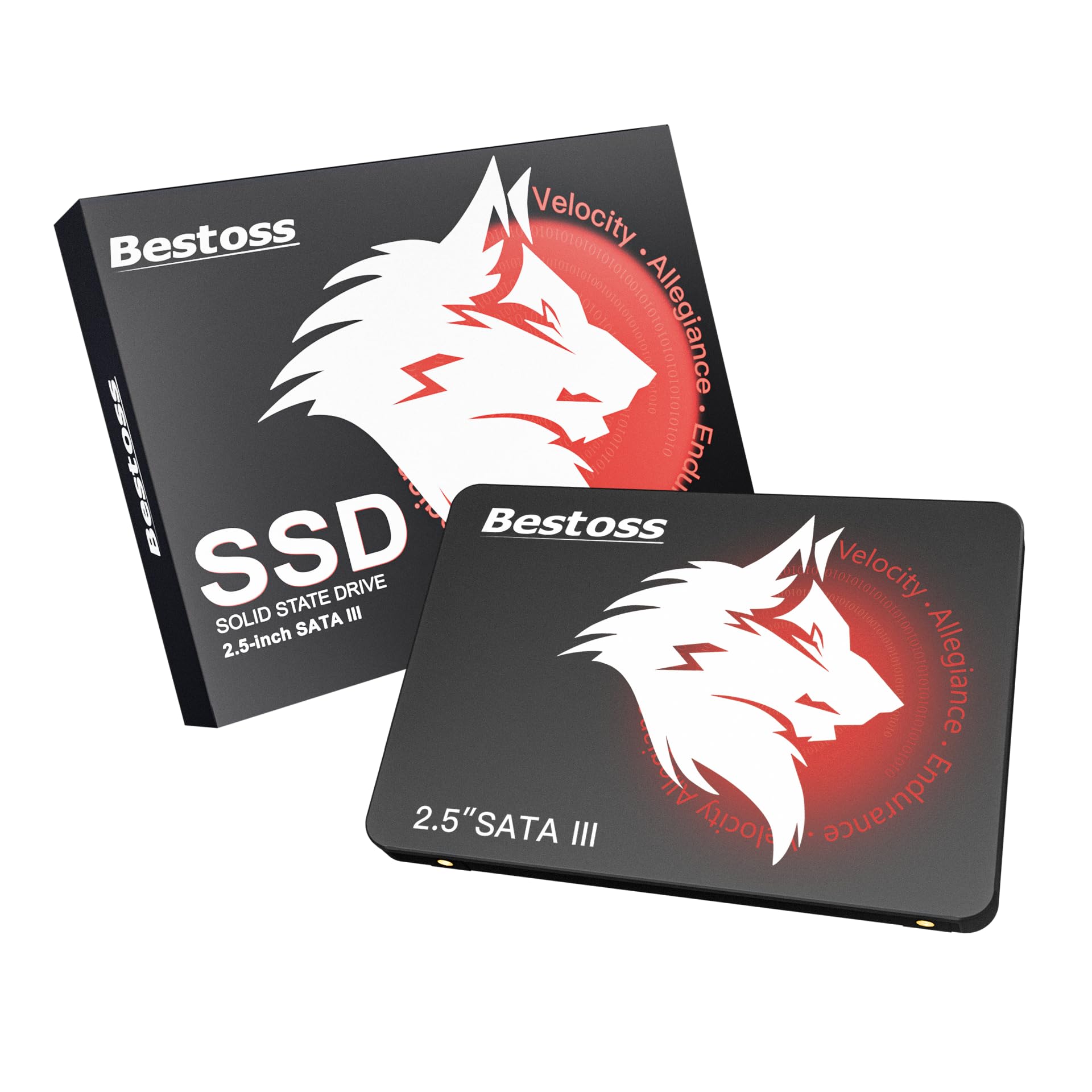
Image: The Bestoss S201 128GB 2.5 Inch SATA III Internal SSD, showcasing its compact design.
Key Features
- Lightning-Fast Performance: Achieve read speeds up to 550MB/s, significantly reducing boot times, game loading, and file transfer speeds compared to traditional HDDs.
- Long-Lasting Durability: Utilizes TLC NAND flash for enhanced write endurance and reliable data storage, ensuring stable operation and extended lifespan.
- Versatile Capacity: This model offers 128GB of storage, suitable for operating systems, essential applications, and frequently accessed files. Other capacities are available.
- Multi-Device Compatibility: Supports SATA interface and is compatible with Windows and Linux systems, adapting seamlessly to laptops, desktops, and all-in-one PCs.
- AHCI Optimization: Features TRIM instructions to reduce write latency and extend lifespan, NCQ for optimized queues, and S.M.A.R.T. for real-time health monitoring.

Image: Internal view of the Bestoss S201 SSD highlighting 3D NAND and Dynamic SLC Cache for fast performance.
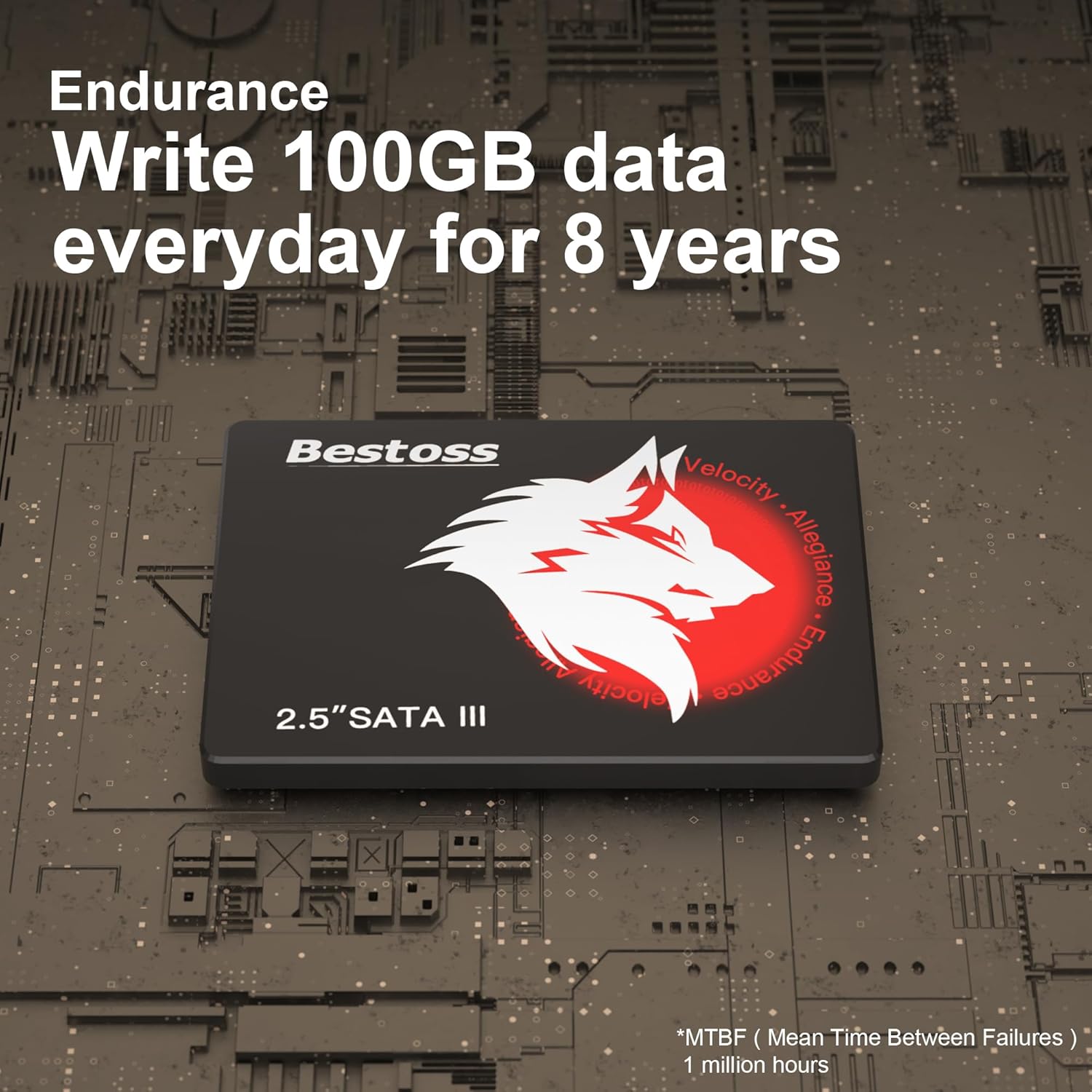
Image: The Bestoss S201 SSD with text indicating its endurance for writing 100GB of data daily for 8 years.
Setup and Installation
The Bestoss S201 SSD is designed for easy installation in compatible devices. Follow these general steps for installation:
- Preparation: Power off your computer and disconnect all cables. Open the computer case or laptop compartment to access the drive bay.
- Mounting: Secure the 2.5-inch SSD into an available drive bay using appropriate screws or mounting brackets.
- Connection: Connect the SATA data cable from the SSD to an available SATA port on your motherboard. Connect the SATA power cable from your power supply unit to the SSD.
- Initial Setup (New Drive): For a brand new SSD, it will not appear in 'My Computer' or 'File Explorer' immediately. You must initialize and partition the drive using your operating system's Disk Management tool (Windows) or Disk Utility (Linux). Assign a drive letter and format it (e.g., NTFS for Windows) to make it usable.
- Operating System Migration (Optional): If you are replacing an existing drive, you may need to clone your operating system to the new SSD using specialized software.
- Reassembly: Close your computer case or laptop compartment and reconnect all cables. Power on your computer.
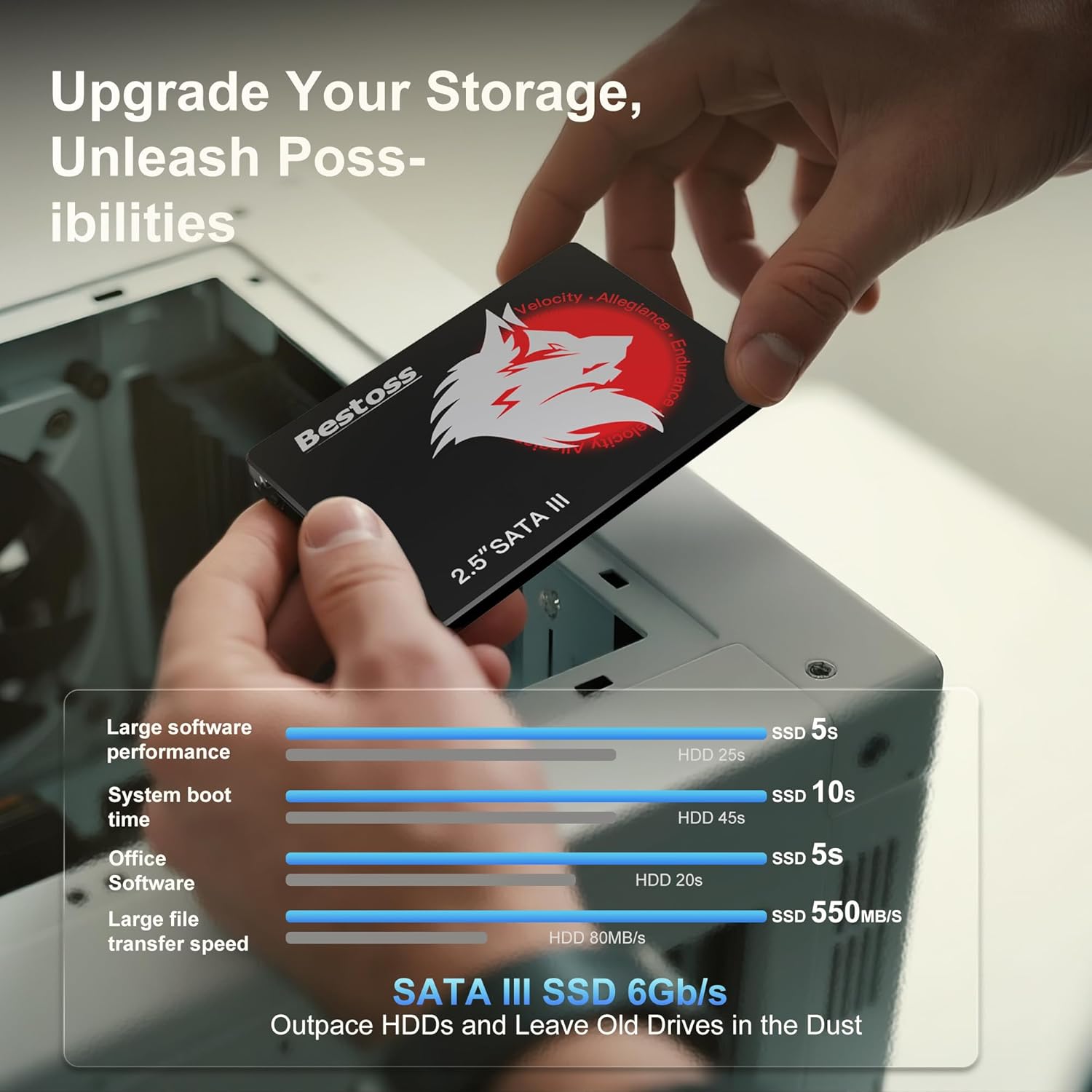
Image: A Bestoss S201 SSD being installed into a desktop computer's drive bay.
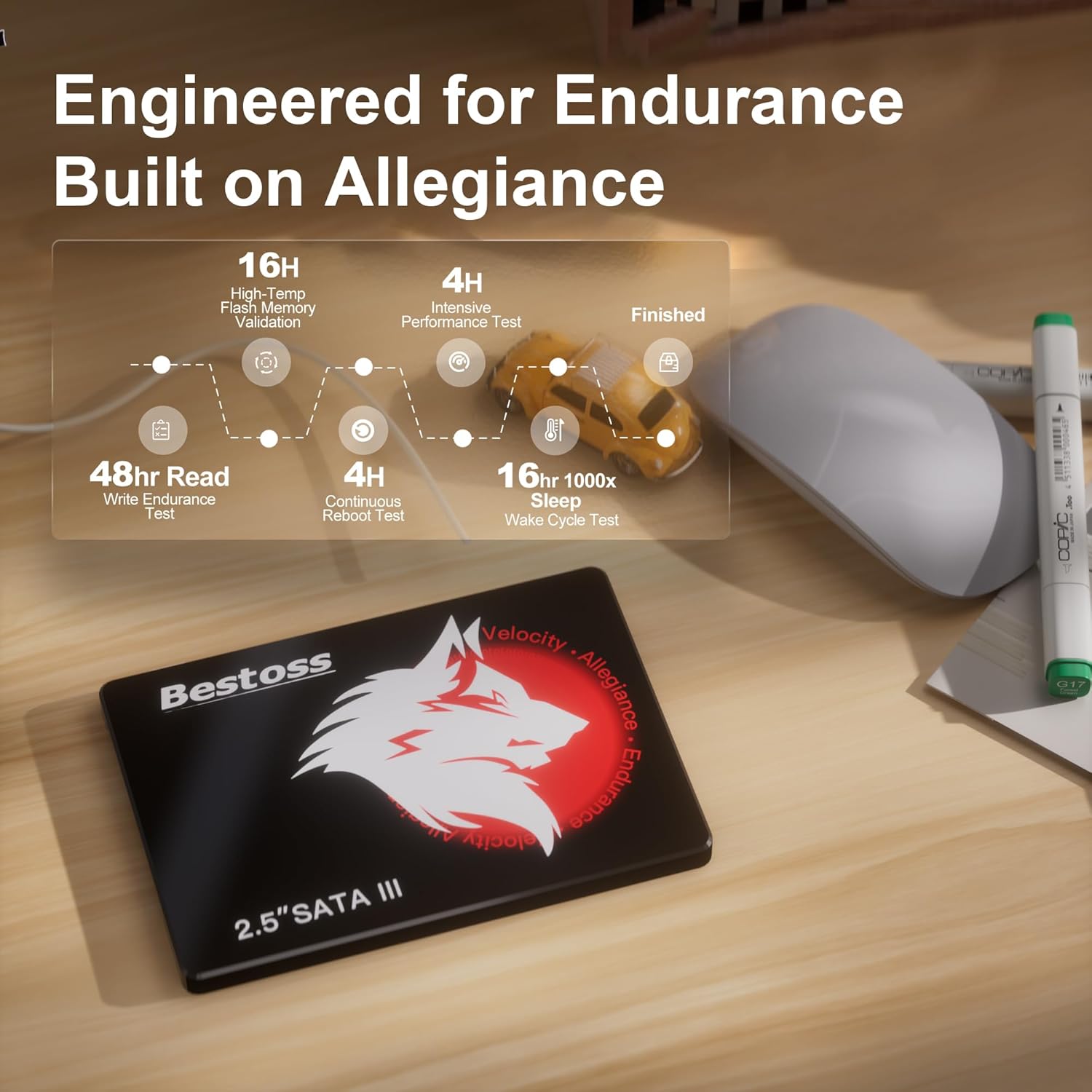
Image: Close-up of the Bestoss S201 SSD connected to SATA data and power cables within a computer system.
Official Product Video: Bestoss S201 SSD Overview
Video: An official overview of the Bestoss 2.5 Inch SSD, highlighting its features and benefits for PC and laptop users.
Operating Your SSD
Once installed and configured, your Bestoss S201 SSD will function as a high-speed storage device. Its solid-state nature means faster boot times, quicker application launches, and improved overall system responsiveness compared to traditional hard drives.
- Optimal Use: For best performance, install your operating system and frequently used applications on the SSD.
- Data Storage: Utilize the 128GB capacity for important documents, photos, videos, games, and applications.
- Compatibility: The SSD is compatible with various operating systems including Windows and Linux, ensuring broad usability.

Image: Visual representation of the Bestoss S201 SSD's suitability for various applications, including office work, gaming, and home entertainment.
Maintenance
To maintain the performance and lifespan of your Bestoss S201 SSD, consider the following:
- TRIM Command: Ensure your operating system has TRIM enabled. This command helps the SSD manage data blocks more efficiently, preventing performance degradation over time. Most modern operating systems enable TRIM by default for SSDs.
- S.M.A.R.T. Monitoring: Utilize S.M.A.R.T. (Self-Monitoring, Analysis, and Reporting Technology) tools to monitor the health and status of your SSD. This can help predict potential issues before they lead to data loss.
- Avoid Defragmentation: Unlike HDDs, SSDs do not benefit from defragmentation. In fact, defragmenting an SSD can reduce its lifespan by increasing unnecessary write cycles.
- Firmware Updates: Periodically check the Bestoss official website for any available firmware updates for your S201 SSD. Firmware updates can improve performance, stability, and compatibility.
- Regular Backups: Always back up your important data to another storage device. While SSDs are reliable, no storage device is immune to failure.
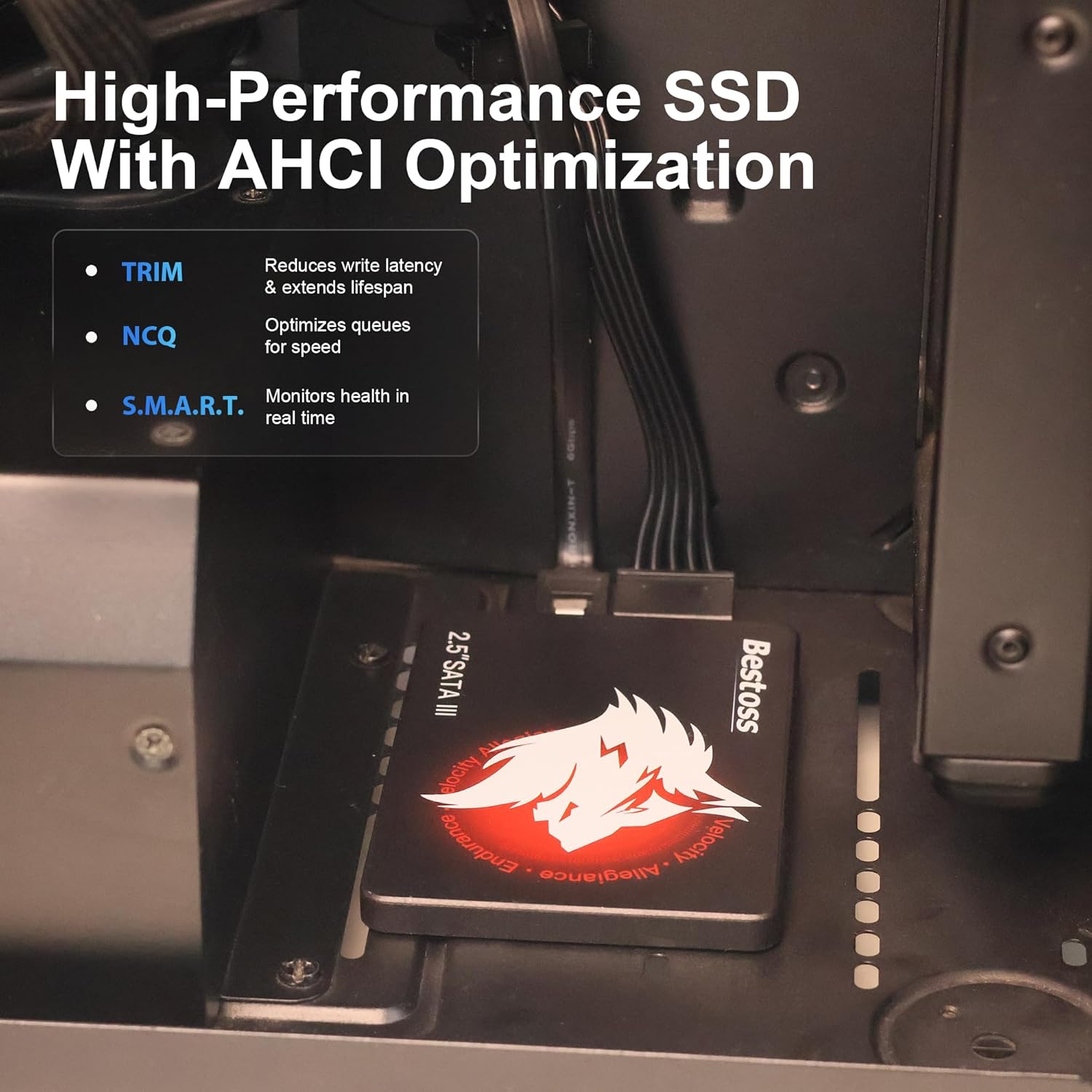
Image: The Bestoss S201 SSD is shown with a diagram illustrating its rigorous testing for endurance and reliability.
Troubleshooting
If you encounter issues with your Bestoss S201 SSD, refer to the following common troubleshooting steps:
- Drive Not Detected:
- Check all SATA data and power cable connections to ensure they are secure.
- Verify that the SATA port on your motherboard is enabled in the BIOS/UEFI settings.
- For new drives, ensure it has been initialized, partitioned, and formatted in Disk Management (Windows) or Disk Utility (Linux).
- Test the SSD with a different SATA cable or port, or in another computer if possible, to rule out hardware issues.
- Slow Performance:
- Ensure your system's SATA controller is set to AHCI mode in the BIOS/UEFI.
- Verify that TRIM is enabled for your SSD.
- Check for background processes or applications consuming excessive resources.
- Ensure your operating system and drivers are up to date.
- Operating System Errors/Crashes:
- Run a disk check or error scan on the SSD using your operating system's built-in tools.
- Check for any recent software installations or updates that might be causing conflicts.
- Consider reinstalling the operating system if issues persist and other troubleshooting steps fail.
Specifications
| Feature | Detail |
|---|---|
| Digital Storage Capacity | 128 GB |
| Hard Disk Interface | Serial ATA-600 |
| Connectivity Technology | SATA III |
| Brand | Bestoss |
| Special Feature | AHCI optimization, Backward compatible with SATA II and SATA I interfaces, Earthquake resistance, NCQ/SMART instruction, TRIM instructions |
| Hard Disk Form Factor | 2.5 Inches |
| Hard Disk Description | Solid State Drive |
| Compatible Devices | Desktop, Laptop |
| Installation Type | Internal Hard Drive |
| Color | Red and black |
| Read Speed | 550 Megabytes Per Second |
| Data Transfer Rate | 550 Megabytes Per Second |
| Item Weight | 0.05 Kilograms |
| Model Number | S201 |
| Manufacturer | Shenzhen Ution-Best Electronic Co.,Itd |
| Enclosure Material | Tlc Nand Flash |
Warranty and Support
Your Bestoss S201 SSD is covered by a 3-year limited warranty from the manufacturer. This warranty ensures that your product is free from defects in materials and workmanship under normal use during the warranty period.
For technical assistance, warranty claims, or any questions regarding your Bestoss S201 SSD, please contact Bestoss customer support through their official channels. Lifetime technical support is provided to assist you with any product-related inquiries.
Please retain your proof of purchase for warranty validation.