
TECXERLLON RC09851
TECXERLLON 9.0" Wireless CarPlay Screen with Backup Camera User Manual
Model: RC09851
1. Introduction
This manual provides detailed instructions for the installation, operation, and maintenance of your TECXERLLON 9.0" Wireless CarPlay Screen with Backup Camera. Please read this manual thoroughly before using the product to ensure proper function and safety. Keep this manual for future reference.
2. Safety Information
- Driving Safety: Always prioritize driving safety. Do not operate the device in a manner that distracts you from driving.
- Professional Installation: For backup camera installation, if you lack experience in vehicle repair or modification, seek professional assistance.
- Power Source: Connect the device only to a 12V cigarette lighter outlet.
- Temperature Range: The display is designed for operation within a temperature range of -4°F to 158°F.
- Video Playback: Note that some apps (e.g., Netflix, YouTube, Apple TV, Amazon Video, ESPN, MLB) may not cast videos due to content restrictions.
3. Package Contents
Verify that all items are present in the package:
- CarPlay Screen Body with Soft Plastic Base
- Power Cord
- AUX Cable
- Backup Camera (20ft cable)
- Backup Camera Adhesives
- Backup Camera Screws
- User Manual

Image: Overview of all components included in the TECXERLLON 9.0" Wireless CarPlay Screen package.
4. Product Overview
The TECXERLLON 9.0" Wireless CarPlay Screen is a portable car receiver designed to enhance your driving experience with smart features. It supports wireless CarPlay and Android Auto, offering seamless smartphone integration for navigation, calls, music, and messages.
Key Features:
- 9.0-inch HD IPS Display: Features a 1024×600 resolution touchscreen for clear visuals and responsive touch performance.
- Wireless CarPlay & Android Auto: Seamless smartphone connection with auto-reconnect functionality.
- Backup Camera: Includes an IP67 waterproof rearview camera with a 19.7ft cable for real-time backup view and dynamic parking guidelines.
- Smart Voice Assistant: Supports Siri and Google Assistant for hands-free control of apps, calls, texts, navigation, and music.
- Live GPS Navigation: Mirrors Maps, Google Maps, and Waze for real-time traffic updates and directions.
- Multiple Audio Output Options: Built-in speaker, Bluetooth, AUX cable, and FM transmission for connecting to your car's sound system.
- Easy Setup & Universal Compatibility: Plugs into a 12V cigarette lighter outlet and mounts on the dashboard or windshield. Compatible with most 12V-24V vehicles.

Image: The TECXERLLON 9.0" Wireless CarPlay Screen displaying the CarPlay interface.
5. Setup & Installation
5.1 Mounting the Display
- Clean Surface: Ensure the dashboard or windshield surface where you intend to mount the display is clean and free of dust or debris.
- Attach Mount: Secure the soft plastic base to the desired location using the provided adhesive or suction cup. The malleable base allows for installation on uneven surfaces.
- Attach Display: Mount the CarPlay screen onto the secured base.

Image: The flexible soft plastic base designed for secure mounting on various dashboard surfaces.
5.2 Connecting Power
Plug the provided power cord into the 12V cigarette lighter outlet in your vehicle. Connect the other end to the CarPlay screen.
5.3 Backup Camera Installation
The backup camera provides a real-time rear view for safer parking. Follow these steps for installation:
- Mount Camera: Secure the IP67 waterproof rearview camera at the rear of your vehicle, typically near the license plate. Use the provided adhesives and screws for a firm attachment.
- Route Cable: Carefully route the 19.7ft camera cable from the rear of the vehicle to the CarPlay screen at the front. Conceal the cable under vehicle trim for a clean installation.
- Connect to Reverse Light: Connect the red wire of the camera cable to your vehicle's reverse light signal wire. This enables the screen to automatically switch to rearview when reversing. (Consult your vehicle's wiring diagram or seek professional help if unsure).
- Connect to Screen: Plug the camera cable into the designated AV IN port on the CarPlay screen.

Image: Diagram showing the connection points for the backup camera, including the reverse light trigger and the AV IN port on the CarPlay screen.
Warning: If you have no experience in vehicle repair/modification or rear camera installation, please seek professional assistance.
6. Operating Instructions
6.1 Wireless CarPlay & Android Auto Connection
The device supports wireless CarPlay and Android Auto. Once connected for the first time, the system will auto-reconnect when you start your car.
- Enable Bluetooth & Wi-Fi: On your smartphone, turn on both Bluetooth and Wi-Fi.
- Pair Device: On the CarPlay screen, select 'CarPlay' or 'Android Auto'. On your phone, search for and select the corresponding Bluetooth device (e.g., 'SmartScreen').
- Confirm Connection: Follow the on-screen prompts to confirm pairing. The connection should be successful within approximately 10 seconds.

Image: Visual guide for connecting Wireless Apple CarPlay.

Image: Visual guide for connecting Wireless Android Auto.
6.2 Online GPS Navigation
Once connected to CarPlay or Android Auto, you can use navigation apps like Apple Maps, Google Maps, and Waze directly on the 9.0-inch display. This provides real-time traffic updates and directions, enhancing driving safety. (For CarPlay & Android Auto mode use only.)

Image: The CarPlay screen showing available online GPS navigation applications.
6.3 Smart Voice Assistant
Utilize Siri or Google Assistant for voice control. This allows for hands-free operation of calls, texts, navigation, and music playback, minimizing distractions while driving. (For CarPlay & Android Auto mode use only.)

Image: Examples of voice commands for Siri and Google Assistant on the CarPlay screen.
6.4 Audio Output Options
The device offers several ways to output audio:
- Built-in Speaker: For standalone use.
- Bluetooth: Connect directly to your car's Bluetooth system for audio playback.
- AUX Cable: Use the provided AUX cable to connect to your car's AUX input.
- FM Transmission: Sync the CarPlay screen to a matching FM frequency on your car's radio to transmit audio.

Image: Visual representation of the four available audio output methods for the CarPlay screen.
6.5 Mirror Link
Mirror Link (Airplay for iOS, Android Cast for Android) allows you to display your smartphone's screen directly on the CarPlay unit. This is useful for viewing content not natively supported by CarPlay/Android Auto. (For iOS & Android use only.)

Image: Instructions for setting up Airplay Mirror Link.

Image: Instructions for setting up Android Cast Link.
6.6 Backup Camera Operation
When the vehicle is shifted into reverse, the CarPlay screen will automatically display the rear view from the connected camera. Dynamic parking guidelines will appear on the screen to assist with parking maneuvers. (Note: The camera supports live rear view only, not video recording.)
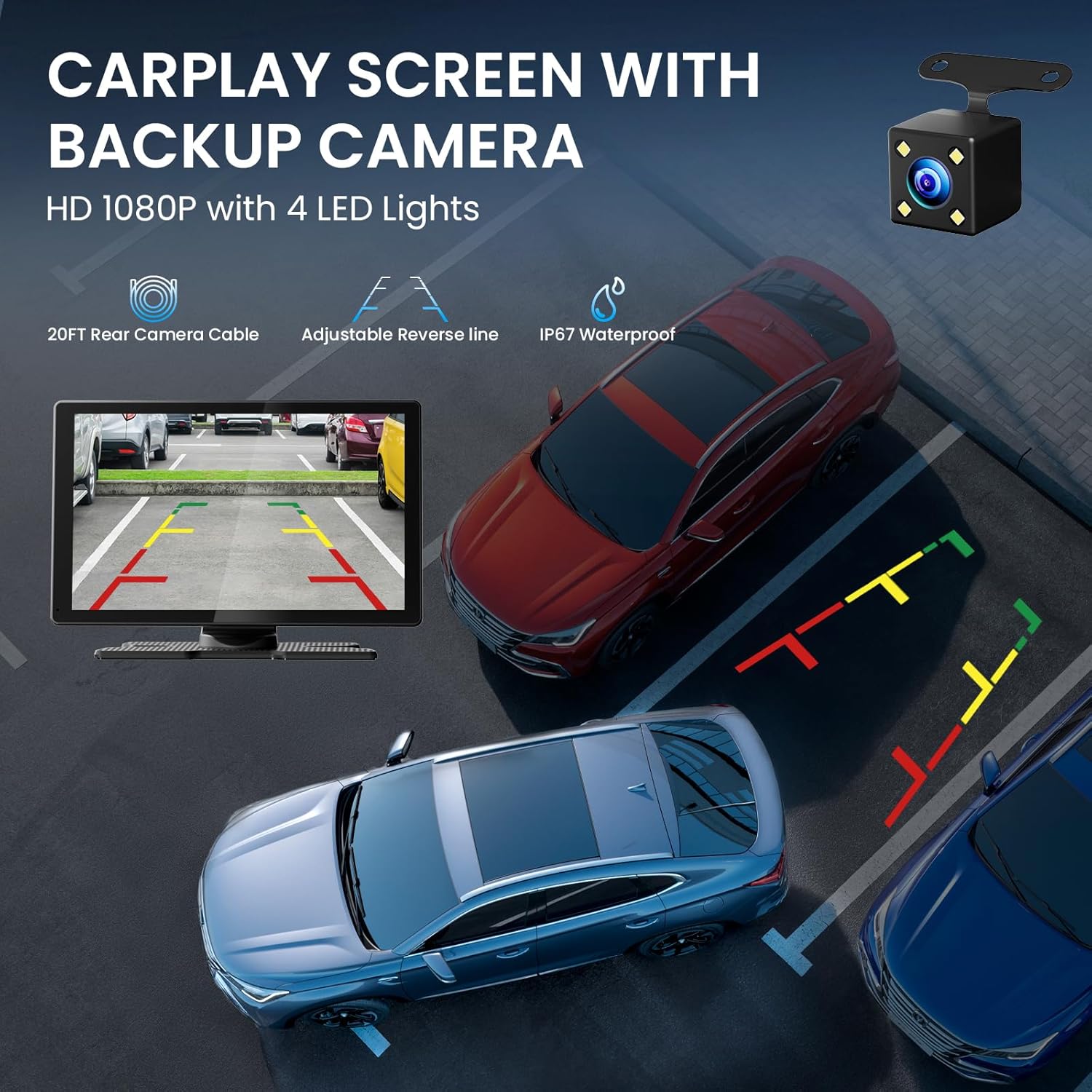
Image: The CarPlay screen showing the backup camera feed with parking assistance lines.
7. Maintenance
- Cleaning the Screen: Use a soft, lint-free cloth to gently wipe the touchscreen. Avoid abrasive cleaners or solvents.
- Cable Management: Periodically check all cables for secure connections and any signs of wear or damage. Ensure cables are tucked away to prevent interference with driving controls.
- Camera Lens: Keep the backup camera lens clean from dirt, mud, or water spots to ensure a clear view.
8. Troubleshooting
- iOS 26 Connection Issues: If your phone is running iOS 26 and experiencing connection issues with CarPlay, contact customer support via the email address provided in the instruction manual for a device update file and guide.
- Samsung Android Compatibility: Some Samsung Android models (e.g., Galaxy S21, S22, S24 Ultra) may not connect properly with this device.
- No Video Casting: Certain streaming apps (e.g., Netflix, YouTube, Apple TV, Amazon Video, ESPN, MLB) may not allow video casting due to copyright and content protection policies. This is a limitation of the apps, not the device.
- Backup Camera Not Activating: Ensure the red wire of the camera is correctly connected to the reverse light's signal wire. Check all cable connections for looseness or damage.
- No Audio Output: Verify that the selected audio output method (Bluetooth, AUX, FM) is correctly configured and that your car's stereo is set to the appropriate input.
9. Specifications
| Brand | TECXERLLON |
| Model Number | RC09851 |
| Product Dimensions | 0.95"D x 8.66"W x 5.51"H |
| Color | Black |
| Connectivity Technology | Bluetooth, Wi-Fi |
| Controller Type | Android, iOS |
| Special Features | Android Auto, Apple CarPlay, GPS Navigation, Hands-Free Calling, Voice Control |
| Compatible Devices | Android, iPhone |
| Connector Type | USB Type-C |
| Audio Output Mode | Stereo |
| Audio Output Type | AUX, Bluetooth, FM, Speakers |
| Control Method | Touch, Voice |
| Display Type | 9.0-inch HD IPS Touchscreen |
| Display Resolution | 1024×600 |
| Backup Camera | IP67 Waterproof, 19.7ft Cable |
10. Warranty
This product comes with a 1 Year Warranty from the date of purchase. Please retain your proof of purchase for warranty claims.
11. Support
For technical assistance, troubleshooting, or warranty inquiries, please contact TECXERLLON customer support:
Email: support@texcerllon.com
Please refer to your instruction manual for any additional contact information.
Ask a question about this manual
Ask about setup, troubleshooting, compatibility, parts, safety, or missing instructions. Manuals+ will review the question and use this page’s manual context to help answer it.