
1. Product Overview
This manual provides instructions for the KUNFINE 8.8-inch Octa Core Android Auto Navigation Stereo, designed specifically for Audi A6 vehicles manufactured between 2005 and 2012. This head unit integrates advanced features to enhance your in-car entertainment and navigation experience.
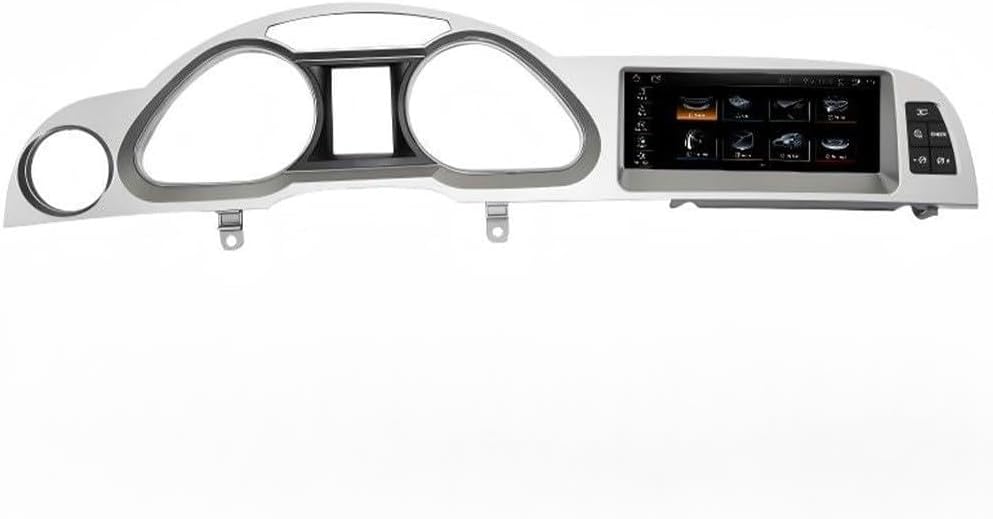
Image: The KUNFINE 8.8-inch Android Auto Navigation Stereo unit, designed to integrate into the Audi A6 dashboard.
Key Features:
- Compatibility: Specifically designed for Audi A6 (2005-2012).
- Operating System: Android System.
- Processor: Octa Core CPU.
- Memory: 8GB RAM, 64GB ROM.
- Display: 8.8-inch IPS Full HD Multi-touch Screen.
- Connectivity: Built-in CarPlay & Android Auto (wireless & wired), Bluetooth, Internal Wi-Fi, USB input.
- Navigation: Supports various navigation applications.
- Audio/Video: Supports all formats of audio playback, video playback.
- Integration: Supports steering wheel control, original car settings, and rear view camera (aftermarket RCA type).
- Languages: Over 20 OSD languages including English, French, German, Spanish, Italian.
Package Contents:
- 1x Car Android Head Unit with Mask
- 1x GPS Antenna
- 1x Power Cable (Plug & Play)
- 2x USB Port Cable
- 1x RCA Expand Cable
- 1x RCA Connector for Reverse Camera
- 1x Install Kit
- 1x External Microphone
- 1x AHD 720 Reverse Camera
2. Setup and Installation Considerations
Before proceeding with installation, ensure your vehicle is compatible and prepare the necessary tools. Professional installation is recommended.
2.1 Compatibility Check
This unit is compatible with Audi A6 models from 2005 to 2012. It is crucial to verify your car's original system configuration.

Image: Visual guide for checking compatibility with Audi MMI 2G HIGHT (V1) and MMI 3G (V2) systems by identifying screen type and button layout (SETUP or AC button).
- MMI 2G HIGHT (V1): Typically features a colorful screen and a 'SETUP' button.
- MMI 3G (V2): Typically features a colorful screen and an 'AC' button.
2.2 Important Installation Notes
- AUX Port: The product requires an existing AUX port in your vehicle for audio integration.
- Airbag Button: Confirm if your original car has an Airbag button.
- Original Screen: This unit is NOT compatible with vehicles that have a single red original screen. If your car has this type of screen, do not proceed with installation.
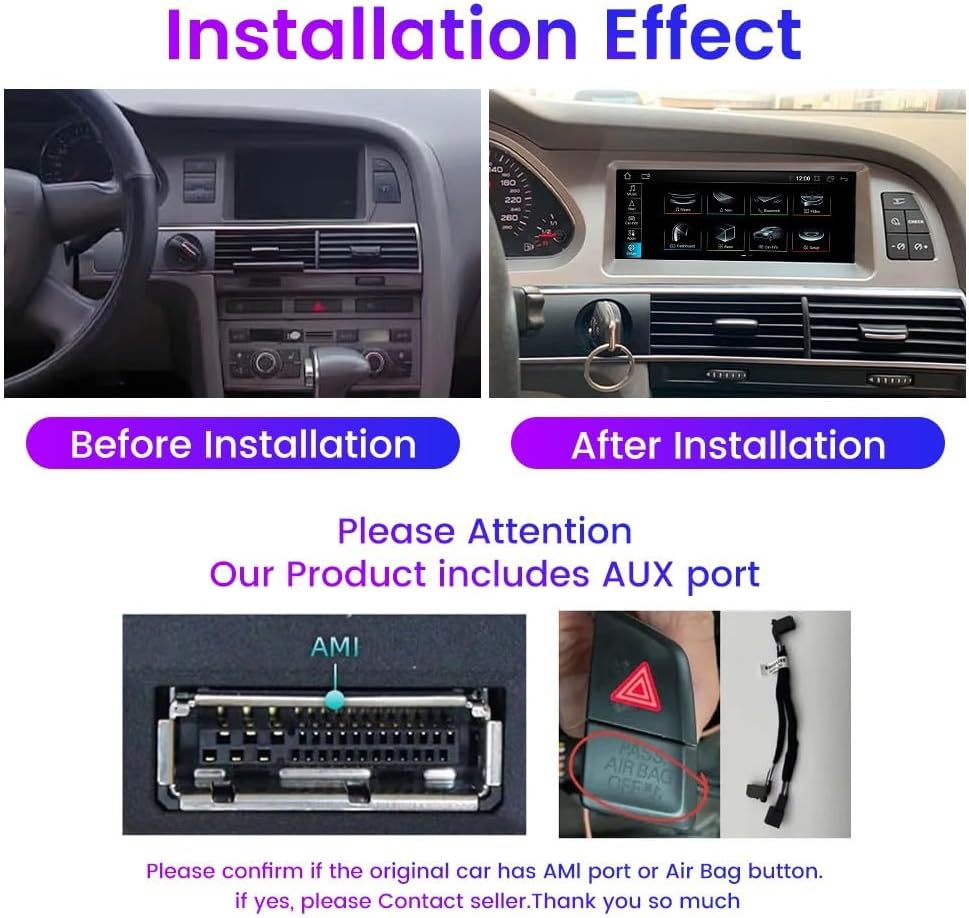
Image: Demonstrates the visual change after installation, highlighting the need to confirm the presence of an AMI port or Airbag button for proper functionality.

Image: A warning indicating that the product is not compatible with vehicles featuring a single red original screen.
2.3 General Installation Steps (Overview)
- Carefully remove the original head unit and trim pieces.
- Connect the provided power cable and other necessary wiring harnesses.
- Install the GPS antenna in a location with clear sky view.
- Connect USB cables for external devices.
- Mount the new KUNFINE head unit securely into the dashboard.
- Test all functions before fully reassembling the dashboard.
3. Operating Instructions
This section details the primary functions and how to operate your KUNFINE Android Auto Navigation Stereo.
3.1 Android System Interface
The unit runs on an Android operating system, providing access to various applications and settings. The main screen displays icons for navigation, media, phone, and other functions.

Image: The Android system interface displaying various popular applications like YouTube, Netflix, Spotify, and social media apps, indicating the unit's multimedia capabilities.
3.2 CarPlay and Android Auto
The unit supports both wireless and wired CarPlay and Android Auto for seamless smartphone integration.

Image: Step-by-step instructions for connecting to Wireless CarPlay and Android Auto, emphasizing Bluetooth connection and using the 'Zlink5' app.
3.2.1 Wireless CarPlay Connection:
- Establish a Bluetooth connection between the car stereo and your iPhone.
- Open the 'Zlink5' app on the car stereo.
- Enjoy Wireless Apple CarPlay.
3.2.2 Wireless Android Auto Connection:
- Download the Android Auto app on your Android phone.
- Establish a Bluetooth connection between the car stereo and your Android phone.
- Open the 'Zlink5' app on the car stereo.
- Enjoy Wireless Android Auto (Note: Some Samsung phones may not be supported).
3.3 Navigation
The unit supports various navigation applications, allowing you to use your preferred mapping service. Voice commands can be used for navigation to minimize driver distraction.

Image: Displays various navigation app icons and illustrates the use of voice commands (e.g., "Hey Siri, navigate to the park.") for hands-free operation.
3.4 Bluetooth Functionality
Connect your mobile phone via Bluetooth to make hands-free calls and stream stereo music directly to the car's speakers.
3.5 Wi-Fi and Hotspot Sharing
Utilize the internal Wi-Fi to connect to available networks or share your mobile phone's hotspot for internet access on the head unit.
3.6 Steering Wheel Control (SWC)
The unit supports your vehicle's original steering wheel controls, allowing you to manage media playback, volume, and calls without taking your hands off the wheel.
3.7 Rear View Camera Support
The system supports aftermarket RCA type backup cameras. An AHD 720 reverse camera is included in the package for enhanced safety during parking.

Image: Illustrates an optional 360-degree rear view camera system, showing views from front, back, left, and right cameras, and how they are displayed on the head unit screen.
3.8 Original Car Settings Integration
The KUNFINE head unit is designed to integrate with and support various original car functions.

Image: Shows the unit's compatibility with original car features such as steering wheel control, original camera, audio speakers, maintaining the original car system, CD player, and media knob control.
- Support Steering Wheel Control
- Support Original Camera
- Support Original Audio Speaker
- Keep Original Car System
- Support Original CD Player
- Support Media Knob Control
4. Maintenance
Proper maintenance ensures the longevity and optimal performance of your KUNFINE head unit.
4.1 Cleaning the Display
- Use a soft, lint-free cloth to gently wipe the screen.
- For stubborn smudges, slightly dampen the cloth with water or a screen-safe cleaner. Avoid harsh chemicals.
- Do not spray liquid directly onto the screen.
4.2 Software Updates
Periodically check for software updates to ensure you have the latest features and performance improvements. Updates can typically be found through the unit's settings menu or the manufacturer's website.
4.3 General Care
- Avoid exposing the unit to extreme temperatures or direct sunlight for prolonged periods.
- Ensure all connections are secure to prevent intermittent issues.
- Do not attempt to open or repair the unit yourself, as this may void the warranty.
5. Troubleshooting
This section addresses common issues you might encounter. For problems not listed here, please contact customer support.
5.1 Power Issues
- Unit does not power on: Check all power connections. Ensure the vehicle's ignition is on. Verify fuses.
- Unit powers on but no display: Check display cable connections. Ensure the screen is not in standby mode.
5.2 Audio Issues
- No sound: Verify volume settings. Ensure the AUX input is correctly selected on your original car system. Check speaker connections.
- Distorted sound: Check audio source quality. Ensure connections are secure and not loose.
5.3 Connectivity Issues (CarPlay/Android Auto/Bluetooth/Wi-Fi)
- Cannot connect to CarPlay/Android Auto: Ensure Bluetooth is enabled on both devices. Confirm the 'Zlink5' app is open on the head unit. For wired connections, try a different USB cable.
- Bluetooth pairing fails: Ensure the head unit is in pairing mode and visible. Delete previous pairings on both devices and try again.
- Wi-Fi connection unstable: Check Wi-Fi signal strength. Restart the head unit and router/hotspot.
5.4 Navigation Issues
- GPS signal lost or inaccurate: Ensure the GPS antenna has a clear view of the sky. Check antenna connection.
- Navigation app not working: Ensure the app is updated. Check internet connection if required by the app.
5.5 Incompatibility with Single Red Original Screen
As noted in the setup section, this unit is not compatible with Audi A6 models featuring a single red original screen. Attempting to install it in such a vehicle will result in malfunction.
6. Specifications
| Feature | Specification |
|---|---|
| Display Size | 8.8 Inches |
| Operating System | Android |
| CPU | Octa Core |
| RAM | 8 GB |
| Memory Storage Capacity | 64 GB |
| Touch Screen Type | Capacitive |
| Display Type | LCD |
| Connectivity Technology | USB, Bluetooth, Wi-Fi |
| Map Type | North America (Pre-installed, check for updates) |
| Mounting Type | Dashboard Mount |
| Vehicle Service Type | Car (Audi A6 2005-2012) |
7. Warranty and Support
7.1 Warranty Information
This KUNFINE product comes with a one-year warranty from the date of purchase. This warranty covers manufacturing defects and malfunctions under normal use. It does not cover damage caused by improper installation, misuse, accidents, or unauthorized modifications.
7.2 Customer Support
For any questions, technical assistance, or warranty claims, please contact the seller directly. Your consultation is always welcomed, and prompt support will be provided.
Please refer to your purchase documentation for specific contact details.