Introduction
This user manual provides comprehensive instructions for the installation, operation, and maintenance of your Inexaccessories 9-inch Android 13 Car Stereo. Designed specifically for KIA Optima K5 models from 2013 to 2015, this advanced multimedia system enhances your driving experience with features like Wireless CarPlay, Android Auto, GPS navigation, Bluetooth 5.2, and a high-definition touch screen. Please read this manual thoroughly before installation and use to ensure proper functionality and safety.

Image: The Inexaccessories 9-inch Android 13 Car Stereo unit, shown with its custom bezel for KIA Optima K5, alongside an external microphone, icons representing Android Auto and Apple CarPlay, and a high-definition backup camera. This image illustrates the main product and key accessories.
Safety Information
To ensure safe operation and prevent damage, please observe the following precautions:
- Professional Installation Recommended: Due to the complexity of car electrical systems, professional installation is highly recommended. Incorrect wiring can cause damage to the unit or your vehicle.
- Power Supply: Connect the unit only to a 12V DC power supply with a negative ground.
- Avoid Water and Moisture: Do not expose the unit to water or excessive moisture.
- Temperature: Operate the unit within the specified temperature range. Extreme temperatures can affect performance.
- Driving Safety: Do not operate the unit in a way that distracts you from driving. Always prioritize road safety.
- Ventilation: Ensure adequate ventilation around the unit to prevent overheating.
Package Contents
Please check that all items listed below are included in your package:
- 9-inch Android 13 Car Stereo Unit
- Power Cable (A)
- RCA Cable (B)
- 2 x USB Cables (C)
- External Microphone (D)
- GPS Antenna (E)
- HD 1080P Backup Camera
- Reversing Input Cable (F)
- User Manual (this document)

Image: A visual representation of the car stereo unit's rear connections and a clear layout of all included accessories, such as the power cable, RCA cables, USB cables, external microphone, GPS antenna, and the backup camera. This helps users identify and verify package contents.
Setup and Installation
1. Compatibility Check
Before proceeding with installation, it is crucial to verify your car's center console compatibility. This unit is designed for KIA Optima K5 models from 2013-2015 that match "Model A" configuration. If your original car has a factory screen, rear camera, or amplifier, this radio may not be compatible.
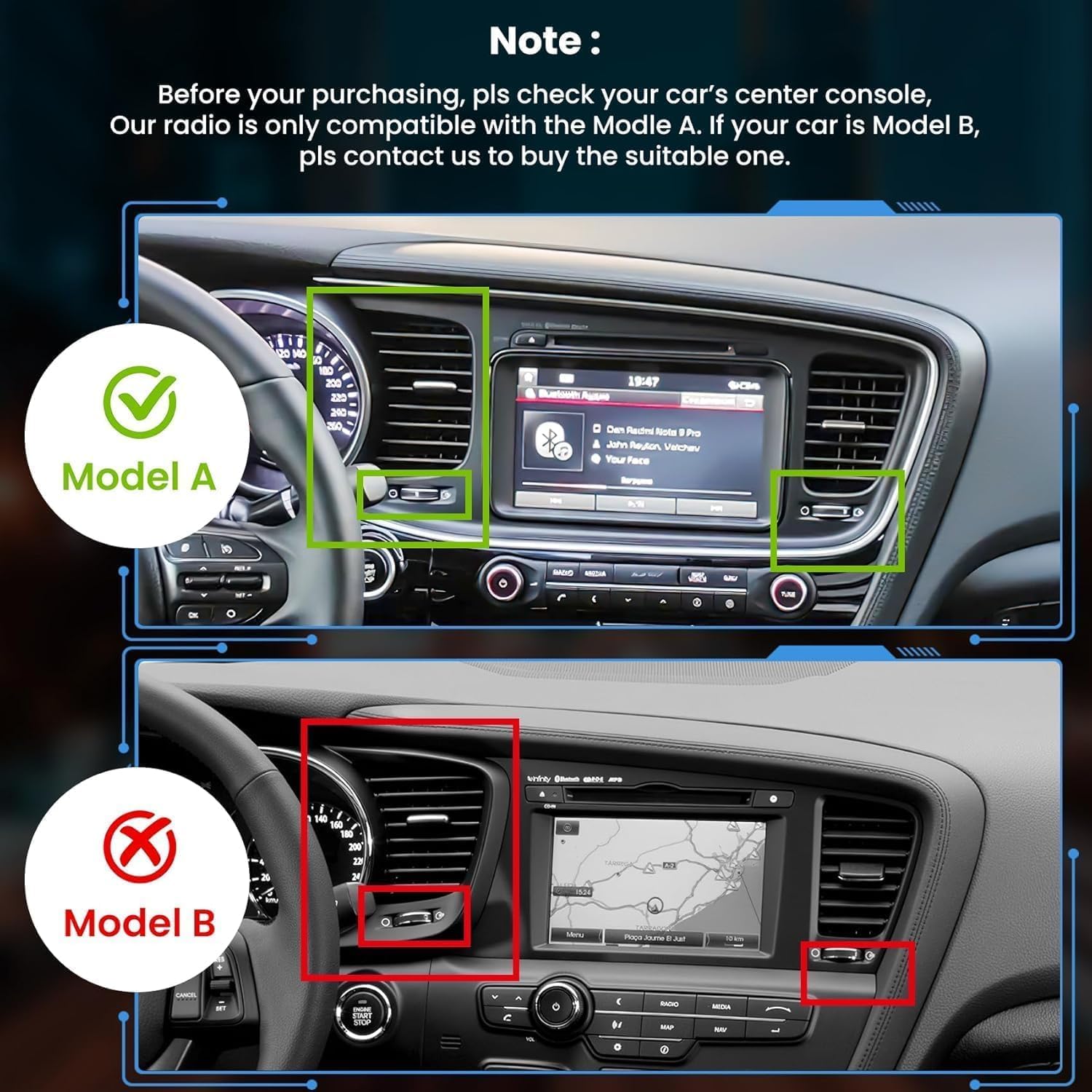
Image: A side-by-side comparison of two KIA Optima K5 dashboard configurations. The top image (Model A) shows a compatible dashboard without a factory screen, indicated by a green checkmark. The bottom image (Model B) shows an incompatible dashboard with an existing factory screen, marked with a red 'X'. This helps users determine if their vehicle is suitable for installation.
2. Installation Steps
Follow these general steps for installation. Specific vehicle disassembly instructions are not covered here and may require consulting a vehicle-specific guide or professional assistance.
- Disconnect Battery: Before starting, disconnect the negative terminal of your car's battery to prevent electrical shorts.
- Remove Old Unit: Carefully remove the existing car stereo and trim panels.
- Connect Wiring Harness: Connect the provided power cable (A) and RCA cable (B) to the corresponding ports on the new stereo and your vehicle's wiring harness. Ensure all connections are secure.
- Connect Peripherals:
- Connect the GPS Antenna (E) and position it in a location with a clear view of the sky (e.g., dashboard).
- Connect the External Microphone (D) for improved call quality.
- Connect the USB Cables (C) for data transfer and charging.
- Connect the HD Backup Camera and its Reversing Input Cable (F) as per the camera's instructions.
- Test Connections: Before fully reassembling, reconnect the car battery and briefly test the unit's basic functions (power on, audio, touch screen, camera input).
- Secure Unit: Mount the new stereo securely into the dashboard opening.
- Reassemble: Reinstall all trim panels and components removed earlier.
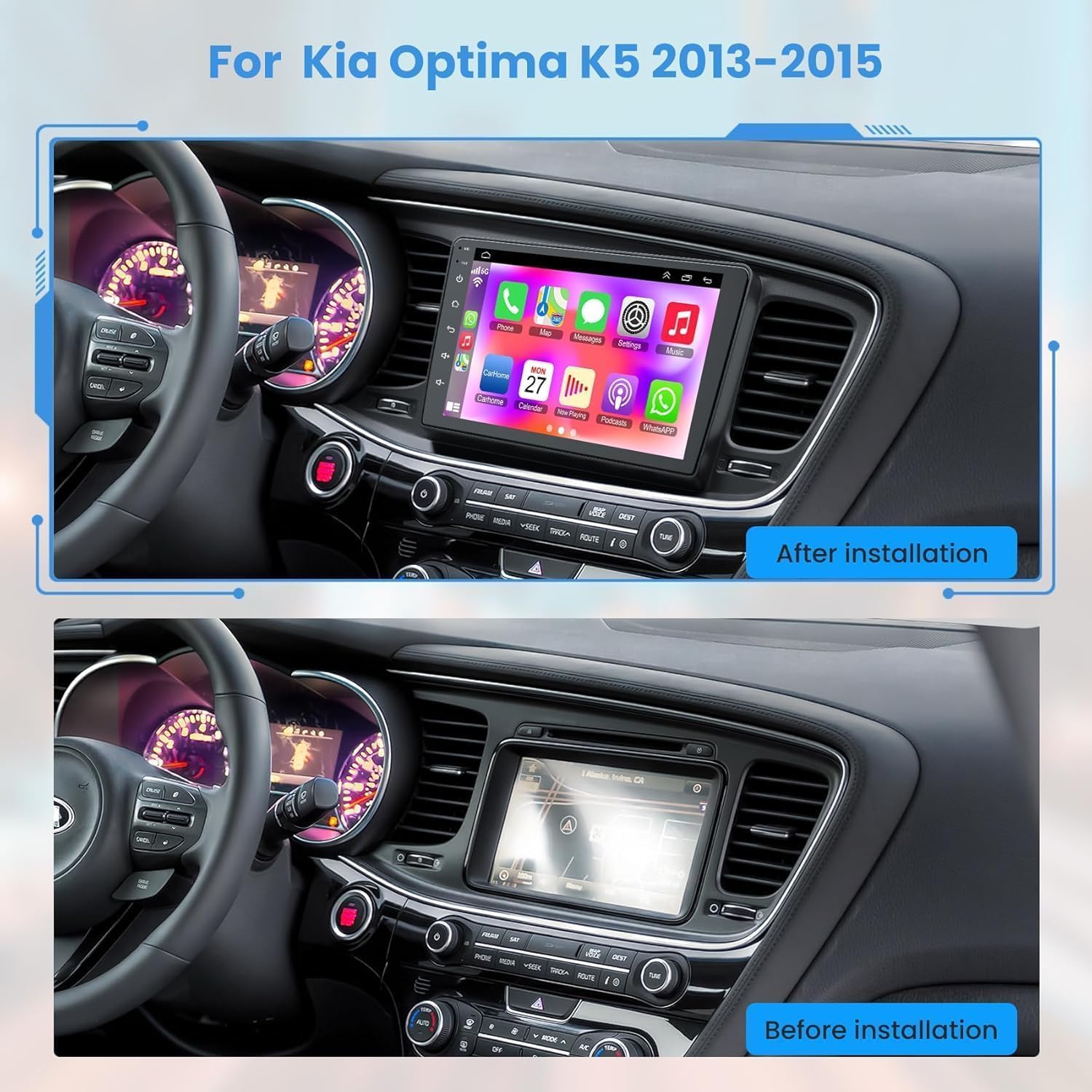
Image: A visual comparison showing the car's dashboard before and after the installation of the Inexaccessories 9-inch car stereo. The "After installation" image highlights the seamless integration and modern appearance of the new unit within the KIA Optima K5's interior.
Operating Instructions
1. Basic Operation
The unit powers on automatically with the vehicle's ignition. Use the touch screen for all primary interactions. The intuitive Android 13 interface allows for easy navigation through apps and settings.

Image: The 9-inch car radio display, featuring the Android 13 operating system with various application icons, integrated into the dashboard of a KIA Optima K5. This image provides an overview of the user interface and its appearance when installed.
2. Wireless CarPlay & Android Auto
Connect your smartphone wirelessly or via USB to access Apple CarPlay or Android Auto. This allows for seamless integration of your phone's functions, including navigation, music, calls, and messages, directly on the car stereo's display. Voice control (Siri or Google Assistant) is fully supported for hands-free operation.
- Ensure Bluetooth and Wi-Fi are enabled on your smartphone.
- On the car stereo, select the "CarPlay" or "Android Auto" application.
- Follow the on-screen prompts to pair your device.

Image: The car stereo's screen displaying both Apple CarPlay and Android Auto interfaces, demonstrating smartphone integration. The image also illustrates voice command functionality, showing examples of commands for making calls and navigating, emphasizing hands-free operation.
3. Bluetooth 5.2 Connectivity
The built-in Bluetooth 5.2 module provides stable and fast connections for hands-free calling and audio streaming. The unit includes both an internal and external microphone for clear communication.
- Go to the Bluetooth settings on the car stereo.
- Enable Bluetooth on your phone and search for available devices.
- Select the car stereo (e.g., "Inexaccessories Car Stereo") from your phone's list and pair.
- Once paired, you can make/receive calls and play music wirelessly.

Image: The car stereo's screen displaying its Bluetooth interface, showing a connected device and music playback controls. A separate image of a smartphone on a call screen is included, demonstrating the hands-free calling capability via Bluetooth 5.2.
4. GPS Navigation
The unit features a built-in GPS module and comes with preloaded offline map data. You can also connect to Wi-Fi to use online navigation apps from the Play Store.
- Access the "Navigation" or "Maps" application from the main menu.
- For offline maps, ensure the map data for your region is downloaded.
- For online navigation, connect to Wi-Fi and download your preferred navigation app (e.g., Google Maps, Waze).

Image: The car stereo's screen displaying a detailed GPS navigation map with route guidance. The image also features icons of popular social media and streaming applications, illustrating the unit's Wi-Fi connectivity and ability to download and run various online apps.
5. Wi-Fi Connection
Connect the car stereo to a Wi-Fi hotspot (e.g., from your smartphone) to access online features, download apps from the Google Play Store, and browse the internet.
- Go to "Settings" > "Network & Internet" > "Wi-Fi".
- Turn on Wi-Fi and select your desired network.
- Enter the password if prompted.
6. Split-Screen Mode
The 9-inch IPS touch screen supports split-screen functionality, allowing you to run two applications simultaneously. For example, you can have navigation on one side and music playback on the other.
- Open the first application you wish to use.
- Press and hold the "Recent Apps" button (usually a square icon) or swipe up from the bottom and hold, then drag the app to one side of the screen.
- Select the second application from the recent apps list or app drawer to fill the other half of the screen.

Image: The car stereo's 9-inch IPS touch screen demonstrating split-screen functionality, with GPS navigation displayed on one half and a music player on the other. This illustrates the ability to multitask and view two applications simultaneously.
7. Steering Wheel Control (SWC)
The unit supports original steering wheel controls, allowing you to manage audio, calls, and other functions without taking your hands off the wheel. Configuration may be required in the settings menu.
- Go to "Settings" > "Steering Wheel Control" or "SWC Learning".
- Follow the on-screen instructions to map your vehicle's steering wheel buttons to the corresponding functions on the stereo.

Image: A detailed view of a KIA steering wheel, with specific buttons highlighted to indicate their compatibility with the car stereo's steering wheel control feature. Accompanying icons represent functions such as answering calls, skipping tracks, and adjusting volume, demonstrating convenient control while driving.
8. HD Rear View Camera Input
When the vehicle is shifted into reverse gear, the stereo automatically displays the feed from the connected HD backup camera, providing a 170° wide viewing angle for safer parking and maneuvering.
- Ensure the backup camera is correctly installed and connected to the "Reversing Input" (F) on the stereo.
- The display will automatically switch to the camera view when reverse gear is engaged.

Image: A simulated view from a backup camera displayed on the car stereo screen, complete with dynamic parking guidelines. This image highlights the wide 170-degree viewing angle and the camera's features like waterproofing and night vision, aiding in safe reversing.
9. FM Radio
Access your favorite FM radio stations with clear reception. The unit supports automatic station scanning and saving presets.
- Select the "FM Radio" application from the main menu.
- Use the scan function to find available stations or manually tune to a frequency.
- Save your preferred stations as presets for quick access.

Image: The car stereo's display showing the FM radio interface, tuned to a frequency of 100.20 MHz. The visual representation of audio waves suggests clear sound quality and the unit's radio functionality.
10. Multi-UI Themes
Personalize your car stereo's appearance by choosing from multiple user interface themes available in the settings. This allows you to customize the look and feel of your display.
- Navigate to "Settings" > "Display" or "UI Themes".
- Browse the available themes and select your preferred style.
Maintenance
Proper maintenance ensures the longevity and optimal performance of your car stereo.
- Cleaning the Screen: Use a soft, lint-free cloth to gently wipe the touch screen. For stubborn smudges, slightly dampen the cloth with water or a screen-safe cleaner. Avoid abrasive materials or harsh chemicals.
- General Cleaning: Keep the unit free from dust and debris. Use a soft brush or compressed air to clean vents and ports.
- Software Updates: Periodically check for software updates via Wi-Fi in the system settings to ensure you have the latest features and bug fixes.
- Avoid Extreme Temperatures: Do not expose the unit to prolonged direct sunlight or extreme cold, as this can affect the display and internal components.
Troubleshooting
If you encounter issues with your car stereo, refer to the following common problems and solutions:
| Problem | Possible Cause | Solution |
|---|---|---|
| No Power | Loose power connection, blown fuse, incorrect wiring. | Check power cable connections. Inspect vehicle's fuse box and the unit's fuse. Ensure correct wiring as per installation guide. |
| No Sound | Volume too low, mute enabled, loose speaker wires, incorrect audio settings. | Increase volume. Check if mute is active. Verify speaker wire connections. Adjust audio output settings. |
| Touch Screen Unresponsive | Software glitch, screen calibration issue. | Restart the unit (turn off car ignition and restart). If issue persists, perform a factory reset (note: this will erase data). |
| GPS Signal Lost/Weak | GPS antenna obstructed or improperly placed, loose antenna connection. | Ensure GPS antenna has a clear view of the sky. Check antenna connection to the unit. |
| Bluetooth Connection Issues | Bluetooth not enabled, pairing failed, interference. | Ensure Bluetooth is enabled on both devices. Delete previous pairings and re-pair. Move closer to the unit. |
| Backup Camera Not Displaying | Camera not connected, incorrect wiring for reverse trigger, faulty camera. | Check camera and reversing input cable connections. Verify the reverse trigger wire is correctly connected to the vehicle's reverse light circuit. |
If the problem persists after trying these solutions, please contact customer support.
Specifications
| Feature | Detail |
|---|---|
| Model Compatibility | KIA Optima K5 (2013, 2014, 2015) |
| Operating System | Android 13 |
| Processor | 4-core processor |
| RAM | 4GB |
| ROM (Internal Storage) | 64GB |
| Display Size | 9 Inches |
| Display Type | IPS Touch Screen |
| Resolution | 1080p (for backup camera input) |
| Wireless Connectivity | Wireless CarPlay, Android Auto, 5G WiFi, Bluetooth 5.2 |
| Navigation | Built-in GPS module, supports online/offline maps (Worldwide map type) |
| Audio Output Mode | Stereo |
| Mounting Type | Dashboard Mount |
| Included Components | Car Radio unit, Power cable, RCA cable, 2 USB cables, External microphone, GPS antenna, HD 1080P backup camera, Reversing input cable, User Manual |
| Item Weight | 3.87 pounds |
| Package Dimensions | 19.6 x 10.47 x 5.31 inches |
Warranty and Support
Your Inexaccessories car stereo comes with a 1-year warranty from the date of purchase, covering manufacturing defects. Please retain your proof of purchase for warranty claims.
For technical support, troubleshooting assistance, or warranty inquiries, please contact Inexaccessories customer service through the retailer where you purchased the product or visit the official Inexaccessories website for contact information.
When contacting support, please provide your product model number (B0F43CC7CW) and a detailed description of the issue.


