
1. Introduction
The BLUETTI Elite 100 V2 is a portable power station designed to provide reliable power for various applications, including outdoor activities, RV travel, and as an emergency backup during power outages. This manual provides essential information for the safe and efficient operation of your device. Please read it thoroughly before using the product.
2. Safety Instructions
To ensure safe operation and prolong the lifespan of your BLUETTI Elite 100 V2, please adhere to the following safety guidelines:
- Read all instructions and warnings in this manual before using the product.
- Do not expose the unit to rain, moisture, or immerse it in water.
- Operate the power station in a well-ventilated area to prevent overheating.
- Avoid using or storing the unit in environments with extreme temperatures (above 40°C/104°F or below 0°C/32°F).
- Do not disassemble, repair, or modify the unit yourself. Contact authorized service personnel for any repairs.
- Keep the unit away from children and pets.
- Ensure proper grounding when required, especially when connecting to household circuits.
- Do not block the ventilation openings.
- Use only BLUETTI-approved accessories and charging cables.
3. Product Overview
3.1 Included Components
Your BLUETTI Elite 100 V2 package includes:
- BLUETTI Elite 100 V2 Portable Power Station
- AC Charging Cable
- Solar Charging Cable
- Grounding Screw
- User Manual
3.2 Key Features
The BLUETTI Elite 100 V2 offers a range of features for versatile power delivery:
- Capacity: 1024Wh LFP (LiFePO4) battery for extended power.
- AC Output: 1800W continuous AC output with a 3600W surge capability and 2700W Lifting Power for demanding appliances.
- Versatile Ports: Equipped with 11 output ports, including 4 AC outlets, 2 USB-A ports, 2 USB-C ports, 2 DC5521 ports, and 1 car port.
- Compact & Portable: Weighs 25 lbs with dimensions of 12.6"L x 8.5"W x 9.8"H, making it 35% smaller than previous models for easy transport.
- Rapid Charging: Achieves 0-100% charge in approximately 70 minutes via 1000W solar input or 1200W AC input.
- Uninterruptible Power Supply (UPS): Features a fast <10ms switchover time to protect sensitive electronics during power outages.
- Durable Battery: LFP battery chemistry provides over 4000 charge cycles to 80% of original capacity.
- Quiet Operation: Operates at a low noise level of 30dB, suitable for indoor use.
- Smart Control: Connects via Bluetooth and Wi-Fi for remote monitoring and control through the BLUETTI app.

Image: Front view of the BLUETTI Elite 100 V2 Portable Power Station, showcasing its display, AC outlets, DC ports, and USB ports.
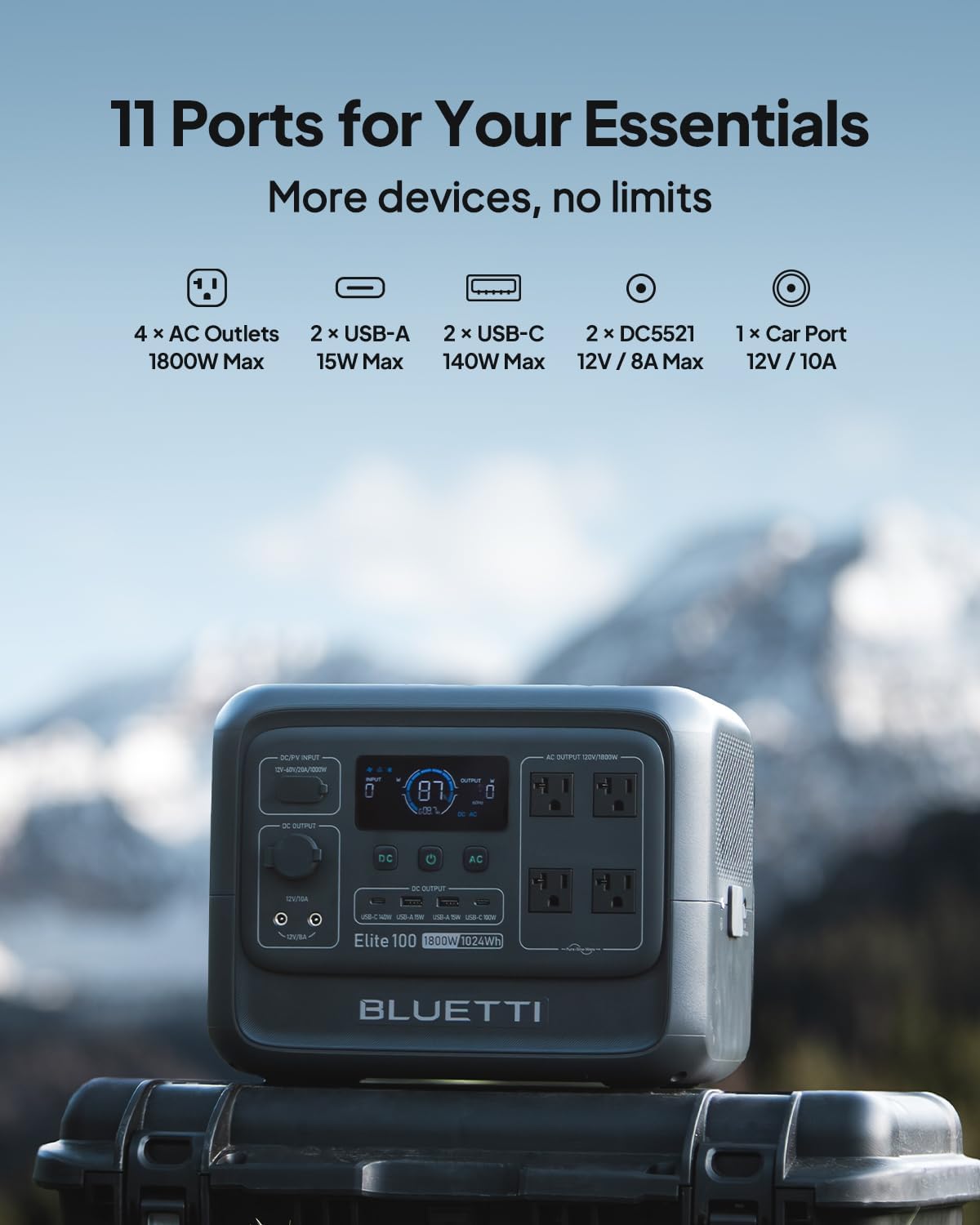
Image: A detailed view of the BLUETTI Elite 100 V2 highlighting its 11 output ports, including 4 AC outlets, 2 USB-A, 2 USB-C, 2 DC5521, and 1 car port.
4. Setup
Follow these steps to set up your BLUETTI Elite 100 V2:
- Unpacking: Carefully remove all components from the packaging. Verify that all included items are present against the 'Included Components' list.
- Initial Charge: It is highly recommended to fully charge the BLUETTI Elite 100 V2 before its first use. Connect the AC charging cable to a standard wall outlet and the unit's AC input port. The display will show the charging status and battery percentage.
- Placement: Place the power station on a stable, flat surface in a well-ventilated area. Ensure it is away from direct sunlight, heat sources, and any flammable materials.
- Ventilation: Ensure that the air intake and exhaust vents on the unit are not obstructed to allow for proper cooling.
5. Operating Instructions
5.1 Turning On/Off
Press and hold the main power button for a few seconds to turn the unit on or off. The LCD display will illuminate upon activation.
5.2 Using Output Ports
- AC Output: Press the 'AC' button on the control panel to activate the AC outlets. Plug your 120V AC devices into the available ports. Ensure the total wattage of connected devices does not exceed 1800W (or 3600W surge for brief periods).
- DC Output: Press the 'DC' button to activate the DC5521 and car port outputs. Connect your 12V DC devices.
- USB Output: The USB-A and USB-C ports are typically active when the unit is powered on. Connect your USB-powered devices for charging.
5.3 Charging the Power Station
The BLUETTI Elite 100 V2 supports multiple charging methods:
- AC Charging: Connect the AC charging cable to a standard wall outlet. The unit supports up to 1200W AC input, allowing a full charge from 0% to 100% in approximately 70 minutes.
- Solar Charging: Connect compatible solar panels (up to 1000W input) to the DC/PV input port using the provided solar charging cable. Optimal charging speed is achieved under direct sunlight, allowing a full charge in approximately 70 minutes.
- Car Charging: Use the car charging cable to charge the unit from your vehicle's 12V/24V cigarette lighter port. For significantly faster charging, an optional BLUETTI Charger 1 (560W) can be used, reducing charging time considerably.

Image: Illustrates the fast charging capabilities of the BLUETTI Elite 100 V2, showing solar panel and AC charging options.
5.4 Uninterruptible Power Supply (UPS) Function
When the Elite 100 V2 is connected to an AC wall outlet and simultaneously powering devices, it can function as an Uninterruptible Power Supply. In the event of a power outage, the unit will automatically switch to battery power within an impressive <10 milliseconds, ensuring continuous operation for connected sensitive electronics such as computers, Wi-Fi routers, or medical equipment.

Image: The BLUETTI Elite 100 V2 providing uninterrupted power to a desktop computer setup, demonstrating its UPS capability.
5.5 Smart App Control
Download the official BLUETTI app from your smartphone's app store. Connect your Elite 100 V2 via Bluetooth or Wi-Fi. The app allows you to:
- Monitor real-time battery status and power consumption.
- Remotely control AC/DC outputs.
- Adjust charging modes and settings.
- Receive battery alerts and notifications.

Image: A smartphone screen showing the BLUETTI app interface, demonstrating smart control features for the Elite 100 V2.
6. Maintenance
Proper maintenance ensures the longevity and optimal performance of your power station:
- Storage: Store the unit in a cool, dry place, away from direct sunlight, moisture, and corrosive materials. For long-term storage (more than 3 months), charge the unit to 50-80% every 3-6 months to preserve battery health.
- Cleaning: Use a dry, soft, lint-free cloth to clean the exterior of the unit. Do not use liquids, solvents, or abrasive cleaners. Ensure vents are clear of dust and debris.
- Battery Health: Avoid fully discharging the battery frequently. Regular partial discharges and recharges are beneficial for LFP battery longevity.
- Temperature: Do not operate or store the unit outside its recommended temperature range.

Image: A visual representation of the BLUETTI Elite 100 V2's durable LFP battery technology, highlighting its 4000+ cycle lifespan and 5-year warranty.
7. Troubleshooting
If you encounter issues with your BLUETTI Elite 100 V2, refer to the following common problems and solutions:
- Unit Not Turning On:
Solution: Ensure the battery is charged. Press and hold the main power button for a few seconds. If the battery is completely depleted, connect it to an AC power source for a few minutes before attempting to power on. - No Output from Ports:
Solution: Verify that the specific output (AC or DC) is activated by pressing its respective button. Check all cable connections to ensure they are secure. Confirm that the device being powered is within the unit's wattage limits. - Slow Charging:
Solution: For AC charging, ensure the wall outlet is functioning correctly and the cable is fully inserted. For solar charging, ensure solar panels are clean, in direct sunlight, and correctly connected. Check for any shading or obstructions on the panels. - App Connectivity Issues (Bluetooth/Wi-Fi):
Solution: Ensure Bluetooth or Wi-Fi is enabled on both your mobile device and the power station. Restart both devices. If issues persist, refer to the BLUETTI app's help section for specific connection steps or try resetting the unit's network settings (if available). - Unusual Noise or Smell:
Solution: Immediately turn off the unit and disconnect all connected devices and charging sources. Do not attempt to use the unit. Contact BLUETTI customer support for assistance. - Display Not Working:
Solution: Try turning the unit off and on again. If the display remains blank, ensure the unit is charged. If the problem persists, contact customer support.
8. Specifications
| Feature | Specification |
|---|---|
| Brand | BLUETTI |
| Model Name | Elite 100 V2 |
| Battery Capacity | 1024 Watt-hours (Wh) |
| AC Output Power | 1800 Watts (W) (Running), 3600W (Surge) |
| Lifting Power | 2700W |
| Output Voltage | 120 Volts (AC) |
| Total Output Ports | 11 (4 AC, 2 USB-A, 2 USB-C, 2 DC5521, 1 Car Port) |
| Battery Type | LFP (LiFePO4) |
| Battery Lifespan | 4000+ cycles to 80% capacity |
| AC Input Power | Up to 1200W |
| Solar Input Power | Up to 1000W |
| Charging Time (0-100%) | Approx. 70 minutes (AC or Solar) |
| UPS Switchover Time | <10ms |
| Noise Level | 30dB (under 600W operation) |
| Dimensions (L x W x H) | 12.6" x 8.5" x 9.8" |
| Item Weight | 25 Pounds |
| Connectivity | Bluetooth, Wi-Fi (App Control) |
| Included Components | Power Station, AC/Solar Charging Cables, Grounding Screw, User Manual |
9. Warranty and Support
Warranty: The BLUETTI Elite 100 V2 Portable Power Station comes with a 5-year limited warranty. This warranty covers defects in materials and workmanship under normal use. Please retain your proof of purchase (receipt or order confirmation) as it will be required for any warranty claims.
Customer Support: For technical assistance, warranty inquiries, or any other questions regarding your BLUETTI Elite 100 V2, please visit the official BLUETTI website or contact their customer service department. Detailed contact information, including phone numbers and email addresses, can typically be found on the BLUETTI website or in the included user manual.
Before contacting support, please review this manual and the troubleshooting section, as many common issues can be resolved quickly.


