
1. Product Overview
The SIXTOP 8 Core 6+128G Android Car Radio is an advanced multimedia system designed to enhance your driving experience. It features a 9-inch IPS touchscreen, runs on Android 13, and is powered by an 8-core chip with 6GB RAM and 128GB internal storage. This unit is specifically compatible with Volkswagen Sharan II 7N and Seat Alhambra II models manufactured between 2012 and 2015.
Key features include Wireless Carplay and Android Auto for seamless smartphone integration, Bluetooth for hands-free calls and music streaming, built-in GPS navigation, FM/RDS radio, and WiFi connectivity. It also supports Steering Wheel Control (SWC) and an optional rear view camera with AHD/CVBS formats.
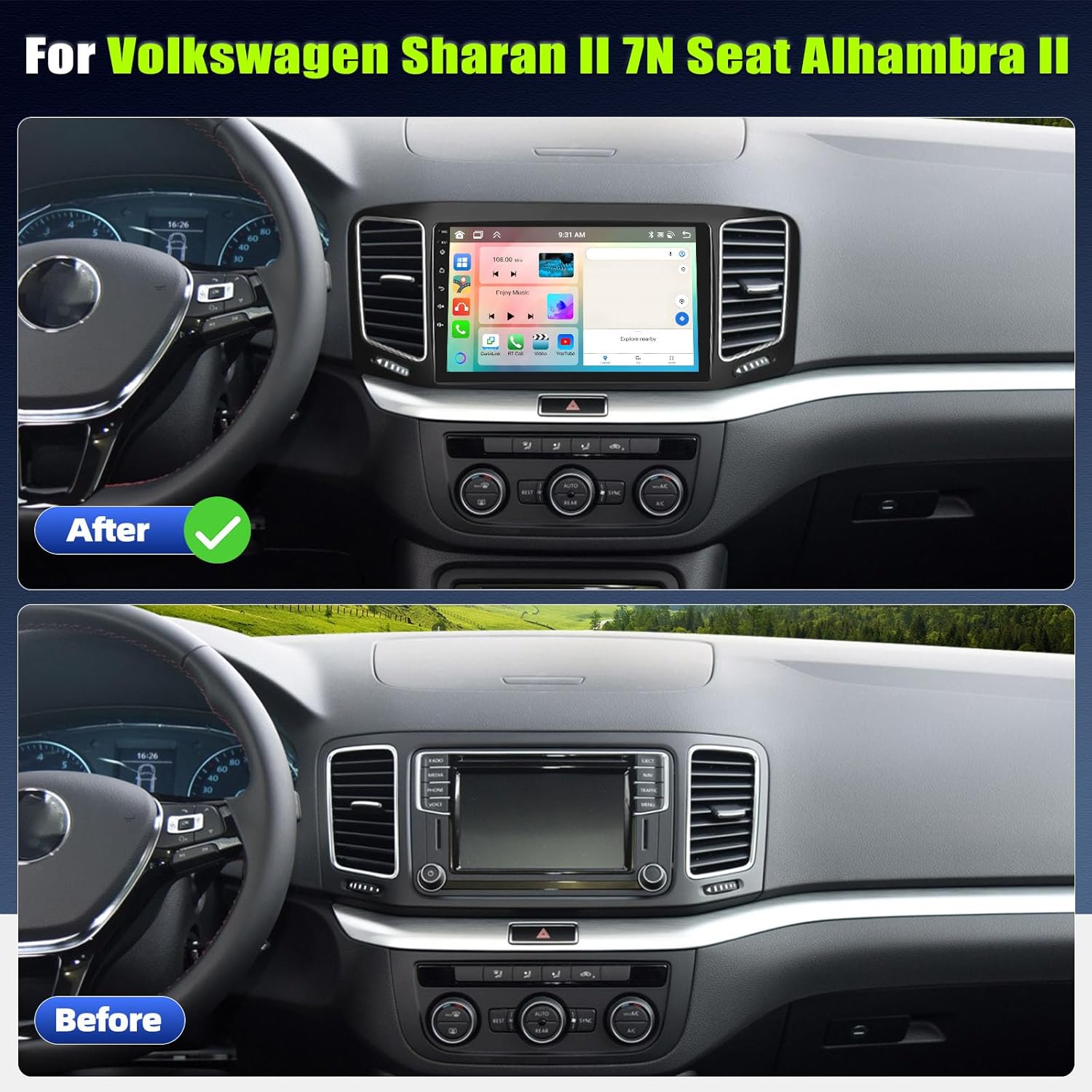
Image 1.1: Comparison of the car dashboard before and after installing the SIXTOP Android Car Radio, showing the integrated 9-inch display.
2. Package Contents
Please verify that all items listed below are included in your package:
- Main Car Radio Unit
- User Manual
- Power Cable
- USB Cable
- GPS Antenna
- Radio Antenna
- RCA Cable
- Rear View Input Cable
- Canbus Box
- Microphone
- Installation Tool
- Camera (Optional, if purchased)
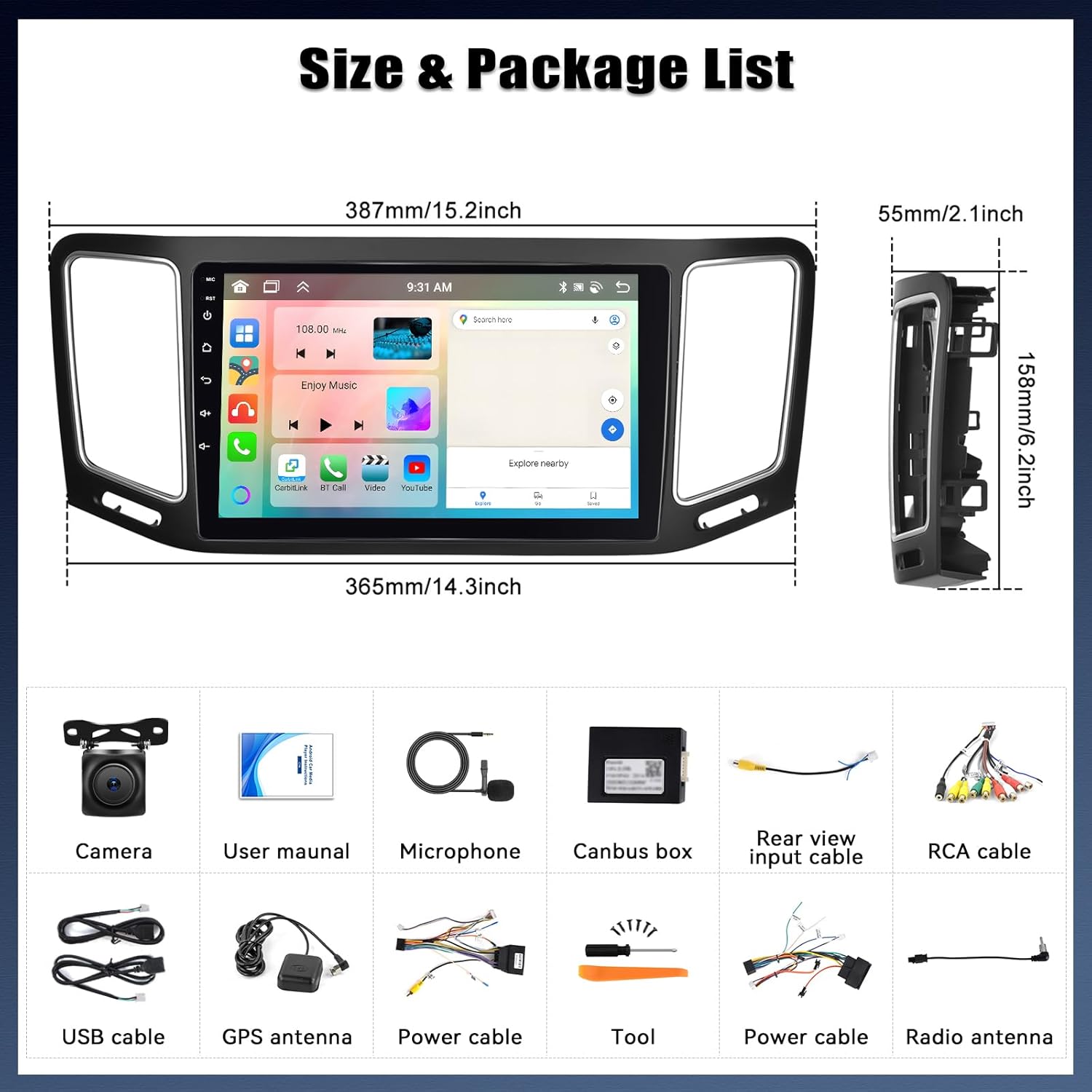
Image 2.1: Visual representation of the car radio dimensions and the complete list of accessories included in the package.
3. Setup and Installation
3.1 Physical Installation
Installation of the car radio requires professional knowledge. It is highly recommended to have the unit installed by a qualified technician to ensure proper functionality and avoid damage to your vehicle or the device. Refer to the wiring diagram and your vehicle's specific installation guide.
3.2 Port and Cable Details
Familiarize yourself with the various ports and connections on the back of the unit:
- Power Cable: Connects to the vehicle's power supply.
- RCA Input/Output: For external audio/video devices.
- Reversing Camera Input: Dedicated input for the rear view camera.
- USB Cable: For connecting USB devices.
- GPS Antenna: For satellite navigation signal reception.
- Radio Antenna: For FM/RDS radio reception.

Image 3.1: Detailed view of the car radio's rear panel showing labeled ports and a wiring diagram for various connections.
3.3 Connecting the Backup Camera
If you have an optional backup camera, follow these steps for connection:
- Connect the red cable (labeled '2' in the diagram) from the camera to the vehicle's backup light positive ('+').
- Connect the black cable (labeled '1' in the diagram) from the camera to the vehicle's ground ('GND').
- Connect the video signal cable from the camera to the 'Reversing Camera Input' on the car radio.

Image 3.2: Step-by-step diagram for connecting the backup camera, highlighting the red wire to the backup light and the black wire to ground.
4. Operating Instructions
4.1 User Interface and Customization
The Android 13 operating system provides a fast and fluid interface. You can customize the desktop with various UI themes and wallpapers to suit your preference.
Video 4.1: Demonstration of various UI desktop themes and wallpaper customization options available on the car radio.
4.2 Wireless Carplay & Android Auto
Connect your smartphone wirelessly or via cable to access Carplay or Android Auto features, including navigation, music, phone calls, messages, and voice control.
- Carplay Connection: Turn on the CPLink app on the car radio, then connect Carplay via WiFi/Bluetooth or USB cable.
- Android Auto Connection: Install the "Android Auto" app on your phone, turn on the CPLink app on the car radio, then connect Android Auto via WiFi/Bluetooth or USB cable.

Image 4.2: Visual guide for establishing Wireless Carplay and Android Auto connections, including app interfaces and connection options.
4.3 Bluetooth Functions
The car radio supports Bluetooth connectivity for mobile phones, enabling hands-free calls, contact synchronization, and Bluetooth music streaming.
- Navigate to the Bluetooth settings on the car radio.
- Ensure Bluetooth is enabled on both the radio and your mobile phone.
- Search for available devices on your phone and select 'Car BT' (or similar name) to pair.
- Confirm the pairing code on both devices.
- Allow access to contacts and call history when prompted.

Image 4.3: Interface for Bluetooth calls and music playback, alongside FM/RDS radio and DSP audio settings.
4.4 GPS Navigation and WiFi
The unit features built-in GPS and WiFi. Connect to a WiFi hotspot to download offline maps or use online navigation services. WiFi also allows for internet browsing and app downloads.

Image 4.4: The car radio's screen displaying GPS navigation with map details and indicators for WiFi connectivity.
4.5 Radio Functions (FM/RDS & Internet Radio)
Listen to local FM/RDS stations for news, music, and traffic updates. With Internet Radio, you can access stations from over 20 countries and regions worldwide.
4.6 Audio Settings (DSP/EQ)
Utilize the integrated DSP (Digital Signal Processor) and EQ (Equalizer) to fine-tune audio frequencies and customize your sound experience to the vehicle's environment.
4.7 Steering Wheel Control (SWC)
The unit supports your vehicle's original steering wheel controls, allowing you to manage audio playback, volume, and other functions without taking your hands off the wheel. Configuration may be required in the settings menu.

Image 4.5: The car radio screen displaying a rear view camera feed with parking assistance lines, and an interface for setting up steering wheel controls.
4.8 Voice Assistant
Control the device and access various functions using the integrated voice assistant for a safer and more convenient driving experience.
4.9 Split Screen Functionality
The split-screen feature allows two applications to run simultaneously, such as navigation and music playback, enhancing multitasking capabilities.

Image 4.6: The car radio interface showing how to create shortcuts and utilize the split-screen mode for running multiple applications.
4.10 External Devices (Optional)
The system supports various optional external devices for expanded functionality:
- USB Interface: For connecting USB drives.
- USB Recorder (DVR): For dashcam functionality.
- DAB+: For Digital Audio Broadcasting.
- OBD2: For vehicle diagnostics.
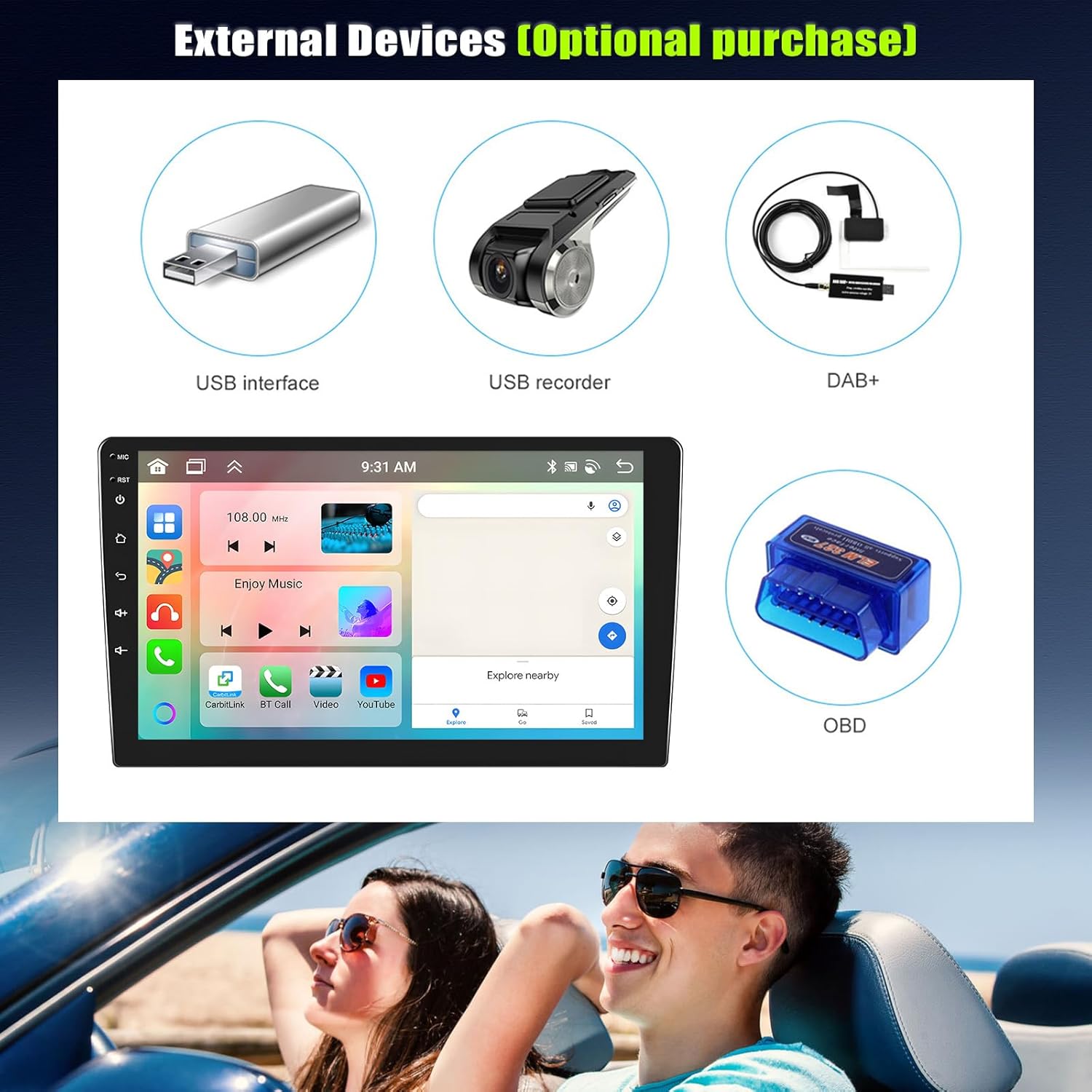
Image 4.7: Examples of optional external devices like USB drives, DVRs, DAB+ modules, and OBD2 scanners that can be integrated with the car radio.
5. Maintenance
To ensure the longevity and optimal performance of your SIXTOP Android Car Radio, follow these maintenance guidelines:
- Cleaning: Use a soft, dry cloth to clean the screen and exterior. Avoid abrasive cleaners or solvents.
- Software Updates: Periodically check for software updates through the system settings to ensure you have the latest features and bug fixes.
- Temperature: Avoid exposing the unit to extreme temperatures, both hot and cold, for extended periods.
- Power Management: Ensure your vehicle's electrical system is in good condition to prevent power fluctuations that could damage the unit.
6. Troubleshooting
If you encounter issues with your car radio, refer to the following common troubleshooting steps:
| Problem | Possible Cause | Solution |
|---|---|---|
| No Power | Loose power connection, blown fuse. | Check power cables and vehicle fuses. Consult a technician if unsure. |
| No Sound | Volume too low, incorrect audio source, loose speaker wires. | Increase volume, select correct audio source, check speaker connections. |
| Bluetooth Not Connecting | Bluetooth off, device not discoverable, pairing issue. | Ensure Bluetooth is on, make device discoverable, re-pair the device. |
| GPS Signal Lost | GPS antenna obstruction, poor satellite reception. | Ensure GPS antenna has a clear view of the sky. Move to an open area. |
| Touchscreen Unresponsive | Software glitch, temporary freeze. | Restart the unit (power cycle). If issue persists, contact support. |
For persistent issues or complex problems, please contact SIXTOP customer support.
7. Specifications
Detailed technical specifications for the SIXTOP 8 Core 6+128G Android Car Radio:
| Feature | Detail |
|---|---|
| Brand | SIXTOP |
| Model | 8 Core 6+128G |
| Operating System | Android 13 |
| Processor | 8-Core |
| RAM | 6GB |
| Internal Storage | 128GB |
| Screen Size | 9 Inches |
| Screen Type | IPS Touchscreen |
| Screen Resolution | 1280 x 720 |
| Connectivity | Bluetooth, WiFi, GPS |
| Smartphone Integration | Wireless Carplay, Android Auto, Mirrorlink |
| Audio Output Mode | Surround |
| Speaker Configuration | 4.0 Channel |
| Output Power | 180 Watts (Max), 45 Watts (Electrical) |
| Audio Formats | WAV, WMA |
| Video Encoding | H.264, H.265/HEVC, MPEG-4 |
| HDMI Ports | 1 |
| Other Connectors | AHD, CVBS, Ethernet, RCA, Coaxial, Optical |
| Dimensions (Package) | 39.8 x 17 x 8.7 cm |
| Weight (Product) | 1.52 kg |
8. Warranty and Support
SIXTOP is committed to providing high-quality products and excellent customer service. Your car radio comes with the following:
- 2 Years Repair or Replacement: For manufacturing defects.
- 30 Day Replacement: For initial product issues.
- 18 Hours Online Response: Customer service available for quick assistance.
- Lifetime Technical Support: Ongoing support for the product's lifespan.
For any inquiries, technical assistance, or warranty claims, please contact us at: skdxp129@163.com
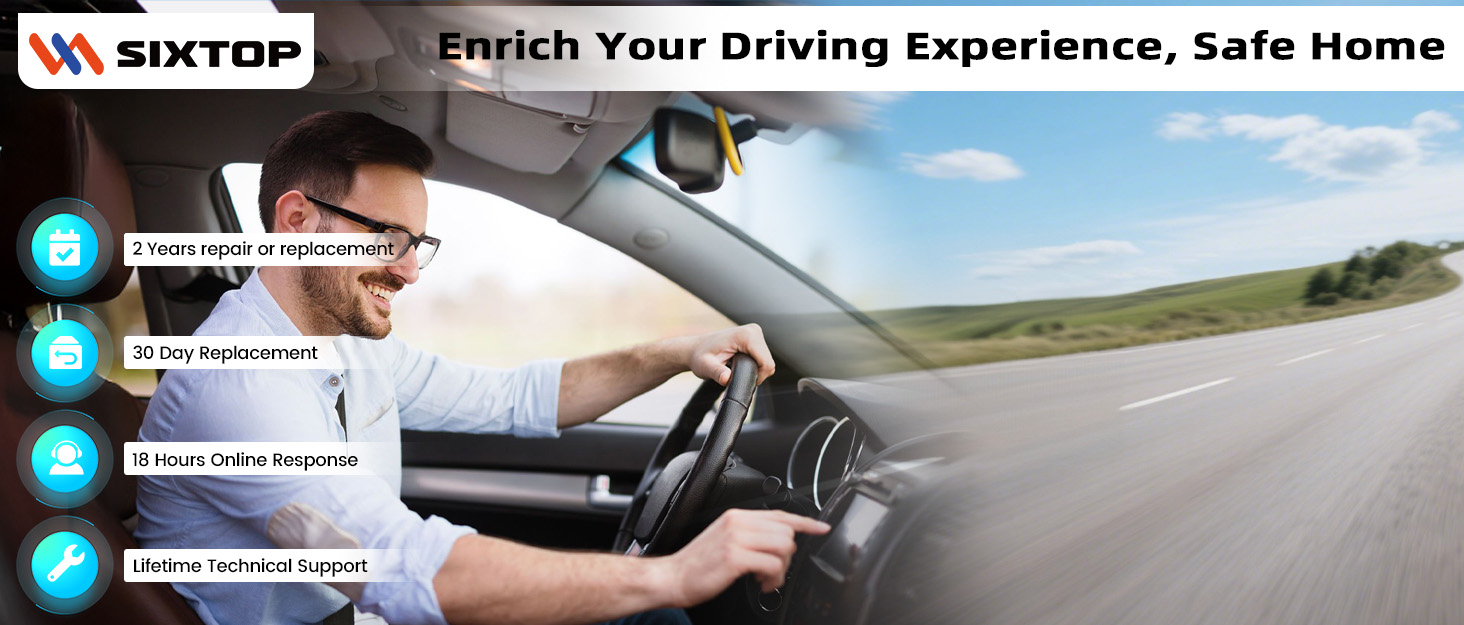
Image 8.1: Overview of SIXTOP's customer support and warranty commitments.


