
1. Introduction
This manual provides essential information for setting up, operating, and maintaining your TCL 32V5C Smart QLED Full HD Android TV. Please read this manual thoroughly before using your television to ensure proper functionality and safety.
The TCL 32V5C series combines a sleek design with QLED and HDR image quality, powered by the advanced Android TV system. It offers a smart visual experience, allowing you to enjoy movies, streaming applications, and multiplayer games with ease.
2. Important Safety Information
Always follow basic safety precautions when using this television to reduce the risk of fire, electric shock, and injury.
- Do not expose the TV to rain or moisture.
- Do not open the cabinet; refer all servicing to qualified personnel.
- Ensure proper ventilation around the TV.
- Use only the power cord supplied by the manufacturer.
- Keep the TV away from direct sunlight and heat sources.
- Clean the TV with a soft, dry cloth only.
3. What's in the Box
Verify that all components are present before proceeding with setup:
- TCL 32V5C Smart QLED TV
- Remote Control
- Power Cable
- User Manual (this document)
- TV Stand and Support Screws
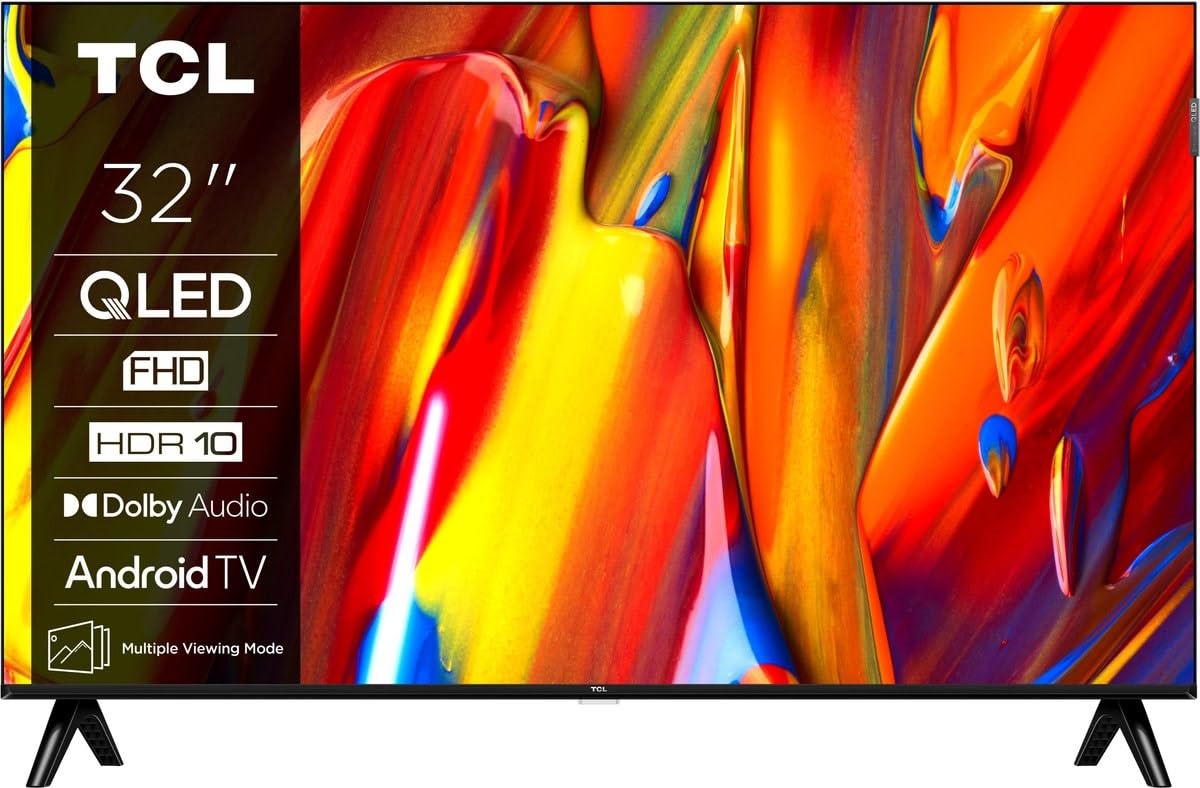
Image: Front view of the TCL 32V5C Smart QLED Full HD Android TV, showcasing its slim design and display features.
4. Setup Guide
4.1 Attaching the TV Stand
To attach the included stand:
- Place the TV face down on a soft, flat surface to prevent screen damage.
- Align the stand components with the mounting holes on the bottom of the TV.
- Secure the stand using the provided screws. Ensure all screws are tightened firmly.

Image: Diagram showing the dimensions of the TCL 32V5C TV and the included remote control (RC733A).
4.2 Wall Mounting (Optional)
If you choose to wall mount your TV, ensure you use a VESA-compatible wall mount (100 x 100 mm). Consult a professional for installation to prevent damage or injury.
4.3 Connecting Power
Connect the power cable to the TV's power input and then plug it into a wall outlet. The TV is designed for 220-240V AC, 50/60Hz power supply.
4.4 Connecting External Devices
Your TCL 32V5C TV offers various connectivity options:
- HDMI: Connect Blu-ray players, game consoles, or set-top boxes using one of the two HDMI ports.
- USB: Use the single USB port for media playback from USB drives.
- Ethernet: For a stable wired internet connection, connect an Ethernet cable to the LAN port.
- Wi-Fi: Connect to your home wireless network for internet access.
- Bluetooth: Pair wireless headphones, soundbars, or other Bluetooth-enabled devices.
5. Operating Your TV
5.1 First-Time Setup and Android TV
Upon first power-on, the TV will guide you through the initial setup process. This includes selecting your language, connecting to Wi-Fi, and logging into your Google account to activate Android TV features.
Android TV provides access to over 400,000 movies and shows from various streaming services. Utilize Google Cast to transfer photos, videos, and music from your smart devices directly to your TV.
5.2 Remote Control Functions
Use the provided remote control to navigate menus, adjust volume, change channels, and access smart features. Refer to the remote control diagram for specific button functions.
5.3 Picture and Sound Quality
Your TV features QLED technology, which uses quantum dot materials to deliver exceptional colors and optical properties, enhancing brightness and fine details for a realistic viewing experience. Direct LED backlighting further improves image quality and energy efficiency.
With HDR10 support, the TV displays a wider range of colors and contrasts, bringing more depth to compatible content. Dolby Audio processing ensures clear and immersive sound quality through the integrated speakers.
6. Maintenance
To ensure the longevity and optimal performance of your TV:
- Cleaning the Screen: Gently wipe the screen with a soft, lint-free cloth. For stubborn marks, lightly dampen the cloth with water or a specialized screen cleaner (do not spray directly on the screen).
- Cleaning the Cabinet: Use a soft, dry cloth to clean the TV cabinet. Avoid abrasive cleaners or solvents.
- Ventilation: Ensure the ventilation openings on the back of the TV are not blocked.
- Power Cord: Regularly check the power cord for any damage.
7. Troubleshooting
If you encounter issues with your TV, refer to the following common solutions:
| Problem | Possible Solution |
|---|---|
| No Power | Check if the power cable is securely connected to both the TV and the wall outlet. Ensure the outlet is functional. |
| No Picture, But Sound is Present | Verify the correct input source is selected. Check external device connections (HDMI, etc.). |
| No Sound, But Picture is Present | Check the volume level and mute settings. Ensure external audio devices are properly connected and selected. |
| Remote Control Not Working | Replace the batteries. Ensure there are no obstructions between the remote and the TV's IR sensor. |
| Wi-Fi Connection Issues | Restart your router and modem. Reconnect the TV to the Wi-Fi network in the settings menu. |
For further assistance, please contact TCL customer support.
8. Specifications
| Feature | Detail |
|---|---|
| Brand | TCL |
| Model Number | 32V5C |
| Screen Size | 32 Inches |
| Display Technology | QLED |
| Resolution | 1080p (Full HD) |
| Refresh Rate | 60 Hz |
| Special Features | QLED & Android TV, HDR10, Google Cast |
| Connectivity Technology | Bluetooth, Ethernet, HDMI, USB, Wi-Fi |
| HDMI Ports | 2 |
| USB Ports | 1 |
| Aspect Ratio | 16:9 |
| Product Dimensions (D x W x H) | 18P x 71.5l x 46.5H cm (with stand) |
| Item Weight (without stand) | 3.1 Kilograms |
| VESA Mount Standard | 100 x 100 mm |
| Audio Format | Dolby Audio |
| Tuner Type | DVB-T2 |
| Color | Black |
9. Warranty and Support
9.1 Warranty Information
This product comes with a Limited Warranty. Please refer to the warranty card included in the packaging or visit the official TCL website for detailed terms and conditions regarding your specific region.
9.2 Customer Support
For technical assistance, troubleshooting not covered in this manual, or service inquiries, please contact TCL customer support through their official website or the contact information provided in your warranty documentation.
You can often find additional resources, FAQs, and software updates on the TCL Official Website.


