
Introduction
This manual provides detailed instructions for the installation, operation, and maintenance of your SIXWIN 7 Inch Single Din Car Stereo. Please read this manual thoroughly before using the product to ensure proper function and to prevent damage. Keep this manual for future reference.
Safety Information
- Always operate the device safely and responsibly. Distracted driving can lead to serious accidents.
- Do not attempt to disassemble or modify the unit. This may cause damage and void the warranty.
- Ensure all wiring is correctly connected to prevent short circuits or electrical hazards. Consult a professional for installation if you are unsure.
- Keep the unit away from water and excessive moisture.
- Clean the screen with a soft, dry cloth. Avoid abrasive cleaners.
Package Contents
Verify that all items are present in the package:
- Car Stereo Unit
- Remote Control
- Steering Wheel Buttons
- Wiring Harness
Product Overview
The SIXWIN 7 Inch Single Din Car Stereo offers a comprehensive multimedia experience for your vehicle. Key features include:
- Wireless CarPlay & Android Auto: Seamlessly integrate your smartphone for navigation, calls, messages, and music.
- Dual Mirror Link: Project your iOS or Android phone screen onto the stereo display.
- Steering Wheel Control: Compatible with most original steering wheel controls for safe operation.
- Bluetooth Connectivity: Hands-free calling and wireless audio streaming.
- EQ Adjustment: Customize your audio experience with multiple sound modes and settings.
- FM Radio: Access local radio stations with automatic search and storage.
- 7 Color Lights: Personalize the unit's button backlighting with adjustable colors.

Wireless CarPlay & Android Auto: Connect your smartphone wirelessly to access core functions directly on the 7-inch touch screen.
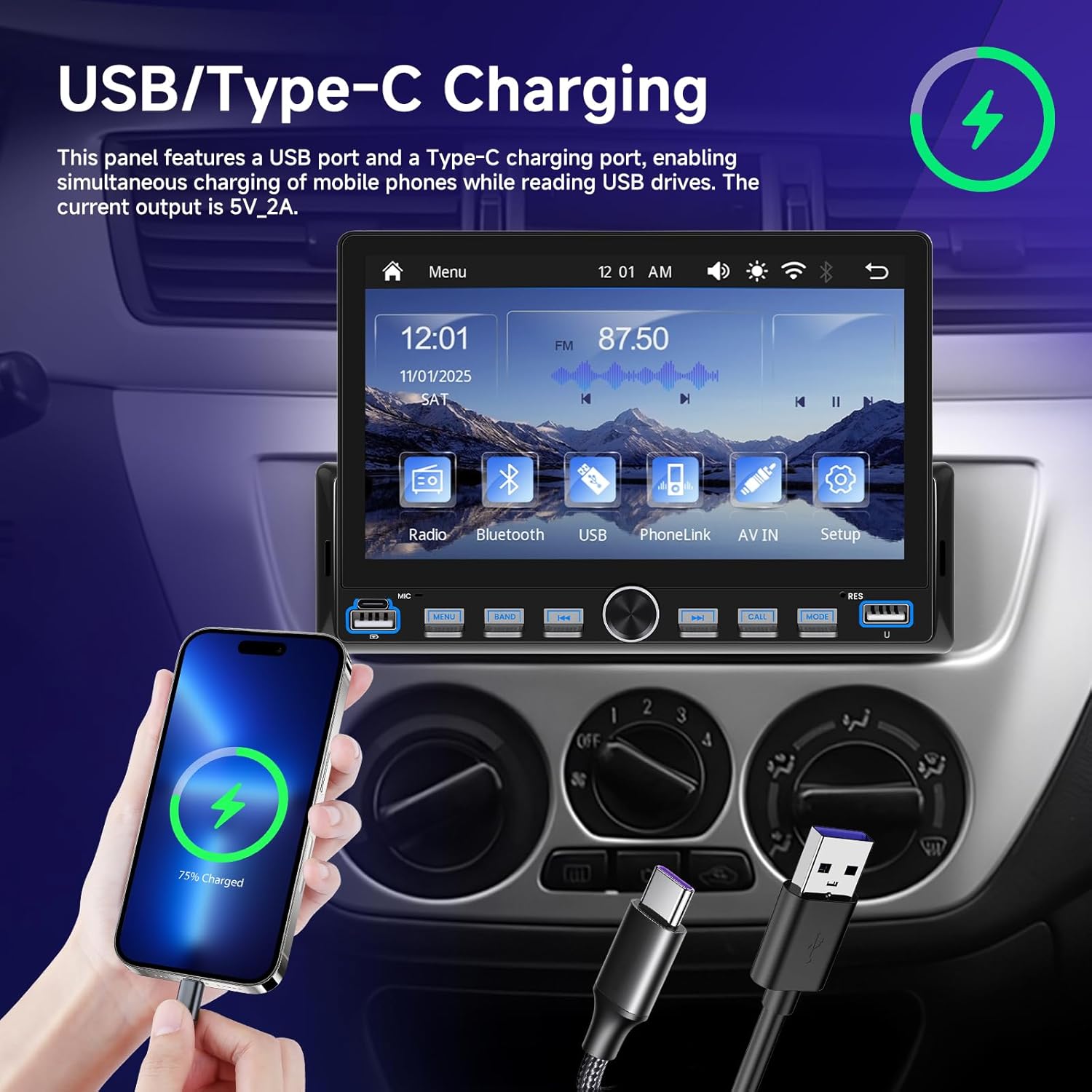
USB/Type-C Charging: The unit features USB and Type-C ports for simultaneous charging of mobile phones and reading USB drives.

Online Video Support: Supports online video viewing for accessing high-definition content.
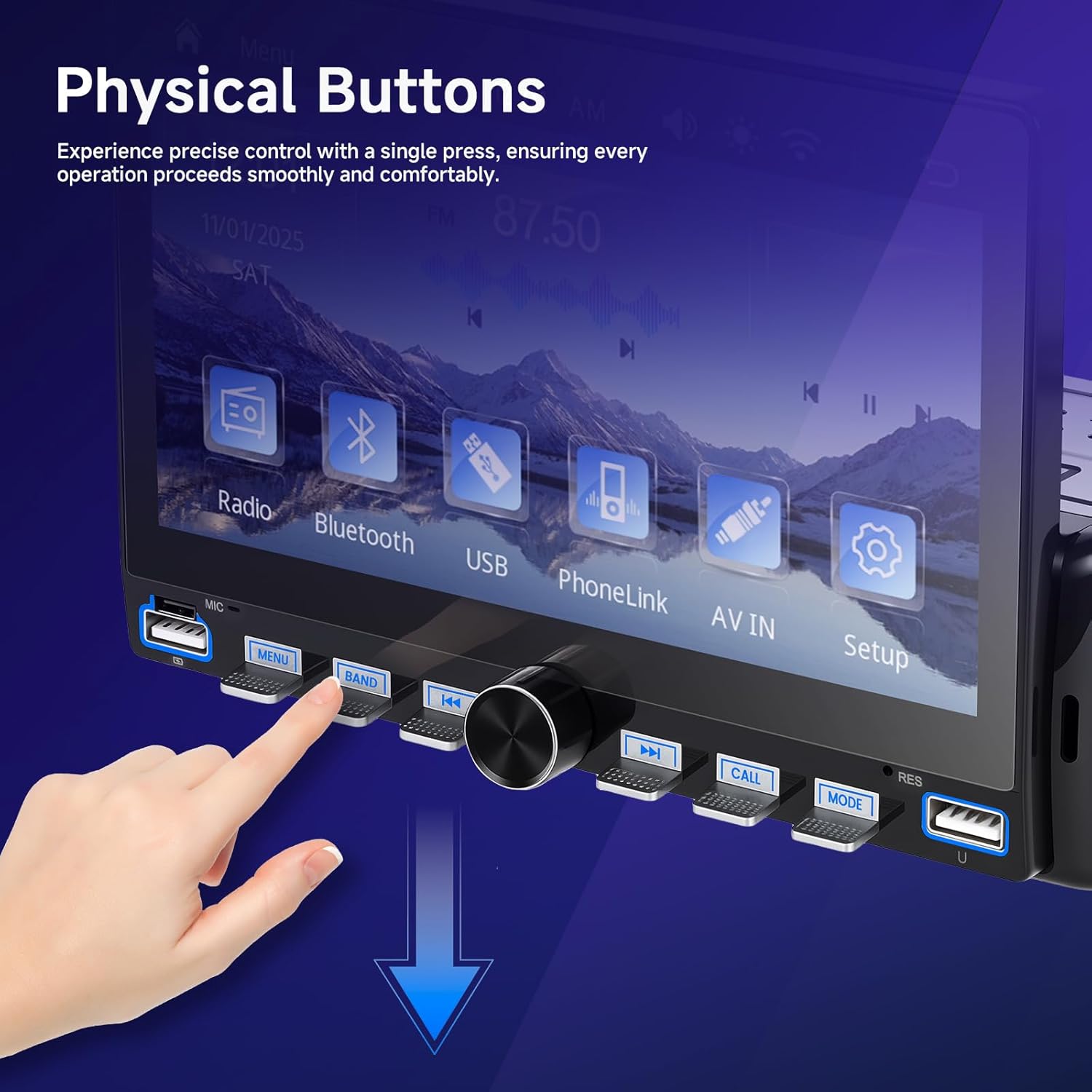
Physical Buttons: Experience precise control with dedicated physical buttons for various functions.

Rear Panel Connections: Diagram illustrating the various input and output ports on the back of the stereo unit for wiring.
FM Radio: Tune into your favorite local radio stations with clear reception.

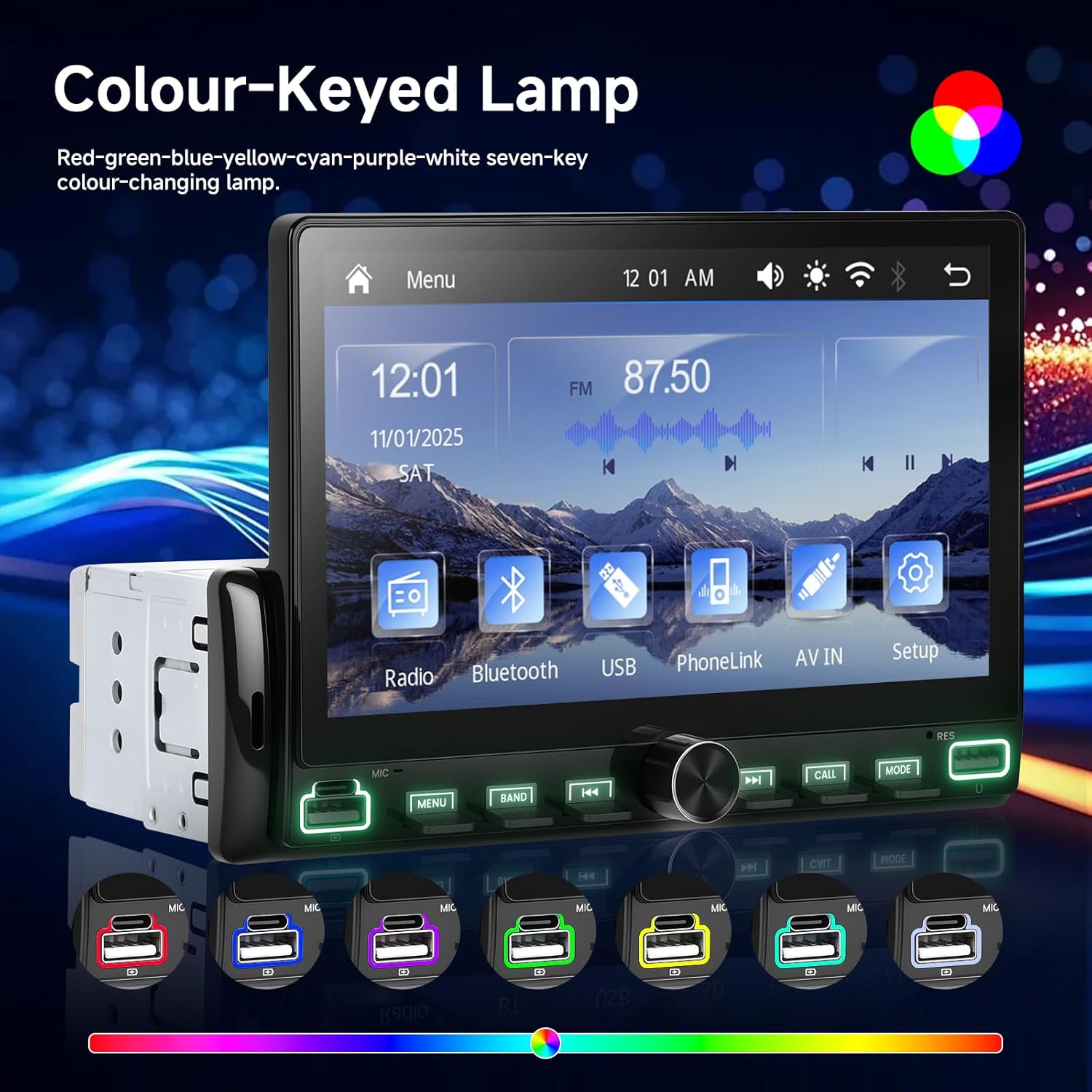
7 Color Lights: Customize the button backlighting with a choice of seven colors to match your car's interior or mood.

Multiple Interface: Supports U disk, AUX input, and memory card interfaces for file transfer and media playback.
Setup
Wiring Connections
Refer to the wiring diagram provided on the rear panel image (see Product Overview section) and in your separate wiring guide for detailed connection instructions. Ensure all connections are secure and correctly matched to your vehicle's wiring harness. Incorrect wiring can cause damage to the unit or your vehicle's electrical system.
- Power Cable: Connect the yellow wire to constant 12V power, the red wire to accessory 12V power, and the black wire to ground.
- Horn Cable: Connect to your vehicle's speaker outputs.
- Antenna: Connect your car's radio antenna to the ANT port.
- Camera Input (CAMIN): Connect a rearview camera if desired.
- Audio Outputs (L-OUT, R-OUT): For connecting external amplifiers.
- Video Outputs (V-OUT1, V-OUT2): For connecting external monitors.
Installation
This unit is designed for single DIN installation. Carefully slide the unit into the dashboard opening until it clicks into place. Secure it using the provided mounting hardware. Ensure adequate ventilation around the unit.
Operating Instructions
Wireless CarPlay & Android Auto
- Ensure Bluetooth and Wi-Fi are enabled on your smartphone.
- On the stereo, navigate to the CarPlay or Android Auto icon.
- Follow the on-screen prompts to pair your phone. Once connected, your phone's interface will appear on the stereo display.
Mirror Link
Connect your iOS or Android device via USB cable. Follow the on-screen instructions to enable screen mirroring. This allows you to display your phone's screen content directly on the stereo.
Bluetooth
- Enable Bluetooth on your phone and the car stereo.
- Search for available devices on your phone and select "SIXWIN Car Stereo" (or similar name).
- Confirm the pairing code if prompted. Once paired, you can make hands-free calls and stream audio.
FM Radio
Press the 'Radio' icon on the main menu. Use the on-screen controls or physical buttons to scan for stations, save presets, and adjust frequency.
EQ Adjustment
Access the 'EQ' or 'Sound Settings' menu to customize audio output. Choose from preset sound modes (Pop, Rock, Jazz, Classical, Vocal) or manually adjust bass, treble, and balance settings to your preference.
7 Color Lights
Navigate to the 'Settings' menu to find the 'Color Lights' option. You can manually select one of the seven available colors (Red, Blue, Green, Yellow, Purple, Cyan, White) or set the unit to auto-cycle through them.
Maintenance
- Cleaning: Use a soft, dry, lint-free cloth to clean the screen and exterior. Do not use liquid or aerosol cleaners, as they may damage the finish or internal components.
- Temperature: Avoid exposing the unit to extreme temperatures, direct sunlight for prolonged periods, or high humidity.
- Software Updates: Periodically check the manufacturer's website for any available software updates to ensure optimal performance and new features.
Troubleshooting
| Problem | Possible Cause | Solution |
|---|---|---|
| No Power | Incorrect wiring; Blown fuse; Vehicle battery issue. | Check power and ground connections. Inspect vehicle fuses. Verify vehicle battery health. |
| No Sound | Speaker wires disconnected; Volume too low; Mute function active. | Ensure speaker wires are connected. Increase volume. Check if mute is enabled. |
| Bluetooth Not Connecting | Bluetooth not enabled; Incorrect pairing process; Interference. | Ensure Bluetooth is on for both devices. Re-attempt pairing. Move closer to the unit. |
| CarPlay/Android Auto Not Working | Incorrect phone settings; App issues; Weak Wi-Fi/Bluetooth signal. | Check phone settings for CarPlay/Android Auto. Restart phone and stereo. Ensure strong wireless connection. |
| Screen Unresponsive | Temporary software glitch. | Restart the unit (turn off vehicle ignition and restart). |
Specifications
- Model Number: A4493
- Product Dimensions: 1"D x 1"W x 1"H
- Item Weight: 0.035 ounces
- Connectivity Technology: Wi-Fi, Bluetooth
- Controller Type: Android (compatible with Android Auto)
- Special Feature: Touchscreen
- Compatible Devices: Smartphone (iOS and Android)
- Connector Type: RCA
- Audio Output Mode: Stereo
- Audio Output Type: Bluetooth
Warranty Information
This product comes with a standard manufacturer's warranty. Please refer to the warranty card included in your package or visit the SIXWIN official website for detailed terms and conditions. Keep your proof of purchase for warranty claims.
Support
For further assistance, technical support, or customer service, please visit the official SIXWIN store or contact their customer support team.
