

1. Introduction
This manual provides detailed instructions for the installation, setup, operation, and maintenance of your Evanshow Smart Door Lock Model 190BT. This smart lock offers multiple keyless entry options, including fingerprint, keypad passcode, NFC card, and mobile application control, alongside traditional mechanical key access. Please read this manual thoroughly before installation and use to ensure proper function and security.

Image 1: Overview of the Evanshow Smart Door Lock Model 190BT, including the lock unit, mobile app interface, NFC cards, and backup mechanical keys.
2. Product Overview
2.1 Key Features
- Multiple Unlocking Methods: Fingerprint, Keypad Passcode, NFC Card, Mobile App, and Mechanical Key.
- Advanced Biometric Recognition: 0.5-second fingerprint unlock speed with high accuracy.
- App Management: Control access, generate temporary/permanent passcodes, track entry logs, and enable silent mode via the mobile application.
- Auto-Lock Feature: Configurable automatic locking after a preset time.
- Easy Installation: Designed for simple, drill-free installation on standard doors.
2.2 Components
The Evanshow Smart Door Lock Model 190BT package includes the following main components:
- Exterior Handle with Keypad and Fingerprint Sensor
- Interior Handle
- Latch Mechanism
- Strike Plate
- Mounting Screws and Hardware
- NFC Cards (typically 4)
- Mechanical Keys (typically 2)
- User Manual

Image 2: Exploded view of the smart door lock components, illustrating the exterior and interior handles, latch, and other parts.
3. Installation
3.1 Door Compatibility Check
Before installation, ensure your door meets the following specifications:
- Door Thickness: 1.18 inches to 1.97 inches (30mm - 50mm).
- Backset: 2-3/8 inches or 2-3/4 inches (60mm or 70mm).
- Latch Hole Diameter: 1 inch (25mm).
- Hole Diameter: 2-1/8 inches (54mm).
- The door edge must be chiseled for the latch plate to sit flush. Not compatible with integrated or mortise lock types.

Image 3: Door measurement guide and compatibility check for the smart door lock.

Image 4: Visual guide for checking door lock compatibility.
3.2 Installation Steps
Installation typically takes minutes and requires only a screwdriver. Follow the detailed instructions provided in the included installation guide for your specific door type. Ensure the latch mechanism is correctly oriented for your door's swing (reversible).
- Install the latch into the door edge.
- Install the exterior handle, feeding the cable through the door hole.
- Connect the cable to the interior handle.
- Secure the interior handle to the door using the provided screws.
- Install batteries (4x AAA, not included) into the interior handle's battery compartment.
- Test the lock functionality with the mechanical key.
4. Setup
After physical installation, configure your smart lock using the mobile application.
4.1 App Download and Pairing
- Download the Tuya Smart app from your device's app store.
- Create an account or log in.
- Enable Bluetooth on your smartphone.
- In the app, tap '+' to add a device. The app should automatically detect the lock. If not, select 'Security & Video Surveillance' > 'Door Lock (Bluetooth)'.
- Follow the on-screen instructions to pair the lock.

Image 5: App intelligent control interface for the smart door lock.
4.2 Adding Access Methods
Manage fingerprints, passcodes, and NFC cards through the app.
- Fingerprints: In the app, navigate to 'Member Management' or 'Fingerprint Management'. Follow prompts to register up to 100 unique fingerprints. Place your finger on the sensor multiple times from different angles until registration is complete.
- Passcodes: Generate permanent, timed, or one-time passcodes via the app. Passcodes must be 6-10 digits, non-sequential. The lock supports up to 100 passcodes.
- NFC Cards: In the app, go to 'Card Management'. Present an NFC card to the lock's sensor when prompted to register it. Up to 100 NFC cards can be registered.

Image 6: Overview of intelligent door lock access methods and features.
5. Operating Instructions
5.1 Unlocking the Door
The Evanshow Smart Door Lock offers several ways to unlock:
- Fingerprint: Place a registered finger on the fingerprint sensor. The lock will unlock in approximately 0.5 seconds.
- Passcode: Enter your registered passcode on the keypad, followed by '#'.
- NFC Card: Present a registered NFC card to the card reader area on the lock.
- Mobile App: Open the Tuya Smart app, select your lock, and tap the unlock icon.
- Mechanical Key: Insert the mechanical key into the keyhole and turn to unlock.

Image 7: Multiple access options for the smart door lock.
5.2 Auto-Lock Feature
The auto-lock function automatically secures the door after a user-defined period. This feature can be configured within the mobile application. To enable or disable, and set the delay time, navigate to the lock settings in the Tuya Smart app.
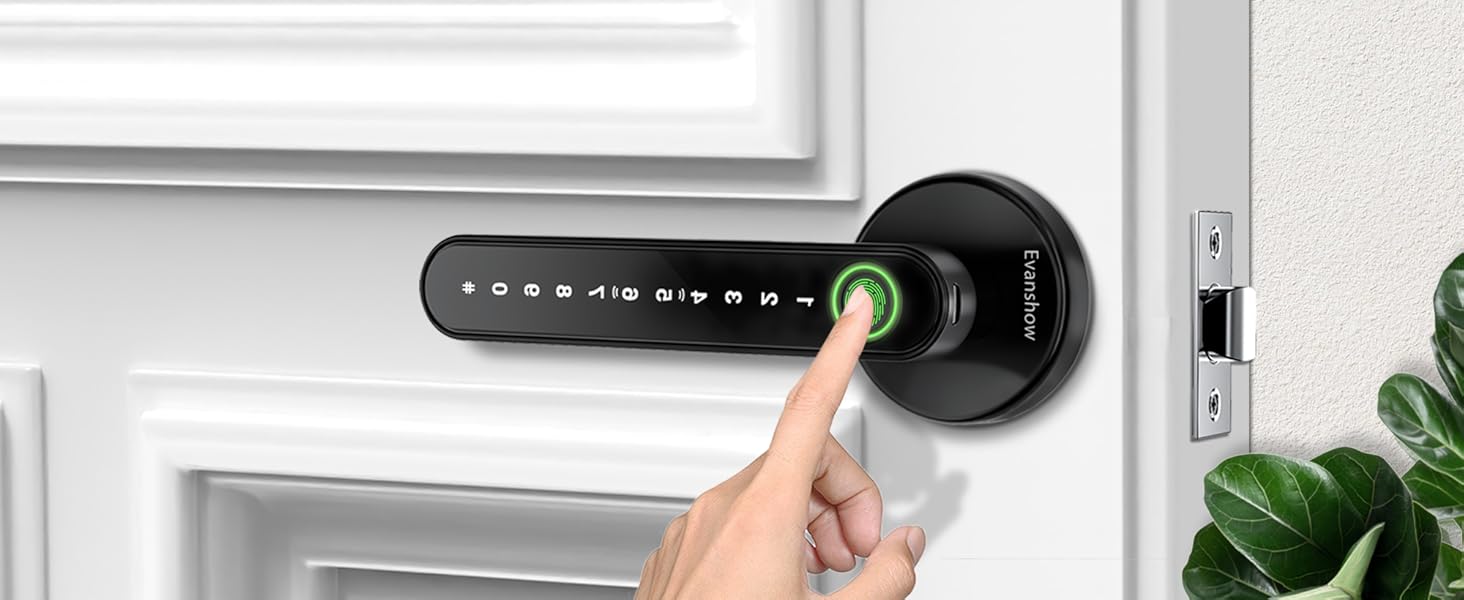
Image 8: Auto-lock feature in action.
5.3 Passage Mode
Passage Mode allows the door to remain unlocked for a specified duration, or permanently, without requiring credentials for entry. This is useful for high-traffic periods. Activate and deactivate Passage Mode through the mobile application settings.
5.4 Anti-Peeking Password
To enhance security, you can enter random digits before or after your actual passcode. As long as the correct passcode sequence is embedded within the entered digits, the lock will unlock. For example, if your passcode is 123456, you can enter *759642*94 where 759642 is the correct password.
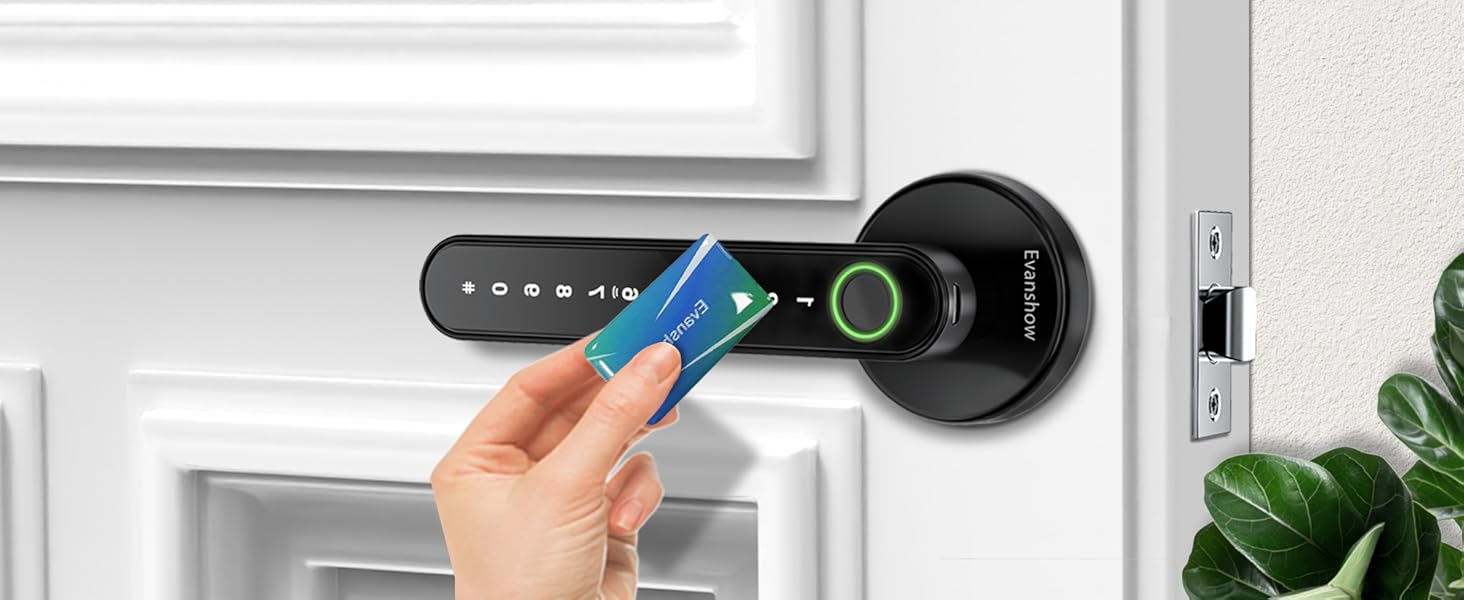
Image 9: Anti-peeking password functionality.
5.5 Silent Mode
Enable Silent Mode via the app to disable all sound prompts from the lock, providing quiet operation. This is useful for maintaining peace in quiet environments.
5.6 Unlock Records
The mobile application maintains a log of all unlock events, including the method used (fingerprint, passcode, etc.) and the time. This allows you to monitor access to your door.
6. Maintenance
6.1 Battery Replacement
The lock is powered by 4 AAA batteries (not included). When the battery level is low, the lock will provide a low battery warning through the app and potentially an audible alert. Replace all four batteries promptly to ensure continuous operation. Use high-quality alkaline batteries for best performance.
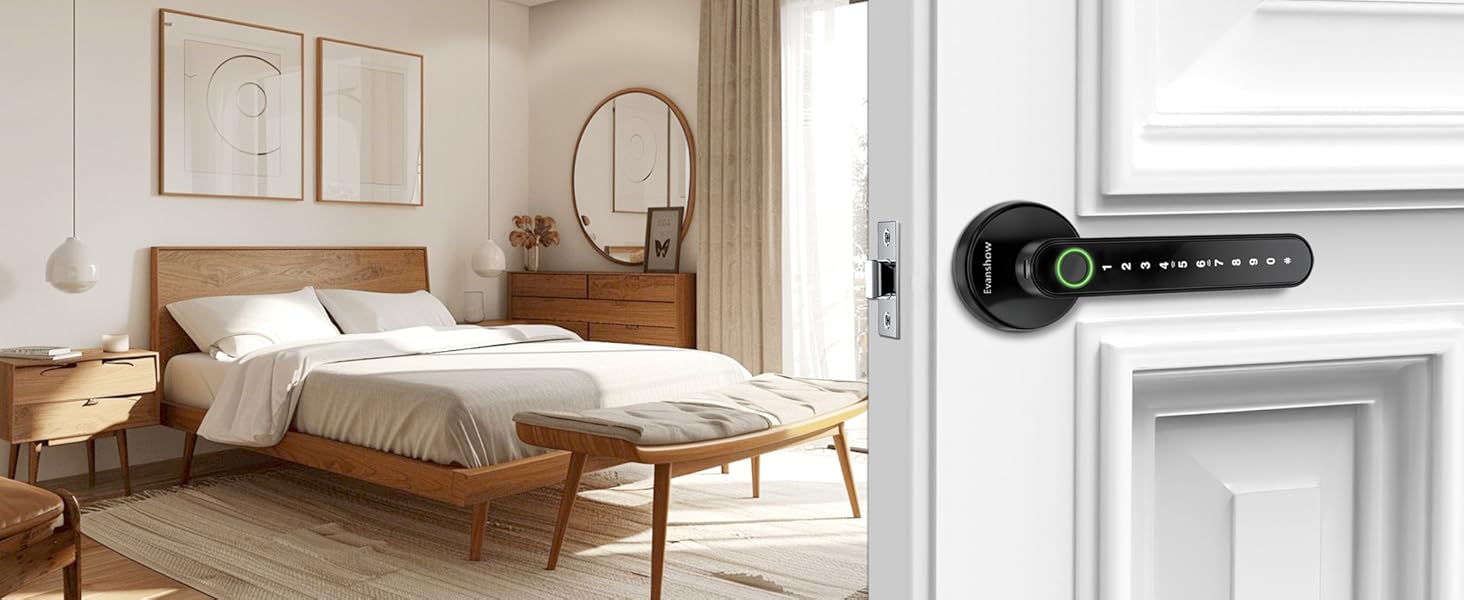
Image 10: Low battery warning notification.
6.2 Emergency Power
In case of complete battery depletion, the lock can be temporarily powered via a micro-USB port located on the exterior handle. Connect a power bank to this port to provide emergency power and unlock the door using any registered method.
6.3 Cleaning
Clean the lock's exterior surfaces with a soft, dry cloth. Avoid using abrasive cleaners, solvents, or harsh chemicals, as these can damage the finish and electronic components. Keep the fingerprint sensor clean and free of debris for optimal performance.
7. Troubleshooting
- Lock not responding: Check battery levels. Replace batteries if low. Use emergency power via micro-USB if completely drained.
- Fingerprint not recognized: Ensure your finger is clean and dry. Try different angles. Re-register your fingerprint if issues persist.
- Passcode not working: Verify the correct passcode is entered. Ensure the lock is not in a mode that disables passcodes.
- App connectivity issues: Ensure Bluetooth is enabled on your phone and you are within range of the lock. Restart the app or your phone if necessary.
- Lock is loose: Check all mounting screws and tighten them if necessary.
8. Specifications
| Feature | Specification |
|---|---|
| Model Number | 190BT |
| Material | Metal |
| Color | Black |
| Exterior Finish | Matte Black |
| Lock Type | Privacy |
| Item Weight | 1.2 Pounds |
| Product Dimensions | 6 x 8 x 2.8 inches |
| Power Source | 4 x AAA Batteries (not included) |
| Battery Cell Type | Zinc |
| Special Feature | Auto-Lock |
| Hand Orientation | Reversible |
9. Warranty and Support
For warranty information and technical support, please refer to the documentation included with your purchase or contact Evanshow customer service directly. Keep your purchase receipt for warranty claims.

