
upHere P12PARGBBK
upHere ARGB PWM Fan Hub Controller P12PARGBBK Instruction Manual
Model: P12PARGBBK
1. Introduction
The upHere ARGB PWM Fan Hub Controller P12PARGBBK is designed to centralize control over up to 12 ARGB (Addressable RGB) fans and their PWM (Pulse Width Modulation) speed functions. This device allows for synchronized lighting effects and fan speed management, enhancing both the aesthetic and thermal performance of a personal computer system. It features an infinity mirror design and offers compatibility with motherboards lacking 5V 3-pin ARGB headers, providing flexible control options via an included remote or motherboard synchronization.
2. Product Features
- Universal Compatibility: Operates independently of motherboard 5V 3-pin ARGB headers, ensuring broad integration for various PC builds.
- Infinity Mirror Design: Incorporates a light-refracting infinity mirror effect, providing visual depth and illumination.
- 12-Fan Direct Control: Equipped with 12 dedicated PWM 4-pin ports and 12 ARGB 5V 3-pin ports for simultaneous control of multiple fans.
- Smart Buck Circuit Speed Control: Utilizes an advanced chip and Buck technology to synchronize fan speeds for both 3-pin and 4-pin PWM fans.
- Magnetic Mounting & Customization: Features a tool-free magnetic base for flexible placement within a PC case. Offers 5-level brightness and 4-speed modes for personalized control.
3. Product Contents
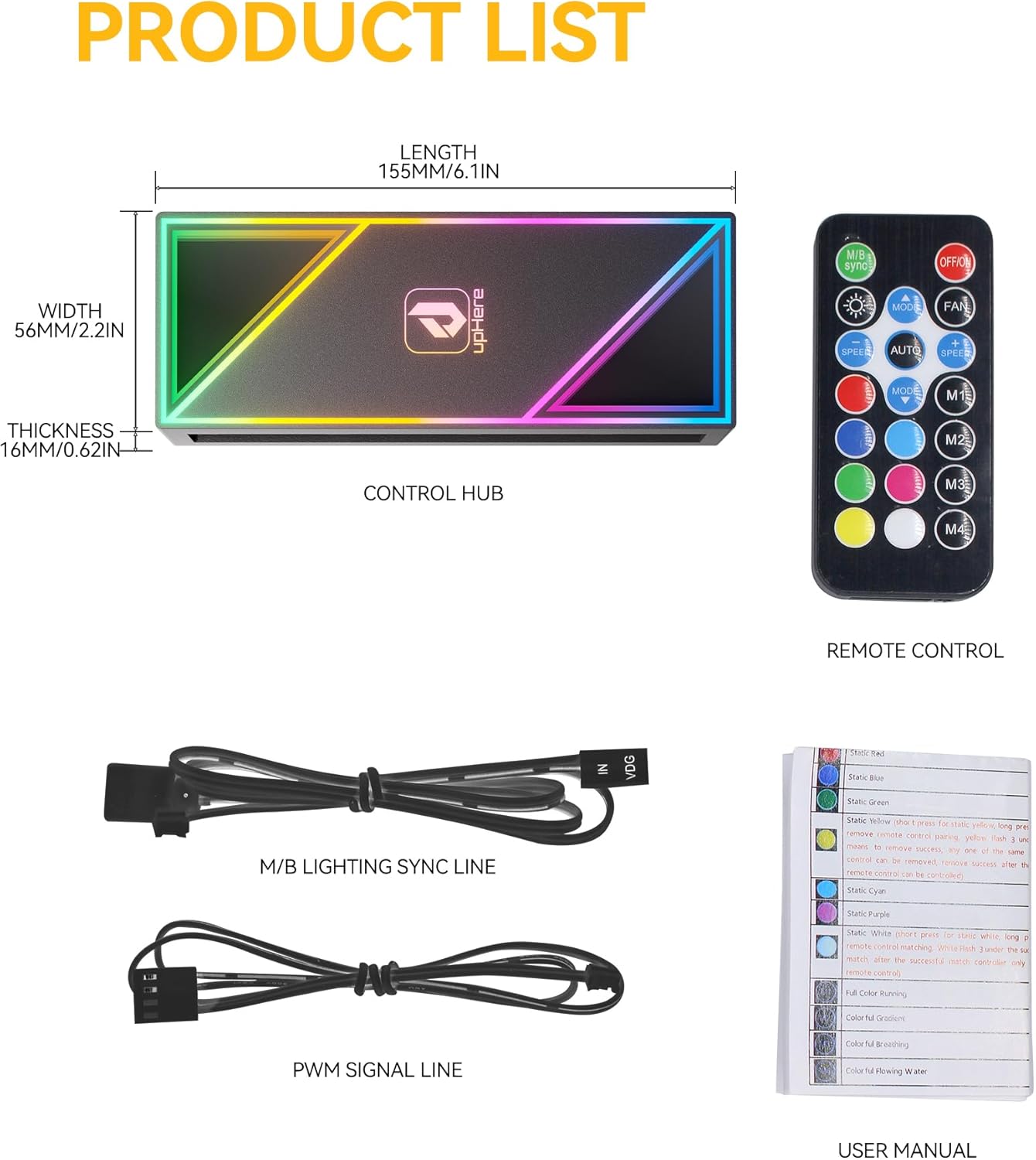
The package includes the following components:
- 1x upHere ARGB PWM Fan Hub Controller
- 1x Remote Control
- 1x M/B Lighting Sync Line
- 1x PWM Signal Line
- 1x User Manual

4. Installation Guide
4.1 Physical Placement
The controller features a magnetic back for easy installation and adjustable positioning within your PC case. Choose a suitable flat metal surface inside the case for mounting.

4.2 Connecting Fans
Connect your 3-pin or 4-pin PWM fans to the designated PWM and ARGB ports on the hub. The hub supports up to 12 fans for both speed and lighting control.
4.3 Power Connection
Connect the controller to your power supply unit (PSU) using a SATA power cable. This provides the necessary power for the hub and connected fans.
4.4 Motherboard Synchronization (Optional)
For motherboard control of ARGB lighting, connect the M/B ARGB Sync Cable from the hub to your motherboard's 5V 3-pin ARGB header. For PWM fan speed control via the motherboard, connect the PWM Control Cable to a CPU fan header or a dedicated fan header on your motherboard.
4.5 Lighting Switch Interface (Optional)
You can connect the lighting switch interface to your chassis restart button. This allows you to cycle through lighting modes using the case's reset button.

5. Operation
5.1 Remote Control Functions
The included remote control provides comprehensive management over fan speed and ARGB lighting effects. Refer to the diagram below for button functions.
5.2 Fan Speed Adjustment
The controller supports four fan speed modes: Stop, Slow, Medium, and Fast. These can be adjusted via the remote control to suit cooling requirements.
5.3 Lighting Brightness and Modes
Adjust lighting brightness through five levels (20% to 100%) and select from various lighting effects and color modes using the remote control. The controller also supports automatic cycle modes and fixed monochrome options.

6. Maintenance
To ensure optimal performance and longevity of your upHere ARGB PWM Fan Hub Controller, follow these general maintenance guidelines:
- Cleaning: Periodically clean the exterior of the controller with a soft, dry cloth to remove dust. Ensure the PC system is powered off and unplugged before cleaning.
- Cable Management: Ensure all cables connected to the hub are neatly routed and secured to prevent interference with other components or airflow.
- Environmental Conditions: Operate the controller within standard PC operating temperatures and humidity levels. Avoid exposure to excessive heat, moisture, or direct sunlight.
7. Troubleshooting
- No Power/Lights:
- Verify the SATA power cable is securely connected to both the hub and the power supply unit.
- Ensure the power supply unit is functioning correctly.
- Fans Not Spinning/Incorrect Speed:
- Check that all fan PWM cables are correctly plugged into the hub's PWM ports.
- If using motherboard sync, ensure the PWM signal line is connected to the motherboard and that fan control settings in the BIOS/UEFI are configured correctly.
- Test fan speed adjustment using the remote control.
- ARGB Lights Not Working/Incorrect Colors:
- Confirm all fan ARGB cables are securely connected to the hub's ARGB ports.
- If using motherboard sync, ensure the M/B ARGB Sync Cable is connected to a 5V 3-pin ARGB header (not 12V 4-pin RGB) and that software control is properly configured.
- Test lighting effects and brightness using the remote control.
- Weak Magnetic Mounting:
- The magnetic strength may vary depending on the PC case material and thickness. If the magnetic hold is insufficient, consider using double-sided adhesive tape for a more secure attachment.
- Unit Failure/Overload:
- Ensure that the power draw from connected fans does not exceed the hub's specifications. While the hub is SATA-powered, connecting multiple high-power devices to a single SATA power cable from the PSU can lead to issues. It is recommended to use a dedicated SATA power cable from the PSU for the hub if many fans are connected.
- If the unit exhibits signs of malfunction or damage, discontinue use immediately.
8. Specifications
| Attribute | Value |
|---|---|
| Model | P12PARGBBK |
| Brand | upHere |
| Color | Black |
| Material | Plastic |
| Package Dimensions | 6.65 x 3.11 x 1.14 inches |
| Item Weight | 4.6 ounces (0.13 Kilograms) |
| Fan Ports | 12x PWM 4-pin |
| ARGB Ports | 12x ARGB 5V 3-pin |
| Power Connector | SATA |
9. Warranty and Support
For warranty information and technical support, please refer to the official upHere website or contact their customer service directly. Keep your purchase receipt for warranty claims.
Ask a question about this manual
Ask about setup, troubleshooting, compatibility, parts, safety, or missing instructions. Manuals+ will review the question and use this page’s manual context to help answer it.