
1. Introduction
This manual provides comprehensive instructions for the installation, operation, and maintenance of your SIXWIN Android 13 Car Stereo. Please read this manual thoroughly before use to ensure proper functionality and to prevent damage to the device or your vehicle. This device integrates advanced features such as Wireless CarPlay, Android Auto, Mirror Link, GPS navigation, WiFi connectivity, Bluetooth 5.0, FM/RDS radio, and a 32-band equalizer, all controlled via a 9-inch HD touchscreen.
2. Compatible Vehicle Models
This Android car stereo is designed for specific Volkswagen, Skoda, and Passat models. Please verify your vehicle's compatibility before installation.
- VW Golf 5 (2003-2009)
- VW Golf 6 (2008-2013)
- VW Golf Plus (2009-2013)
- VW Golf GTI (2003-2013)
- VW Golf R (2003-2013)
- VW Golf Estate (2009-2012)
- VW Golf Wagon (2010-2013)
- VW Golf Cabriolet (2011-2013)
- VW Tiguan (2007-2017)
- VW Touran (2003-2013)
- VW Caddy (2011-2013)
- VW Amarok (2010-2013)
- VW EOS (2006-2013)
- VW Scirocco (2008-2014)
- VW Beetle (2011-2013)
- VW Beetle Convertible (2013)
- VW 21st Century Beetle (2012-2013)
3. Packing List & Dimensions
Before proceeding with installation, please ensure all components listed below are present in the package.

Image: Detailed view of the packing list and the dimensions of the car stereo unit.
Included Components:
- 1x Car Player Unit
- 1x Canbus Decoder
- 1x GPS Antenna
- 1x Power Cable
- 1x RCA Cable
- 1x Rear Camera Input Cable
- 2x USB Cables
- 1x Mounting Accessories Kit
- 1x User Manual
Product Dimensions:
- Unit Dimensions (D x W x H): 27.5 cm x 21 cm x 10.5 cm
- Item Weight: 1 Kilogram
4. Setup and Installation
Proper installation is crucial for the optimal performance of your car stereo. It is recommended to have the installation performed by a qualified professional.
Installation Overview:

Image: Visual comparison of a car dashboard before and after the installation of the SIXWIN Android 13 Car Stereo.
Important Compatibility Note:
Before purchasing and installing, you must confirm your original car system configuration, year, central control map, and other relevant details to avoid installation incompatibility. If you have any doubts, please consult customer service.

Image: A guide illustrating various car dashboard configurations, indicating which ones are compatible ('Can be installed') and incompatible ('Cannot be installed') with the SIXWIN Android 13 Car Stereo.
5. Operating Instructions
5.1 System Overview
The car stereo operates on the Android 13 operating system, featuring a 4-core processor, 4GB RAM, and 64GB ROM. This configuration ensures fast response, stable performance, and a smooth user interface. The high-resolution 1024x600 screen provides clear visuals.

Image: Illustrates the internal hardware specifications (4-core, 4GB RAM, 64GB ROM) and display technology (IPS, 2.5D Touch Glass, Touchscreen, Anti-blue light) of the car stereo.
5.2 Wireless CarPlay / Android Auto / Mirror Link
Connect your iPhone or Android phone wirelessly to access mobile applications directly on the car stereo's screen. This allows for hands-free calls, messaging, music playback, and navigation using voice commands or touch controls. Mirror Link functionality enables displaying your smartphone's screen content (apps, music, videos) on the device via WiFi connection.
- Wireless CarPlay: For iPhone users, access iOS features seamlessly.
- Wireless Android Auto: For Android users, integrate your phone's functions.
- Mirror Link: Display your smartphone screen on the car stereo. For iOS, use WiFi connection. For Android, use WiFi or USB connection.

Image: Shows the user interface for Wireless CarPlay and Android Auto, along with a visual representation of Mirror Link displaying a phone screen on the car stereo.
5.3 Built-in GPS Navigation
The device supports both online and offline maps, providing precise and easy navigation. Utilize voice navigation and real-time traffic information for an optimized driving experience.
5.4 WiFi Connectivity
Connect to the internet via a WiFi hotspot or network connection. This enables web browsing, online content streaming, and downloading various applications directly to your device.
5.5 Bluetooth 5.0
Pair your mobile phone or other Bluetooth-enabled devices for wireless music streaming, hands-free calling, and file transfer. The system supports automatic phone book loading.
5.6 FM/RDS Radio
Receive radio signals from various stations with clear sound quality. The system includes 18 preset stations, FM (3*6) channels for reception, and a built-in RDS radio receiver for enhanced information display.
5.7 32-Band Equalizer
Customize your audio experience with the 32-band equalizer. Select from various sound styles such as Jazz, Classic, Rock, and more, or adjust frequencies manually to create your preferred sound panorama.
5.8 Reversing Function
The car stereo supports an external AHD rear view camera, providing clear visuals for safe reversing at any time.

Image: Displays the user interfaces for built-in GPS navigation, WiFi internet connection, and the reversing camera function with guide lines.
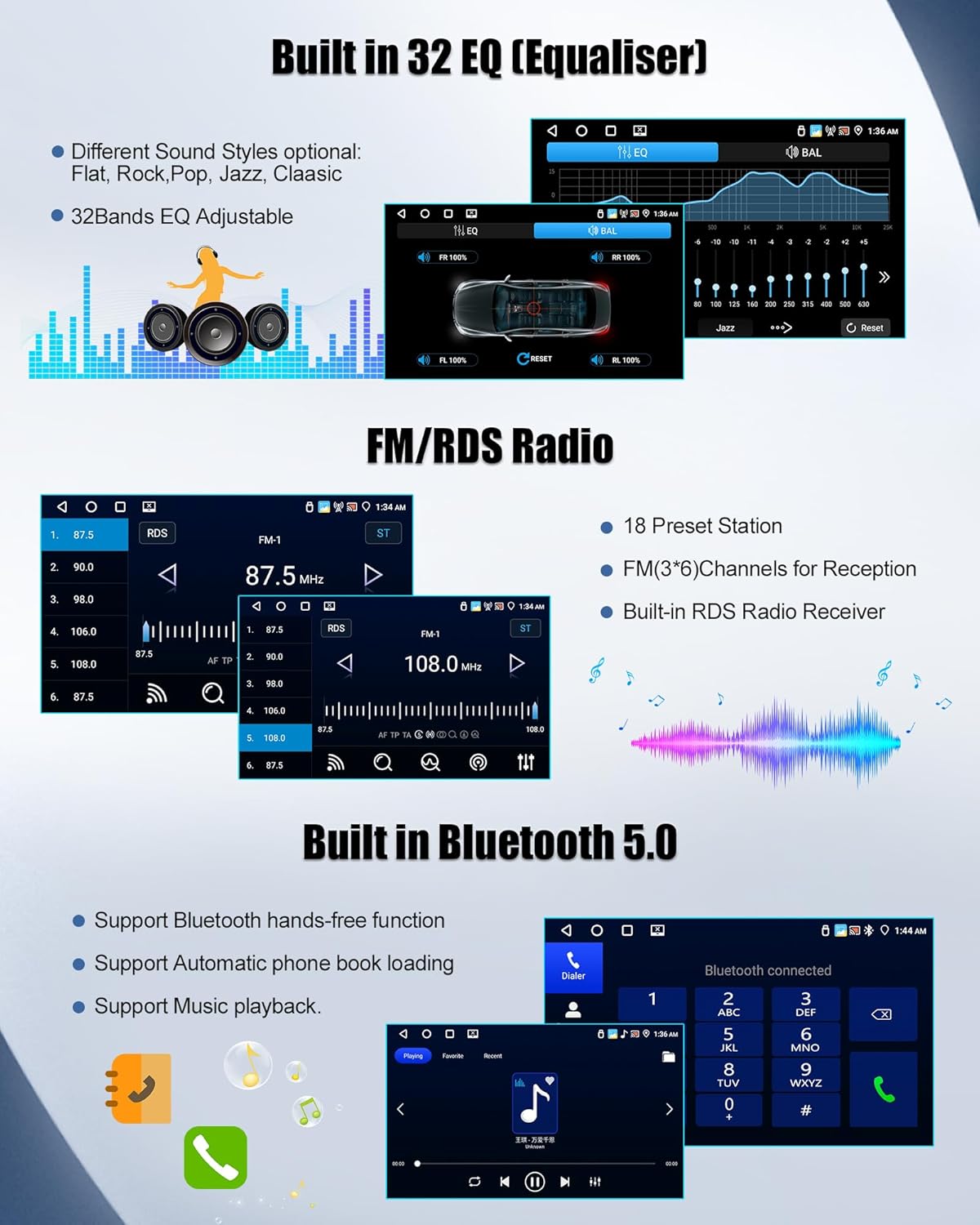
Image: Illustrates the 32-band equalizer settings, the FM/RDS radio interface with preset stations, and the Bluetooth 5.0 connection screen for hands-free calling and music playback.
6. Specifications
| Feature | Detail |
|---|---|
| Brand | SIXWIN |
| Item Model Number | 1 |
| Connectivity Technology | Bluetooth, USB, Wi-Fi |
| Special Features | 4GB (RAM) + 64GB (ROM), Integrated Bluetooth, Wireless CarPlay, Wireless Android Auto, Mirror Link, WiFi, 32-Band Equalizer |
| Compatible Devices | Smartphone |
| Product Dimensions (D x W x H) | 27.5 cm x 21 cm x 10.5 cm |
| Item Weight | 1 Kilogram |
| Number of Channels | 2 |
| Output Power | 45 Watts |
| Control Method | Touch |
| Wireless Technology | Bluetooth |
| Box Contents | 1x GPS Antenna, 1x Power Cable, 1x RCA Cable, 1x Rear Camera Input Cable, 2x USB Cables, 1x Mounting Accessories Kit, 1x User Manual, 1x Car Player, 1x Canbus |
| Spare Parts Availability | Information unavailable |
| Software Updates Guaranteed Until | Information unavailable |
7. Maintenance
To ensure the longevity and optimal performance of your SIXWIN car stereo, follow these maintenance guidelines:
- Cleaning: Use a soft, dry cloth to clean the screen and exterior. Avoid abrasive cleaners or solvents.
- Software Updates: Periodically check for available software updates to ensure the system runs efficiently and securely.
- Environmental Conditions: Avoid exposing the device to extreme temperatures, direct sunlight for prolonged periods, or excessive moisture.
- Cable Connections: Ensure all cables are securely connected to prevent intermittent issues.
8. Troubleshooting
If you encounter any issues with your SIXWIN car stereo, refer to the following common troubleshooting steps:
- No Power: Check all power connections and fuses. Ensure the vehicle's ignition is on.
- No Sound: Verify speaker connections, volume settings, and audio source selection.
- Touchscreen Unresponsive: Try restarting the device. If the issue persists, a factory reset might be necessary (note: this will erase user data).
- Bluetooth Connection Issues: Ensure Bluetooth is enabled on both the car stereo and your mobile device. Delete previous pairings and try reconnecting.
- GPS Signal Loss: Ensure the GPS antenna is properly installed and has a clear view of the sky.
- CarPlay/Android Auto Not Connecting: Check your phone's settings and ensure the app is updated. For wireless connections, verify WiFi is active.
For more complex issues or if troubleshooting steps do not resolve the problem, please contact customer support.
9. Support
For technical assistance, warranty information, or further inquiries, please contact our customer support team.

Image: A customer service representative ready to assist with product inquiries.
You can reach us via email at: SIXWINVIP@126.com

