1. Introduction
This manual provides detailed instructions for the setup, operation, and maintenance of your Razer BlackShark V3 Pro Wireless ANC Gaming Headset. Designed for elite console and PC gamers, this headset offers advanced audio features and versatile connectivity. Please read this manual thoroughly to ensure optimal performance and longevity of your device.

Image 1.1: Razer BlackShark V3 Pro Wireless ANC Gaming Headset with its components.
2. What's in the Box
Verify that all the following components are included in your package:
- Razer BlackShark V3 Pro Wireless ANC Gaming Headset
- Razer HyperSpeed Wireless Gen-2 Dongle
- Detachable Razer HyperClear Full Band 12mm Mic
- USB Type A to Type C Cable
- 3.5mm TRRS Analog to USB-C Converter Cable
- User Manual (this document)

Image 2.1: Contents of the Razer BlackShark V3 Pro package.
3. Setup Instructions
3.1. Charging the Headset
Before first use, fully charge the headset using the provided USB Type A to Type C cable. Connect the USB-C end to the headset's charging port and the USB-A end to a powered USB port (e.g., computer, wall adapter).
3.2. Attaching the Microphone
Align the detachable Razer HyperClear Full Band 12mm Mic with the microphone port on the left earcup and push it firmly until it clicks into place.
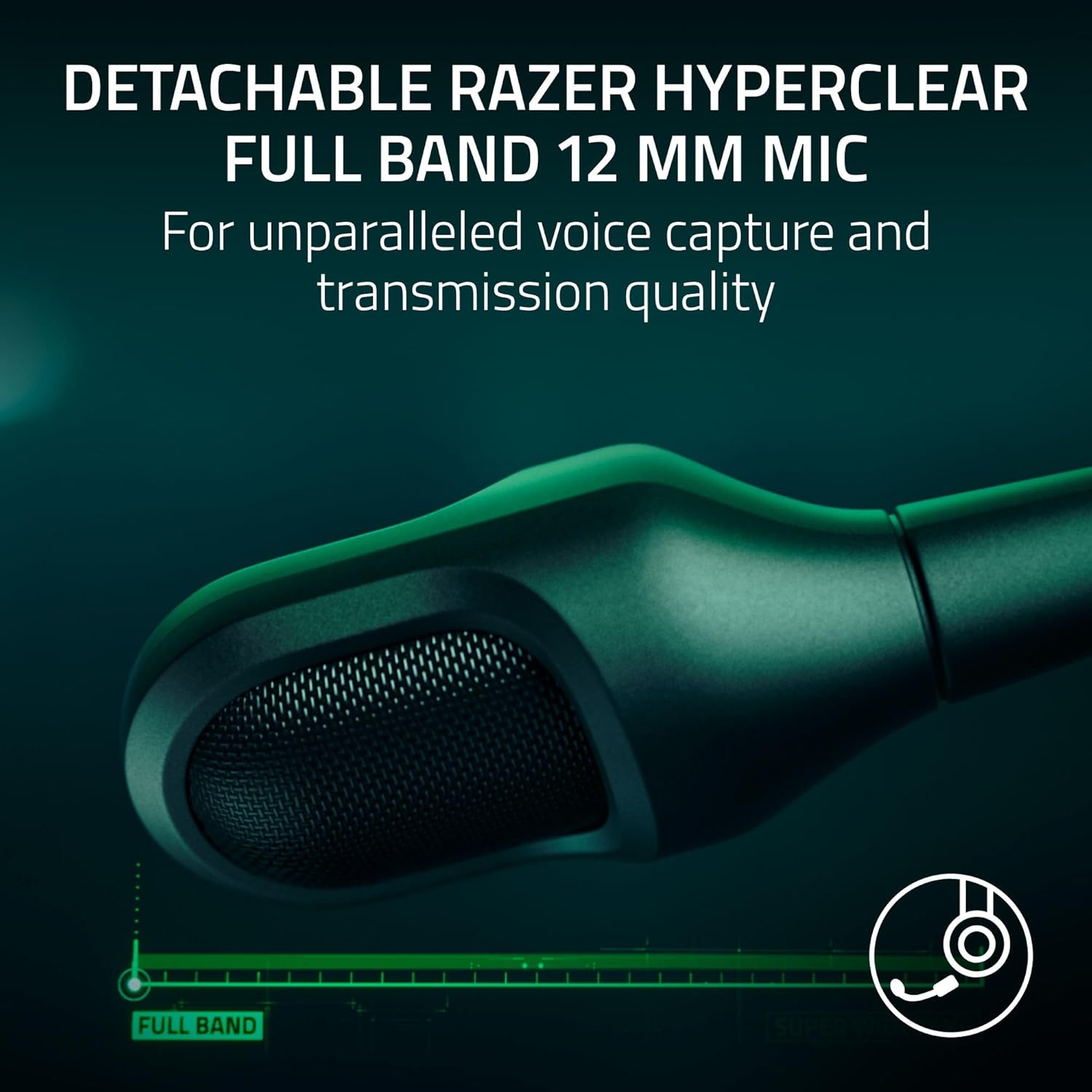
Image 3.1: Detachable microphone for clear voice capture.
3.3. Connectivity Options
The Razer BlackShark V3 Pro offers four primary connectivity modes:
- Razer HyperSpeed Wireless Gen-2 (2.4 GHz): For ultra-low latency wireless connection to PC, Mac, PS5, PS4, Xbox Series X|S, and Xbox One.
- Bluetooth: For wireless connection to smartphones, tablets, and other Bluetooth-enabled devices.
- USB-C: For wired connection and charging to compatible devices.
- 3.5mm Analog: For universal wired connection to devices with a 3.5mm audio jack, using the provided 3.5mm TRRS Analog to USB-C Converter Cable.
3.3.1. HyperSpeed Wireless Setup
- Plug the Razer HyperSpeed Wireless Gen-2 Dongle into an available USB port on your PC, Mac, or console.
- Power on your headset. The headset should automatically connect to the dongle. The LED indicator on the dongle will turn solid green when connected.

Image 3.2: Razer HyperSpeed Wireless Gen-2 Dongle.
3.3.2. Bluetooth Setup
- With the headset powered on, press and hold the Bluetooth button until the LED indicator blinks blue. This indicates pairing mode.
- On your device, enable Bluetooth and select "Razer BlackShark V3 Pro" from the list of available devices.
- The headset LED will turn solid blue when successfully paired.
3.3.3. Wired Connections (USB-C and 3.5mm)
- USB-C: Connect the USB Type A to Type C cable directly from your device to the headset's USB-C port.
- 3.5mm Analog: Connect the 3.5mm TRRS Analog to USB-C Converter Cable to the headset's USB-C port, then plug the 3.5mm jack into your device's audio port.
4. Operating Instructions
4.1. Headset Controls
Familiarize yourself with the controls located on the earcups:
- Power Button: Press and hold to power on/off.
- Volume Wheel: Rotate to adjust headset volume.
- Mic Mute Button: Press to mute/unmute the microphone.
- ANC/Ambient Mode Button: Press to cycle through Active Noise Cancellation (ANC), Ambient Mode, and ANC Off.
- SmartSwitch Button: Used for switching between 2.4 GHz and Bluetooth modes, and for managing calls in Bluetooth mode.
4.2. Active Noise Cancellation (ANC)
The Hybrid Active Noise Cancellation feature helps block out external distractions. Press the ANC button to activate or deactivate it. Ambient Mode allows you to hear your surroundings without removing the headset.
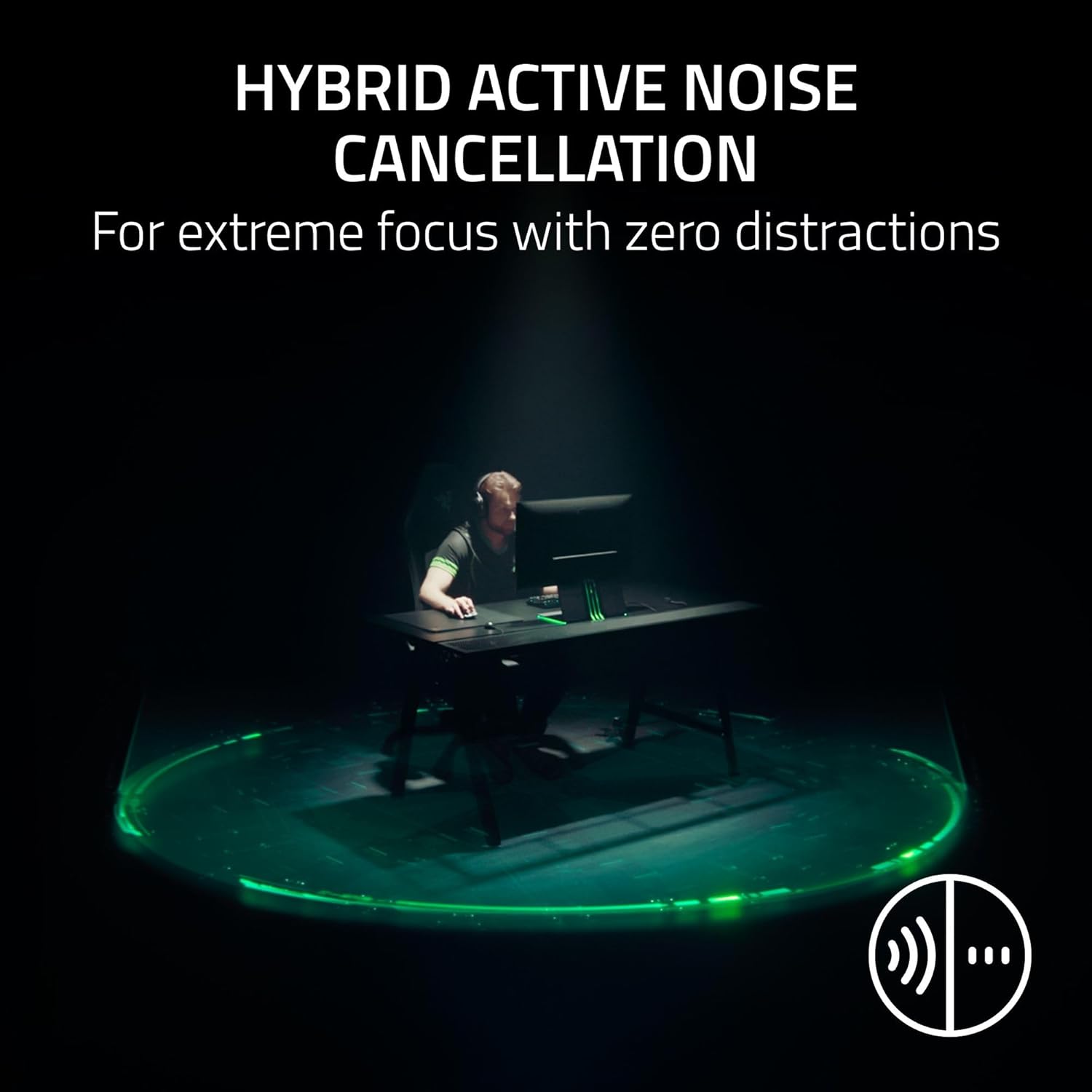
Image 4.1: Hybrid Active Noise Cancellation in action.
4.3. Audio Customization (Razer Synapse 4)
For PC users, download and install Razer Synapse 4 software to access advanced audio customization options, including:
- Pro-tuned FPS Profiles: Game-specific EQ settings optimized for competitive play.
- Customizable EQ: Create and save your own equalizer settings.
- THX Spatial Audio: Experience 7.1.4 surround sound for enhanced positional awareness.

Image 4.2: Razer Synapse 4 app interface for EQ and settings.
5. Key Features
5.1. Razer HyperSpeed Wireless Gen-2
This technology provides an ultra-low latency wireless connection, ensuring near-instantaneous audio transmission for competitive gaming.
5.2. Razer HyperClear Full Band 12mm Mic
The detachable microphone features a large 12mm capsule for clear voice capture and a unidirectional pick-up pattern to suppress background noise, crucial for team communication.
5.3. Razer TriForce Bio-Cellulose 50mm Drivers Gen-2
These 50mm drivers are engineered with a bio-cellulose diaphragm to deliver natural, powerful sound with improved clarity and positional accuracy, allowing you to hear subtle audio cues like footsteps.

Image 5.1: Razer TriForce Bio-Cellulose 50mm Drivers Gen-2.
5.4. Next-Gen Surround Sound
On Xbox, the headset supports Windows Sonic for an expanded competitive soundstage. On PC, it utilizes THX Spatial Audio for 7.1.4 surround sound, providing precise 3D positional audio.

Image 5.2: THX Spatial Audio representation.
6. Maintenance
To maintain your Razer BlackShark V3 Pro headset in optimal condition:
- Cleaning: Use a soft, dry cloth to clean the earcups and headband. Avoid harsh chemicals or abrasive materials.
- Storage: Store the headset in a cool, dry place away from direct sunlight and extreme temperatures.
- Battery Care: For long-term storage, charge the battery to approximately 50% every three months to prevent deep discharge.
- Microphone: Detach the microphone when not in use to prevent damage during transport or storage.
7. Troubleshooting
If you encounter issues with your headset, refer to the following common problems and solutions:
| Problem | Solution |
|---|---|
| No audio from headset |
|
| Microphone not working |
|
| Bluetooth pairing issues |
|
| Intermittent wireless connection |
|
8. Specifications
| Feature | Detail |
|---|---|
| Model Name | BlackShark V3 Pro |
| Model Number | RZ04-05400300-R3U1 |
| Connectivity Technology | 3.5mm, Bluetooth, USB, Wireless (2.4 GHz) |
| Wireless Communication | 2.4 GHz (HyperSpeed Gen-2), Bluetooth 5.3 |
| Noise Control | Hybrid Active Noise Cancellation |
| Audio Driver Type | Dynamic Driver (TriForce Bio-Cellulose) |
| Audio Driver Size | 50 Millimeters |
| Frequency Response | 28 KHz |
| Sensitivity | 108 dB |
| Microphone | Detachable Razer HyperClear Full Band 12mm Mic |
| Headphones Jack | 3.5 mm Jack |
| Compatible Devices | Mac, Nintendo Switch, PC, PlayStation (PS4, PS5), Xbox (Series X|S, One X, One), Smartphones, Tablets |
| Item Weight | 2.28 Pounds |
| Batteries | 1 Lithium Ion battery (included) |
| UPC | 840272919521 |
9. Warranty and Support
Your Razer BlackShark V3 Pro Wireless ANC Gaming Headset comes with a limited manufacturer's warranty. For detailed warranty information, please refer to the warranty card included in your product packaging or visit the official Razer support website.
For technical support, driver downloads, or further assistance, please visit the Razer Support Page. You can also find FAQs and community forums there.


