
1. Introduction
This manual provides detailed instructions for the installation, operation, maintenance, and troubleshooting of your GIGABYTE B550M Gaming X WIFI6 AMD AM4 mATX Motherboard. Please read this manual thoroughly before beginning installation to ensure proper setup and optimal performance.

Figure 1: GIGABYTE B550M Gaming X WIFI6 Motherboard Overview
2. Setup
2.1 Package Contents
Before proceeding, verify that all items are present in your motherboard package:
- GIGABYTE B550M Gaming X WIFI6 Motherboard
- SATA Cable
- Magnetic WiFi Antenna
- Multilingual Installation Guide
- Motherboard Driver CD/USB (if included)
Video 1: GIGABYTE B550M Gaming X WIFI6 Unboxing. This video demonstrates the contents of the motherboard package and initial handling.
2.2 Motherboard Layout and Connectors
Familiarize yourself with the motherboard's layout and various connectors before installation.
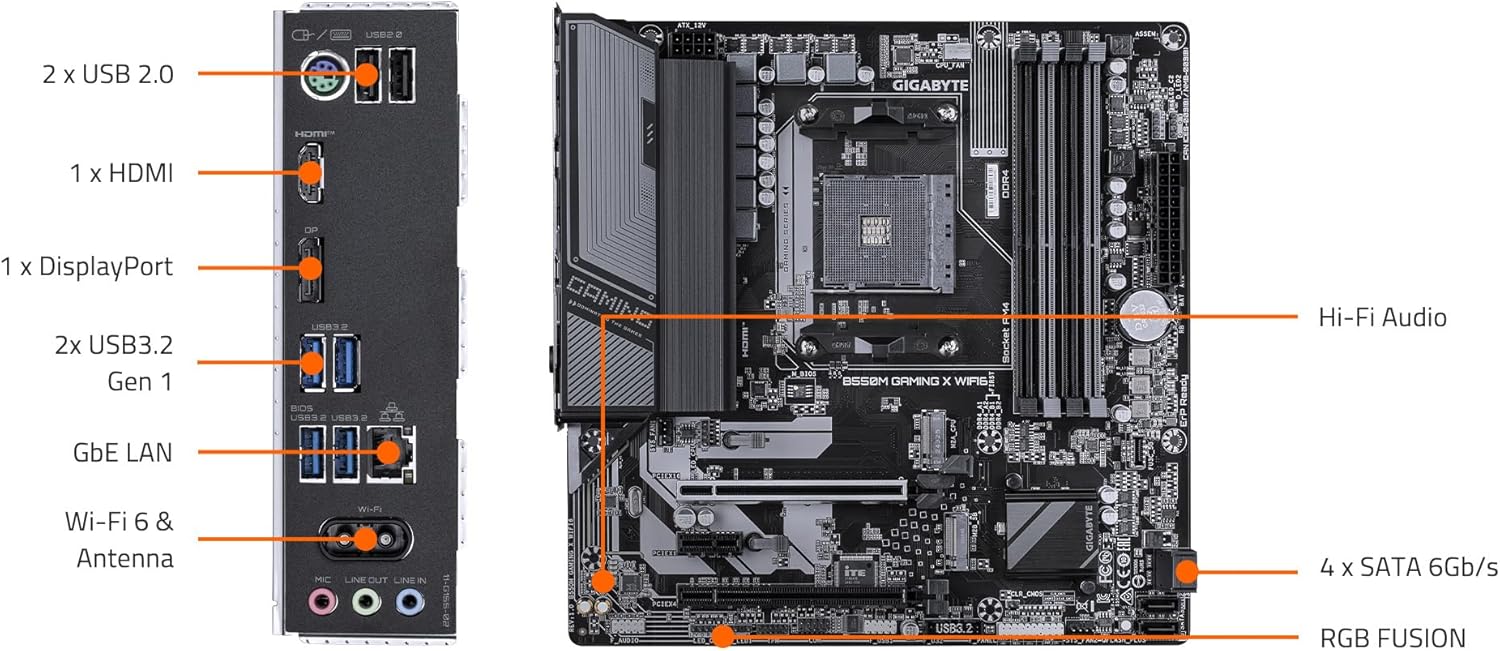
Figure 2: Motherboard Component Layout
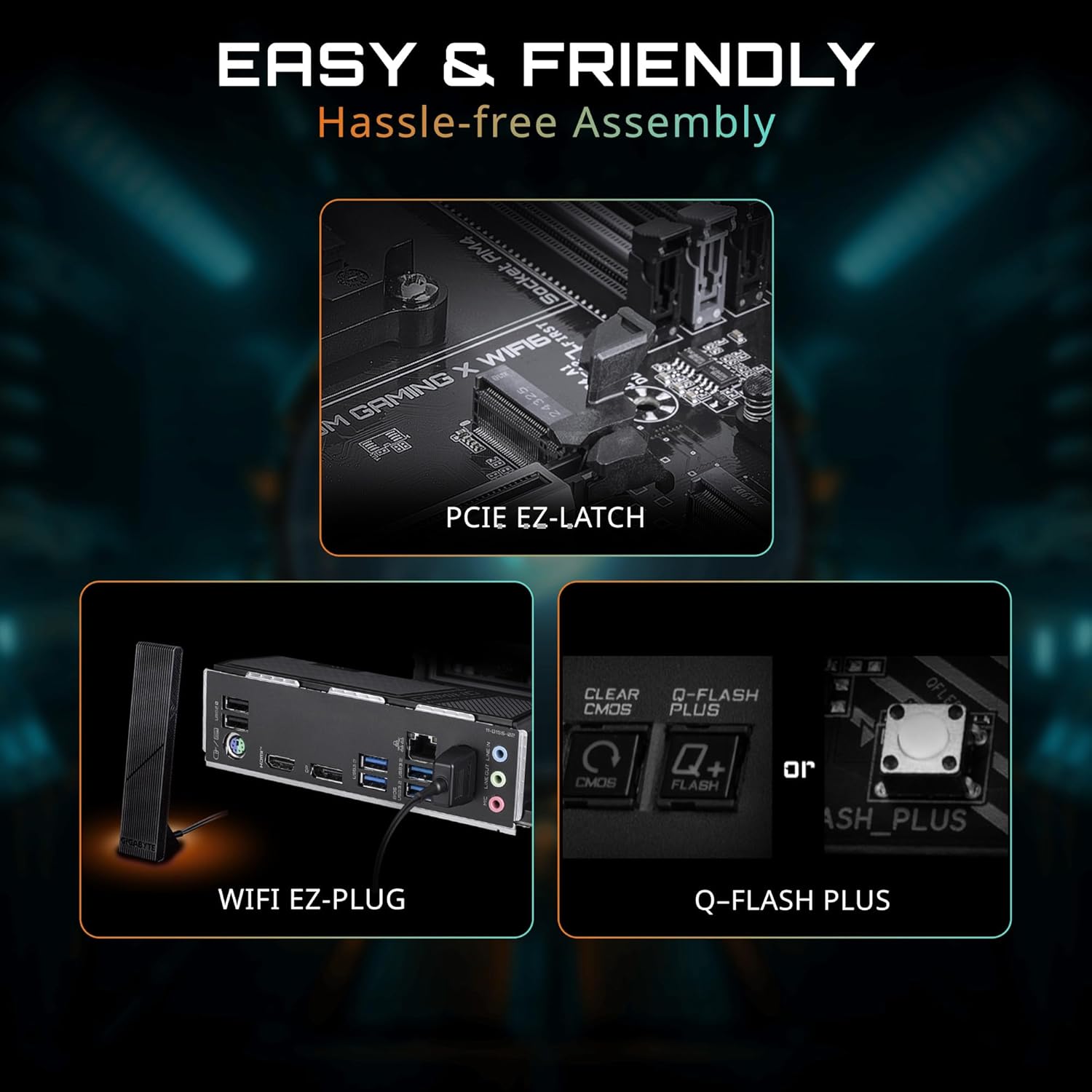
Figure 3: Rear I/O Panel
2.3 Component Installation
Follow these steps for installing essential components:
- CPU Installation: Carefully open the CPU socket lever. Align the triangular mark on the CPU with the mark on the socket. Gently place the CPU into the socket without force. Close the lever to secure the CPU.
- CPU Cooler Installation: Install your CPU cooler according to its manufacturer's instructions. Ensure proper thermal paste application.
- RAM (Memory) Installation: Open the clips on the DDR4 memory slots. Align the notch on the memory module with the key in the slot. Press down firmly on both ends of the module until the clips snap into place. For dual-channel performance, refer to your motherboard manual for specific slot pairing.
- M.2 SSD Installation: Locate the M.2 slots. Remove the M.2 screw/standoff. Insert the M.2 SSD at an angle into the slot. Push it down gently and secure it with the screw/standoff. The motherboard features PCIe EZ-Latch for tool-less M.2 installation.
- Graphics Card (PCIe) Installation: Open the retention clip on the PCIe 4.0 x16 slot. Align your graphics card with the slot and press down firmly until it is seated. The PCIe EZ-Latch simplifies removal. Secure the card to your chassis with screws.
- SATA Device Installation: Connect SATA data cables from your storage devices (HDDs/SSDs) to the SATA ports on the motherboard. Connect SATA power cables from your power supply to the devices.
- Power Supply Connections: Connect the 24-pin ATX power connector and the 8-pin (or 4+4-pin) CPU power connector from your power supply to the corresponding ports on the motherboard.
- Front Panel Connections: Connect the power button, reset button, HDD LED, power LED, and front panel USB/audio headers to their respective pins on the motherboard. Refer to the motherboard manual for pin assignments.
- WiFi Antenna Connection: Screw the magnetic WiFi antenna onto the designated connectors on the rear I/O panel. The WiFi EZ-Plug design ensures easy connection.

Figure 4: Easy Assembly Features (PCIe EZ-Latch, WiFi EZ-Plug, Q-Flash Plus)
3. Operating
3.1 Initial Boot and BIOS Setup
After assembling your system, connect a monitor, keyboard, and mouse. Power on your PC. Press the designated key (usually DEL or F2) during startup to enter the BIOS/UEFI setup. Here you can configure boot order, system time, and other advanced settings. The motherboard supports Q-Flash Plus for BIOS updates without a CPU, memory, or graphics card installed.
3.2 Driver Installation
Once your operating system is installed, install the necessary drivers for your motherboard components. These can typically be found on the included driver CD/USB or downloaded from the official GIGABYTE website. Essential drivers include chipset, LAN, audio, and Wi-Fi drivers.
3.3 Software Utilities
GIGABYTE provides various software utilities to enhance your user experience:
- RGB Fusion: Customize the RGB lighting effects on your motherboard and connected compatible devices.
- Smart Fan 6: Monitor and control your system's fan speeds and temperatures for optimal cooling and noise levels.
- App Center: A centralized platform to manage and update GIGABYTE utilities and drivers.
Video 2: GIGABYTE B550 Motherboards - Overview. This video provides a general overview of the features and capabilities of GIGABYTE B550 series motherboards.
4. Maintenance
Regular maintenance helps ensure the longevity and stable performance of your motherboard.
- Cleaning: Periodically clean dust from your PC case and motherboard components using compressed air. Ensure the system is powered off and unplugged before cleaning. Avoid using liquids.
- BIOS Updates: Check the GIGABYTE website for the latest BIOS updates. BIOS updates can improve compatibility, stability, and performance. Use the Q-Flash or Q-Flash Plus utility for safe updating.
- Driver Updates: Keep your drivers updated to ensure optimal performance and compatibility with new software and hardware. Download drivers only from the official GIGABYTE website.
5. Troubleshooting
If you encounter issues with your motherboard, consider the following troubleshooting steps:
- No Power/No Boot:
- Check all power connections (24-pin ATX, 8-pin CPU, GPU, SATA).
- Ensure the power supply is switched on.
- Try booting with minimal components (CPU, one RAM stick, graphics card if no integrated graphics).
- No Display:
- Verify monitor cable connections and monitor input selection.
- Reseat the graphics card and memory modules.
- Test with a different monitor or graphics card if possible.
- System Instability/Crashes:
- Check CPU and GPU temperatures. Ensure adequate cooling.
- Run memory diagnostic tools to check for RAM errors.
- Update BIOS and all drivers to the latest versions.
- Network Connectivity Issues (Wired/Wireless):
- Ensure LAN cable is properly connected or WiFi antenna is securely attached.
- Install or update LAN/WiFi drivers.
- Check network settings in your operating system.
If issues persist, consult the GIGABYTE support website or contact their technical support.


