
Doro 8881
Doro Aurora A10 Mobile Phone User Manual
Model: 8881
Introduction
This manual provides comprehensive instructions for the Doro Aurora A10 Mobile Phone. It covers setup, operation, maintenance, and troubleshooting to ensure you get the most out of your device. The Doro Aurora A10 is designed for ease of use, featuring a large screen, practical buttons, clear sound, and an SOS button for enhanced security.
What's Included
Upon unboxing your Doro Aurora A10, please ensure all components are present:
- Doro Aurora A10 Mobile Phone
- USB Cable
- (Other accessories may vary by package)

Image: The Doro Aurora A10 mobile phone, showing its front and back, alongside the included USB cable.
Setup
1. Inserting the SIM Card and Battery
Before first use, you will need to insert your SIM card.
- Locate the SIM card slot, typically on the side or under the back cover.
- Carefully insert your SIM card into the designated slot, ensuring correct orientation.
- The Doro Aurora A10 comes with an included 9V battery. Ensure it is properly seated in its compartment.
- Replace the back cover securely.
2. Initial Power On and Setup Wizard
To power on your phone for the first time:
- Press and hold the power button until the screen illuminates.
- Follow the on-screen setup wizard to select your language, connect to Wi-Fi, and set up your Google account.
- The Doro Easy Interface will guide you through the initial settings, simplifying the process.

Image: A visual representation of the Doro Aurora A10 highlighting its key features such as the Easy Interface, Doro Secure Button, ClearSound technology, and physical tactile buttons.
Operating Your Doro Aurora A10
Basic Navigation
The Doro Aurora A10 features a user-friendly interface with intuitive navigation.
- Touchscreen: Navigate by tapping, swiping, and pinching on the screen.
- Physical Buttons: Utilize the tactile call buttons for easy answering and ending calls.
- Doro Easy Call & Home Keys: Dedicated keys simplify common actions.
Making and Receiving Calls
To make a call, tap the "Phone" icon and dial the number, or select a contact. To receive a call, press the green call button. The Doro ClearSound technology ensures clear audio during conversations, and the phone is compatible with hearing aids (HAC).
Using the Camera
The phone is equipped with a 13MP camera. Open the "Camera" application to capture photos and videos.

Image: A detailed view of the Doro Aurora A10's user-friendly interface, highlighting features like hearing aid compatibility, Doro Easy Call & Home keys, the 13MP main camera, and remote support capabilities.
Doro Secure Button
The Doro Secure Button is a key safety feature. In an emergency, simply press the dedicated button on the back of the phone. This will alert your connected responders and send them your GPS location, providing peace of mind.

Image: An illustration showing the Doro Secure Button on the back of the Doro Aurora A10, emphasizing its GPS location feature and how it connects to a network of responders.
Maintenance
Cleaning Your Device
To clean your Doro Aurora A10, use a soft, lint-free cloth. Avoid using abrasive cleaners or solvents, as these can damage the phone's surface.
Battery Care
The phone uses a 9V battery. For optimal battery life, avoid exposing the phone to extreme temperatures. Charge the phone using the provided USB cable.
Troubleshooting
| Problem | Possible Cause | Solution |
|---|---|---|
| Phone does not turn on | Low battery; Battery not inserted correctly | Charge the phone; Ensure battery is properly seated |
| Cannot make/receive calls | No SIM card; Poor network signal | Insert SIM card; Move to an area with better signal |
| Sound issues during calls | Volume too low; Speaker/microphone obstruction | Adjust volume; Clear any obstructions from speaker/microphone |
| Screen unresponsive | Temporary software glitch | Restart the phone by holding the power button |
If you encounter issues not listed here, please refer to the Doro support website or contact customer service.
Specifications
- Model Name: Doro Aurora A10 Bone
- Item Model Number: 8881
- Operating System: Android 14
- RAM Memory Installed Size: 3.99 GB
- Memory Storage Capacity: 4 GB
- CPU Speed: 2 GHz
- Cellular Technology: 4G
- Wireless Carrier: Unlocked
- Colour: Bone
- Connector Type: USB Type C
- Batteries: 1 x 9V batteries (included)
- Package Dimensions: 19 x 8.8 x 3.9 cm
- Weight: 300 g
- Manufacturer: Doro
- Date First Available: 4 April 2025
Warranty and Support
The Doro Aurora A10 Mobile Phone comes with a standard manufacturer's warranty. For detailed warranty information, please refer to the documentation included with your purchase or visit the official Doro website.
For technical support, frequently asked questions, or to download the full user manual, please visit the Doro support page: www.doro.com/support.
Note: The provided information indicates "Guaranteed software updates until: unknown". Please check the official Doro website for the latest software update policy.
Additional Information
Doro is committed to helping seniors live a better life by providing technology that promotes independence, security, and enjoyment. The Aurora A10 is part of a family of Doro devices designed with simplicity in mind.
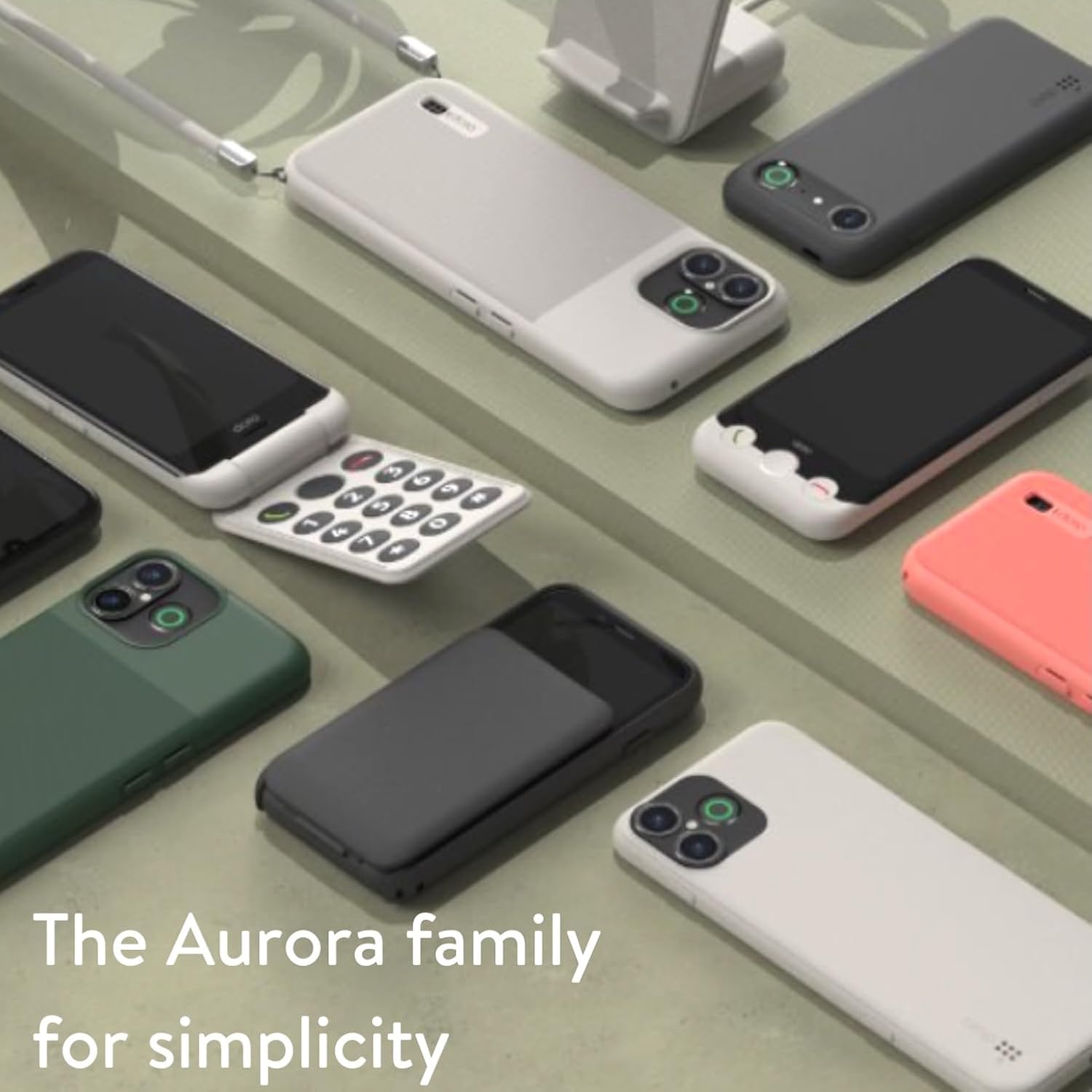
Image: A collection of Doro Aurora series phones, showcasing the range of devices designed for simplicity and ease of use.

Image: A woman smiling while holding and using the Doro Aurora A10 mobile phone, demonstrating its comfortable grip and user-friendly design.
Official Product Videos
No official product videos from the seller were found in the provided data. Please check the official Doro website or product page for any available video resources.
Related documents8881


Ask a question about this manual
Ask about setup, troubleshooting, compatibility, parts, safety, or missing instructions. Manuals+ will review the question and use this page’s manual context to help answer it.