
TCL 43P71K
TCL 43-inch 4K Ultra HD Smart QLED Google TV 43P71K User Manual
Model: 43P71K
1. Introduction
Welcome to the user manual for your new TCL 43-inch 4K Ultra HD Smart QLED Google TV, model 43P71K. This manual provides essential information for setting up, operating, maintaining, and troubleshooting your television. Please read this manual thoroughly before using your TV to ensure proper operation and to maximize your viewing experience.
2. Safety Information
Always observe the following safety precautions when operating your television:
- Do not expose the TV to rain or moisture.
- Do not block ventilation openings.
- Protect the power cord from being walked on or pinched.
- Only use attachments/accessories specified by the manufacturer.
- Refer all servicing to qualified service personnel.
3. What's in the Box
Upon unpacking, please ensure all the following items are present:
- 1N LED TV
- 1N Audio Cable
- 1N Stand
- 1N Power cord
- 1N Remote Control
- 2N Batteries (AAA)

4. Setup
4.1 Physical Installation
Your TCL 43P71K TV supports both table-top and wall-mount installations.
- Table Mount: Attach the provided stand to the bottom of the TV using the screws. Ensure the TV is placed on a stable, flat surface.
- Wall Mount: For wall mounting, use a compatible VESA wall mount kit (sold separately). Follow the instructions provided with your wall mount.

4.2 Initial Power On and Setup Wizard
- Connect the power cord to the TV and a power outlet.
- Press the power button on the TV or the remote control to turn on the TV.
- Follow the on-screen instructions for initial setup, including language selection, network connection (Wi-Fi or Ethernet), and Google account sign-in.
5. Operating Instructions
5.1 Remote Control Overview
The smart remote control provides quick access to various functions and streaming services.

- Power Button: Turns the TV on or off.
- Navigation Pad: Use to navigate menus and select options.
- Google Assistant Button: Activates voice commands for Google Assistant.
- Dedicated Hotkeys: Quick access buttons for popular streaming services like Netflix, Prime Video, and YouTube.
- Volume +/-: Adjusts the volume level.
- Channel +/-: Changes TV channels.
5.2 Basic Navigation
Use the navigation pad and OK button on the remote to browse the Google TV interface. The Home screen provides access to recommended content, installed apps, and settings.

6. Connectivity
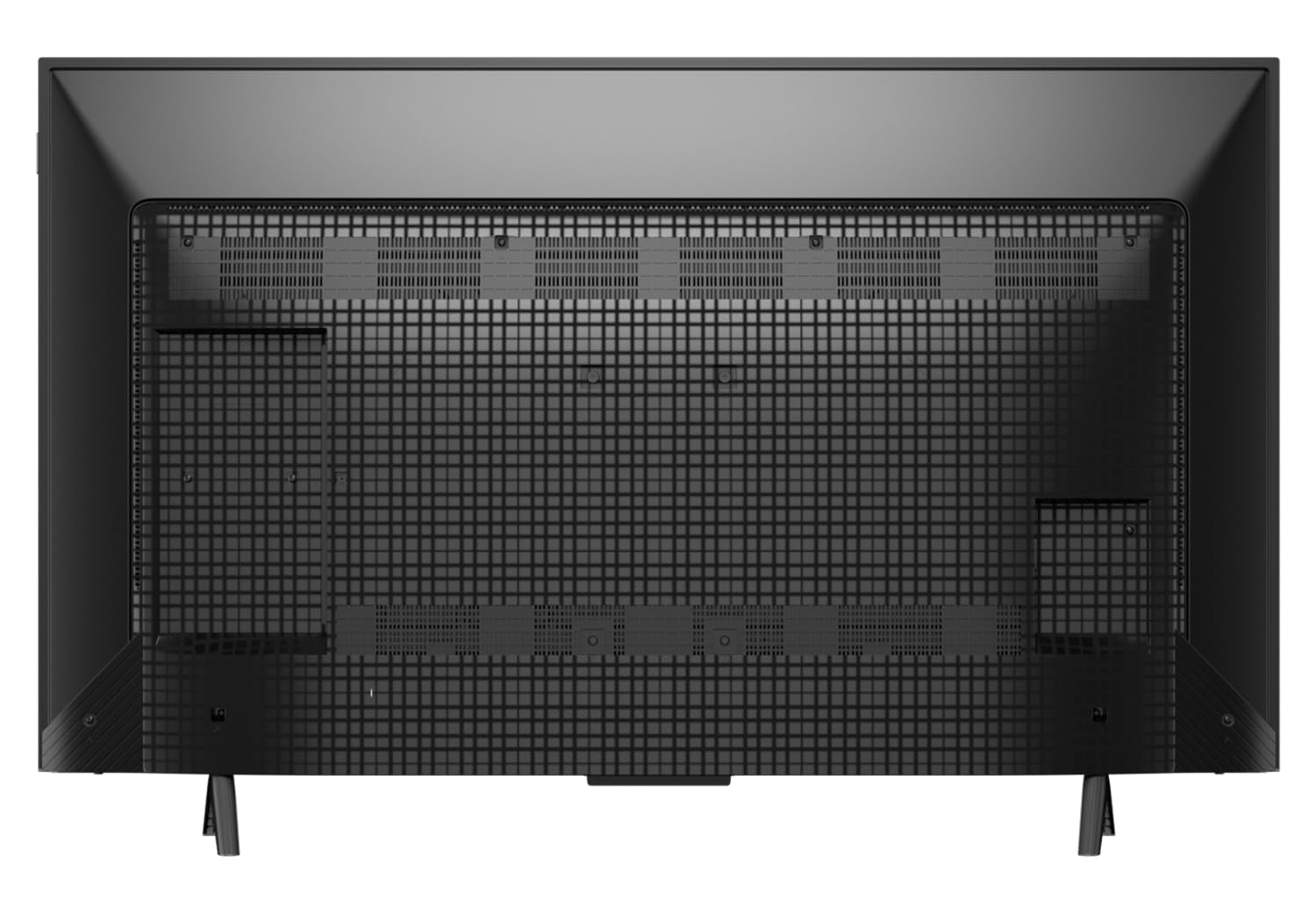
The TCL 43P71K TV offers a variety of ports for connecting external devices.

| Port | Description |
|---|---|
| HDMI Ports (3) | Connect high-definition devices such as Blu-ray players, gaming consoles, or set-top boxes. One port supports eARC/ARC. |
| USB Port (1) | Connect USB storage devices for media playback. |
| LAN Port (1) | For wired internet connection. |
| Antenna Input (1) | Connect an antenna for over-the-air broadcasts. |
| Digital Audio Out (1) | For connecting to external audio systems via optical cable. |
| AV Adapter (1) | For connecting older devices using composite video and stereo audio cables. |
The TV also supports Wi-Fi 5 for wireless internet connectivity and Bluetooth for connecting compatible devices like headphones or game controllers.
7. Display Features
Experience stunning visuals with the advanced display technologies integrated into your TCL 43P71K TV.
7.1 4K UHD QLED Panel
The 4K Ultra HD (3840 x 2160) QLED panel delivers exceptional clarity and vibrant colors, providing a lifelike viewing experience.

7.2 HDR 10+ and Dolby Vision Atmos
With HDR 10+ and Dolby Vision Atmos support, the TV provides enhanced contrast, brightness, and color accuracy, bringing out details in both bright and dark scenes.


7.3 AiPQ Processor
The AiPQ Processor optimizes picture quality by intelligently processing content for stable, high-quality 4K visuals.

7.4 HVA Panel and MEMC
The HVA Panel offers enhanced contrast and a 178-degree wide viewing angle. MEMC (Motion Estimation, Motion Compensation) technology reduces motion blur and image tearing, ensuring smooth scenes, especially in fast-paced content.

8. Audio Features
The TCL 43P71K TV delivers powerful and immersive audio.
8.1 Dolby Atmos Sound
With 30 Watts output and Dolby Atmos, the TV provides a theatrical sound experience with astounding clarity and room-filling sound.

9. Smart TV Features
Your TCL 43P71K is a Google TV, offering a smart and intuitive user experience.
9.1 Google TV Platform
Discover new movies and shows from across your subscriptions and content available to you, all organized in one place. The TV features 2GB RAM and 16GB ROM, powered by a 64-bit Quad Core Processor.

9.2 Google Assistant and Alexa Compatibility
Use your voice to control the TV, search for content, get answers, and manage smart home devices with built-in Google Assistant. The TV also works with Alexa-enabled devices.

9.3 Game Master and 120Hz Game Accelerator
Enhance your gaming experience with Game Master features and a 120Hz Game Accelerator, providing smoother gameplay and lower latency.


10. Maintenance
To ensure the longevity and optimal performance of your TCL TV, follow these maintenance guidelines:
- Cleaning the Screen: Gently wipe the screen with a soft, lint-free cloth. For stubborn marks, use a screen cleaning solution specifically designed for TVs, applied to the cloth, not directly to the screen.
- Cleaning the Cabinet: Use a soft, dry cloth to wipe the TV cabinet. Do not use abrasive cleaners or solvents.
- Ventilation: Ensure the ventilation openings on the back of the TV are not blocked to prevent overheating.
- Power Cord: Regularly check the power cord for any damage. If damaged, contact qualified service personnel for replacement.
11. Troubleshooting
If you encounter issues with your TV, refer to the following common troubleshooting steps.
| Problem | Possible Solution |
|---|---|
| No Power | Check if the power cord is securely plugged into both the TV and the power outlet. Try a different outlet. |
| No Picture, But Sound is Present | Check the input source. Ensure the connected device is powered on and functioning correctly. |
| No Sound, But Picture is Present | Check the volume level and mute settings. Ensure audio cables are correctly connected. Check TV audio output settings. |
| Remote Control Not Working | Replace the batteries (2 AAA). Ensure there are no obstructions between the remote and the TV's IR sensor. Re-pair the Bluetooth remote if applicable. |
| Poor Picture Quality | Check antenna/cable connections. Adjust picture settings (brightness, contrast, sharpness). For streaming, check internet speed. |
| Cannot Connect to Wi-Fi | Ensure Wi-Fi is enabled on the TV. Restart your router. Check Wi-Fi password. Move TV closer to the router or use a wired connection. |
If the problem persists after trying these steps, please contact TCL customer support.
12. Specifications
Detailed technical specifications for the TCL 43P71K TV.
| Feature | Detail |
|---|---|
| Brand | TCL |
| Model | 43P71K |
| Screen Size | 43 Inches (108 cm) |
| Display Technology | QLED |
| Resolution | 4K UHD (3840 x 2160 Pixels) |
| Refresh Rate | 60 Hz |
| Operating System | Google TV |
| RAM Memory | 2 GB |
| Storage Capacity | 16 GB |
| Processor | 64-bit Quad Core Processor |
| Connectivity | Wi-Fi 5, USB (1), Ethernet, HDMI (3) |
| Audio Output | 30 Watts |
| Sound Technology | Dolby Atmos |
| Special Features | HDR 10+, AiPQ Processor, Dolby Vision Atmos, HVA Panel, Micro Dimming, Metallic Bezel-Less Design, MEMC 60 Hz, Game Master, Google Assistant, Screen Mirroring, Works with Alexa, Multiple Eye Care |
| Viewing Angle | 178 Degrees |
| Power Consumption (On-mode) | 115 Watts |
| Annual Energy Consumption | 135 kWh/Year |
| Product Dimensions (LxWxH) | 18.5 x 95.6 x 103.5 cm |
| Item Weight | 6.4 kg |
13. Warranty and Support
Your TCL 43P71K TV comes with a manufacturer's warranty and dedicated support.
13.1 Warranty Information
The product is covered by a 2-year warranty provided by the manufacturer from the date of purchase. To avail warranty services, please retain your purchase invoice.
13.2 Customer Support
For technical assistance, service requests, or any inquiries not covered in this manual, please contact TCL customer support. You can find contact details on the official TCL website or your product's packaging.
Additional information and the user manual can also be accessed from the brand website under the "About this item" or "Product details" section.
Related documents43P71K


Ask a question about this manual
Ask about setup, troubleshooting, compatibility, parts, safety, or missing instructions. Manuals+ will review the question and use this page’s manual context to help answer it.