
1. Introduction
This user manual provides essential information for setting up, operating, and maintaining your TCL 75P71K 4K Ultra HD Smart QLED Google TV. Please read this manual thoroughly before using the product to ensure proper and safe operation.
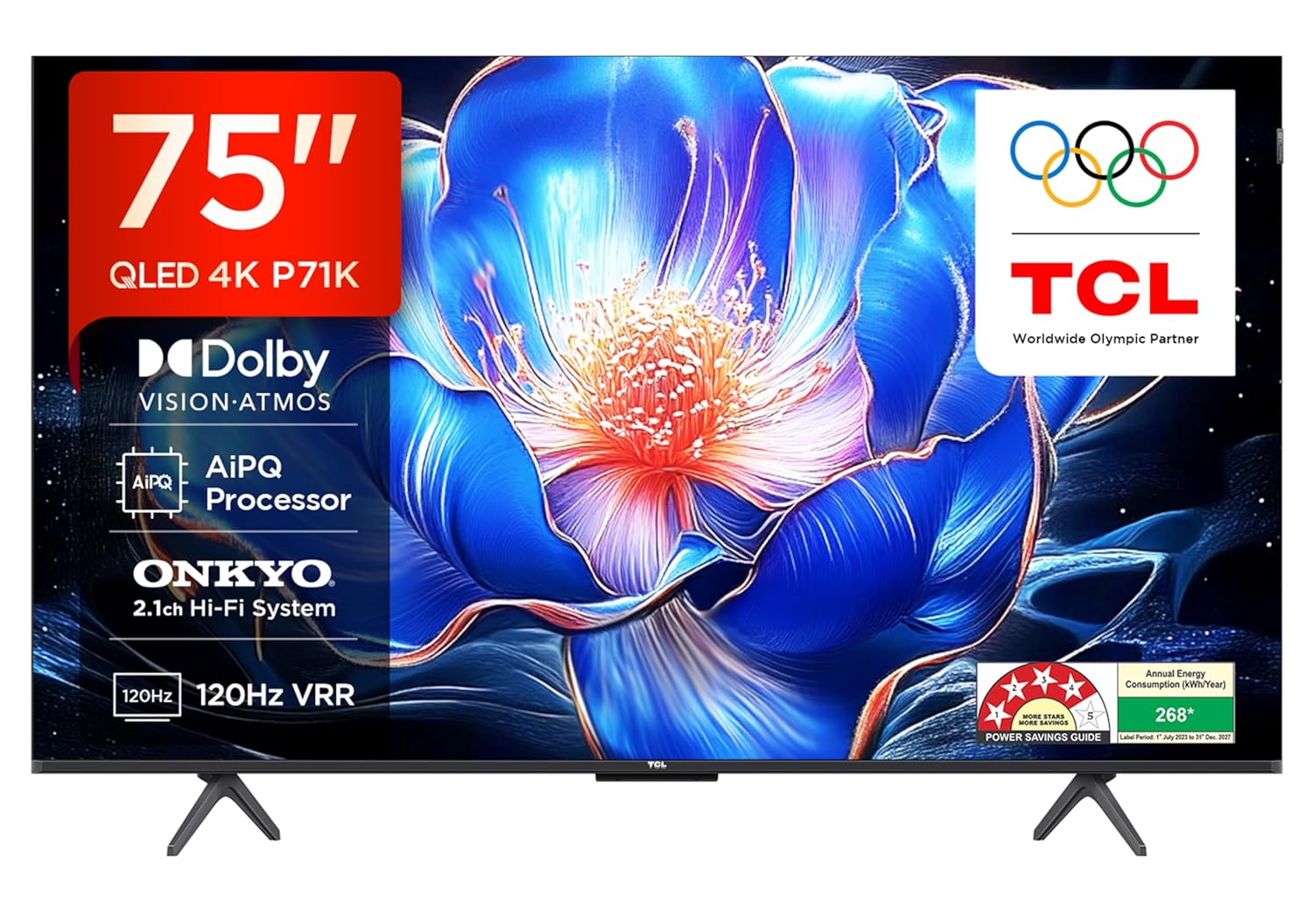
Figure 1.1: TCL 75P71K 75-inch 4K Ultra HD Smart QLED Google TV
2. What's in the Box
Carefully unpack your TV and ensure all items listed below are present and undamaged. If any items are missing or damaged, contact your retailer immediately.
- 1N LED TV
- 1N Audio Cable
- 1N Stand (for table mounting)
- 1N Power cord
- 1N Remote Control
- 2N AAA Batteries (for remote control)

Figure 2.1: Included Accessories
3. Setup Guide
3.1. Physical Installation
Your TCL 75P71K TV can be installed on a table using the included stand or wall-mounted (wall mount kit sold separately).
3.1.1. Tabletop Installation
- Carefully place the TV screen-down on a soft, flat surface to prevent damage.
- Attach the two stand legs to the designated slots at the bottom of the TV using the provided screws. Ensure they are securely fastened.
- Carefully lift the TV to an upright position and place it on a stable, level surface.

Figure 3.1: TV with Tabletop Stand
3.1.2. Wall Mounting
For wall mounting, it is highly recommended to use a professional installation service. Refer to the wall mount kit's instructions for specific details. The TV supports a VESA standard mount.
3.2. Connecting Devices
Connect your external devices such as set-top boxes, gaming consoles, and sound systems to the appropriate ports on the TV.
- HDMI Ports: The TV features 3 HDMI ports (including 1 eARC/ARC compatible) for high-definition audio and video connections.
- USB Ports: 1 USB 2.0 port and 1 USB 3.0 port are available for connecting USB storage devices.
- LAN Port: For wired internet connection.
- Antenna Input: For connecting a terrestrial antenna.
- Digital Audio Out: For connecting to external audio systems.
- AV Adapter: For connecting older analog devices.

Figure 3.2: TV Connectivity Ports
3.3. Initial Power On and Setup
- Connect the power cord to the TV and then to a power outlet.
- Press the power button on the TV or the remote control to turn on the TV.
- Follow the on-screen instructions to complete the initial setup, including language selection, network connection (Wi-Fi or Ethernet), and Google account sign-in.
4. Operating Your TV
4.1. Remote Control
The included smart remote control provides easy access to all TV functions, including dedicated hotkeys for popular streaming services and Google Assistant.
- Power Button: Turns the TV on or off.
- Navigation Pad: For menu navigation.
- Google Assistant Button: Activates voice commands.
- Volume/Channel Buttons: Adjusts volume and changes channels.
- Hotkeys: Direct access to Netflix, Prime Video, YouTube, and other services.

Figure 4.1: Smart Remote Control Layout
4.2. Smart TV Features (Google TV)
Your TCL 75P71K runs on the Google TV operating system, offering a personalized entertainment experience with access to a vast library of apps and content.
- Content Aggregation: Discover movies and shows from across your subscriptions.
- Google Assistant: Use voice commands to search for content, control smart home devices, and get information.
- Built-in Chromecast: Cast content from your smartphone or tablet directly to the TV.
- Kids Profile: Create a safe environment for children with curated content.
- App Store: Access Prime Video, Netflix, Hotstar, Zee5, YouTube, and many more apps from the Google Play Store.

Figure 4.2: Google TV Home Screen
4.3. Display Features
Experience stunning visuals with advanced display technologies.
- 4K QLED Panel: Delivers vibrant colors and exceptional clarity with Quantum Dot technology.
- HDR10+ & Dolby Vision: Provides superior contrast, brightness, and color accuracy for a more immersive viewing experience.
- AiPQ Processor: Intelligently optimizes picture quality for stable, high-quality 4K content.
- MEMC (Motion Estimation, Motion Compensation): Reduces motion blur and image tearing for smooth fast-moving scenes.
- HVA Panel: Offers enhanced contrast and a wide 178-degree viewing angle.
- 120Hz Game Accelerator: Provides a higher refresh rate and low latency for smooth gaming (VRR 120 Hz / DLG 120 Hz).

Figure 4.3: Key Display and Smart Features

Figure 4.4: QLED Technology

Figure 4.5: HDR10+ Enhanced Visuals
4.4. Audio Features
Immerse yourself in rich, powerful sound.
- 35 Watts Output: Powerful audio delivery.
- Dolby Atmos: Provides multi-dimensional sound that moves around you.
- ONKYO 2.1ch Hi-Fi System: Integrated speakers for enhanced audio clarity.
5. Maintenance
Proper care and maintenance will extend the life of your TV.
- Cleaning the Screen: Use a soft, lint-free cloth specifically designed for electronics. Do not use abrasive cleaners or solvents.
- Cleaning the Frame: Wipe with a soft, dry cloth.
- Ventilation: Ensure adequate airflow around the TV. Do not block ventilation openings.
- Power Off: Unplug the TV from the power outlet during lightning storms or when left unattended for long periods.
6. Troubleshooting
If you encounter issues with your TV, refer to the following common problems and solutions.
| Problem | Possible Cause | Solution |
|---|---|---|
| No power | Power cord not connected; Power outlet not working | Ensure power cord is securely connected; Test the outlet with another device. |
| No picture, but sound is present | Incorrect input source selected; Loose HDMI/AV cable connection | Press the Source button on the remote to select the correct input; Check and secure all cable connections. |
| Remote control not working | Batteries are dead or inserted incorrectly; Obstruction between remote and TV | Replace batteries, ensuring correct polarity; Remove any obstructions. |
| Poor picture quality | Low-quality source; Antenna signal weak; Picture settings need adjustment | Ensure high-quality source content; Adjust antenna position or use a signal booster; Adjust picture settings in the TV menu. |
| No internet connection | Wi-Fi password incorrect; Router issue; Ethernet cable loose | Re-enter Wi-Fi password; Restart your router; Check Ethernet cable connection. |
If the problem persists after trying these solutions, please contact TCL customer support.
7. Specifications
Detailed technical specifications for the TCL 75P71K TV.

Figure 7.1: Product Dimensions and Weight
| Feature | Detail |
|---|---|
| Brand | TCL |
| Model | 75P71K |
| Screen Size | 75 Inches (189 cm) |
| Display Technology | QLED |
| Resolution | 4K UHD (3840 x 2160 Pixels) |
| Refresh Rate | 60 Hz (VRR 120 Hz / DLG 120 Hz) |
| Operating System | Google TV |
| RAM Memory | 2 GB |
| Storage Capacity | 16 GB |
| Processor | 64-bit Quad Core Processor |
| Connectivity | Wi-Fi 5, USB (1x 2.0, 1x 3.0), Ethernet, HDMI (3 ports) |
| Audio Output | 35 Watts, Dolby Atmos, ONKYO 2.1ch Hi-Fi System |
| Viewing Angle | 178 Degrees |
| Power Consumption (On-mode) | 245 Watts |
| Annual Energy Consumption | 268 kWh/Year |
| Product Dimensions (LxWxH) | 166.6 x 34.7 x 103.5 cm (with stand) |
| Item Weight | 22.9 kg (without stand), 23.2 kg (with stand) |
| Batteries Required | 2 AAA (included for remote) |

Figure 7.2: Energy Efficiency Label
8. Warranty and Support
Your TCL 75P71K TV comes with a manufacturer's warranty.
- Warranty Period: 2 Years warranty provided by the manufacturer from the date of purchase.
- Claiming Warranty: Brand warranty can be availed using the invoice.
- Customer Support: For technical assistance or service requests, please refer to the contact information provided in your purchase documentation or visit the official TCL India website.