
1. Introduction
The iMaihom BDBS55SX-5 Floodlight Camera is a wired outdoor security solution designed to provide comprehensive surveillance and illumination. Featuring 2K QHD video resolution, motion-activated 5-head lights with 5500LM brightness, color night vision, two-way audio, and flexible cloud/SD card storage options, this camera enhances your home security day and night.
Key features include:
- 2K QHD (4MP 2560*1440P) video resolution for clear imaging.
- Color infrared night vision for vibrant recordings in low light.
- 360° panoramic camera with 340° horizontal and 120° vertical rotation.
- Auto-lock and track functionality for moving objects.
- 55W, 5500LM 5-head adjustable floodlights with customizable brightness via app.
- 180° PIR motion sensor for instant light activation and real-time alerts.
- Two-way audio for remote communication.
- Cloud and Micro SD card (up to 128GB) storage options.
- Compatibility with Amazon Alexa and Google Assistant.
2. Package Contents
Verify that all items are present in the package:
- iMaihom BDBS55SX-5 Floodlight Camera
- Instruction Manual
- Mounting accessories (screws, bracket)
3. Safety Information
Please read and understand all safety instructions before installation and use. Failure to follow these instructions may result in electric shock, fire, or other hazards.
- Electrical Safety: Installation must be performed by a qualified electrician or service person in accordance with national and local electrical codes. Ensure power is disconnected at the circuit breaker before installation.
- Mounting: Mount the device securely to a stable surface. Ensure the mounting location can support the weight of the camera and withstand environmental conditions.
- Water Resistance: The device is rated IP65 waterproof, suitable for outdoor use. However, avoid submerging the device in water.
- Operating Temperature: Do not operate the device outside its specified temperature range.
- Interference: Keep the device away from sources of strong electromagnetic interference.
4. Product Overview
Familiarize yourself with the components of your iMaihom Floodlight Camera.

Image: Spherical Camera and Adjustable Floodlights. This image displays the iMaihom Floodlight Camera mounted on a wall, showcasing its central spherical camera and five adjustable LED floodlight heads. The camera is designed for 360-degree panoramic surveillance, with the floodlights providing broad illumination.

Image: Auto Lock and Track Feature. This image illustrates the camera's auto-tracking capability, showing a person playing soccer with a highlighted box around them, indicating the camera is actively tracking their movement. This ensures no activity is missed within the surveillance area.

Image: Cloud Storage and Micro SD Card. This image highlights the camera's storage options, showing a Micro SD card being inserted into the camera and icons representing both cloud storage and SD card storage. The device supports up to 128GB Micro SD cards for local recording.

Image: 2K Clarity with Night Vision. This image demonstrates the camera's 2K QHD resolution and night vision capabilities, showing a clear view of a backyard at night. The camera captures detailed video even in dark conditions.

Image: Two-Way Audio. This image illustrates the two-way audio function, showing a user speaking through their phone to a person at their doorstep, with speech bubbles indicating the conversation. This allows for remote communication with visitors or deterrence of unwanted guests.
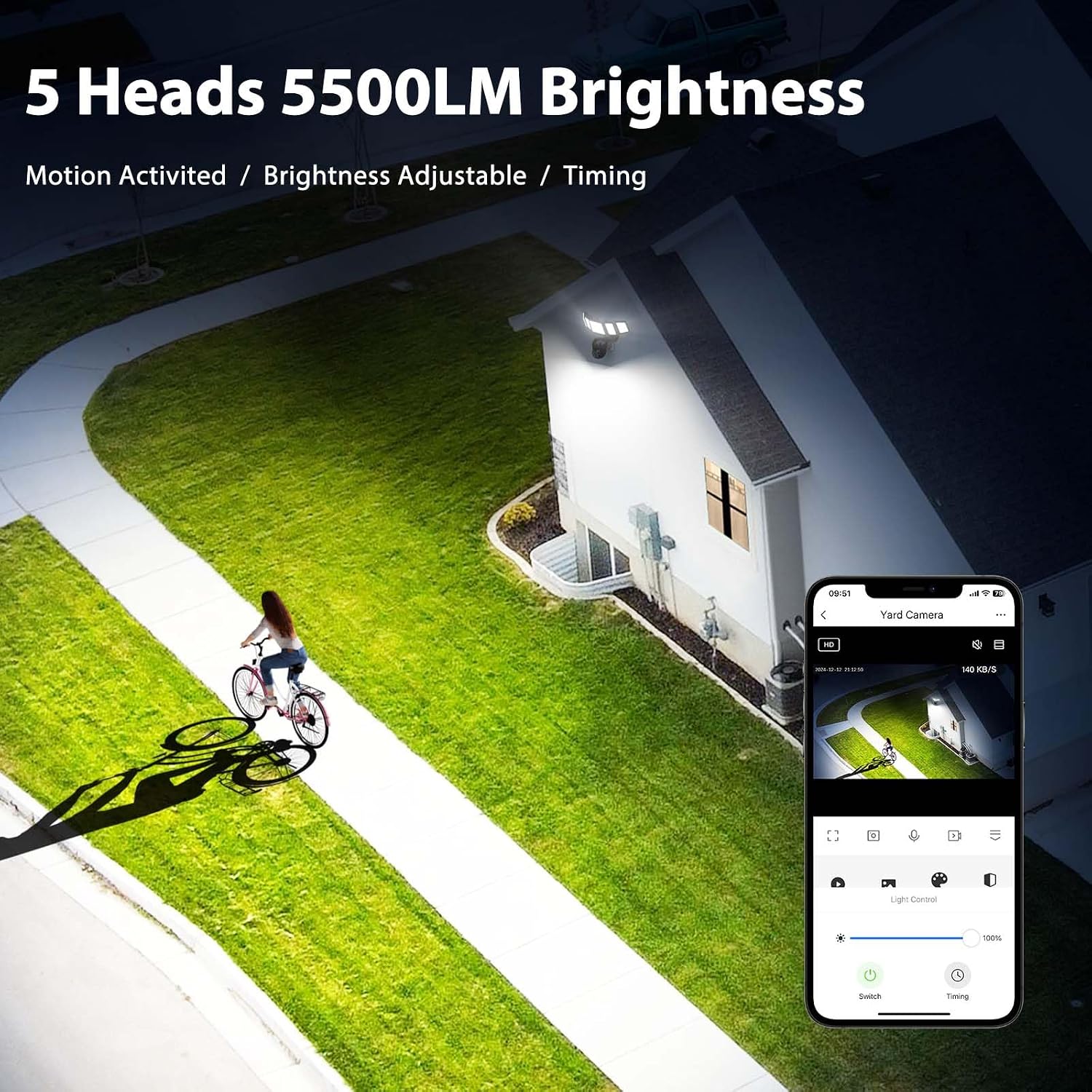
Image: 5 Heads 5500LM Brightness. This image showcases the five adjustable floodlight heads providing 5500 lumens of bright illumination over a wide area. The brightness can be customized via the accompanying mobile application.

Image: Support Voice Control. This image demonstrates the camera's compatibility with voice assistants like Alexa and Google Assistant, showing a user interacting with an Alexa device to view the camera feed. This allows for convenient hands-free control.

Image: Easy Install. This diagram illustrates the straightforward installation process of the iMaihom Floodlight Camera, showing how it mounts to a wall junction box. The design facilitates easy setup for outdoor use.
5. Setup
5.1. Installation
- Power Off: Before starting installation, ensure the power to the junction box is turned off at the circuit breaker.
- Mounting Bracket: Attach the provided mounting bracket to your outdoor junction box using the supplied screws.
- Wiring: Connect the camera's wires to your home's electrical wiring (Live, Neutral, Ground) according to local electrical codes. Ensure secure connections.
- Secure Camera: Mount the floodlight camera unit onto the installed bracket and secure it firmly.
- Adjust Lights: Adjust the five floodlight heads to cover your desired illumination areas.
- Power On: Restore power at the circuit breaker. The camera will perform a self-test and prompt "Camera Starts" or "Please Configure Network".
5.2. App Download and Initial Connection
Download the "Smart Life" app from your smartphone's app store (iOS or Android).
- Register and log in to your Smart Life account.
- Ensure your phone's Wi-Fi and Bluetooth are enabled.
- In the app, tap "Add Device" or the "+" icon. The app may automatically detect the camera.
- If not detected, select "Security Camera" from the device list.
- Follow the on-screen prompts to connect the camera to your 2.4GHz Wi-Fi network. Enter your Wi-Fi name and password.
- The app will generate a QR code. Align your phone's screen with the camera lens (15-20 cm away) until you hear a prompt from the camera.
- Once connected, the camera will prompt "Network Connected" or "Camera Online".
5.3. Voice Assistant Integration (Alexa/Google Assistant)
To integrate with Amazon Alexa or Google Assistant:
- Ensure your Alexa/Google Home device is connected to the same 2.4GHz Wi-Fi network as your camera.
- Open the Alexa or Google Home app.
- Enable the "Smart Life" skill/action.
- Link your Smart Life account to your Alexa/Google Home account.
- Discover devices. Your iMaihom Floodlight Camera should appear in the device list.
Video: How to connect Smart Life camera with Amazon Alexa. This video demonstrates the step-by-step process of connecting your iMaihom Floodlight Camera to Amazon Alexa via the Smart Life app, ensuring seamless voice control and integration into your smart home system.
Video: How to connect your phone with iMaihom Floodlight cam. This video provides a visual guide on connecting your iMaihom Floodlight Camera to your smartphone using the Smart Life app, covering the initial setup and pairing process.
6. Operating Instructions
6.1. Live View and Camera Control
- Open the Smart Life app and select your camera.
- The live feed will display. Use the on-screen controls to pan (340° horizontal) and tilt (120° vertical) the camera for a 360° panoramic view.
- Enable "Motion Tracking" in the app settings to automatically follow moving objects.
6.2. Floodlight Control
- In the app, access the light control interface.
- Adjust the brightness of the 5500LM floodlights to your preference.
- Set schedules for the lights to turn on/off automatically.
- Enable motion-activated lighting: The 180° PIR motion sensor will trigger the lights when movement is detected.
6.3. Two-Way Audio
- From the live view in the app, tap the microphone icon to activate two-way audio.
- Speak into your phone to communicate with individuals near the camera.
- Tap the speaker icon to hear audio from the camera's location.
6.4. Recording and Storage
- The camera supports 24/7 continuous recording.
- Micro SD Card: Insert a Micro SD card (up to 128GB, not included) into the designated slot for local storage.
- Cloud Storage: Optional cloud storage plans are available through the Smart Life app for remote access and backup of footage.
- Access recorded footage via the "Playback" option in the app.
Video: Floodlight Camera Outdoor Wired. This video showcases the iMaihom Floodlight Camera's features, including its 2K QHD resolution, motion detection, two-way audio, and various lighting modes, demonstrating its effectiveness as an outdoor security solution.
7. Maintenance
- Cleaning: Regularly clean the camera lens and floodlight covers with a soft, damp cloth to ensure optimal performance. Do not use harsh chemicals.
- Firmware Updates: Check the Smart Life app periodically for firmware updates. Keeping your device's firmware up-to-date ensures the latest features and security enhancements.
- SD Card Management: If using a Micro SD card, regularly back up important footage and format the card periodically to maintain performance and prevent data corruption.
- Power Cycle: If the device becomes unresponsive, try power cycling it by turning off the power at the circuit breaker for 10 seconds, then turning it back on.
8. Troubleshooting
| Issue | Possible Cause | Solution |
|---|---|---|
| Camera not connecting to Wi-Fi | Incorrect Wi-Fi password, 5GHz Wi-Fi network, weak signal, or incorrect pairing mode. | Ensure correct 2.4GHz Wi-Fi password. Move camera closer to router. Reset camera and try pairing again. |
| No motion detection alerts | Motion detection sensitivity too low, disabled in app, or incorrect detection zone. | Adjust motion detection sensitivity to "High" in app settings. Ensure motion detection is enabled. Define appropriate detection zones. |
| Poor video quality at night | Infrared night vision obstructed or dirty lens. | Clean the camera lens. Ensure no obstructions are blocking the infrared sensors. |
| Two-way audio not working | Microphone/speaker disabled in app, or network latency. | Check app settings to ensure microphone and speaker are enabled. Ensure stable network connection. |
| SD card not recording | SD card full, corrupted, or not formatted correctly. Recording function disabled. | Format the SD card via the app. Replace with a new SD card if corrupted. Enable local recording in app settings. |
Resetting the Device
If you encounter persistent issues or need to change the Wi-Fi network, you may need to reset the camera:
- Locate the reset button at the bottom of the camera unit.
- Use a small pin or paperclip to press and hold the reset button for approximately 5 seconds until you hear a beep.
- The camera will then restart and enter pairing mode, indicated by a flashing blue light.
- Follow the app connection steps (Section 5.2) to re-pair the device.
9. Specifications
| Feature | Detail |
|---|---|
| Model Name | BDBS55SX-5 |
| Indoor/Outdoor Usage | Outdoor |
| Power Source | Corded Electric |
| Connectivity Technology | Wired, Wi-Fi, Bluetooth |
| Video Capture Resolution | 2K QHD (4MP, 2560*1440P) |
| Light Source Type | LED (5 heads, 55W, 5500LM) |
| Night Vision | Color Night Vision |
| Motion Sensor | 180° PIR Motion Sensor |
| Viewing Angle | 360 Degrees (340° horizontal, 120° vertical) |
| Two-Way Audio | Yes |
| Storage Options | Cloud Storage, Micro SD (up to 128GB) |
| Water Resistance Level | IP65 Waterproof |
| Compatible Devices | Smartphone, Amazon Alexa, Google Assistant |
| Product Dimensions | 10.7 x 5.6 x 8.8 inches |
| Item Weight | 2 pounds |
10. Warranty & Support
Warranty: This iMaihom product comes with a standard manufacturer's warranty. Please refer to the warranty card included in your package or visit the official iMaihom website for detailed warranty terms and conditions.
Customer Support: For technical assistance, troubleshooting, or any product-related inquiries, please contact iMaihom customer support. Contact information can typically be found in your product packaging or on the official iMaihom website.
Online resources, including FAQs and additional guides, may also be available on the iMaihom support page.


