
1. Introduction
This manual provides detailed instructions for the installation, operation, and maintenance of your KUNFINE 10.25-inch Android Car Stereo. Designed specifically for Audi A3 models from 2014 to 2020, this head unit integrates advanced features like CarPlay, Android Auto, GPS navigation, and multimedia playback to enhance your driving experience. Please read this manual thoroughly before use to ensure proper functionality and safety.
2. Safety Information
- Professional Installation Recommended: Due to the complexity of vehicle electronics, professional installation is highly recommended to prevent damage to the unit or your vehicle.
- Driving Safety: Do not operate the unit in a way that distracts you from driving. Always prioritize road safety.
- Power Supply: Ensure the unit is connected to the correct vehicle power supply to avoid electrical damage.
- Temperature: Avoid exposing the unit to extreme temperatures or direct sunlight for prolonged periods.
- Cleaning: Use a soft, dry cloth for cleaning. Do not use abrasive cleaners or solvents.
3. Package Contents
Verify that all items listed below are included in your package:

Image: Overview of the KUNFINE Android Head Unit package contents, including the main unit, cables, and accessories.
- 1x Car Android Head Unit with Mask
- 1x GPS Antenna
- 1x Power Cable (Plug & Play)
- 2x USB Port Cable
- 1x RCA Expand Cable
- 1x RCA Connector for Reverse Camera
- 1x Install Kit (GIFT)
- 1x External Mic (GIFT)
- 1x AHD 720 Reverse Camera (GIFT)
4. Product Features
Your KUNFINE Android Car Stereo is equipped with a range of advanced features:
- Operating System: Android System
- Processor: Octa Core CPU
- Memory: 8GB RAM, 128GB ROM
- Display: 10.25-inch IPS Touchscreen
- Connectivity: Built-in CarPlay & Android Auto (Wireless & Wired), Internal WIFI, Bluetooth, USB input
- Navigation: Supports various Android navigation apps
- Multimedia: Supports all audio formats, USB interface camera, USB DVR, 4K UHD Video Playback
- Vehicle Integration: Supports steering wheel control, car rear view camera (aftermarket RCA type), retains original car settings.
- Audio: Built-in AKM DSP for enhanced sound experience.
- Network: Integrated 4G LTE Solution (SIM card needed for 4G networks).

Image: The KUNFINE Android Car Stereo displaying various Android applications, showcasing its smart system capabilities.
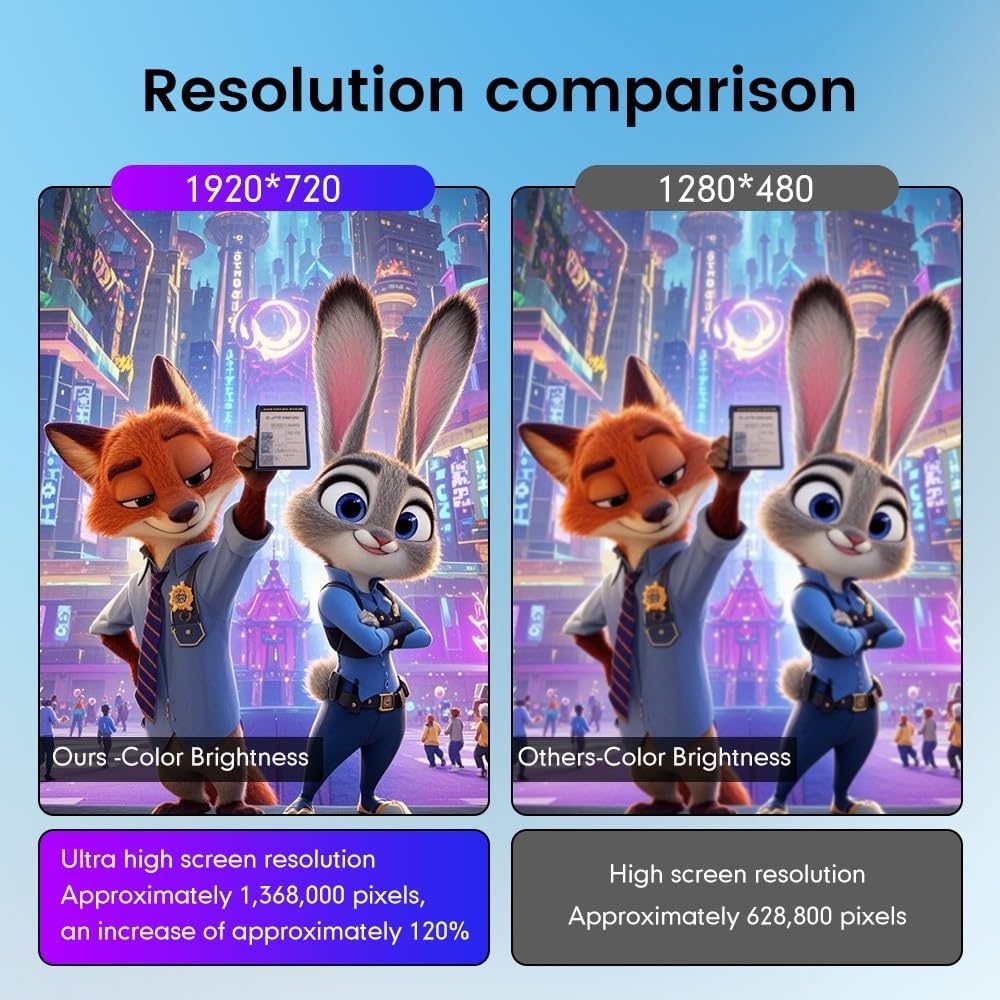
Image: A visual comparison highlighting the superior 1920x720 resolution and color brightness of the KUNFINE unit compared to standard 1280x480 displays.
5. Installation Guide
Installation of the KUNFINE Android Car Stereo requires careful attention to detail. It is strongly recommended to have this unit installed by a qualified professional to avoid damage to the product or your vehicle's electrical system. The following is a general overview:
- Preparation: Disconnect the vehicle's battery before starting any electrical work.
- Remove Original Unit: Carefully remove the existing car stereo and trim panels. Refer to your vehicle's specific service manual for detailed instructions.
- Connect Wiring Harness: Connect the provided power cable, RCA cables, USB cables, and other necessary wiring harnesses to the new head unit and the vehicle's existing connections. Ensure all connections are secure.
- Install Antennas: Connect the GPS antenna and any other external antennas (e.g., 4G antenna if applicable) and route them appropriately.
- Mount New Unit: Secure the KUNFINE Android Head Unit into the dashboard using the provided installation kit and mask.
- Reconnect Battery: Once all connections are made and secured, reconnect the vehicle's battery.
- Test Functionality: Power on the unit and test all functions, including audio, video, navigation, Bluetooth, CarPlay/Android Auto, and steering wheel controls.

Image: A visual representation of the car dashboard before and after the installation of the KUNFINE Android Car Stereo, showing a seamless integration.
6. Operating Instructions
6.1. Basic Operation
- Power On/Off: Press and hold the power button on the unit or use the vehicle's ignition.
- Touchscreen: Navigate the interface by tapping, swiping, and pinching on the IPS touchscreen.
- Volume Control: Adjust volume using the physical buttons on the unit or steering wheel controls.
- Home Button: Returns to the main Android home screen.
- Back Button: Returns to the previous screen or menu.
6.2. CarPlay & Android Auto
The unit supports both wireless and wired CarPlay/Android Auto for seamless smartphone integration.
- Wireless Connection:
- Enable Bluetooth on your smartphone and pair it with the car stereo.
- Open the "Zlink5" app on the car stereo.
- Follow the on-screen prompts to connect to Apple CarPlay or Android Auto.
- Wired Connection:
- Connect your smartphone to the unit via a USB cable.
- The system should automatically detect and launch CarPlay or Android Auto.

Image: Instructions for connecting wirelessly to Apple CarPlay and Android Auto, showing the steps for Bluetooth pairing and app usage.
6.3. Navigation
Utilize the built-in GPS and pre-installed navigation apps or download your preferred navigation software from the Google Play Store.
- Access navigation via the main menu or CarPlay/Android Auto.
- Enter your destination and follow the voice-guided directions.

Image: The car stereo screen displaying various navigation applications, demonstrating voice command integration for directions.
6.4. Multimedia Playback
Play audio and video files from various sources:
- USB: Connect USB drives to the provided USB ports.
- Bluetooth: Stream music wirelessly from your smartphone.
- Internal Storage: Store media files directly on the unit's 128GB ROM.
- Online Streaming: Use Wi-Fi or 4G (with SIM card) to access online music and video streaming services.
6.5. Bluetooth
Connect your smartphone via Bluetooth for hands-free calling and audio streaming.
- Go to the Bluetooth settings on the unit and your phone.
- Pair your device. Once connected, you can make/receive calls and play music.
6.6. Wi-Fi & 4G Connectivity
Connect to the internet via Wi-Fi or an optional 4G SIM card.
- Wi-Fi: Access Wi-Fi settings to connect to available networks or use your phone's hotspot.
- 4G: Insert a compatible SIM card into the designated slot to enable 4G connectivity.
6.7. Steering Wheel Control (SWC)
The unit supports your vehicle's original steering wheel controls for convenient operation.
- After installation, the SWC should function automatically. If not, refer to the unit's settings for SWC configuration.

Image: A collage showing various original car functions and settings, such as steering wheel control, safety belt reminder, and iDrive support, which are retained with the KUNFINE unit.
6.8. Rear View Camera
The unit supports aftermarket RCA type backup cameras, including the provided AHD 720 Reverse Camera.
- When the vehicle is shifted into reverse, the camera feed will automatically display on the screen.

Image: An illustration of a car with optional 360-degree rear view cameras, showing how the system can provide a comprehensive view for parking and maneuvering.
6.9. OBD2 Support (Optional)
With an optional OBD2 adapter, you can retrieve real-time data and trouble codes from your vehicle's computer.
- Connect a compatible OBD2 adapter (not included) to your vehicle's OBD port.
- Use a compatible app on the head unit to monitor vehicle parameters.
6.10. DAB+ Tuner Ready (Optional)
Enjoy digital radio with an optional DAB+ tuner stick.
- Connect a compatible XTRONS USB DAB radio receiver stick (not included) to a USB port.
- Access the DAB+ app on the unit to scan for and listen to digital radio stations.
6.11. Video Demonstration
Watch this video for a comprehensive overview of the unit's features and operation:
Video: A detailed demonstration of the XTRONS Octa Core 8GB+256GB Car Stereo for Audi A3, showcasing its Android system, IPS screen, 4G LTE, CarPlay, Android Auto, DSP, and other features.
7. Maintenance
- Cleaning the Screen: Use a soft, lint-free cloth to gently wipe the screen. For stubborn smudges, slightly dampen the cloth with water; avoid harsh chemicals.
- Software Updates: Periodically check for software updates through the unit's settings or the manufacturer's website to ensure optimal performance and access to new features.
- Data Backup: Regularly back up important data stored on the unit to prevent loss.
8. Troubleshooting
| Problem | Possible Cause | Solution |
|---|---|---|
| Unit does not power on. | Incorrect wiring, blown fuse, vehicle battery issues. | Check power connections, inspect vehicle fuses, ensure battery is charged. Consult a professional if issues persist. |
| No sound. | Volume too low, incorrect audio source, speaker wiring issues. | Increase volume, select correct audio input, check speaker connections. |
| CarPlay/Android Auto not connecting. | Bluetooth not paired, incorrect app selected, phone software issues. | Ensure Bluetooth is on and paired, open "Zlink5" app, update phone OS. Try wired connection. |
| GPS signal weak or inaccurate. | GPS antenna obstructed or improperly installed. | Ensure GPS antenna has a clear view of the sky and is securely connected. |
| Screen unresponsive. | Software glitch, temporary freeze. | Perform a soft reset (refer to the unit's specific reset procedure). If unresponsive, power cycle the vehicle. |
9. Specifications
| Feature | Detail |
|---|---|
| Brand | KUNFINE |
| Model Name | KUNFINE Octa Core 8G+128G |
| Operating System | Android System |
| CPU | Octa Core |
| RAM | 8 GB |
| ROM | 128 GB |
| Screen Size | 10.25 Inches |
| Display Type | IPS LED |
| Touch Screen Type | Capacitive |
| Connectivity Technology | USB, Bluetooth, Wi-Fi |
| Special Features | CarPlay/Android Auto Integration, GPS, Steering Wheel Control, Rear View Camera Support |
| Compatible Vehicle Type | Audi A3 (2014-2020) |
10. Warranty and Support
Your KUNFINE Android Car Stereo comes with a one-year warranty covering non-human damage. For any questions, technical support, or warranty claims, please contact the seller directly through your purchase platform. Your consultation is always welcomed.
Manufacturer: KUNFINE