1. Introduction
This manual provides essential instructions for the safe and efficient operation, maintenance, and troubleshooting of your DREAME L50 Ultra Robot Vacuum and Mop. Please read this manual thoroughly before using the product and retain it for future reference.
2. Safety Information
To reduce the risk of injury or damage, read and follow all safety precautions when setting up, using, and maintaining your robot. This appliance can be used by children aged 8 years and above and persons with reduced physical, sensory or mental capabilities or lack of experience and knowledge if they have been given supervision or instruction concerning use of the appliance in a safe way and understand the hazards involved. Children shall not play with the appliance. Cleaning and user maintenance shall not be made by children without supervision.
- Ensure the robot is fully charged before first use.
- Do not use the robot in wet environments or near water.
- Remove loose cables, small objects, and fragile items from the floor before cleaning.
- Keep hair, loose clothing, fingers, and all parts of the body away from openings and moving parts.
- Do not operate the robot in areas where there are open flames or explosive materials.
- Use only the manufacturer-specified power adapter and charging dock.
- Do not use the robot to pick up large debris, broken glass, or corrosive liquids.
3. Package Contents
Verify that all items are present and in good condition upon unboxing.

Image: All components included in the DREAME L50 Ultra package. This includes the robot vacuum, base station, various brushes, mop pads, cleaning solution, and documentation.
- Robot Vacuum x1
- Base Station x1
- Main Brush (pre-installed) x1
- Brush Guard (pre-installed) x1
- Side Brush (pre-installed) x1
- Scale Inhibitor (pre-installed) x1
- Dust Bags (pre-installed) x2
- Mop Pad Holders x2
- Mop Pads x2
- Dust Box (pre-installed, including filter) x1
- 200ml Cleaning Solution x1
- Base Station Ramp Extension x1
- Quick Start Guide x1
- User Manual x1
4. Product Overview
The DREAME L50 Ultra is an advanced robot vacuum and mop designed for comprehensive floor cleaning. It features powerful suction, intelligent navigation, and an all-in-one PowerDock for automated maintenance.

Image: The DREAME L50 Ultra robot vacuum docked with its white base station, alongside a smartphone displaying the companion app icon.
Key Features:
- 19,500Pa Vormax Suction: Powerful suction for effective debris pickup.
- HyperStream Detangling DuoBrush: Bristled rubber brush and TPU rubber brush for efficient hair removal and tangle prevention.
- ProLeap System: Retractable legs for seamless crossing over door tracks and thresholds up to 6cm.
- AI Action and 3D Structured Light: Precise obstacle avoidance for over 180 types of objects.
- Dual Flex Arm Technology: Extendable side brush and mop for comprehensive edge-to-corner cleaning.
- All-in-One PowerDock: Features auto-empty (up to 100 days), hot water mop self-cleaning, hot air drying, auto solution refilling, and auto water tank refilling.
- Customizable Carpet Cleaning: 5 modes via the Dreamehome App for tailored carpet care.
- On-Demand Voice Control: Compatible with Alexa, Siri, and Google Assistant.
5. Setup
5.1 Unboxing and Initial Placement
Carefully remove all components from the packaging. Place the base station on a hard, level surface against a wall, ensuring there is adequate clearance around it (at least 0.5m on both sides and 1.5m in front). Connect the power cable to the base station and plug it into a power outlet.
Video: A user unboxes the DREAME L50 Ultra, showing the components and initial setup of the robot and its base station. This video demonstrates the physical setup process.
5.2 App Installation and Connection
Download the "Dreamehome" app from your smartphone's app store. Follow the in-app instructions to connect your DREAME L50 Ultra to your home Wi-Fi network. This process typically involves scanning a QR code on the robot and following prompts for network selection.
5.3 Filling Water Tanks and Solution
Open the top cover of the base station to access the clean water tank and cleaning solution compartment. Fill the clean water tank with tap water and the solution compartment with the provided DREAME cleaning solution. Ensure both are securely closed before operation.
6. Operation
6.1 Starting and Stopping Cleaning
- Start: Press the power button on the robot or tap "Clean" in the Dreamehome app.
- Pause: Press the power button during cleaning or tap "Pause" in the app.
- Resume: Press the power button or tap "Resume" in the app.
- Return to Dock: Press the home button on the robot or tap "Dock" in the app.
6.2 Cleaning Modes
The Dreamehome app allows you to select various cleaning modes:
- Vacuum Only: For dry debris on all floor types.
- Mop Only: For wet cleaning on hard floors.
- Vacuum & Mop: Simultaneous vacuuming and mopping.
- Custom Cleaning: Define specific areas or rooms for cleaning with adjustable settings.
6.3 Scheduled Cleaning
Set up recurring cleaning tasks through the Dreamehome app. You can specify start times, frequency (daily, weekly, custom), and cleaning parameters for the entire area or specific rooms.
Video: This video demonstrates how to set up scheduled cleaning tasks using the Dreamehome app, allowing the robot vacuum to clean automatically at predefined times.
6.4 Obstacle Avoidance and Dynamic Cleaning
The DREAME L50 Ultra utilizes AI Action and 3D structured light for precise obstacle avoidance. It can detect and navigate around over 180 types of objects, including shoes, furniture, and cables.

Image: A DREAME L50 Ultra robot vacuum navigating around various obstacles like a teddy bear, slippers, and cables, illustrating its smart obstacle detection capabilities.
Enable "Dynamic Obstacle Area Cleaning" in the app settings to allow the robot to remember skipped areas due to dynamic obstacles (like pets or people) and clean them later.
Video: This video highlights the Dynamic Replenishment Sweeping Technology, showing how the robot avoids dynamic obstacles and then returns to clean those areas.
6.5 Edge and Corner Cleaning
The Dual Flex Arm technology with an extendable side brush and mop ensures thorough cleaning of corners and tight spots. Activate "AI-driven SideReach" and "AI-driven MopExtend" in the app settings for enhanced coverage.

Image: A DREAME L50 Ultra robot vacuum cleaning along a wall and corner, demonstrating its ability to reach tight spaces with its extendable components.
Video: This video illustrates the DREAME robot's corner and edge cleaning feature, showing how it extends its brush and mop to clean along walls and around furniture legs.
6.6 Carpet Cleaning Strategies
Customize carpet cleaning through the Dreamehome app with 5 available modes:
- Removable Mops: Detach mop pads to maintain dry carpets.
- Liftable Mops: Mops lift for low-pile carpets.
- Complete Carpet Avoidance: Robot avoids all carpets.
- Intensive Carpet Cleaning: Vacuums carpets twice for deeper cleaning.
- Suction Boost: Increases suction power on carpets.
6.7 Voice Control
Manage your cleaning routine using voice commands with Alexa, Siri, or Google Assistant. Link your DREAME L50 Ultra to your preferred voice assistant through the Dreamehome app.
7. Maintenance
Regular maintenance ensures optimal performance and longevity of your DREAME L50 Ultra.
7.1 All-in-One PowerDock Maintenance
- Auto-Empty: The dock automatically empties the robot's dustbin for up to 100 days. Replace the dust bag in the dock when full.
- Mop Self-Cleaning: Mop pads are automatically rinsed with 167°F hot water.
- Hot Air Drying: Mop pads are dried with hot air to prevent odors and mildew.
- Solution & Water Refilling: The dock automatically refills the robot's water tank and cleaning solution.
- Base Station Cleaning: The AceClean DryBoard system helps prevent dirt buildup in the washboard area. Periodically check and clean the washboard filter.
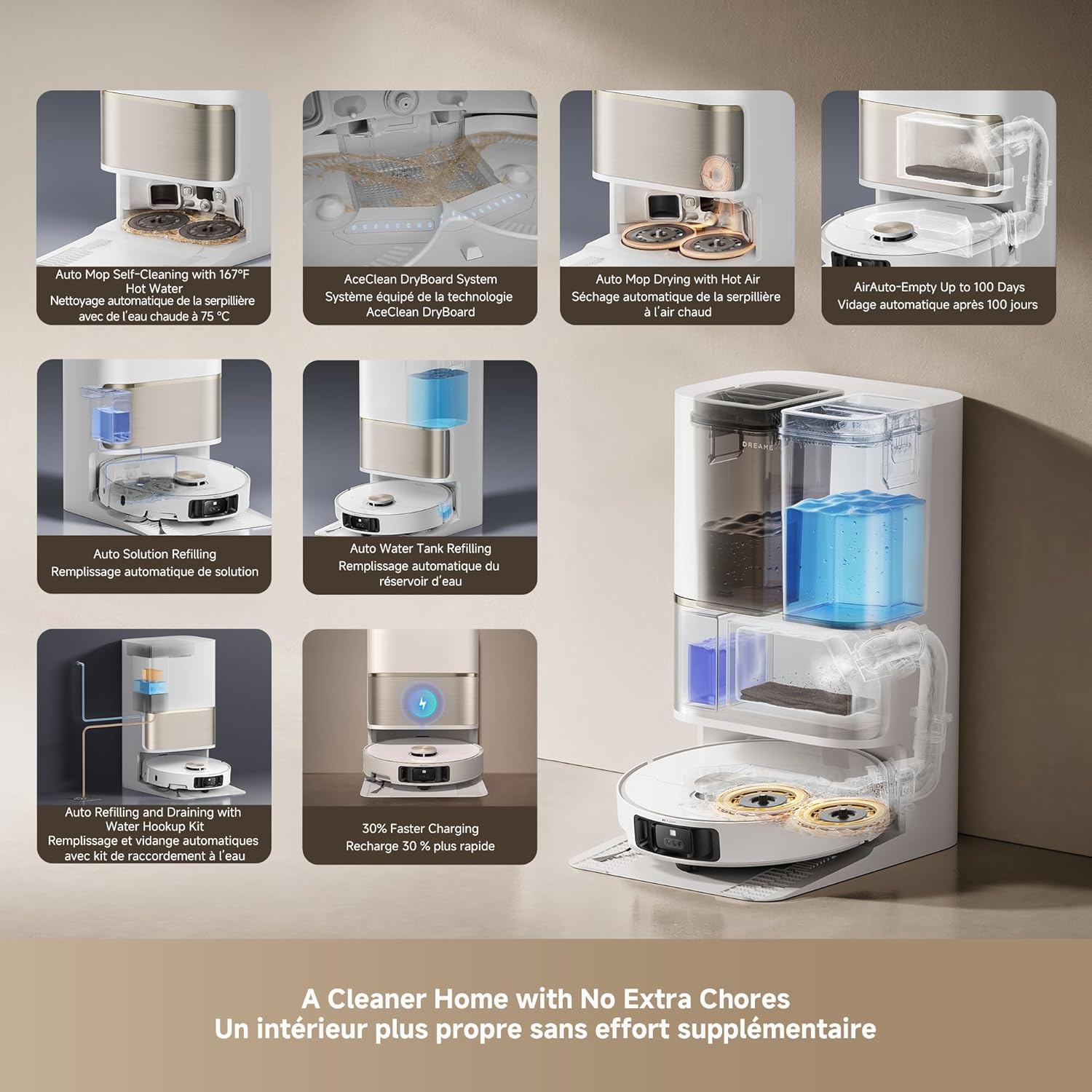
Image: An infographic detailing the various automated functions of the DREAME L50 Ultra's PowerDock, including auto-empty, mop self-cleaning, hot air drying, and water/solution refilling.
7.2 Robot Vacuum Component Cleaning
- Dustbin: Empty the robot's internal dustbin regularly, especially if not using the auto-empty feature.
- Main Brush: Remove the main brush and clean any tangled hair or debris. The HyperStream Detangling DuoBrush is designed to minimize tangles.
- Side Brush: Check for and remove any tangled hair or debris from the side brush.
- Filters: Clean the dustbin filter periodically by tapping out debris. Replace as needed.
- Sensors: Wipe all sensors (cliff sensors, wall sensors, charging contacts) with a clean, dry cloth to ensure proper function.
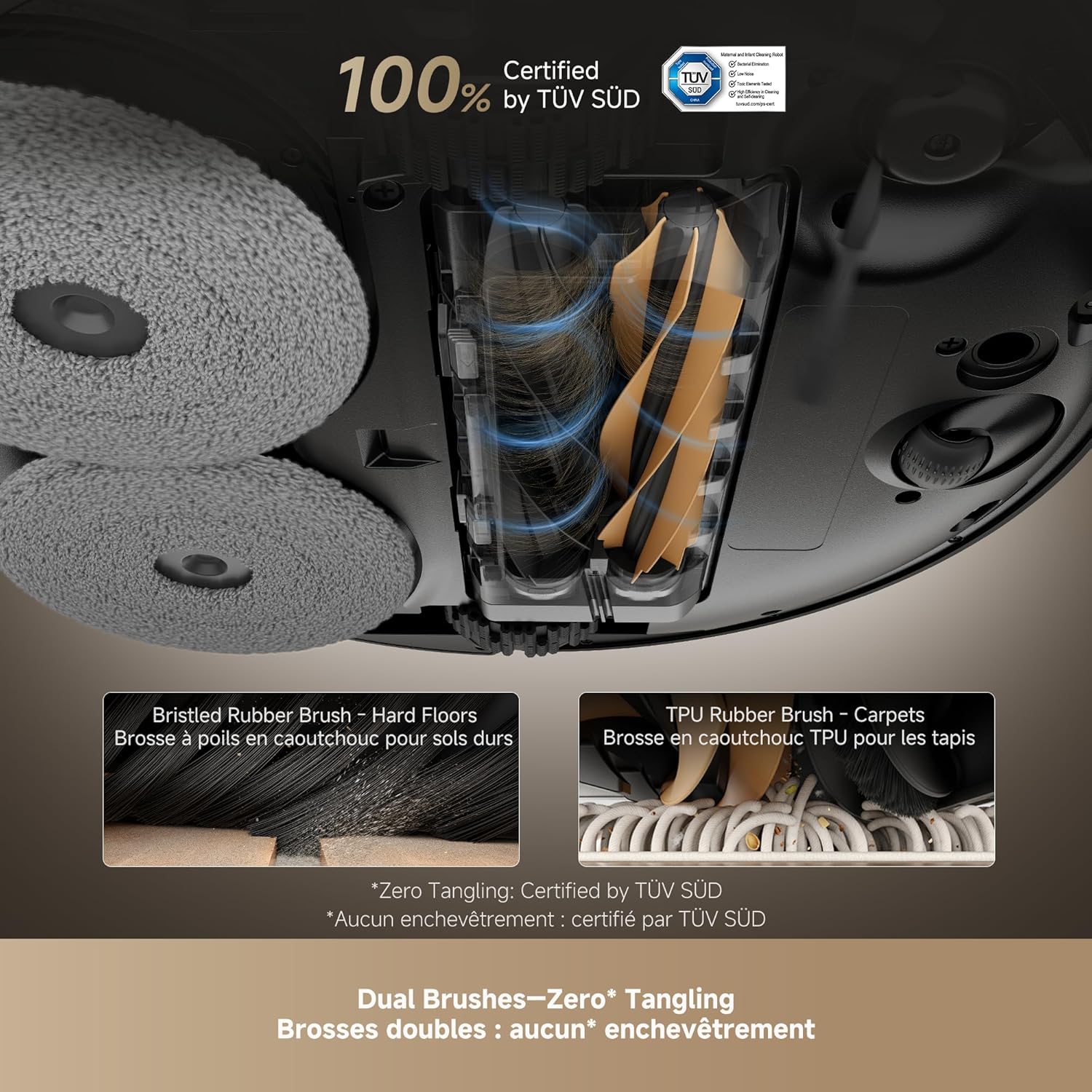
Image: A close-up view of the DREAME L50 Ultra's dual brush system, showing a bristled rubber brush for hard floors and a TPU rubber brush for carpets, designed for effective hair removal.
Video: This video shows the dirty water collected after two mopping cycles, demonstrating the effectiveness of the DREAME L50 Ultra's mopping function.
Video: This video measures the sound level of the DREAME L50 Ultra during its self-empty cycle, providing an indication of its operational noise.
8. Troubleshooting
If your DREAME L50 Ultra encounters an issue, refer to the following common solutions. For persistent problems, contact customer support.
| Problem | Possible Cause | Solution |
|---|---|---|
| Robot does not turn on. | Low battery; Power button not pressed correctly. | Place the robot on the charging dock; Press and hold the power button for 3 seconds. |
| Robot cannot charge. | Charging contacts are dirty; Power cable not connected. | Clean the charging contacts on both the robot and dock; Ensure the power cable is securely plugged in. |
| Robot gets stuck frequently. | Too many obstacles; Sensors are dirty. | Clear the cleaning area of clutter; Clean all sensors on the robot. |
| Poor cleaning performance. | Dustbin full; Brushes tangled; Filter clogged. | Empty the dustbin; Clean the main and side brushes; Clean or replace the filter. |
| Mop pads not cleaning effectively. | Mop pads dirty; Water tank empty; No cleaning solution. | Ensure mop pads are clean; Refill the clean water tank; Refill the cleaning solution. |
| Robot is too loud during self-empty. | Normal operation. | The self-empty function involves powerful suction and is inherently noisy. This is normal. |
8.1 Restarting the Robot
If the robot is unresponsive or behaving erratically, a simple restart may resolve the issue. Press and hold the power button on the robot for a few seconds until it powers off, then press it again to turn it back on.
Video: This video demonstrates how to perform a simple restart on the DREAME L50 Ultra robot vacuum by pressing and holding the power button.
8.2 Factory Reset
A factory reset will restore the robot to its original settings and delete all saved maps and Wi-Fi connections. This should be used as a last resort for persistent issues.
- Ensure the robot is powered on.
- Open the top cover of the robot.
- Locate the small reset button (often a pinhole) near the Wi-Fi indicator.
- Using a small tool (like a SIM ejector tool or paperclip), press and hold the reset button for approximately 5 seconds until you hear a voice prompt confirming the factory reset.
- The robot will then restart with factory settings.
Video: This video guides you through the process of performing a factory reset on the DREAME L50 Ultra robot vacuum, including locating the reset button and confirming the reset.
9. Specifications
| Feature | Detail |
|---|---|
| Brand | DREAME |
| Model Name | Dreame L50 Ultra White |
| Item Model Number | RLL94CE |
| UPC | 810142561310 |
| Color | White |
| Product Dimensions | 17"L x 16"W x 27"H |
| Item Weight | 42.1 pounds |
| Suction Power | 19,500Pa Vormax Suction |
| Battery Life | 180 minutes |
| Voltage | 110 Volts |
| Control Method | App, Remote, Voice |
| Filter Type | Foam |
| Surface Recommendation | Wood, Marble, Tile |
10. Warranty and Support
DREAME products are covered by a limited warranty from the date of purchase. For specific warranty terms and conditions, please refer to the warranty card included in your package or visit the official DREAME website.
Customer Support:
If you have any questions, require technical assistance, or need to report an issue, please contact DREAME customer support through the following channels:
- Official Website: Visit the DREAME official website for FAQs, support resources, and contact information.
- Dreamehome App: Access support directly through the app's help section.
- Email/Phone: Refer to your product's quick start guide or the official website for specific contact details in your region.
Please have your product model number (RLL94CE) and purchase information ready when contacting support.


