
Xtrem Bots Bruce Motion Bot
Xtrem Bots Bruce Motion Bot User Manual
Model: Bruce Motion Bot
1. Introduction
Thank you for choosing the Xtrem Bots Bruce Motion Bot. This remote-controlled robot is designed to provide an engaging and educational experience, introducing users to basic robotics concepts through interactive play. Please read this manual thoroughly before operating the robot to ensure proper use and to maximize your enjoyment.

Image 1: The Xtrem Bots Bruce Motion Bot robot and its accompanying remote control unit.
Package Contents:
- Xtrem Bots Bruce Motion Bot
- Remote Control
- Instruction Manual (this document)
- Robot battery (pre-installed or included separately)
2. Safety Information
Please observe the following safety precautions to prevent injury or damage to the product:
- This product is recommended for ages 5 years and older.
- Do not attempt to disassemble or modify the robot or remote control.
- Keep the robot away from water and moisture.
- Avoid operating the robot near stairs, furniture, or other obstacles that could cause falls or collisions.
- Ensure adult supervision for younger children during operation.
- Use only the specified batteries and ensure correct polarity during installation.
- Do not mix old and new batteries, or different types of batteries.
- Remove batteries if the robot will not be used for an extended period.
- Dispose of batteries responsibly according to local regulations.
3. Setup and Battery Installation
3.1 Robot Battery Installation:
The robot's internal battery is typically included and may be pre-installed. Refer to the robot's battery compartment for specific instructions on charging or replacing the robot's battery if applicable. Ensure the robot is powered off before handling batteries.
3.2 Remote Control Battery Installation:
The remote control requires two (2) AA batteries (not included). Follow these steps:
- Locate the battery compartment on the back of the remote control.
- Using a small screwdriver, open the battery compartment cover.
- Insert two (2) AA batteries, ensuring correct polarity (+/-).
- Replace the battery compartment cover and secure it with the screw.
3.3 Powering On:
Turn on the robot using the power switch, usually located on its back or base. Then, turn on the remote control. The robot and remote should automatically pair. If not, refer to the troubleshooting section.
4. Operating the Bruce Motion Bot
4.1 Remote Control Functions:
The remote control allows for various movements and actions. Familiarize yourself with the buttons:
- Directional Controls: Move the robot forward, backward, left, and right.
- Speed Control: Adjust the robot's movement speed.
- Volume Control: Adjust the robot's sound output.
- Dance Mode Button: Activates the robot's pre-programmed dance routine.
- Programming Button: Initiates programming mode (see section 4.3).
- Sound/Light Buttons: Trigger various robotic sounds and LED facial expressions.

Image 2: A child using the remote control to operate the Bruce Motion Bot, demonstrating interactive play.
4.2 Gesture Control:
The Bruce Motion Bot features intelligent gesture control. Wave your hand in front of the robot's sensors to command it to move in different directions. Experiment with various hand gestures to discover all available commands.
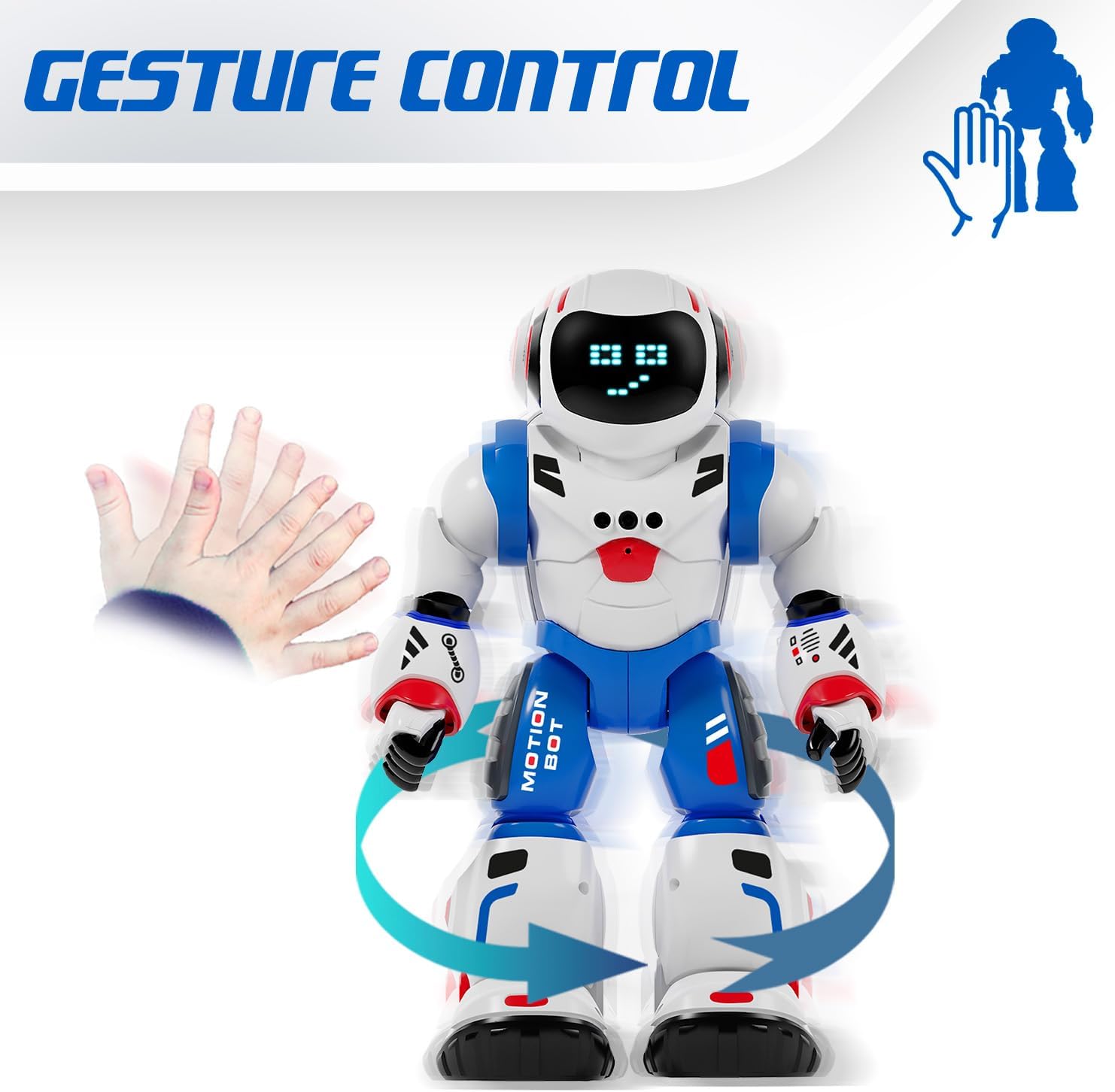
Image 3: The Bruce Motion Bot reacting to a hand gesture, illustrating its gesture control capability.
4.3 Programming Mode:
You can program the Bruce Motion Bot to perform a sequence of up to 50 movements. To enter programming mode, press the dedicated programming button on the remote control. Input your desired sequence of movements using the directional buttons, then press the programming button again to execute the sequence. The robot will store and repeat these actions.

Image 4: A visual representation of programming the robot with a sequence of movements to navigate a path.
4.4 Sounds and LED Expressions:
The robot emits various robotic sounds and displays up to 20 different facial expressions through its 26 blue LED lights. These expressions change based on actions or can be triggered manually via the remote control.

Image 5: Close-up of the robot's head showing different LED eye patterns and facial expressions.
4.5 Head Movement and Voice Recognition:
The Bruce Motion Bot can move its head and features a voice recognition function. Use the remote to control head movements or interact with its voice recognition capabilities.
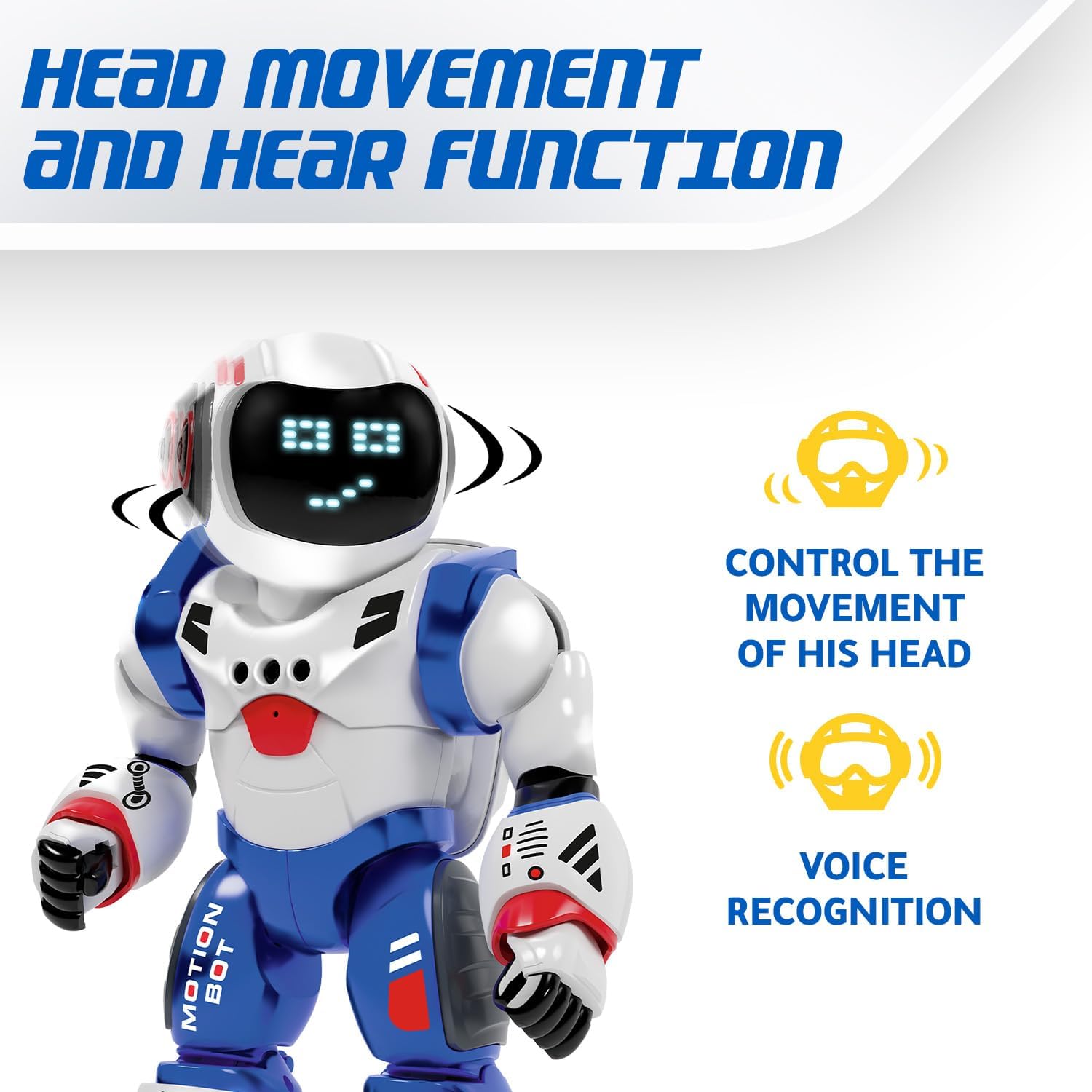
Image 6: The robot's head rotating, with icons indicating head movement control and voice recognition features.
4.6 Dancing Mode:
Activate the dancing mode by pressing the dedicated button on the remote. The robot will perform a series of movements and sounds, providing entertainment.
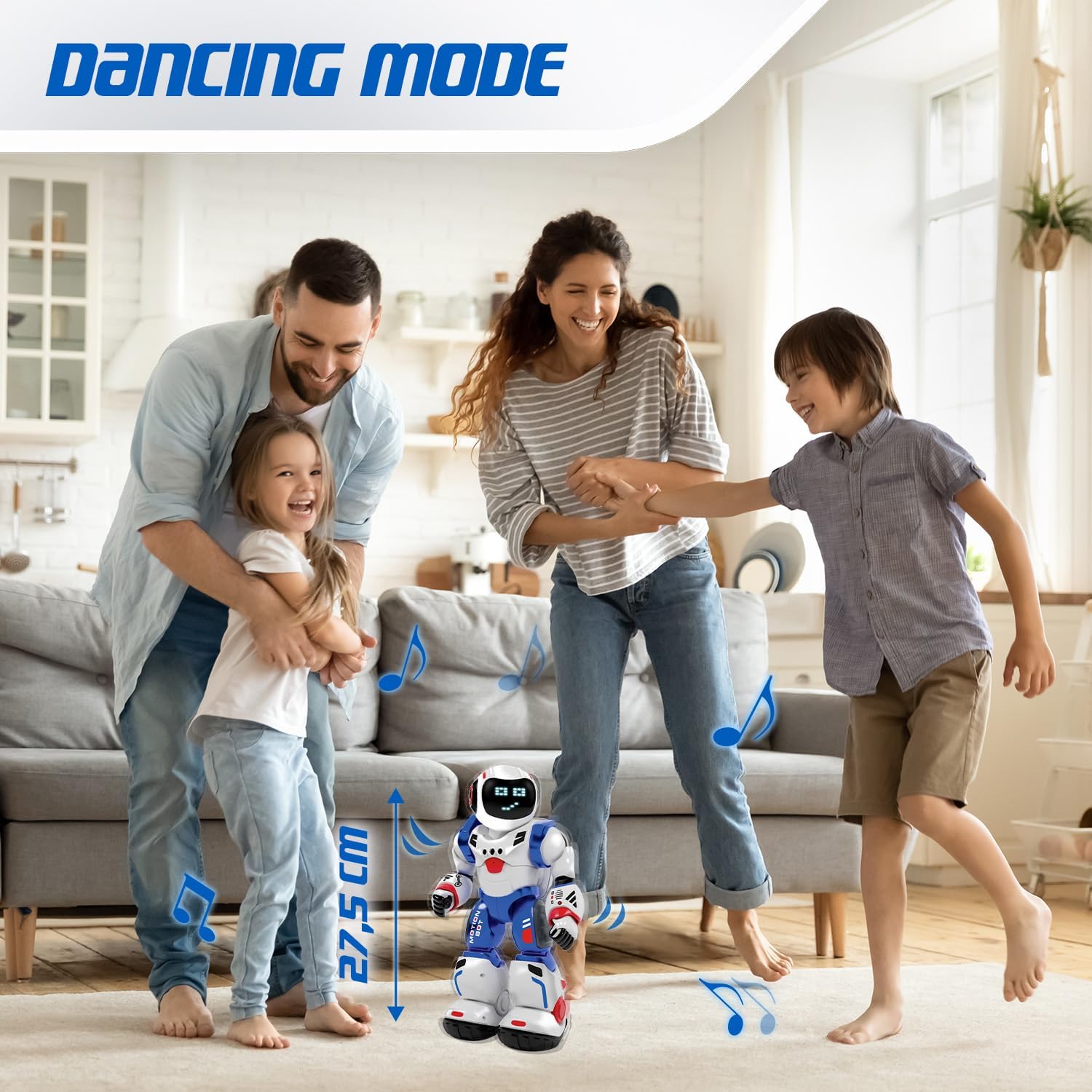
Image 7: The Bruce Motion Bot dancing in a home setting, illustrating its entertainment function.
5. Maintenance
- Cleaning: Wipe the robot and remote control with a soft, dry cloth. Do not use harsh chemicals or abrasive cleaners.
- Storage: Store the robot and remote in a cool, dry place away from direct sunlight when not in use.
- Battery Care: Remove batteries from the remote control if storing for extended periods to prevent leakage.
6. Troubleshooting
| Problem | Possible Cause | Solution |
|---|---|---|
| Robot does not turn on. | Low or dead batteries in robot. | Ensure robot's battery is charged or replaced. |
| Remote control does not work. | Low or dead batteries in remote; incorrect polarity. | Replace remote control batteries, ensuring correct polarity. |
| Robot not responding to commands. | Robot and remote not paired; interference. | Turn both robot and remote off, then on again to re-pair. Ensure no strong interference sources are nearby. |
| Gesture control is inconsistent. | Insufficient lighting; sensor obstruction. | Ensure adequate lighting and clear the robot's sensors of any obstructions. |
7. Specifications
| Feature | Detail |
|---|---|
| Brand | Xtrem Bots |
| Model Name | Bruce Motion Bot |
| Model Number | 843662189 |
| Dimensions (L x W x H) | 15 x 13 x 31.5 cm |
| Weight | 1 kilogram |
| Recommended Age | 5 years and up |
| Educational Value | Fosters imagination, learning, creativity, problem-solving skills |
| Main Material | Plastic |
| Robot Battery | Included |
| Remote Control Batteries | 2 x AA (not included) |
| Programmable Movements | Up to 50 actions |
| Facial Expressions | Up to 20 via 26 blue LEDs |
| Control Methods | Remote control, Gesture control |
8. Warranty and Support
For warranty information and customer support, please refer to the documentation provided with your purchase or contact the retailer where the product was acquired. You may also visit the official Xtrem Bots website for further assistance.
Manufacturer Reference: B09HHNV8BW
ASIN: B0F3J3KWRC
Related documentsBruce Motion Bot

Ask a question about this manual
Ask about setup, troubleshooting, compatibility, parts, safety, or missing instructions. Manuals+ will review the question and use this page’s manual context to help answer it.