
Introduction
Thank you for choosing the EWEADN S9 Pro Wireless Gaming Mouse. This manual provides detailed instructions on how to set up, operate, and maintain your new gaming mouse to ensure optimal performance. Designed for professional gamers, the S9 Pro offers advanced features including triple connectivity modes, a high-precision PAW3395 sensor, and a lightweight ergonomic design for extended comfort.
Package Contents
- EWEADN S9 Pro Wireless Gaming Mouse
- 8K Custom Receiver (USB Dongle)
- 1.5M Parachute Cord (USB-C to USB-A Cable)
- PE Bag Foot Pad (Extra Skates)
- Anti-slip Protection Sticker (Grip Tape)
- Instruction Manual
Product Overview
The EWEADN S9 Pro is engineered for peak gaming performance and user comfort. Key features include:
- Advanced Sensor: Equipped with the flagship PAW3395 optical sensor, offering up to 26000 DPI and 650 IPS tracking for precise, drift-free movement.
- High Polling Rate: Supports 1K wired and 8K wireless polling rates for ultra-smooth, lag-free gaming.
- Durable Switches: Features Kailh mechanical switches with a lifespan of over 100 million clicks, ensuring crisp and reliable performance.
- Triple Connectivity: Seamlessly switch between 2.4G wireless, Bluetooth 5.0, and USB-C wired modes.
- Ultra-Lightweight Design: Weighing only 59 grams, its ergonomic shape reduces fatigue during extended use.
- Long Battery Life: Integrated 500mAh battery provides over 70 hours of usage on a single charge.
- Programmable: Customize buttons, DPI settings, macros, and more via dedicated software.

Figure 1: EWEADN S9 Pro Wireless Gaming Mouse, showcasing its ergonomic design and purple-to-black gradient finish.

Figure 2: Key performance features including 8K Polling Rate, PAW3395 sensor, and 500mAh battery capacity.

Figure 3: The mouse supports three connection modes: 2.4G wireless for blazing-fast speed, Bluetooth 5.0 for convenience, and USB-C wired for zero delay.
Setup
1. Charging the Mouse
Before first use, it is recommended to fully charge the mouse. Connect the supplied USB-C cable to the mouse's front port and the other end to a USB power source (e.g., computer USB port, USB wall adapter). The LED indicator will show charging status (red while charging, green when fully charged).

Figure 4: The mouse features a 500mAh battery for extended usage, rechargeable via the included USB-C cable.
2. Connecting the Mouse
The S9 Pro offers three connection modes: 2.4G Wireless, Bluetooth, and Wired.
2.1. 2.4G Wireless Mode
- Locate the 8K Custom Receiver (USB dongle) stored in the magnetic compartment on the underside of the mouse.
- Plug the USB dongle into an available USB port on your computer.
- On the underside of the mouse, slide the switch to the "2.4G" position.
- The mouse should automatically connect to your computer.

Figure 5: The mouse with its 2.4G USB dongle, which can be stored securely within the mouse body.
2.2. Bluetooth Mode
- On the underside of the mouse, slide the switch to the "BT" position.
- The mouse will enter pairing mode (indicator light may flash).
- On your computer or device, open Bluetooth settings and search for new devices.
- Select "EWEADN S9 Pro" from the list of available devices to pair.
2.3. Wired Mode
- Connect the USB-C end of the supplied cable to the mouse and the USB-A end to your computer.
- On the underside of the mouse, slide the switch to the "Wired" position.
- The mouse will function as a wired mouse and charge simultaneously.
3. Software Installation (Optional)
To unlock the full customization potential of your EWEADN S9 Pro mouse, download the official driver software from the EWEADN website. This software allows you to:
- Program buttons (remap functions, assign macros).
- Adjust DPI/IPS settings.
- Configure lift-off distance (LOD).
- Manage power settings, including sleep timer.
- Create and save multiple profiles.
Note: Some users have reported issues with software detecting the device. Ensure the mouse is connected via wired mode or 2.4G wireless mode when attempting to connect with the software. Try restarting the software or your computer if detection issues persist.
Operating Instructions
1. DPI Adjustment
The S9 Pro features 6 customizable DPI levels. By default, these are set to 800, 1600, 2400, 3200, 6400, and 26000 DPI. You can cycle through these settings using the dedicated DPI button located on the underside of the mouse or customize them via the software.
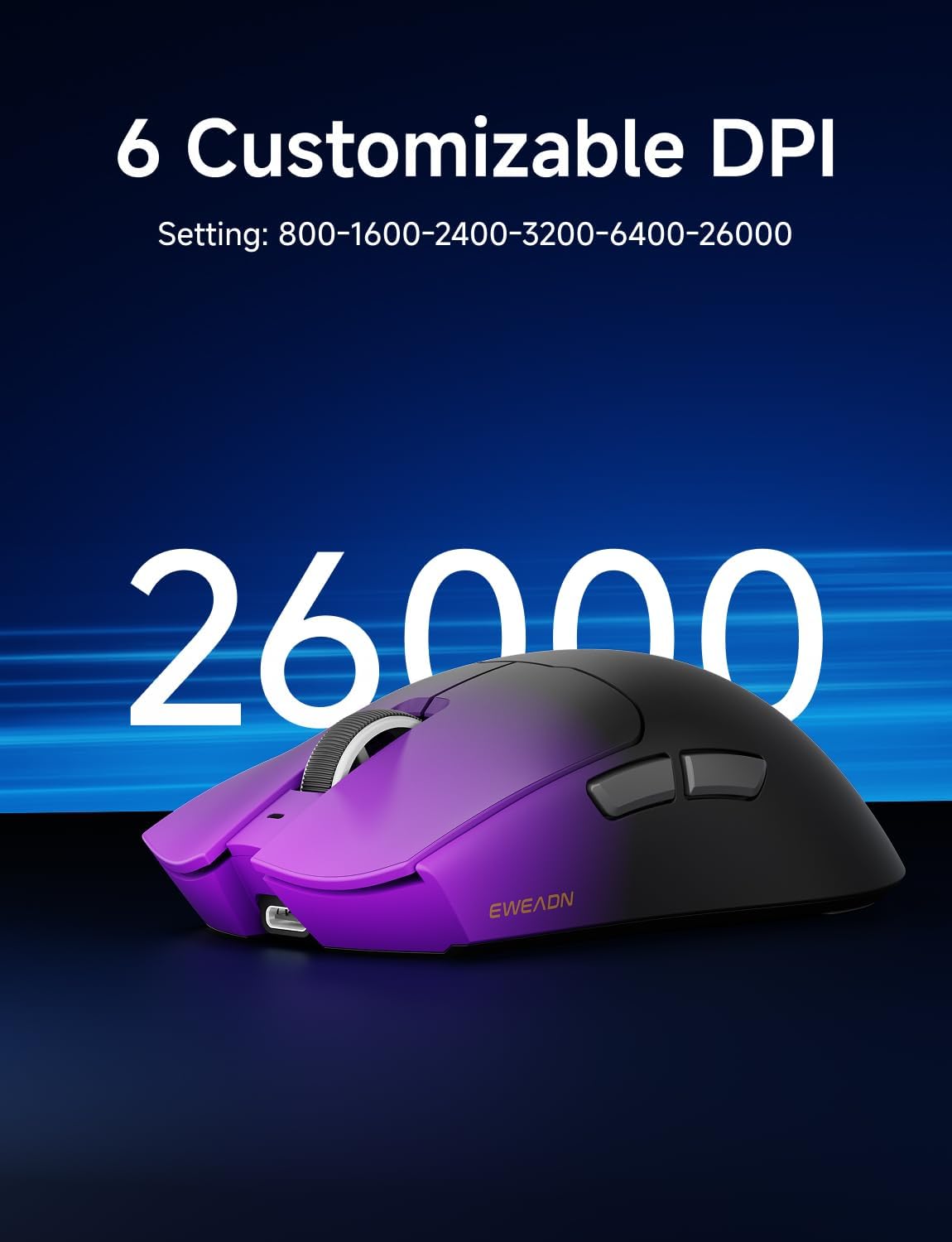
Figure 6: The mouse supports up to 26000 DPI, with 6 customizable settings for precise control.
2. Button Functions
The mouse has 5 programmable buttons:
- Left Click Button
- Right Click Button
- Scroll Wheel Click Button
- Side Button 1 (Forward)
- Side Button 2 (Backward)
All buttons can be remapped and assigned macros using the EWEADN software.
3. Grip Styles
The ergonomic design of the S9 Pro is suitable for medium to large hands and accommodates various grip styles, including palm, claw, and fingertip grips, ensuring comfort during long gaming sessions.

Figure 7: The mouse's design supports various grip styles for optimal comfort and control.
Maintenance
1. Cleaning
The S9 Pro features a Nano IceSkin Coating, which is sweat-proof and easy to clean. To clean your mouse:
- Disconnect the mouse from your computer.
- Use a soft, lint-free cloth lightly dampened with water or a mild, non-abrasive cleaner.
- Gently wipe the surface of the mouse.
- Avoid getting moisture into any openings.
- Allow the mouse to air dry completely before reconnecting.
2. Battery Care
- Avoid fully discharging the battery frequently to prolong its lifespan.
- Store the mouse in a cool, dry place when not in use for extended periods.
- If the mouse will not be used for a long time, charge it to about 50% before storing.
Troubleshooting
| Problem | Possible Cause | Solution |
|---|---|---|
| Mouse not responding (Wireless) | Low battery; Dongle not plugged in; Incorrect mode selected; Interference. | Charge the mouse; Ensure dongle is securely plugged in; Switch to 2.4G or BT mode; Move closer to the receiver; Try a different USB port. |
| Mouse not responding (Bluetooth) | Not paired; Bluetooth off on device; Low battery. | Ensure mouse is in BT pairing mode; Enable Bluetooth on your device; Re-pair the mouse; Charge the mouse. |
| Software not detecting mouse | Connection issue; Software glitch. | Ensure mouse is connected via wired or 2.4G mode; Restart the software; Restart your computer; Reinstall software. |
| Mouse goes to sleep too quickly | Default sleep timer setting. | Adjust the sleep timer setting in the EWEADN software. |
| Inaccurate tracking or erratic movement | Dirty sensor; Unsuitable surface; Low battery. | Clean the optical sensor with a soft cloth; Use on a clean, uniform mouse pad; Charge the mouse. |
Specifications
| Feature | Detail |
|---|---|
| Model | S9 Pro |
| Sensor | PAW3395 Optical Sensor |
| DPI Range | Up to 26000 DPI (Customizable) |
| Polling Rate | 1K (Wired), 8K (Wireless) |
| Switches | Kailh Micro Switches (100 Million Clicks) |
| Connectivity | 2.4Ghz Wireless, Bluetooth 5.0, USB-C Wired |
| Battery Capacity | 500mAh |
| Battery Life | Approx. 70+ Hours |
| Weight | 59g (Ultra-light) |
| Dimensions | Approx. 5 x 2.55 x 1.60 inches (12.7 x 6.48 x 4.06 cm) |
| Compatible OS | Windows, macOS, Linux, Android |
| Material | Metal Plastic |
Warranty and Support
EWEADN products are manufactured to the highest quality standards. This product is covered by a limited warranty from the date of purchase. Please refer to the warranty card included in your package or visit the official EWEADN website for detailed warranty terms and conditions.
For technical support, troubleshooting assistance, or general inquiries, please visit the EWEADN support page on their official website or contact their customer service team. Keep your purchase receipt as proof of purchase for warranty claims.

