
EXTEL 720335
Extel Digital Connect Wired Video Intercom
Model 720335 User Manual
Introduction
This manual provides detailed instructions for the installation, operation, and maintenance of your Extel Digital Connect Wired Video Intercom with Fingerprint Access, Model 720335. Please read this manual thoroughly before installation and use to ensure proper function and safety.
Safety Information
- Ensure all electrical connections are made by a qualified professional and comply with local electrical codes.
- Disconnect power before performing any installation or maintenance.
- Do not expose the outdoor station to direct water spray or immerse it in water.
- Use only the power adapter and cables supplied or recommended by Extel.
- Keep the device away from sources of high heat or direct sunlight.
Package Contents
Verify that all components are present in the package:
- Indoor Monitor
- Outdoor Station with Fingerprint Reader
- Mounting Brackets and Screws
- Power Adapter
- Connection Cables
- User Manual (this document)
Product Overview
The Extel Digital Connect system consists of an indoor monitor, an outdoor station, and a mobile application for remote access and control.
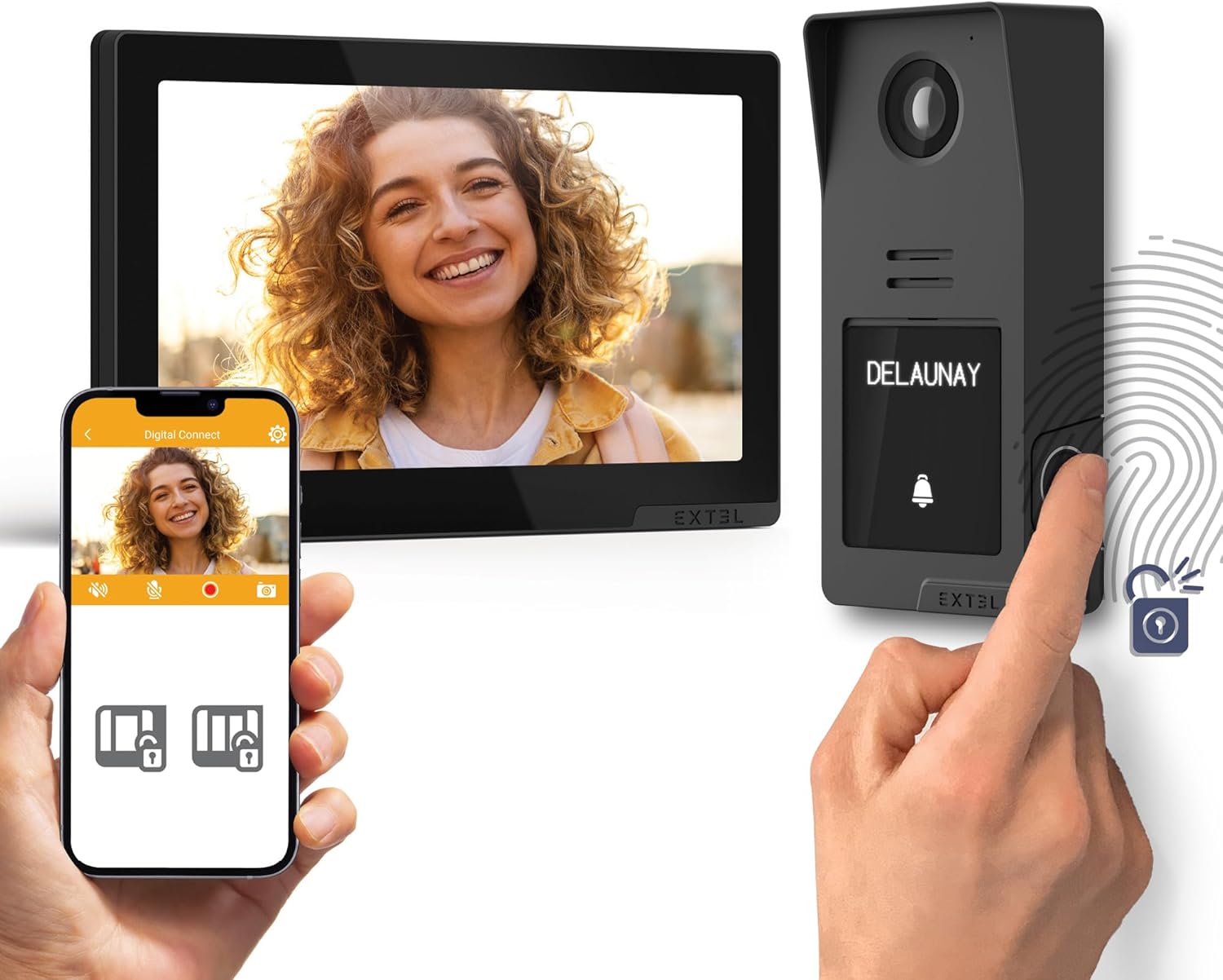
Overview of the Extel Digital Connect video intercom system, showing the indoor monitor, outdoor station, and smartphone application interface.

The outdoor station of the Extel Digital Connect video intercom, illustrating the QR code for mobile application setup.

Diagram showing the modular design of the outdoor station, with optional color covers.
Setup
1. Installation
The system requires wired connections between the indoor monitor and the outdoor station. Ensure proper cable selection based on distance:
- For distances up to 25m: Use 2 x 0.75mm² cables.
- For distances up to 100m: Use 2 x 1.5mm² cables.

Wiring diagram for the Extel Digital Connect video intercom, showing connections for the indoor monitor, outdoor station, and optional accessories, along with Wi-Fi connectivity.
2. Initial Power-Up
After all wired connections are securely made, connect the power adapter to the indoor monitor and plug it into a power outlet. The monitor should power on automatically.
3. Network Connection (Wi-Fi)
The indoor monitor supports 2.4GHz and 5GHz Wi-Fi networks. Follow the on-screen prompts on the indoor monitor to connect to your home Wi-Fi network. This is essential for smartphone app functionality.
4. App Installation and Pairing
- Download the 'Digital Connect' application from your smartphone's app store (iOS or Android).
- Open the app and create an account or log in.
- Follow the in-app instructions to add your Extel Digital Connect device. This typically involves scanning a QR code displayed on the indoor monitor or the outdoor station.

The Extel Digital Connect video intercom system, demonstrating the indoor monitor and outdoor station, with a smartphone displaying the connected mobile application.
5. Fingerprint Registration
To enable fingerprint access, you must register fingerprints through the indoor monitor or the mobile application. Refer to the on-screen menu for the 'Fingerprint Management' section. Follow the instructions to scan and save authorized fingerprints.

A hand interacting with the fingerprint sensor on the outdoor station for access control.
Operating Instructions
Answering Calls
- From Indoor Monitor: When a visitor presses the call button on the outdoor station, the indoor monitor will ring and display the visitor's video. Press the 'Answer' button on the monitor to communicate.
- From Mobile App: If connected to Wi-Fi, your smartphone will receive a notification when a visitor calls. Tap the notification to view the video feed and communicate remotely.
Opening Gates/Doors
- From Indoor Monitor: During a call, press the 'Unlock' button on the monitor to open a connected gate or door.
- From Mobile App: During a remote call, use the 'Unlock' function within the app.
- Via Fingerprint: Authorized users can place their registered finger on the outdoor station's fingerprint reader to unlock the connected access point.
Monitoring
You can view the live feed from the outdoor station at any time:
- From Indoor Monitor: Select the 'Monitor' function on the indoor unit.
- From Mobile App: Open the 'Digital Connect' app and select the live view option for your intercom.
Two-Way Audio Communication
The system supports two-way audio, allowing you to speak with visitors at the outdoor station from both the indoor monitor and the mobile application.
Maintenance
- Cleaning: Use a soft, dry cloth to clean the indoor monitor and outdoor station. Do not use abrasive cleaners or solvents.
- Software Updates: Periodically check for firmware updates through the mobile application or the indoor monitor's settings menu to ensure optimal performance and security.
- Fingerprint Sensor: Keep the fingerprint sensor clean and dry for accurate readings.
Troubleshooting
| Problem | Possible Cause | Solution |
|---|---|---|
| No power to indoor monitor | Power adapter unplugged or faulty; no power at outlet. | Check power connections; test outlet with another device; replace adapter if faulty. |
| No video from outdoor station | Wiring issue; outdoor station faulty. | Verify all wired connections are secure; contact support if issue persists. |
| Cannot connect to Wi-Fi | Incorrect password; weak signal; router issue. | Re-enter Wi-Fi password; move monitor closer to router; restart router. |
| Fingerprint not recognized | Finger not registered; sensor dirty; finger wet/damaged. | Ensure finger is registered; clean sensor; try a different registered finger. |
| Mobile app not receiving calls | No internet connection; app notifications disabled; app not paired. | Check Wi-Fi/mobile data; enable app notifications; re-pair device if necessary. |
Specifications
- Brand: EXTEL
- Model: 720335
- Item Weight: 950 g
- Connectivity: Wired (2-wire), Wi-Fi (2.4GHz / 5GHz)
- Key Features: Video Intercom, Fingerprint Access, Smartphone Connectivity, Remote Control
- Wiring Distance: Up to 25m (2 x 0.75mm²), Up to 100m (2 x 1.5mm²)
Warranty and Support
For warranty information and technical support, please refer to the documentation provided with your purchase or visit the official Extel website. Keep your proof of purchase for warranty claims.
Related documents720335

Ask a question about this manual
Ask about setup, troubleshooting, compatibility, parts, safety, or missing instructions. Manuals+ will review the question and use this page’s manual context to help answer it.