
OMOTON B0F3HQ77WN
OMOTON 2.4G Wireless Keyboard User Manual
Model: B0F3HQ77WN
Introduction
Thank you for choosing the OMOTON 2.4G Wireless Keyboard. This ultra-slim and compact keyboard is designed to provide a reliable and quiet typing experience across various devices, including laptops, tablets, desktops, and PCs. It features a versatile 2-in-1 USB-A and Type-C receiver for broad compatibility and an ergonomic design for comfortable use.
This manual provides detailed instructions on setting up, operating, maintaining, and troubleshooting your new keyboard to ensure optimal performance.

The OMOTON 2.4G Wireless Keyboard in a typical desktop setup, demonstrating its compact size and sleek design alongside a monitor and mouse.
Package Contents
Please verify that all items are present in your package:
- 1 x OMOTON 2.4G Wireless Keyboard (Black, 285mm x 120mm)
- 1 x USB 2-in-1 Receiver (USB-A and Type-C)
- 1 x User Manual
Note: 2 AAA batteries are required for operation and are not included in the package.
Setup Guide
1. Install Batteries
Locate the battery compartment on the back of the keyboard. Insert two AAA batteries, ensuring correct polarity (+/-) as indicated inside the compartment. Close the battery cover securely.
2. Connect the USB Receiver
The keyboard comes with a versatile 2-in-1 USB receiver that supports both USB-A and Type-C ports. Choose the appropriate connector for your device.
- For USB-A Port: Plug the standard USB-A end of the receiver directly into an available USB-A port on your computer or device.
- For Type-C Port: If your device only has a Type-C port, detach the USB-A adapter from the receiver to reveal the Type-C connector. Plug the Type-C end into an available Type-C port on your computer or device.
The system will automatically detect and install the necessary drivers. No additional software is required.

Illustration of the 2-in-1 USB receiver, showing how it can be used with both USB-A and Type-C ports on different laptops.

The OMOTON 2.4G Wireless Keyboard displayed with its compact 2-in-1 USB receiver, ready for connection.
3. Power On the Keyboard
Locate the power switch on the keyboard (usually on the top edge or back). Slide the switch to the "ON" position. The keyboard is now ready for use.
Operating Instructions
System Compatibility and Switching
This keyboard is compatible with four major operating systems: Windows, iOS/iPadOS, macOS, and Android. To ensure optimal key functionality, switch to the correct system mode before use.
- For Windows: Press Fn + Q
- For iOS/iPadOS: Press Fn + W
- For macOS: Press Fn + E
- For Android: Press Fn + R

Visual guide for switching the keyboard's operating system mode using Fn key combinations.
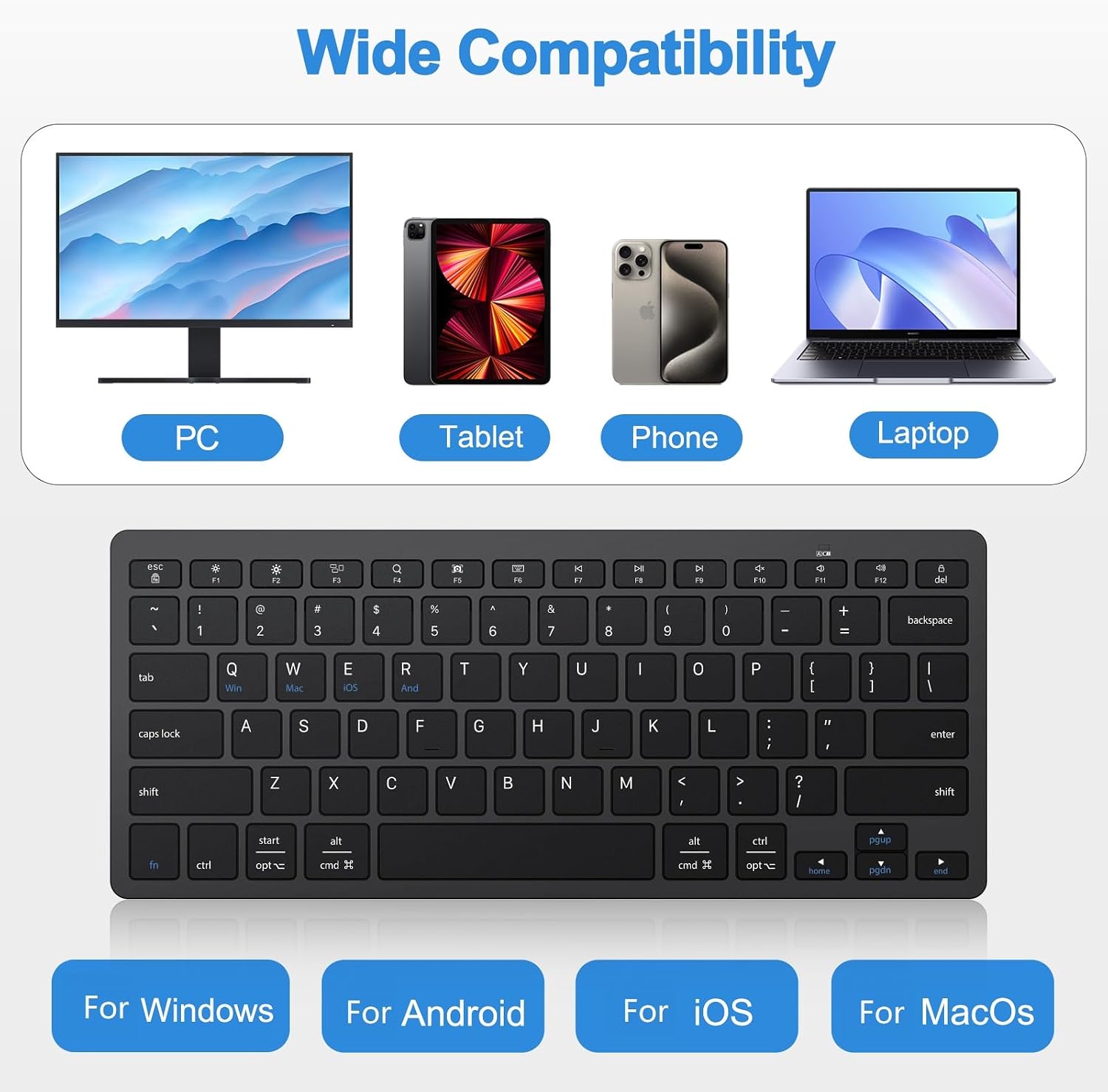
The OMOTON keyboard's broad compatibility with various devices, including PCs, tablets, smartphones, and laptops.
Multimedia Keys
The top row of function keys (F1-F12) also serves as multimedia keys. To activate their multimedia functions, press the Fn key simultaneously with the desired function key.
| Key Combination | Function |
|---|---|
| Fn + Esc | Escape |
| Fn + F1 | Brightness - |
| Fn + F2 | Brightness + |
| Fn + F3 | Mission Control (macOS) |
| Fn + F4 | Search (Android: N/A) |
| Fn + F5 | Screenshot (macOS: N/A) |
| Fn + F6 | Virtual Keyboard (macOS/Android: N/A) |
| Fn + F7 | Previous Track |
| Fn + F8 | Play/Pause |
| Fn + F9 | Next Track |
| Fn + F10 | Mute |
| Fn + F11 | Volume - |
| Fn + F12 | Volume + |
| Fn + Del | Lock Screen |
The keyboard features precision scissor-switch keys and an optimal tilt angle for comfortable and quiet typing.

Detailed view of the keyboard's ergonomic design, highlighting the scissor structure and low-profile keys for a comfortable typing experience.
Maintenance
Battery Replacement
When the keyboard's performance degrades or it stops responding, it's likely time to replace the batteries. Turn off the keyboard, open the battery compartment, remove the old AAA batteries, and insert new ones, observing the correct polarity. Close the compartment and turn the keyboard back on.
Cleaning Instructions
To clean your keyboard, first turn it off. Use a soft, lint-free cloth slightly dampened with water or a mild, non-abrasive cleaning solution. Gently wipe the keycaps and the surface of the keyboard. Avoid getting moisture into the gaps between keys or into the USB receiver port. For stubborn dirt, a cotton swab can be used for hard-to-reach areas. Do not use harsh chemicals or abrasive materials.
Auto-Sleep Mode
The keyboard features an environmentally friendly auto-sleep mode to conserve battery life. If the keyboard is inactive for a period, it will automatically enter sleep mode. To wake it up, simply press any key. The battery life can last up to 6 months under normal usage conditions.
Troubleshooting
Keyboard Not Responding
- Ensure the keyboard is powered on.
- Check if the batteries are correctly installed and have sufficient charge. Replace them if necessary.
- Verify that the USB receiver is securely plugged into a working USB port on your device. Try a different USB port.
- Ensure the keyboard is within the effective wireless range (up to 33ft/10m) of the receiver.
- Try restarting your computer or device.
Keys Not Functioning Correctly / Incorrect Output
- Confirm that you have switched the keyboard to the correct operating system mode (Fn+Q for Windows, Fn+W for iOS, Fn+E for macOS, Fn+R for Android).
- Clean any debris or dust from under the affected keys.
- If specific multimedia keys are not working, ensure you are pressing the Fn key simultaneously.
Interference Issues
- Move the keyboard and receiver away from other wireless devices (e.g., Wi-Fi routers, cordless phones) that might cause interference.
- Avoid placing the receiver near large metal objects.
Specifications
| Feature | Detail |
|---|---|
| Model | B0F3HQ77WN |
| Connectivity Technology | 2.4G Wireless (USB A & Type C Receiver) |
| Compatible Devices | Laptop, PC, Smart TV, Tablet, Phone |
| Keyboard Description | Wireless, Ultra Slim, Compact |
| Special Feature | Portable, Scissor-Switch Keys, Auto-Sleep Mode |
| Color | Black |
| Number of Keys | 78 |
| Material | Plastic |
| Wireless Range | Up to 33ft (10m) |
| Battery Type | 2 x AAA Batteries (Not included) |
| Battery Life | Up to 6 months |
| Dimensions | 285mm x 120mm (11.2 x 4.7 inches) |
| Item Weight | 11.3 ounces (approx. 320g) |

The OMOTON keyboard's slim and portable design, highlighting its compact dimensions and light weight.
Warranty and Support
OMOTON products are designed for durability and performance. This product typically comes with a standard manufacturer's warranty. Please refer to the warranty card included in your package or visit the official OMOTON website for specific warranty terms and conditions.
For technical support, troubleshooting assistance, or warranty claims, please contact OMOTON customer service through their official channels. You can often find contact information on the OMOTON brand store on Amazon or their official website.
Visit the OMOTON Store on Amazon for more information and product updates.
Related documentsB0F3HQ77WN

Ask a question about this manual
Ask about setup, troubleshooting, compatibility, parts, safety, or missing instructions. Manuals+ will review the question and use this page’s manual context to help answer it.