
1. Introduction
Thank you for choosing the EWEADN S9 Pro Wireless Gaming Mouse. This manual provides essential information for setting up, operating, and maintaining your new gaming mouse. The S9 Pro features triple connection modes, a high-precision PAW3395 optical sensor, customizable DPI settings, and a lightweight ergonomic design for optimal performance.
2. Package Contents
Please verify that all items are present in your package:
- EWEADN S9 Pro Wireless Gaming Mouse
- Instruction Manual (this document)
- 8K Custom Receiver (USB dongle)
- 1.5M Parachute Cord (USB-C to USB-A cable)
- PE Bag Foot Pad
- Anti-slip Protection Sticker

Image: All items included in the EWEADN S9 Pro Wireless Gaming Mouse package, including the mouse, USB-C cable, receiver, and accessories.
3. Product Overview
Familiarize yourself with the buttons and ports of your EWEADN S9 Pro mouse:
Image: A detailed diagram illustrating the various buttons and ports on the EWEADN S9 Pro mouse, including Left Button, Right Button, Middle Button (scroll wheel), DPI Switch, Forward Button, Backward Button, Type-C Port, and the 2.4G-OFF-BT mode switch on the underside.
- Left Button: Standard left-click function.
- Right Button: Standard right-click function.
- Middle Button (Scroll Wheel): Scroll up/down, middle-click.
- DPI Switch: Cycles through preset DPI levels.
- Forward Button: Navigates forward in web browsers or applications.
- Backward Button: Navigates backward in web browsers or applications.
- Type-C Port: For wired connection and charging.
- 2.4G-OFF-BT Switch: Located on the underside, used to select connection mode or power off.
4. Setup
4.1. Charging the Mouse
Before first use, it is recommended to fully charge the mouse. Connect the supplied USB-C cable to the mouse's Type-C port and the other end to a USB power source (e.g., computer USB port, USB wall adapter).

Image: The EWEADN S9 Pro mouse connected via its USB-C port to a charging cable, indicating the charging process.
4.2. Connection Modes
The S9 Pro mouse supports three connection modes: 2.4G Wireless, Bluetooth 5.0, and USB-C Wired. Use the switch on the underside of the mouse to select your desired mode.
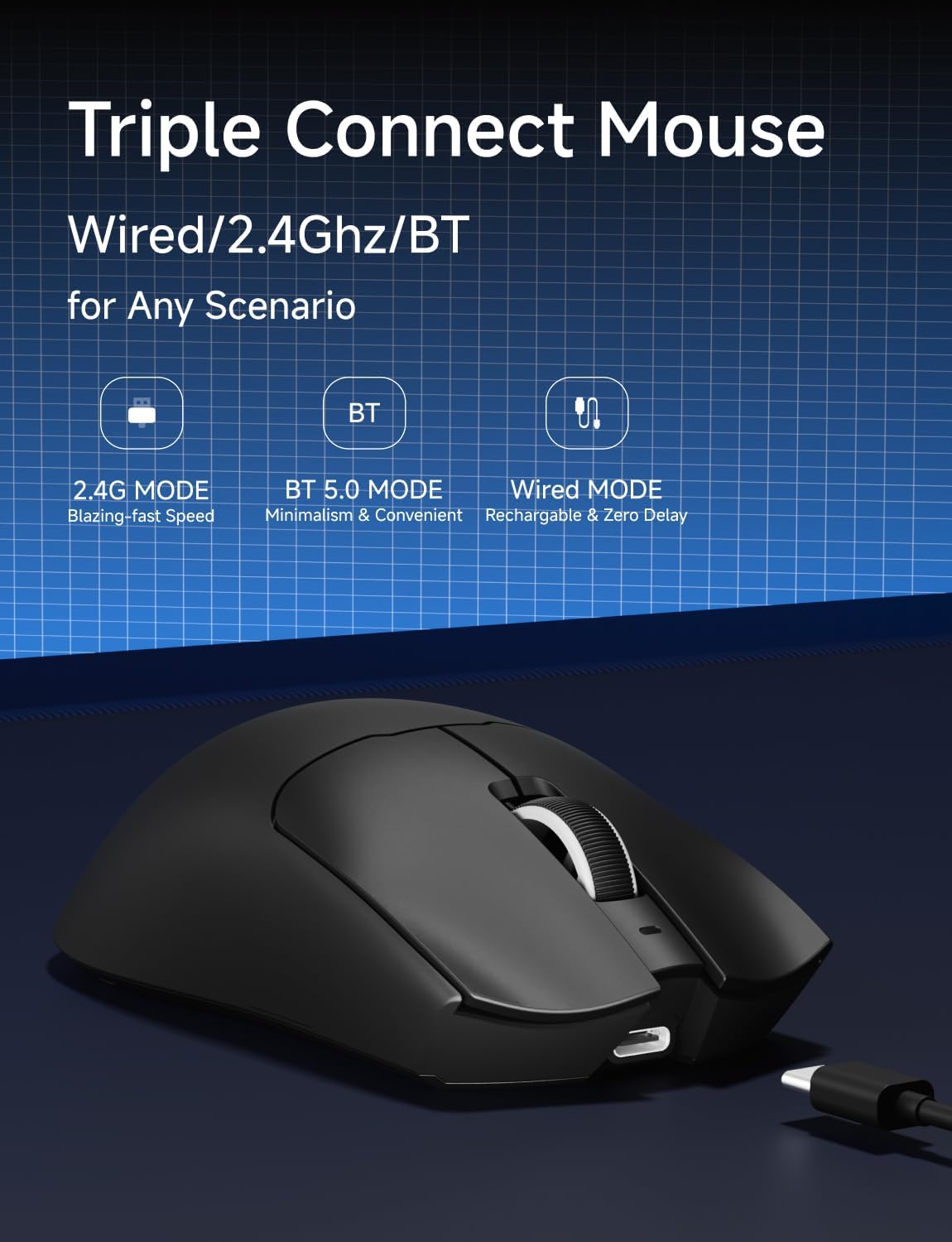
Image: An illustration highlighting the three connection modes: 2.4G Wireless for blazing-fast speed, Bluetooth 5.0 for convenience, and USB-C Wired for zero delay and recharging.
2.4G Wireless Connection
- Locate the 8K Custom Receiver (USB dongle) in the package.
- Plug the USB receiver into an available USB port on your computer.
- Slide the mode switch on the underside of the mouse to the "2.4G" position.
- The mouse should automatically connect to your computer.
Bluetooth 5.0 Connection
- Slide the mode switch on the underside of the mouse to the "BT" position.
- On your computer or device, open Bluetooth settings and search for new devices.
- Select "EWEADN S9 Pro" from the list of available devices to pair.
USB-C Wired Connection
- Connect the supplied USB-C cable to the mouse's Type-C port.
- Connect the USB-A end of the cable to an available USB port on your computer.
- The mouse will function in wired mode and charge simultaneously.
5. Operating Instructions
5.1. DPI Adjustment
The EWEADN S9 Pro mouse features customizable DPI settings. You can cycle through preset DPI levels using the dedicated DPI switch button on the top of the mouse. For fine-tuning and additional customization, please use the official EWEADN software.

Image: The EWEADN S9 Pro mouse with an overlay indicating 6 customizable DPI settings, ranging from 800 to 26000 DPI.
5.2. Polling Rate
The mouse supports an 8K polling rate in wireless mode (with the 8K receiver) and 1K in wired mode. The polling rate can be configured through the EWEADN software to match your preferences and system capabilities.
5.3. Programmable Buttons
The S9 Pro mouse is equipped with programmable buttons. To customize button functions, DPI/IPS settings, lift-off distance, and create macros, download and install the official EWEADN software from the manufacturer's website. This software allows for advanced personalization of your mouse settings.
5.4. Ergonomic Design
The mouse is designed for right-handed users with medium to large hands, weighing only 59 grams. Its ergonomic shape aims to reduce fatigue during extended use. It supports various grip styles including palm, claw, and fingertip grips.

Image: An illustration demonstrating the EWEADN S9 Pro mouse's compatibility with palm grip, claw grip, and fingertip grip styles, designed for medium-large handed players.
6. Maintenance
6.1. Cleaning
To clean your mouse, use a soft, dry, lint-free cloth. Avoid using harsh chemicals, solvents, or abrasive materials, as these can damage the surface and internal components. For stubborn dirt, a slightly damp cloth can be used, ensuring no moisture enters the mouse.
6.2. Battery Care
The S9 Pro features a 500mAh rechargeable battery. To maximize battery life:
- Avoid exposing the mouse to extreme temperatures.
- Charge the mouse regularly, especially when the battery indicator shows low power.
- If storing the mouse for an extended period, charge it to approximately 50% before storage.
7. Troubleshooting
7.1. Mouse Not Responding
- Check Battery: Ensure the mouse is charged. Connect the USB-C cable to charge.
- Check Connection Mode: Verify the mode switch on the underside is set correctly (2.4G, BT, or OFF).
- 2.4G Wireless: Ensure the USB receiver is securely plugged into a working USB port. Try a different USB port.
- Bluetooth: Re-pair the mouse with your device in Bluetooth settings. Ensure your device's Bluetooth is enabled.
- Wired: Ensure the USB-C cable is firmly connected to both the mouse and the computer.
7.2. DPI Not Changing
- Ensure you are pressing the correct DPI switch button.
- If using custom DPI settings, check the EWEADN software to ensure settings are applied correctly.
7.3. Lag or Stuttering
- Wireless Interference: Move the mouse closer to the receiver or your Bluetooth device. Avoid placing the receiver near other wireless devices or large metal objects.
- Polling Rate: While 8K polling rate offers high performance, some systems may experience issues. Try reducing the polling rate via the EWEADN software if you encounter instability.
- Battery Level: Low battery can sometimes affect wireless performance. Charge the mouse fully.
8. Specifications
| Feature | Detail |
|---|---|
| Brand | EWEADN |
| Model Number | S9 Pro |
| Connectivity Technology | 2.4Ghz Wireless, Bluetooth 5.0, USB-C Wired |
| Movement Detection Technology | Optical (PAW3395 Sensor) |
| DPI Range | Up to 26000 DPI |
| IPS Tracking | 650 IPS |
| Polling Rate | 8K Wireless, 1K Wired |
| Switches | Kailh Micro Switch (100 Million Clicks) |
| Battery Capacity | 500mAh |
| Battery Life | Up to 250 hours |
| Weight | 59 grams (approx. 2.08 ounces) |
| Compatibility | Windows 7/8/10/XP/Vista, Mac OS, Linux, Android |
| Cable Length | 1.5M Parachute Cord |
| Package Dimensions | 7.32 x 5.75 x 2.32 inches |
9. Warranty and Support
EWEADN provides manufacturer support for its products. If you encounter any issues or have questions regarding your S9 Pro Wireless Gaming Mouse, please contact EWEADN customer support. The manufacturer aims to provide a response within 24 hours and offers 360 days of brand support.

Image: An illustration indicating EWEADN's commitment to customer support, including 24-hour reply times and 360 days of manufacturer brand support.
For the most up-to-date support information and software downloads, please visit the official EWEADN website.

