
TONTRU 97k-rgb
TONTRU Wireless Mechanical Keyboard T70 (97-Key) User Manual
Model: 97k-rgb
1. Product Overview
The TONTRU T70 is a versatile 97-key mechanical keyboard designed for various computing environments. It features tri-mode connectivity, hot-swappable switches, RGB backlighting, and a multifunction knob for enhanced user control.

Image 1.1: Top-down view of the TONTRU T70 keyboard, highlighting its 97-key layout and colorful keycaps.
2. Package Contents
Verify that all items are present in the package:
- TONTRU T70 Wireless Mechanical Keyboard
- USB-C Cable
- 2.4GHz USB Receiver (often stored in the keyboard's receiver compartment)
- User Manual (this document)
3. Setup and Initial Connection
The keyboard supports three connection modes: 2.4GHz Wireless, Bluetooth 5.1, and USB-C Wired. No drivers are required for basic functionality.
3.1. Wired Connection (USB-C)
- Locate the USB-C port on the keyboard (typically on the back edge).
- Connect the provided USB-C cable to the keyboard and the other end to an available USB port on your computer.
- The keyboard will automatically switch to wired mode. The charging indicator light may illuminate.
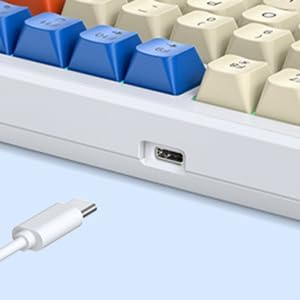
Image 3.1: USB-C port for wired connection and charging.
3.2. 2.4GHz Wireless Connection
- Locate the 2.4GHz USB receiver. It is often stored in a compartment on the keyboard itself.
- Plug the USB receiver into an available USB port on your computer.
- Turn on the keyboard using the power switch (usually on the back or side).
- Press Fn + 4 to activate 2.4GHz wireless mode. The indicator light for 2.4G mode should blink.
- If the connection is not established automatically, press and hold Fn + 4 for 3 seconds to initiate pairing. The indicator light will blink rapidly and then become solid once connected.
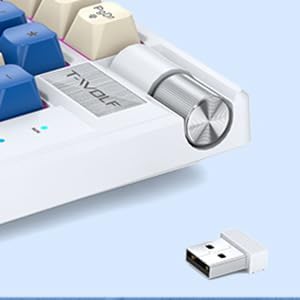
Image 3.2: Location of the 2.4GHz USB receiver and multifunction knob.
3.3. Bluetooth 5.1 Connection
The keyboard supports pairing with up to three Bluetooth devices.
- Turn on the keyboard using the power switch.
- Press Fn + 1, Fn + 2, or Fn + 3 to select a Bluetooth channel. The corresponding indicator light will blink.
- Press and hold the selected Bluetooth channel key (Fn + 1/2/3) for 3 seconds until the indicator light blinks rapidly. This indicates pairing mode.
- On your device (PC, laptop, tablet), enable Bluetooth and search for new devices.
- Select "TONTRU T70" (or similar name) from the list of available devices to connect.
- Once connected, the indicator light will become solid.
- To switch between paired Bluetooth devices, simply press Fn + 1, Fn + 2, or Fn + 3.

Image 3.3: Visual representation of the three connectivity modes.
4. Operating Instructions
4.1. Multifunction Knob
The rotary knob located on the top right of the keyboard has dual functionality:
- Mode Switching: Long-press the knob for three seconds to toggle between RGB Lighting Mode and Volume Mode.
- RGB Lighting Mode:
- Rotate the knob: Adjust RGB brightness.
- Tap the knob: Switch between different RGB lighting effects.
- Volume Mode:
- Rotate the knob: Adjust system volume (up/down).
- Tap the knob: Mute/unmute audio.

Image 4.1: Multifunction knob controls for lighting and volume.
4.2. RGB Lighting Modes
The keyboard features 20 dynamic RGB backlight options. Use the multifunction knob (in Lighting Mode) to cycle through effects and adjust brightness.
The keyboard also supports 100% anti-ghosting for accurate key registration during fast typing or gaming.
4.3. Hot-Swappable Switches
The TONTRU T70 comes with pre-installed linear red switches. The hot-swappable PCB allows for easy replacement of switches and keycaps without soldering. This enables customization of the typing experience.

Image 4.2: Hot-swappable switches with keycaps removed.
To replace switches:
- Gently remove the keycap using a keycap puller (not included).
- Use a switch puller (not included) to carefully extract the switch from the PCB.
- Align the pins of the new switch with the holes on the PCB and press firmly until it clicks into place.
- Reattach the keycap.
5. Battery and Charging
The keyboard is equipped with a 2000mAh rechargeable battery. The low-power chipset ensures extended wireless use.
- Charging: Connect the keyboard to a USB power source using the provided USB-C cable. The charging indicator light will show charging status.
- Battery Life: A full charge provides weeks of wireless use, depending on usage and RGB lighting settings.
- Battery Level: The manual does not specify a direct method to check the exact battery percentage on the keyboard itself. Some operating systems may report Bluetooth device battery levels.

Image 5.1: The keyboard features a 2000mAh rechargeable battery.
6. Compatibility
The TONTRU T70 keyboard is universally compatible and works with:
- Windows operating systems
- Laptops
- Android devices
- Other devices supporting USB, 2.4GHz wireless, or Bluetooth connectivity.
No specific drivers are needed for operation.
7. Maintenance
- Cleaning: Use a soft, dry cloth to clean the keyboard surface. For deeper cleaning, remove keycaps and use compressed air to clear debris.
- Storage: Store the keyboard in a cool, dry place away from direct sunlight and extreme temperatures.
- Liquid Exposure: Avoid exposing the keyboard to liquids. In case of accidental spills, immediately disconnect the keyboard, power it off, and allow it to dry completely before use.
8. Troubleshooting
8.1. Keyboard Not Responding
- Check Power: Ensure the keyboard is powered on and has sufficient battery charge. Connect via USB-C to confirm.
- Wired Mode: Verify the USB-C cable is securely connected to both the keyboard and the computer.
- 2.4GHz Wireless:
- Ensure the USB receiver is properly plugged into a working USB port.
- Press Fn + 4 to select 2.4G mode.
- If the indicator light blinks slowly, press and hold Fn + 4 for 3 seconds to re-pair the receiver.
- Bluetooth Mode:
- Ensure Bluetooth is enabled on your device.
- Press Fn + 1/2/3 to select the correct paired channel.
- If not connecting, press and hold the selected Fn + 1/2/3 for 3 seconds to enter pairing mode and re-pair with your device.
- Try removing the keyboard from your device's Bluetooth list and re-pairing.
8.2. Keys Sticking or Not Registering
- Clean around and under the affected keycaps to remove any debris.
- If using hot-swappable switches, ensure the switch is fully seated in the PCB. Try removing and re-inserting the switch.
- Test the keyboard in wired mode to rule out wireless interference.
8.3. RGB Lighting Not Working or Incorrect
- Ensure the keyboard is powered on.
- Check the multifunction knob is in RGB Lighting Mode (long-press to switch modes).
- Rotate the knob to adjust brightness; tap to change lighting effects.
8.4. Multifunction Knob Not Functioning
- Ensure the knob is not obstructed and can be pressed down.
- Long-press the knob for 3 seconds to switch between RGB Lighting Mode and Volume Mode. Confirm the mode by observing the indicator lights or keyboard behavior.
9. Specifications
| Model | 97k-rgb |
| Connectivity | 2.4GHz Wireless, Bluetooth 5.1, USB-C Wired |
| Key Layout | 97-Key Compact (with Numpad and Arrow Keys) |
| Switches | Red Mechanical (Hot-Swappable) |
| Backlighting | RGB (20 Modes) |
| Anti-Ghosting | 100% |
| Battery Capacity | 2000mAh |
| Product Dimensions | 15.9 x 5.6 x 1.5 inches (404 x 141.9 x 37.5 mm) |
| Item Weight | 2.11 pounds |
| Manufacturer | Huizhou T-WOLF Intelligent Technology Co.,Ltd |

Image 9.1: Keyboard dimensions.
10. Warranty and Support
For warranty information and technical support, please refer to the contact details provided with your purchase or visit the official TONTRU website. Keep your purchase receipt for warranty claims.
Related documents97k-rgb

Ask a question about this manual
Ask about setup, troubleshooting, compatibility, parts, safety, or missing instructions. Manuals+ will review the question and use this page’s manual context to help answer it.