
Introduction
Welcome to the user manual for your Logitech MK850 Performance Wireless Keyboard and Mouse Combo. This comprehensive guide provides detailed instructions on setting up, operating, maintaining, and troubleshooting your new wireless desktop solution. Designed for comfort and efficiency, the MK850 combo offers a seamless experience across multiple devices and operating systems.
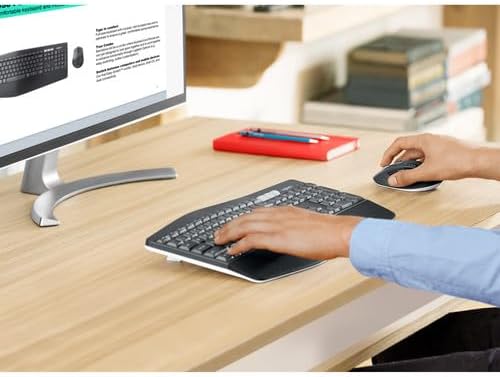
Image: A user's hands are positioned on the Logitech MK850 keyboard and mouse, demonstrating comfortable use at a wooden desk with a monitor.
Package Contents
Please verify that all items listed below are included in your package:
- 4x Logitech MK850 Wireless Keyboard
- 4x Logitech MK850 Wireless Mouse
- 4x Logitech Unifying USB Receiver
- 4x Mouse Pad
- 1x Monitor Cleaning Kit
- User Documentation (this manual)

Image: An overhead view displaying the complete bundle contents: four Logitech MK850 keyboards, four MK850 mice, four black mouse pads, a Logitech Unifying USB receiver, and a bottle of screen cleaner with a cleaning cloth.
Setup
Follow these steps to set up your Logitech MK850 Wireless Desktop Keyboard and Mouse Combo.
1. Powering On
The keyboard and mouse come with pre-installed batteries. To activate them, remove any battery pull tabs if present. Ensure the power switches on both the keyboard and mouse are in the 'ON' position. The power switch for the keyboard is typically located on the top right edge, and for the mouse, it's on the bottom.
2. Connecting Your Devices
The MK850 combo offers two connection methods: the Logitech Unifying Receiver (2.4 GHz wireless) or Bluetooth Smart technology.
Option A: Logitech Unifying Receiver (Recommended for initial setup)
- Locate the Logitech Unifying USB Receiver in your package.
- Plug the Unifying Receiver into an available USB port on your computer.
- The keyboard and mouse should automatically connect to the receiver. If not, you may need to download the Logitech Options software from the official Logitech website to pair them manually.
Option B: Bluetooth Smart Technology
- Ensure Bluetooth is enabled on your computer or device.
- On the keyboard, press and hold one of the Easy-Switch keys (1, 2, or 3) until the LED light next to it starts blinking rapidly. This indicates it's in pairing mode.
- On the mouse, press the Easy-Switch button on the bottom until the LED light starts blinking rapidly.
- On your computer, go to Bluetooth settings and select "Add a device" or "Pair new device".
- Select "Logitech MK850 Keyboard" and "Logitech MK850 Mouse" from the list of available devices to complete the pairing process.

Image: A top-down view of the Logitech MK850 wireless keyboard and mouse, showcasing their ergonomic design and the multi-device switching buttons on the keyboard.
Operating Instructions
Keyboard Features
- Cushioned Palm Rest: Provides comfortable support for your wrists during extended typing sessions.
- Curved Keyframe: Designed for a natural typing posture, reducing strain.
- Concave Keys: Keys are shaped to guide your fingers, improving typing accuracy and preventing unintentional keystrokes.
- 3-Position Tilt Legs: Adjust the keyboard angle to your preferred comfort level. Locate the foldable legs on the underside of the keyboard.
- Easy-Switch Keys (1, 2, 3): Located above the numeric keypad, these keys allow you to seamlessly switch between up to three connected devices (e.g., computer, tablet, smartphone). Simply press the corresponding key to switch.
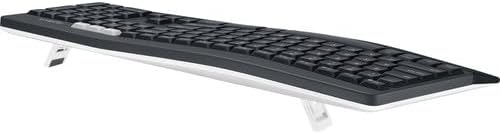
Image: A side view of the Logitech MK850 keyboard, showing its adjustable tilt legs extended to elevate the typing angle.
Mouse Features
- Ergonomic Contour: Shaped to fit comfortably in your right hand, reducing fatigue.
- Soft Rubber Surface: Provides enhanced grip and a pleasant tactile feel.
- 8-Button Layout: Includes programmable buttons for customized shortcuts and navigation. Refer to Logitech Options software for customization.
- Hyper-Fast Scroll Wheel: Allows for rapid scrolling through long documents or web pages. Press the button behind the scroll wheel to toggle between hyper-fast and click-to-click scrolling.
- 1000 dpi Logitech Advanced Optical Tracking: Ensures precise and smooth cursor control on various surfaces.
- Easy-Switch Button: Located on the bottom of the mouse, this button allows you to switch between up to three connected devices, similar to the keyboard.

Image: A top-down perspective of the Logitech MK850 wireless keyboard and mouse, highlighting the full-sized keyboard layout and the contoured shape of the mouse.
Maintenance
Proper maintenance ensures the longevity and optimal performance of your Logitech MK850 combo.
Battery Replacement
- Keyboard: The keyboard operates on standard batteries and has a battery life of up to 36 months. When the battery indicator light (usually near the power switch) turns red, it's time to replace the batteries. Open the battery compartment on the underside of the keyboard.
- Mouse: The mouse also uses standard batteries and offers a battery life of up to 24 months. Replace batteries when the indicator light signals low power. The battery compartment is located on the bottom of the mouse.
- Always use fresh, high-quality batteries of the specified type (refer to the battery compartment for details, typically AA or AAA).
Cleaning
- Keyboard and Mouse: Use a soft, lint-free cloth slightly dampened with water or a mild, non-abrasive cleaner. Avoid excessive moisture. Do not spray cleaner directly onto the devices.
- Monitor Cleaning Kit: Utilize the included monitor cleaning kit for your display. Follow the instructions provided with the kit for best results. Typically, spray the cleaning solution onto the microfiber cloth, then gently wipe the screen.
Troubleshooting
If you encounter issues with your Logitech MK850 combo, try the following troubleshooting steps:
- No Connection (Unifying Receiver):
- Ensure the Unifying Receiver is securely plugged into a working USB port. Try a different USB port.
- Make sure the keyboard and mouse are powered on and within range (up to 10 meters or 33 feet).
- Download and run the Logitech Unifying Software from the Logitech support website to re-pair the devices.
- No Connection (Bluetooth):
- Ensure Bluetooth is enabled on your computer/device.
- Remove the keyboard and mouse from your device's Bluetooth list and attempt to re-pair them.
- Make sure the Easy-Switch key (1, 2, or 3) on the keyboard and the Easy-Switch button on the mouse are set to the correct channel and are blinking for pairing.
- Try restarting your computer/device.
- Lagging or Intermittent Connection:
- Move the keyboard and mouse closer to the receiver or Bluetooth device.
- Avoid placing the receiver near other electrical devices that might cause interference (e.g., Wi-Fi routers, cordless phones).
- Ensure fresh batteries are installed.
- Keys Not Responding / Mouse Not Moving:
- Check battery levels and replace if necessary.
- Ensure the devices are connected (see connection steps above).
- Clean the optical sensor on the bottom of the mouse if it's not tracking properly.
Specifications
| Feature | Detail |
|---|---|
| Model Number | 920-008219 |
| Connectivity | Logitech Unifying Receiver (2.4 GHz wireless), Bluetooth Smart |
| Multi-Device Support | Up to 3 devices (Easy-Switch) |
| Keyboard Battery Life | Up to 36 months (with standard batteries) |
| Mouse Battery Life | Up to 24 months (with standard batteries) |
| Mouse DPI | 1000 dpi (Logitech Advanced Optical Tracking) |
| Keyboard Features | Cushioned palm rest, curved keyframe, concave keys, 3-position tilt legs |
| Mouse Features | Ergonomic contour, soft rubber surface, 8-button layout, hyper-fast scroll wheel |
| Compatibility | Windows, macOS, Chrome OS, iOS, Android |
| Product Dimensions | 16.9 x 8.3 x 1 inches (Keyboard) |
| Item Weight | 25.9 pounds (Total bundle weight) |
| UPC | 094148713014 |
Warranty and Support
Logitech products are manufactured to high quality standards. For detailed warranty information, please refer to the warranty card included with your product or visit the official Logitech support website.
For further assistance, technical support, or to download the latest software (such as Logitech Options or Unifying Software), please visit the Logitech support website: support.logi.com


