
Introduction
Welcome to your new TECKNET Bluetooth Wireless Mouse. This manual provides comprehensive instructions for the setup, operation, and maintenance of your device to ensure optimal performance and a seamless user experience. Please read this manual carefully before using the mouse.
Package Contents
- TECKNET Bluetooth Wireless Mouse
- USB Receiver (stored inside the mouse)
- User Manual
Product Overview
The TECKNET TK-MS046 is a versatile wireless mouse designed for efficiency and comfort. It features dual-mode connectivity, allowing you to connect via Bluetooth (5.0/3.0) or a 2.4G USB receiver. Its compact, symmetrical design is suitable for both right and left-handed users, and silent click buttons ensure a quiet working environment.

Image: Top-down view of the TECKNET Bluetooth Wireless Mouse, showcasing its sleek and symmetrical design.
Key Features:
- Dual Device Connectivity: Seamlessly switch between Bluetooth 5.0/3.0 and 2.4G USB receiver connections.
- Compact & Portable: Measuring 2.36 x 4.09 x 1.49 inches, ideal for travel and small hands.
- Silent Click: Noise-reducing buttons for a quiet user experience.
- Ergonomic Symmetrical Design: Comfortable for both left and right-handed users.
- Adjustable DPI: Multiple sensitivity levels (e.g., 800, 1200, 1600) for precise control.
- Extended Battery Life: Up to 18 months on a single AA battery (not included).
- Wide Compatibility: Supports Windows, macOS, Chrome, and Linux operating systems.

Image: A visual representation of the mouse's dual connectivity, showing both USB 2.4G and Bluetooth 5.2/3.0 options.
Setup
1. Battery Installation
- Open the battery compartment cover located on the underside of the mouse.
- Insert one AA battery (not included) into the compartment, ensuring the correct polarity (+/-).
- Close the battery compartment cover securely.

Image: Detailed view of the mouse's underside, illustrating the battery compartment, USB receiver storage, and the mode switch.
2. Connecting via Bluetooth Mode
- Ensure the mouse has a battery installed and the power switch on the bottom is in the 'ON' position.
- Toggle the mode switch button on the bottom of the mouse to the Bluetooth (BT) mode. The BT indicator light will flash, indicating it's in pairing mode.
- On your device (computer, tablet, etc.), enable Bluetooth and search for new devices.
- Select either "BT 3.0 Mouse" or "BT 5.2 Mouse" from the list of available devices to pair.
- The indicator light will stop flashing and remain solid once successfully connected.

Image: Step-by-step guide for connecting the mouse via Bluetooth, showing battery insertion, mode selection, and device pairing on a screen.
3. Connecting via 2.4G USB Receiver Mode
- Locate the USB-A receiver stored inside the battery compartment of the mouse.
- Plug the USB-A receiver into an available USB port on your computer.
- Toggle the mode switch button on the bottom of the mouse to the 2.4G mode. The LED indicator will flash.
- The mouse should automatically connect to your device. No additional drivers are typically required.

Image: Instructions for connecting the mouse using the 2.4G USB receiver, showing receiver insertion into a laptop's USB port and mode selection.
Operating Instructions
DPI Adjustment
The mouse features adjustable DPI (Dots Per Inch) settings, allowing you to control the cursor sensitivity and speed. This is useful for different tasks, from precise editing to fast browsing.
- Press the DPI switch button, located behind the scroll wheel, to cycle through the available DPI settings (e.g., 800, 1200, 1600).
- The cursor speed will change with each press, enabling you to select your preferred sensitivity level.

Image: The mouse shown with indicators for 3 adjustable DPI levels: 800, 1200, and 1600, emphasizing sensitive response.
Automatic Sleep Mode
To conserve battery life, the mouse is designed with an automatic sleep mode feature.
- The mouse will enter sleep mode after 10 minutes of inactivity.
- To wake the mouse, simply click any button 2-3 times or move the mouse.
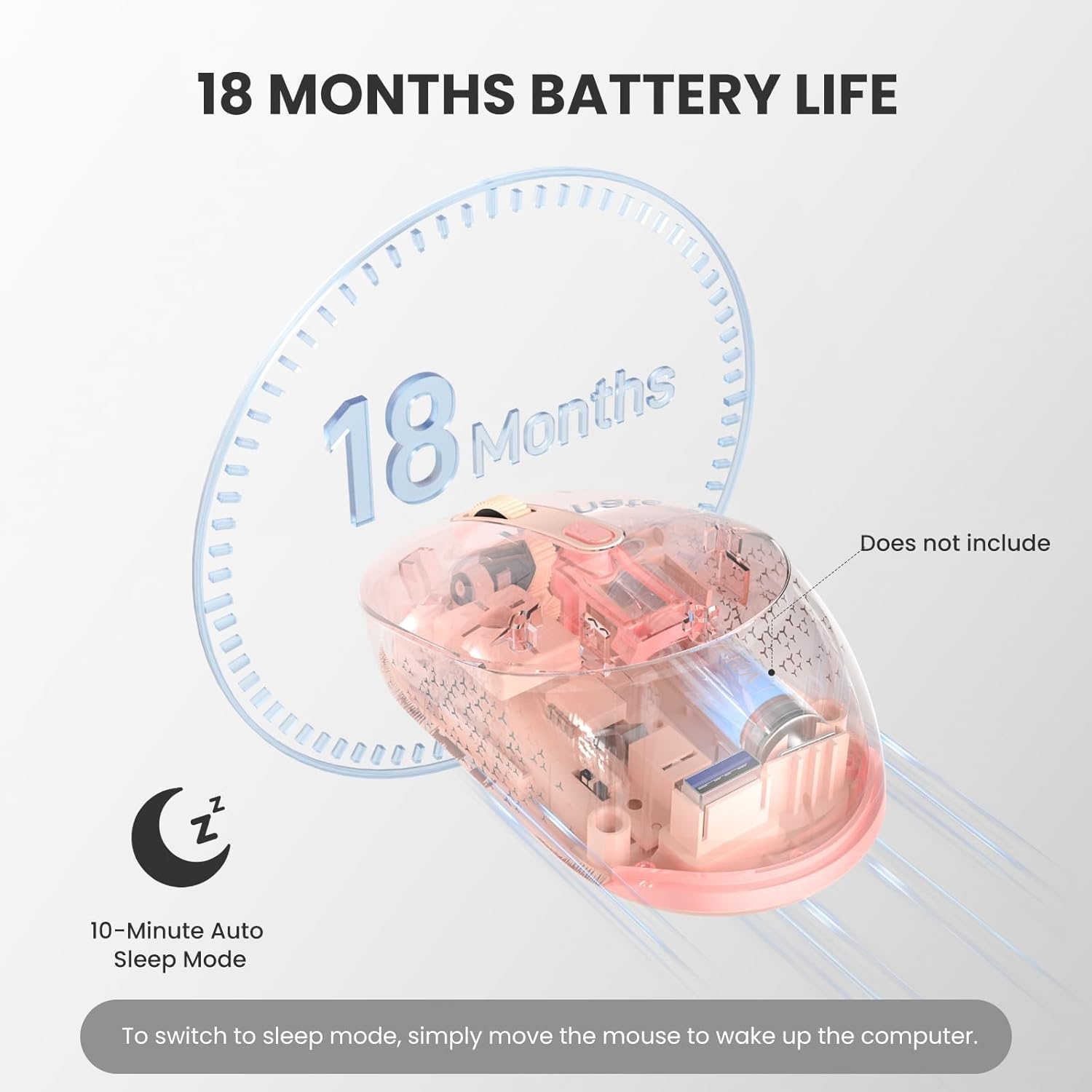
Image: Illustration highlighting the mouse's 18-month battery life and its 10-minute auto-sleep mode feature.
Maintenance
- Cleaning: Keep the mouse clean by wiping it with a soft, dry cloth. Avoid using harsh chemicals or abrasive materials.
- Storage: Avoid exposing the mouse to extreme temperatures, direct sunlight, or liquids. Store the USB receiver inside the mouse when not in use to prevent loss.
- Battery Care: When not in use for extended periods, consider removing the battery to prevent potential leakage and damage.
Troubleshooting
| Problem | Solution |
|---|---|
| Mouse not responding | Check battery level and replace if necessary. Ensure the mouse is powered on. Verify correct connection mode (Bluetooth or 2.4G USB) is selected via the switch on the bottom. For 2.4G, ensure the USB receiver is securely plugged into a working USB port. For Bluetooth, try re-pairing the device. |
| Intermittent connection or lag | Ensure the mouse is within the optimal operating range (up to 34 feet/10 meters). Avoid obstructions between the mouse and the receiver/device. Try connecting to a different USB port or re-pairing the Bluetooth connection. Reduce interference from other wireless devices. |
| Cursor movement is erratic or imprecise | Clean the optical sensor on the bottom of the mouse with a soft, dry cloth. Use the mouse on a clean, non-reflective, and uniform surface. Adjust DPI settings to a lower sensitivity if the cursor is too fast. |
| Side buttons not working on macOS | Please note that the side buttons on this mouse are not compatible with macOS. This is a system-specific limitation. |
| Mouse enters sleep mode too quickly | The mouse is designed to enter sleep mode after 10 minutes of inactivity to save power. To wake it, simply click any button 2-3 times or move the mouse. This behavior is normal. |
Specifications
- Model: TK-MS046
- Connectivity: Bluetooth 5.0/3.0, 2.4G USB
- Product Dimensions: 4 x 2.5 x 0.1 inches (overall), 2.36 x 4.09 x 1.49 inches (compact body)
- Item Weight: 2.12 ounces
- Battery: 1 x AA battery (not included)
- Battery Life: Up to 18 months
- DPI Levels: Adjustable (e.g., 800, 1200, 1600)
- Click Lifespan: Rated for 10 Million Clicks (Left & Right buttons)
- Compatibility: Windows, macOS, Chrome, Linux
- Special Features: Silent Click, Auto-Sleep Mode, Ergonomic Symmetrical Design, Optical Movement Detection

Image: Diagram illustrating the compact dimensions of the mouse and demonstrating various grip styles (palm, finger, and claw grip).
Warranty and Support
This TECKNET product is backed by a 36-month warranty upon registration. For technical assistance, warranty claims, or any product-related inquiries, please contact TECKNET customer service.
Official Website: www.tecknet.co.uk
Email Support: support@tecknet.co.uk


