1. Introduction
The MLEEDA DisplayPort Dual Monitor KVM Switch allows you to control up to three computers or laptops using a single set of keyboard, mouse, and two monitors. It supports high-resolution video output and provides multiple USB 3.0 ports for peripheral sharing, enhancing efficiency in various environments such as office, home, and gaming setups.
2. Package Contents
Please verify that all items listed below are included in your package:
- 1 x MLEEDA DP KVM Switch
- 3 x USB 3.0 Cables (1.5m)
- 2 x DP 1.4 Cables (1.5m)
- 1 x Wired Remote (1.5m)
- 1 x 12V Power Adapter
- 1 x User Manual

Image: All components included in the MLEEDA DP KVM Switch package, neatly arranged.
3. Product Features
- 3 Computers, 2 Monitors KVM Switch: Control three computers or laptops with one keyboard, mouse, and two monitors.
- Ultra HD Resolution: Supports resolutions up to 8K@60Hz and 4K@144Hz, with backward compatibility. Allows connection of computers with different resolutions (e.g., 4K@60Hz, 4K@30Hz, 1440P@60Hz).
- 4 USB 3.0 Ports: Integrated USB 3.0 ports offer data transfer speeds up to 5Gbps for keyboard, mouse, printer, scanner, and other USB devices.
- Wide Compatibility: Driver-free operation for Windows, Vista, Mac OS, Linux, and Unix operating systems.
- Two Switching Modes: Switch between connected computers using the button on the KVM panel or the included wired remote. LED indicators show the active computer.
- 12V Power Adapter: Includes a 12V power adapter to ensure stable connections, especially when high-power USB devices (like HDDs, SSDs) are connected.

Image: The MLEEDA KVM switch unit with its various ports and included cables.

Image: A detailed diagram illustrating how to connect three PCs and two monitors to the KVM switch, including USB peripherals.
4. Setup Instructions
Follow these steps to set up your MLEEDA DisplayPort Dual Monitor KVM Switch:
- Power Off Devices: Before connecting, ensure all computers and monitors are powered off.
- Connect Monitors to KVM: Connect your two DisplayPort monitors to the "DP MONITOR OUT A" and "DP MONITOR OUT B" ports on the KVM switch.
- Connect Computers to KVM (Video): For each computer (PC1, PC2, PC3), connect two DisplayPort cables from the computer's DisplayPort outputs to the corresponding "DP INPUT A" and "DP INPUT B" ports on the KVM switch (e.g., PC1's DP outputs to INPUT A1 and INPUT B1).
- Connect Computers to KVM (USB): For each computer, connect one USB 3.0 cable from a USB 3.0 port on the computer to the corresponding "USB3.0 INPUT" port on the KVM switch (e.g., PC1's USB to INPUT A1). This cable enables keyboard, mouse, and other USB peripheral sharing.
- Connect Keyboard and Mouse: Connect your keyboard and mouse to the dedicated USB 3.0 ports on the front panel of the KVM switch.
- Connect Other USB Devices: Connect any other USB 3.0 devices (e.g., printer, USB drive) to the remaining USB 3.0 ports on the KVM switch.
- Connect Power Adapter: Plug the included 12V power adapter into the "DC/12V" port on the KVM switch and then into a power outlet.
- Power On Devices: Power on the KVM switch, then your monitors, and finally your computers.
Important Note:
Each PC requires 2 DisplayPort cables and 1 USB 3.0 cable to be connected to the KVM switch for proper dual-screen display and USB functionality. If your desktop or laptop lacks two DisplayPort outputs, a reliable adapter or USB-C docking station may be required.

Image: Detailed view of the KVM switch's rear panel, highlighting DisplayPort inputs/outputs and USB connections.
5. Operating Instructions
The MLEEDA KVM switch offers two methods for switching between connected computers:
5.1. Button Switching
Press the corresponding button (PC1, PC2, or PC3) on the front panel of the KVM switch to switch to the desired computer. The LED indicator above the button will illuminate to show the active computer.
5.2. Wired Remote Switching
Use the included wired remote control to switch between computers. Simply press the button on the remote to cycle through the connected PCs.

Image: The KVM switch demonstrating both the manual button switch and the wired remote for computer selection.
5.3. Display Modes
The KVM switch supports both Mirror Mode and Extended Mode for your dual monitors, depending on your computer's display settings.
- Mirror Mode: Both monitors display the same content.
- Extended Mode: Monitors act as a single, continuous desktop, extending your workspace.
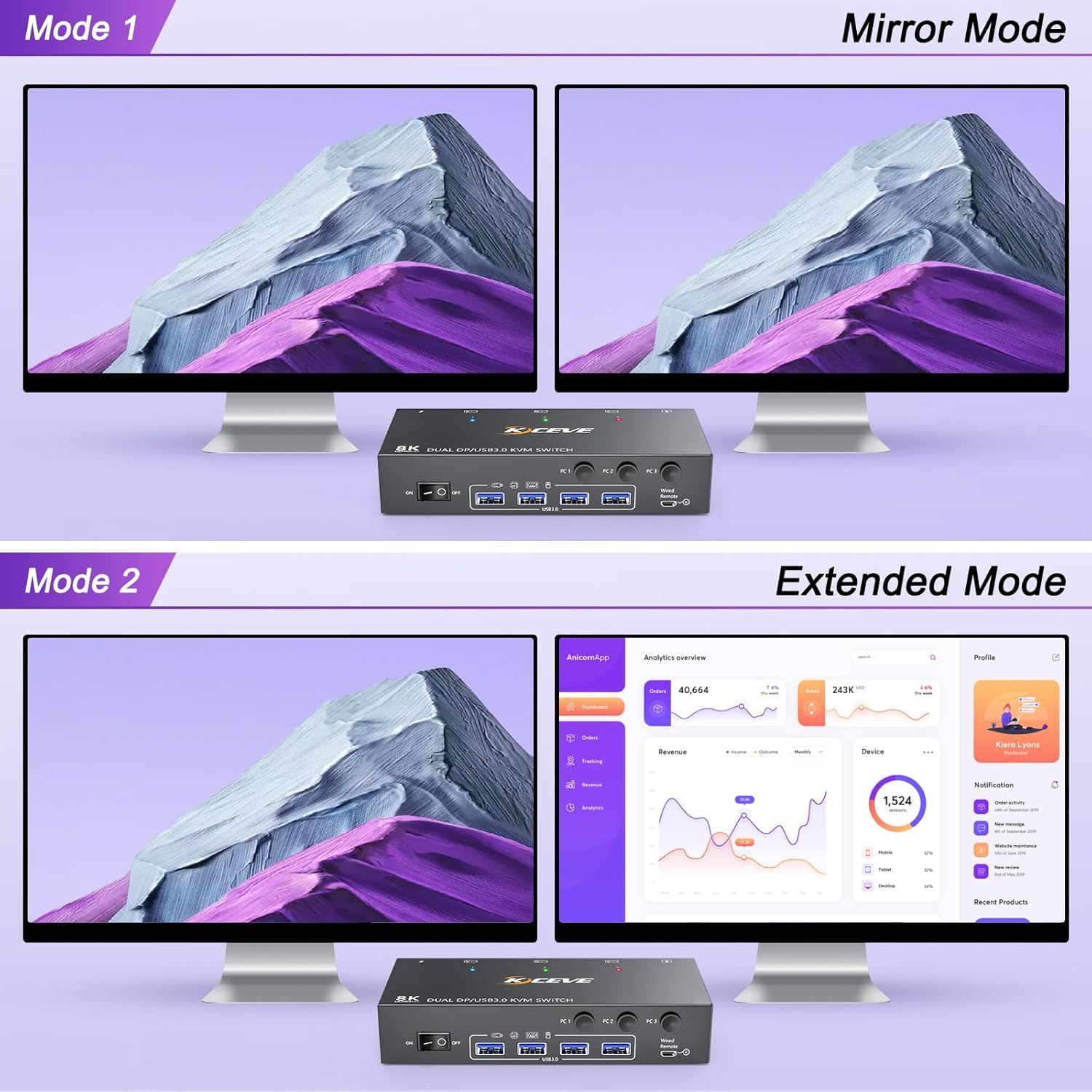
Image: Visual representation of dual monitor setups in both Mirror Mode (Mode 1) and Extended Mode (Mode 2).
6. Maintenance
To ensure the longevity and optimal performance of your MLEEDA KVM switch, follow these maintenance guidelines:
- Cleaning: Use a soft, dry cloth to clean the exterior of the KVM switch. Avoid using liquid cleaners or aerosols, which may damage the device.
- Ventilation: Ensure the KVM switch is placed in a well-ventilated area to prevent overheating. Do not block any ventilation openings.
- Cable Management: Keep cables organized and free from kinks or excessive bending to prevent damage to the cables and ports.
- Power Supply: Always use the original 12V power adapter provided with the KVM switch.
- Storage: If storing the device for an extended period, disconnect all cables and store it in a cool, dry place.
7. Troubleshooting
If you encounter issues with your MLEEDA KVM switch, please refer to the following common problems and solutions:
| Problem | Possible Cause | Solution |
|---|---|---|
| No display on monitors. | Incorrect cable connection; KVM not powered; monitor input not selected correctly. |
|
| Keyboard/Mouse not working. | USB cable not connected; KVM not powered; incompatible keyboard/mouse. |
|
| Unstable connection or flickering display. | Insufficient power; cable quality; resolution issues. |
|
| Switching takes too long. | System re-detection time. | This is normal behavior as the KVM emulates unplugging/replugging the display. The time may vary slightly between operating systems. |
If the problem persists after trying these solutions, please contact MLEEDA customer support for further assistance.
8. Specifications
| Feature | Detail |
|---|---|
| Model Number | Displayport KVM Switch 2 monitors |
| Product Dimensions | 6.3 x 2.56 x 1.18 inches |
| Item Weight | 15.87 ounces |
| Video Ports | DisplayPort 1.4 |
| USB Ports | 4 x USB 3.0 (downstream), 3 x USB 3.0 (upstream) |
| Max Resolution | 8K@60Hz, 4K@144Hz |
| Data Transfer Rate | Up to 5Gbps (USB 3.0) |
| Power Supply | 12V Power Adapter (included) |
| Switching Methods | Button Switch, Wired Remote |
| Compatibility | Windows, Vista, Mac OS, Linux, Unix |
9. Warranty and Support
MLEEDA provides a 1-year warranty for this product. If you have any questions or require technical assistance, please do not hesitate to contact MLEEDA customer support. Our team is dedicated to providing prompt and helpful solutions.
For support, please refer to the contact information provided on the MLEEDA official website or your purchase documentation.


