
1. Important Safety Instructions
Please read all instructions carefully before using the Vamvo VF340 Mini Projector and retain this manual for future reference. Adhering to these guidelines ensures safe operation and optimal performance.
- Power Supply: Use only the provided power adapter. Ensure the voltage matches the projector's requirements.
- Ventilation: Do not block ventilation openings. Maintain adequate space around the projector for proper airflow to prevent overheating.
- Cleaning: Clean the lens and exterior surfaces with a soft, dry cloth. Avoid abrasive cleaners or solvents.
- Water and Moisture: Do not expose the projector to rain, moisture, or immerse it in water. Keep liquids away from the device.
- Placement: Place the projector on a stable, flat surface. Avoid placing it in direct sunlight or near heat sources.
- Eye Protection: Do not look directly into the projector lens when the lamp is on, as the bright light can cause eye damage.
- Servicing: Do not attempt to repair the projector yourself. Refer all servicing to qualified personnel.
2. Package Contents
Verify that all items listed below are included in your Vamvo VF340 Mini Projector package:
- Vamvo VF340 Mini Projector
- HDMI Cable
- Remote Control
- User Manual
- Power Adapter
- Warranty Card
3. Product Overview
Familiarize yourself with the physical components and interfaces of your Vamvo VF340 Mini Projector.
Front View

The front of the projector features the main projection lens and an infrared receiver for the remote control. The lens is protected by a cover (not shown in this image) which should be removed before operation.
Top Controls
The top panel includes an array of buttons for basic navigation and control, such as power, menu, source selection, and directional keys. These allow for direct interaction with the projector's interface.
Side and Rear Ports
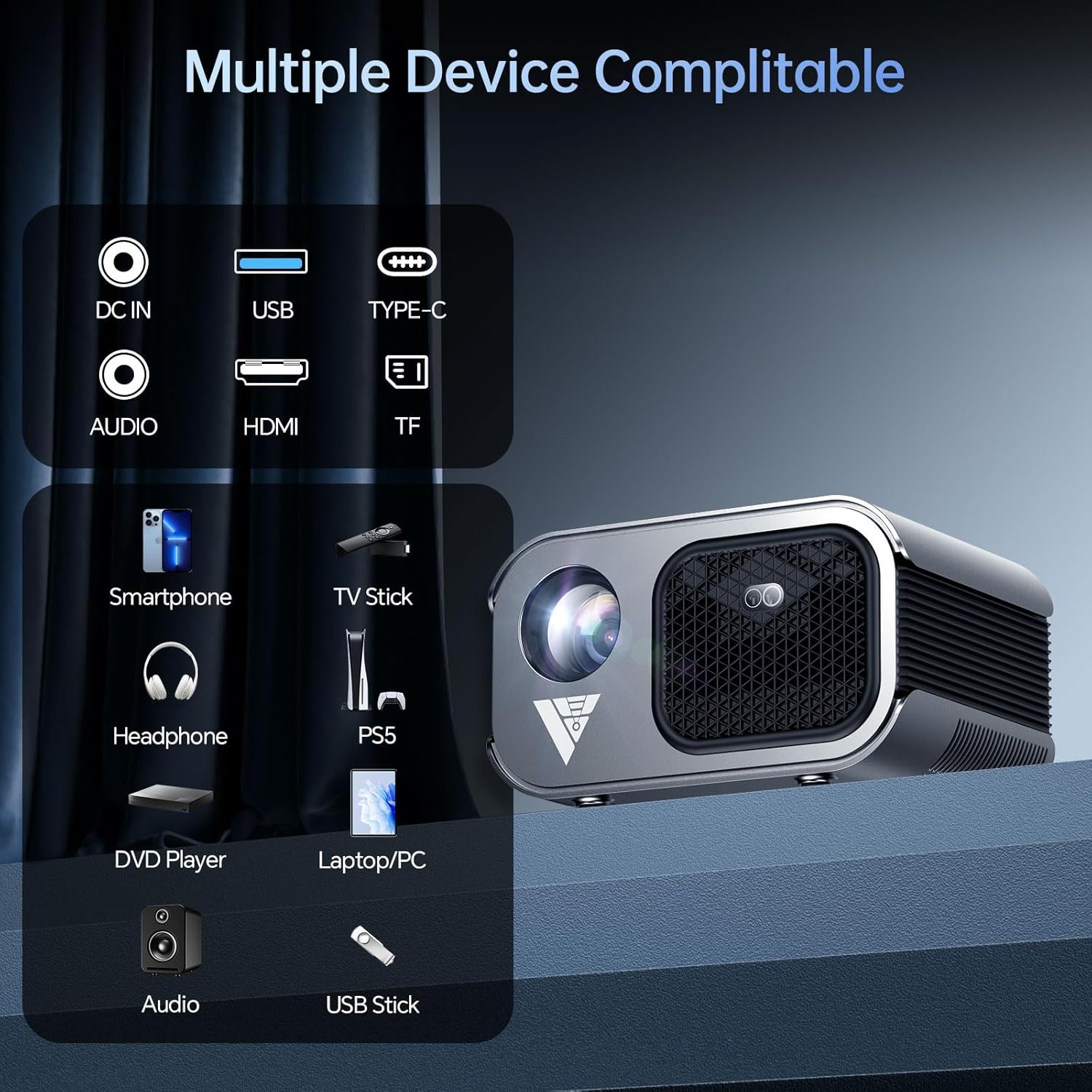
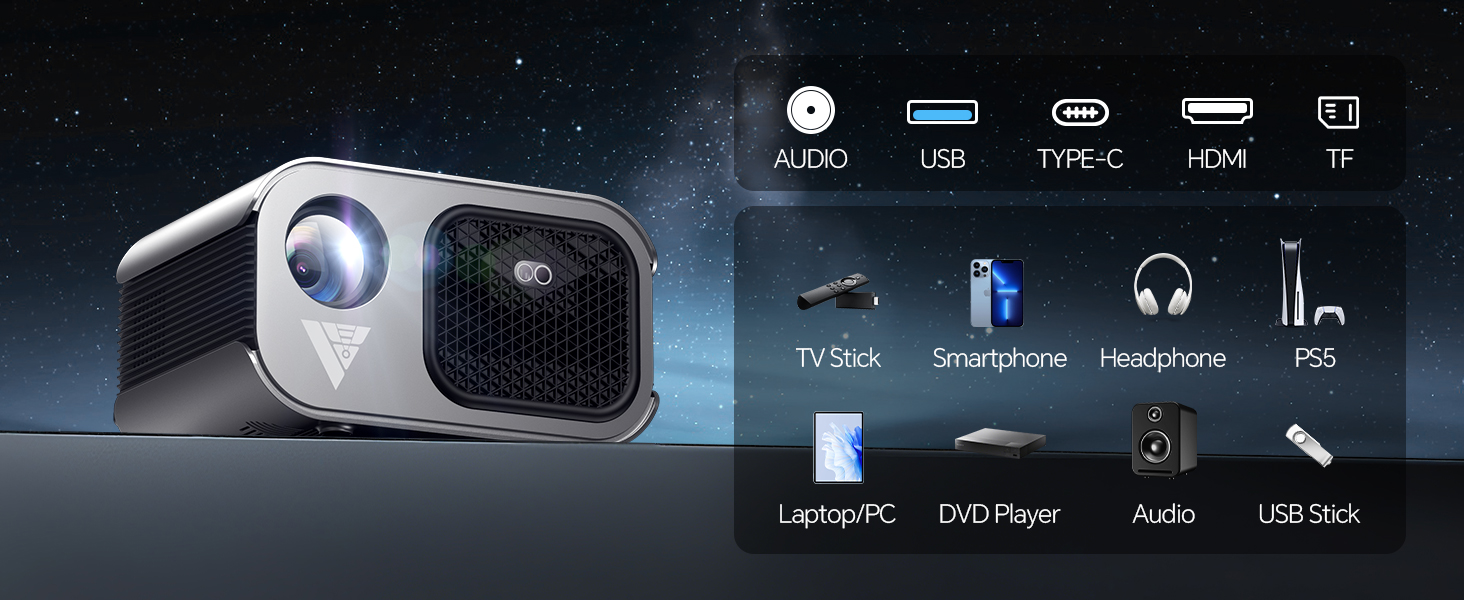
The side and rear panels house various input and output ports for connecting external devices. These include DC IN for power, HDMI for high-definition video and audio, USB for media playback, and an Audio Out (3.5mm) jack for external speakers or headphones. Some models may also feature a Type-C port and TF card slot.
Focus and Keystone Adjustment
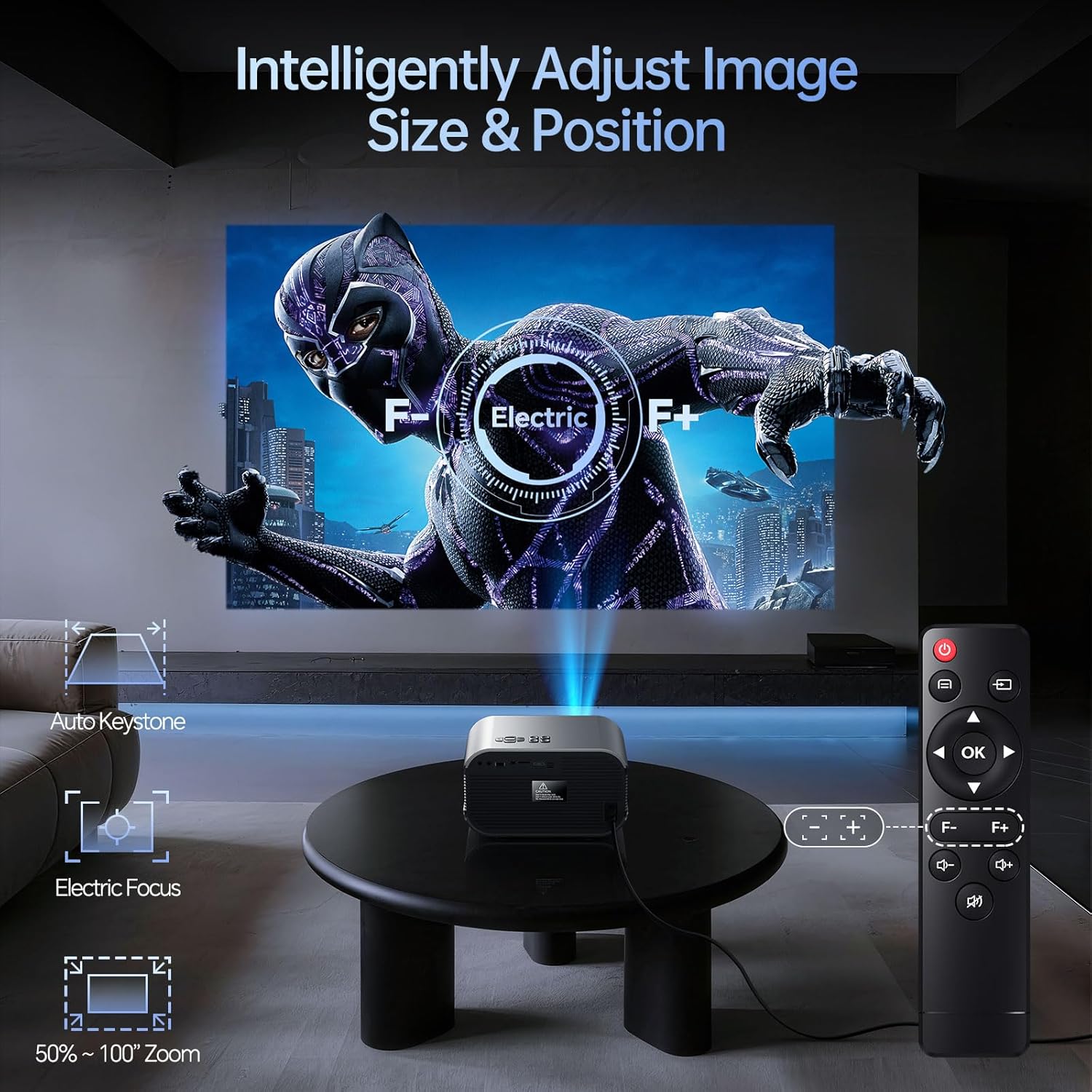
The projector features an electric focus mechanism, allowing for sharp image adjustment via the remote control. Automatic keystone correction helps to square the image even when the projector is not perfectly aligned with the screen.
4. Setup
4.1 Power Connection
- Connect the power adapter to the DC IN port on the projector.
- Plug the power adapter into a suitable electrical outlet.
- The power indicator light will illuminate, indicating the projector is ready for use.
4.2 Placement and Screen Adjustment
Optimal projection quality depends on proper placement and image adjustment.
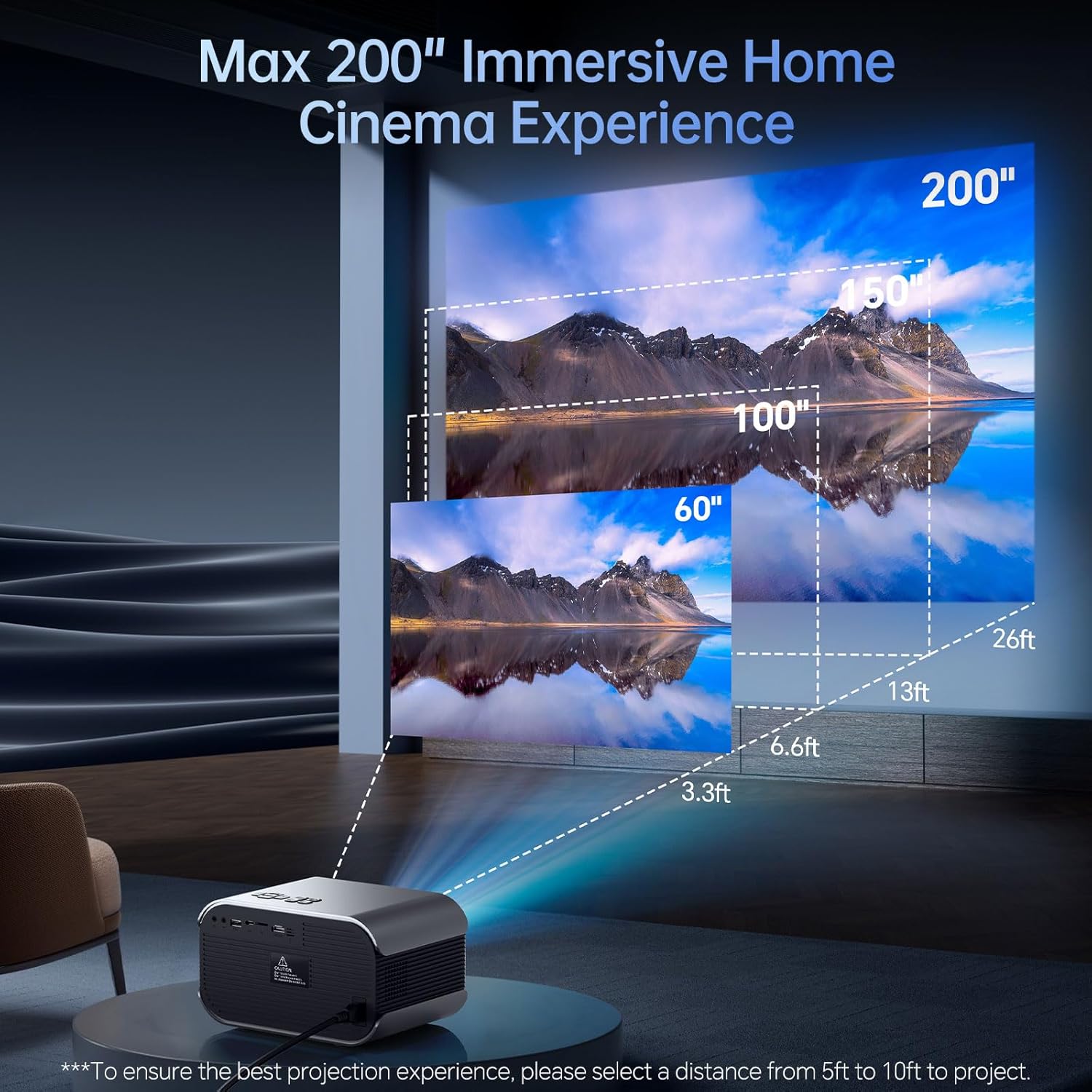
The Vamvo VF340 supports a maximum display size of 200 inches. For the best projection experience, select a distance from 5ft to 10ft to project.
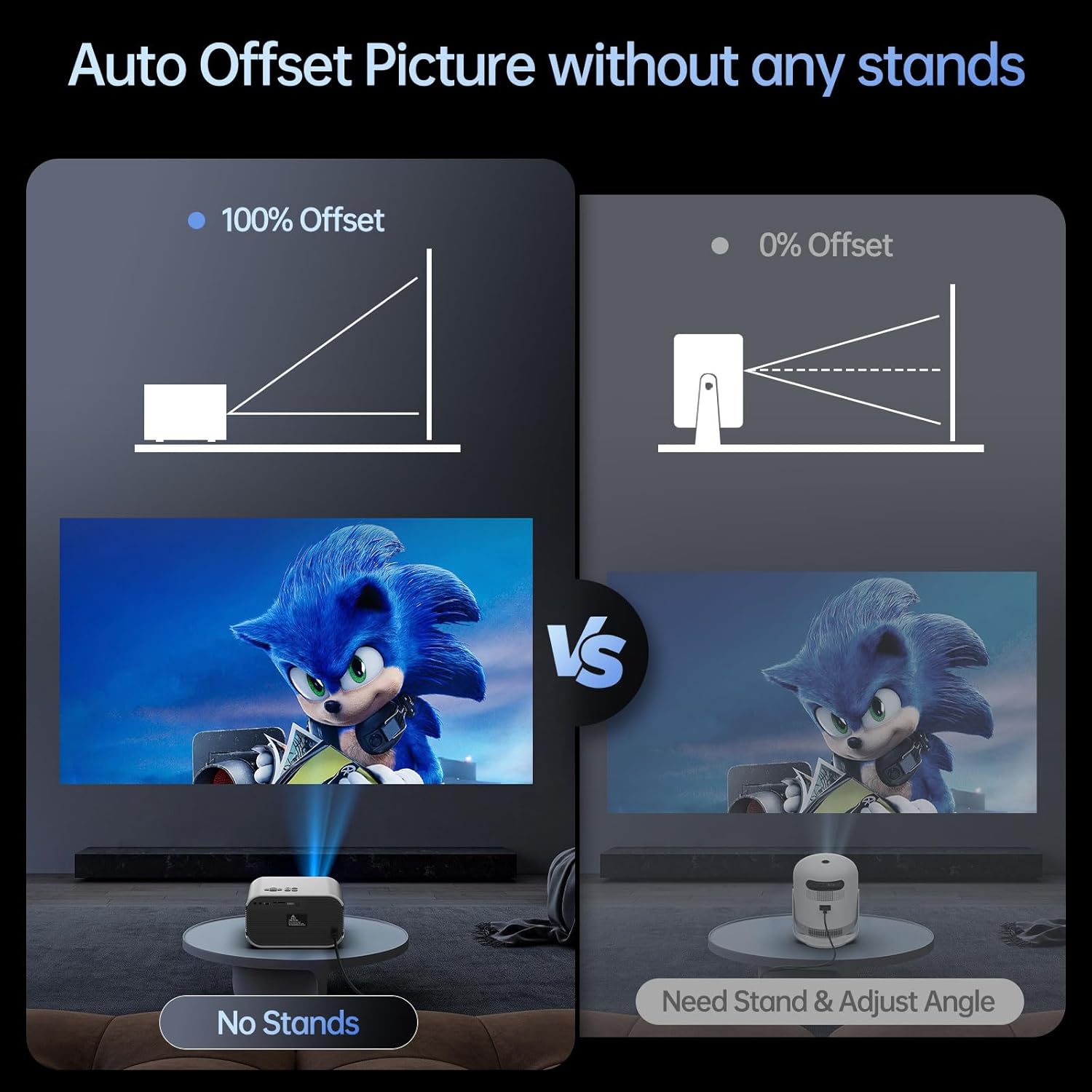
The projector features an auto offset picture function, which can adjust the image without needing external stands, simplifying setup.
4.3 Connecting Devices
The projector offers versatile connectivity options for various devices.
HDMI Connection
- Connect an HDMI cable from your device (e.g., laptop, PS5, TV Stick) to the HDMI port on the projector.
- Select 'HDMI' as the input source in the projector's menu.
USB Connection
- Insert a USB flash drive into the USB port.
- Select 'USB' as the input source to browse and play media files.
Wireless Connection (WiFi)
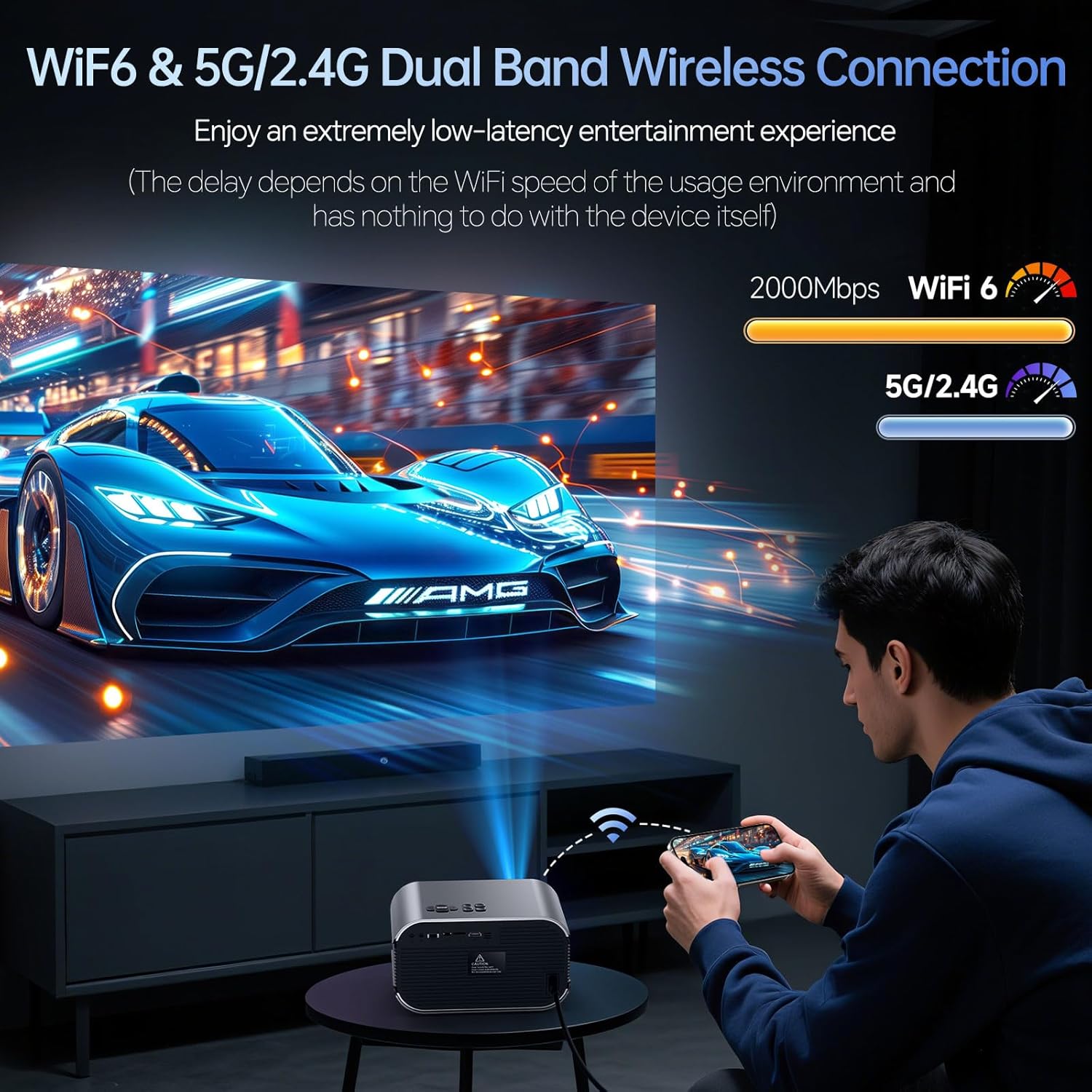
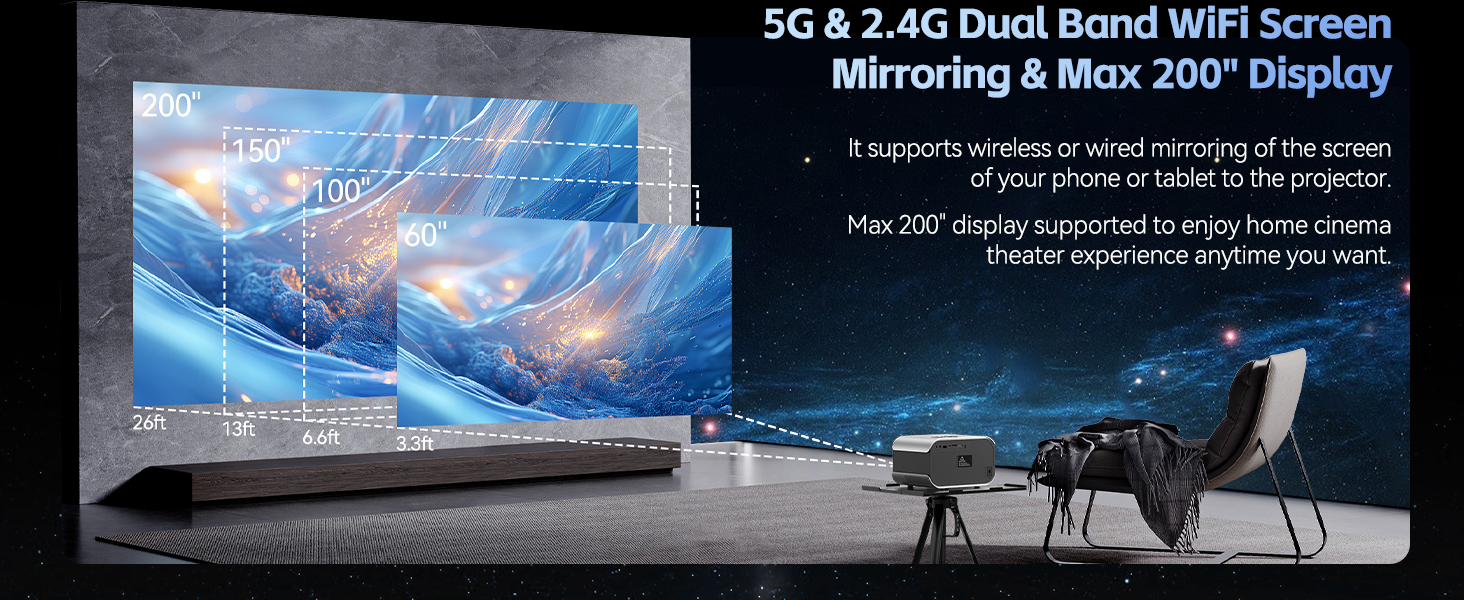
The projector supports dual-band 5G/2.4G WiFi for faster speeds and reduced interference, enabling screen mirroring from compatible devices.
- Navigate to the WiFi settings in the projector's menu.
- Select your desired network and enter the password.
- Once connected, you can use screen mirroring features for Android, iOS, or PC devices.
Bluetooth Connection
The projector features Bluetooth 5.2 for audio transmission only. It can connect to external Bluetooth speakers, headphones, or soundbars.
- Go to the Bluetooth settings in the projector's menu.
- Enable Bluetooth and search for available devices.
- Select your audio device to pair.
- Note: Bluetooth function supports audio transmission only, not video.
5. Operating Instructions
5.1 Power On/Off
- Power On: Press the power button on the projector or the remote control.
- Power Off: Press the power button again. Confirm shutdown if prompted.
5.2 Menu Navigation
- Use the directional buttons on the projector or remote to navigate through menu options.
- Press the 'OK' button to confirm selections.
- Press the 'Back' button to return to the previous menu or exit.
5.3 Focus and Keystone Adjustment
- Electric Focus: Use the dedicated focus buttons on the remote control (F+/F-) to achieve a sharp image.
- Keystone Correction: The projector features automatic keystone correction. If manual adjustment is needed, navigate to the 'Image Settings' menu.
5.4 Audio Settings
- Built-in Speakers: The projector has built-in 3D Stereo Hi-Fi Audio Sound Speakers.
- External Audio: Connect external speakers or headphones via the 3.5mm Audio Out jack or pair via Bluetooth for enhanced sound.
- Adjust volume using the remote control or the projector's control panel.
5.5 Screen Mirroring
- Ensure your device (Android/iOS/PC) and the projector are connected to the same WiFi network.
- Select the 'Screen Mirroring' or 'Wireless Display' option on the projector.
- Follow the on-screen instructions to connect your device.
5.6 Media Playback
- Select the appropriate input source (HDMI, USB) for your connected device.
- Use the projector's navigation controls or remote to play content.
Warm Tip: This projector is designed for home theater use and is not recommended for PPT or business presentations. Due to APP copyright reasons, movies on streaming services like Netflix and Prime Video can only be watched through laptops, TV sticks, or Roku devices connected via HDMI.
6. Maintenance
Regular maintenance helps prolong the life and performance of your projector.
- Lens Cleaning: Use a professional lens cleaning cloth or air blower to clean the projector lens. Avoid touching the lens directly with your fingers.
- Dust Filter Cleaning: Periodically check and clean the dust filter (if applicable) to ensure optimal airflow and prevent dust buildup.
- Ventilation: Ensure the projector's ventilation vents are clear and unobstructed. Do not place the projector on soft surfaces that may block airflow.
- Storage: When not in use for extended periods, store the projector in a cool, dry, dust-free environment.
7. Troubleshooting
If you encounter issues with your Vamvo VF340 Mini Projector, refer to the following common problems and solutions:
- No Image:
- Ensure the power adapter is securely connected and the projector is powered on.
- Check that the input source is correctly selected (e.g., HDMI, USB).
- Verify that the connected device is powered on and outputting a signal.
- Blurry Image:
- Adjust the electric focus using the remote control (F+/F-).
- Ensure the projection distance is within the recommended range.
- Clean the projector lens if it appears dirty.
- No Sound:
- Check the volume level on both the projector and the connected device.
- If using external speakers, ensure they are properly connected or paired via Bluetooth.
- Verify that the audio output settings on your source device are correct.
- Connectivity Issues (WiFi/Bluetooth):
- Ensure the projector and your device are within range of the WiFi router or each other for Bluetooth.
- Restart the projector and your device.
- Check for any interference from other wireless devices.
8. Specifications
Key technical specifications for the Vamvo VF340 Mini Projector:
| Feature | Specification |
|---|---|
| Brand | Vamvo |
| Model Number | VF340 |
| Display Resolution | Native 1920 x 1080 (4K Supported) |
| Connectivity Technology | HDMI, USB, WiFi (5G/2.4G), Bluetooth 5.2 |
| Special Features | Built-In Speaker, Electric Focus, Keystone Correction |
| Recommended Uses | Gaming, Home Cinema |
| Item Weight | 1.46 pounds |
| Package Dimensions | 10.67 x 9.92 x 6.77 inches |
9. Warranty and Support
Vamvo is committed to providing exceptional after-sales service for your VF340 Mini Projector.
- Customer Support: Enjoy 24/7 support for any concerns or issues.
- Protection Plan: The product includes a 3-year protection plan.
- Lifetime Customer Care: Benefit from lifetime customer care for your purchase.
- Technical Support: Long-life technical support is offered. Please feel free to contact us with any product questions.
For further assistance, please visit the official Vamvo Store: Vamvo Store on Amazon


