
Introduction
This manual provides comprehensive instructions for the setup, operation, and maintenance of your EWEADN V20 Wired Typewriter Keyboard and Mouse Combo. Designed for both productivity and gaming, this combo features a retro typewriter aesthetic with modern mechanical functionality. Please read this manual thoroughly to ensure optimal performance and longevity of your device.
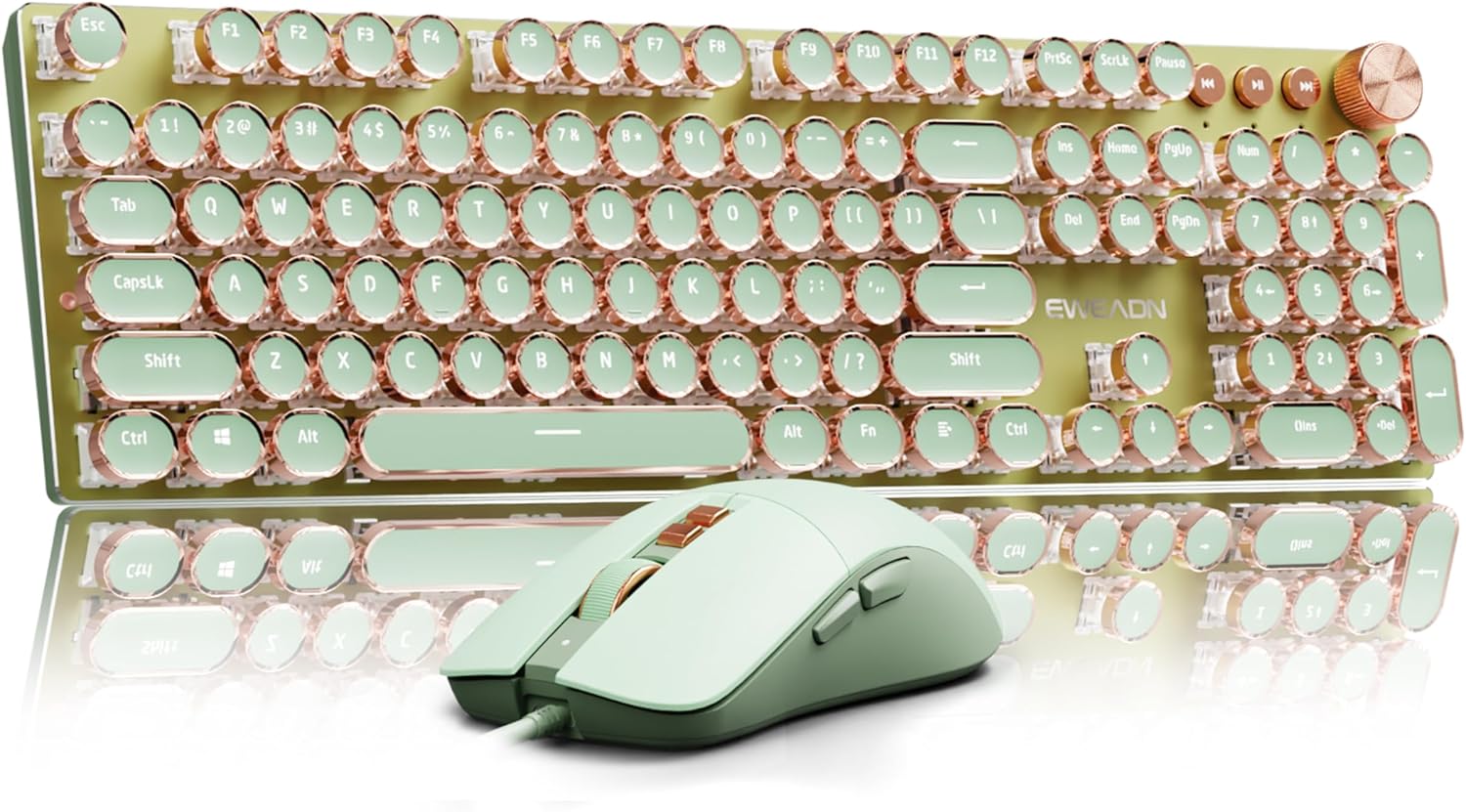
Image: The EWEADN V20 Wired Typewriter Keyboard and Mouse Combo, showcasing its green color scheme with rose gold keycap rims and a matching wired mouse.
Setup
1. Connecting the Keyboard and Mouse
The EWEADN V20 combo utilizes a wired USB connection for both the keyboard and mouse, ensuring stable transmission and high-speed response. No drivers or additional software are required for basic functionality.
- Keyboard Connection: Locate the Type-C port on the keyboard. Connect the provided Type-C USB cable to this port and plug the other end into an available USB port on your computer.
- Mouse Connection: The wired mouse connects directly via its integrated USB cable. Plug the USB connector into an available USB port on your computer.

Image: A detailed view of the Type-C interface on the keyboard and the USB cable for the mouse, illustrating the wired connection points.
2. System Compatibility
The EWEADN V20 is compatible with Windows 7/8/10/XP/Vista, Linux, and Mac OS systems. To switch between Windows and Mac layouts:
- For Windows Layout: Press and hold FN + TAB simultaneously, then press W.
- For Mac Layout: Press and hold FN + TAB simultaneously, then press A.

Image: Visual guide for switching between Windows and Mac keyboard layouts using FN key combinations.
Operating the Keyboard
1. Key Features
- Mechanical Pink Switches: Experience a smooth linear feel with low resistance. These switches are designed for comfortable typing and stable clicks, with a key life of 10 million clicks.
- 104 Keys Anti-Ghosting: All keys feature anti-ghosting technology, ensuring accurate recognition of every key operation even when multiple keys are pressed simultaneously. This prevents key conflicts and errors during high-speed typing or gaming.
- Metal Panel and Electroplated Punk Keycaps: The keyboard panel is constructed from top-grade aluminum alloy for durability and a metallic matte texture. The floating keycaps are electroplated, enhancing the backlit effect.

Image: An exploded view of a mechanical pink switch, detailing its components and key specifications like key force and travel distance.
2. Multimedia Knob and Backlight Control
The keyboard features a dedicated multimedia knob for convenient control over volume and lighting effects.
- Volume Control: Rotate the knob to adjust the system volume. Press the knob to mute/unmute.
- Backlight Brightness: Press and hold FN + Knob to switch to lighting mode. Rotate the knob to adjust backlight brightness (5 levels).
- Lighting Effects: The keyboard offers 19 lighting effects.
- Press FN + INS to cycle through 19 basic lighting effects.
- Press FN + 1~8 to select specific game backlight modes.
- Press FN + ←/→ to adjust lighting speed.

Image: A visual guide to the keyboard's unique minimalist white light features and how to control them using FN key combinations.

Image: A close-up of the multimedia knob, showing its dual functionality for adjusting backlight brightness and system volume.
3. Multiple Function Keys
The keyboard includes various FN key combinations for convenient operation:
- FN + F1: Screen Brightness -
- FN + F2: Screen Brightness +
- FN + F3: Calculator
- FN + F4: Computer
- FN + F5: Player
- FN + F6: Previous Song
- FN + F7: Next Song
- FN + F8: Pause/Play
- FN + F9: Stop Playing
- FN + F10: Mute
- FN + F11: Volume +
- FN + F12: Volume -
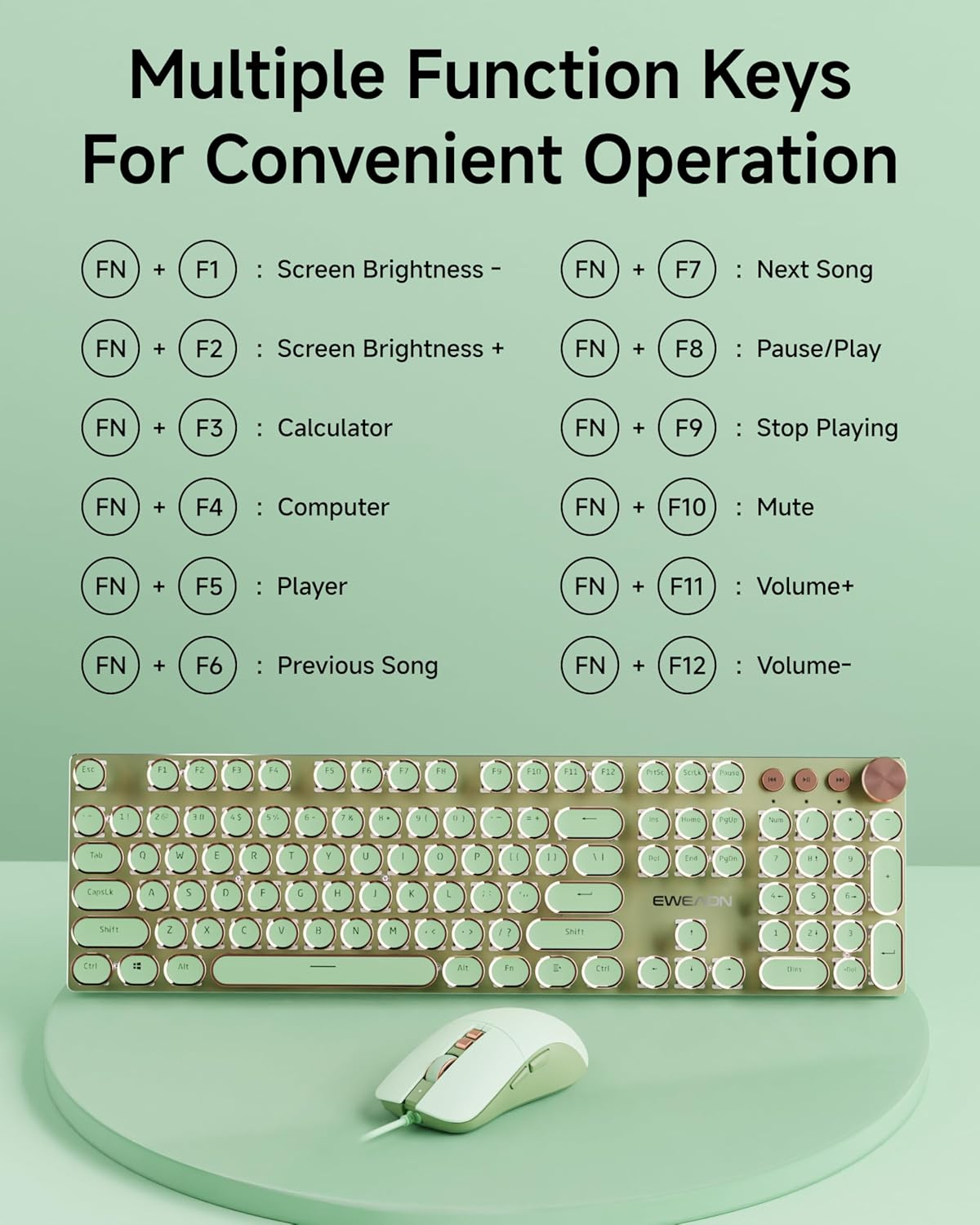
Image: A comprehensive overview of the keyboard's multiple function keys and their corresponding FN key combinations for quick access to various features.
Operating the Mouse
The EWEADN V20 wired gaming mouse is plug-and-play, offering precise cursor movements and customizable buttons.
- 7 Buttons: The mouse features 7 programmable buttons for enhanced functionality in gaming or productivity tasks.
- DPI Adjustment: Adjust the DPI (Dots Per Inch) settings between 1200-2400 to control cursor sensitivity and speed. This allows for precise movements tailored to your preference.

Image: A detailed diagram of the wired gaming mouse, labeling each of its 7 buttons for user reference.
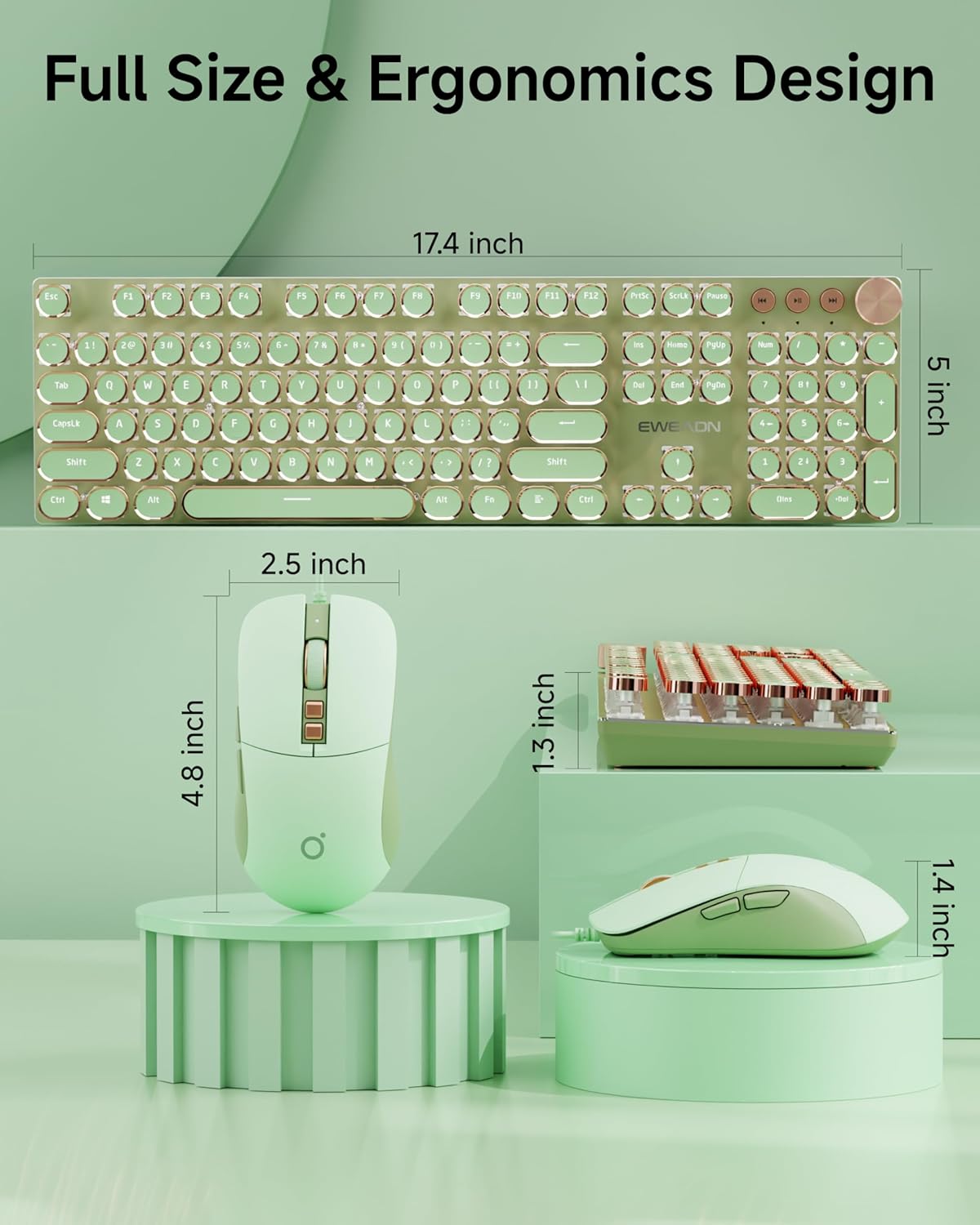
Image: A visual representation of the mouse's 4-level DPI adjustment, allowing users to select their preferred cursor movement speed.
Maintenance
To ensure the longevity and optimal performance of your EWEADN V20 keyboard and mouse combo, follow these maintenance guidelines:
- Cleaning: Use a soft, dry cloth to wipe down the surfaces of the keyboard and mouse regularly. For deeper cleaning, a slightly damp cloth with mild soap can be used, ensuring no liquid enters the internal components.
- Dust Removal: Use compressed air to remove dust and debris from between the keycaps.
- Avoid Liquids: Keep liquids away from the keyboard and mouse to prevent damage.
- Storage: When not in use, store the devices in a clean, dry environment away from extreme temperatures.
Troubleshooting
If you encounter any issues with your EWEADN V20 combo, refer to the following common troubleshooting steps:
- Device Not Responding:
- Ensure both the keyboard and mouse USB cables are securely plugged into your computer's USB ports.
- Try plugging the devices into different USB ports on your computer.
- Restart your computer.
- Backlight Not Working:
- Check if the backlight is turned off. Use the multimedia knob or FN key combinations to adjust brightness or cycle through effects.
- Ensure the keyboard is properly connected via USB.
- Incorrect Key Layout (Windows/Mac):
- Refer to the "System Compatibility" section to correctly switch between Windows and Mac layouts.
Specifications
| Feature | Detail |
|---|---|
| Model Number | V20 |
| Brand | SEUNKWANG (Manufacturer: EWEADN) |
| Connectivity Technology | Wired |
| Keyboard Description | Mechanical, Typewriter Style, 104 Keys, Anti-Ghosting |
| Key Switches | Custom Pink Switches (10 Million Keystrokes Life) |
| Backlighting | LED Backlit (Single Color), 19 Lighting Effects, 5 Brightness Levels |
| Multimedia Control | Dedicated Knob for Volume/Light, FN Function Keys |
| Mouse DPI | Adjustable 1200-2400 DPI |
| Compatible Devices | Laptop, PC, Gaming Console, Tablet, Smartphone (Windows/Mac/Linux) |
| Material | Metal (Aluminum Alloy Panel) |
| Item Weight | 2.29 pounds |
| Package Dimensions | 17.48 x 8.23 x 1.85 inches |

Image: Detailed dimensions of the keyboard and mouse, emphasizing their full-size and ergonomic design for comfortable use.
Warranty and Support
For any questions, troubleshooting assistance, or warranty inquiries, please contact EWEADN customer support.
- Email Support: support@eweadn.cn
EWEADN is committed to providing excellent customer service, including pre-sales Q&A, troubleshooting, accessories reissue, and returns/exchanges.