
1. Setup and Installation
1.1 Pre-Installation Check
Before proceeding with the installation, ensure your Toyota RAV4 (2022-2025) has a vent hole in the original front cover near the rearview mirror. This dash cam is designed for an OEM-style fit and requires this specific feature for proper installation.
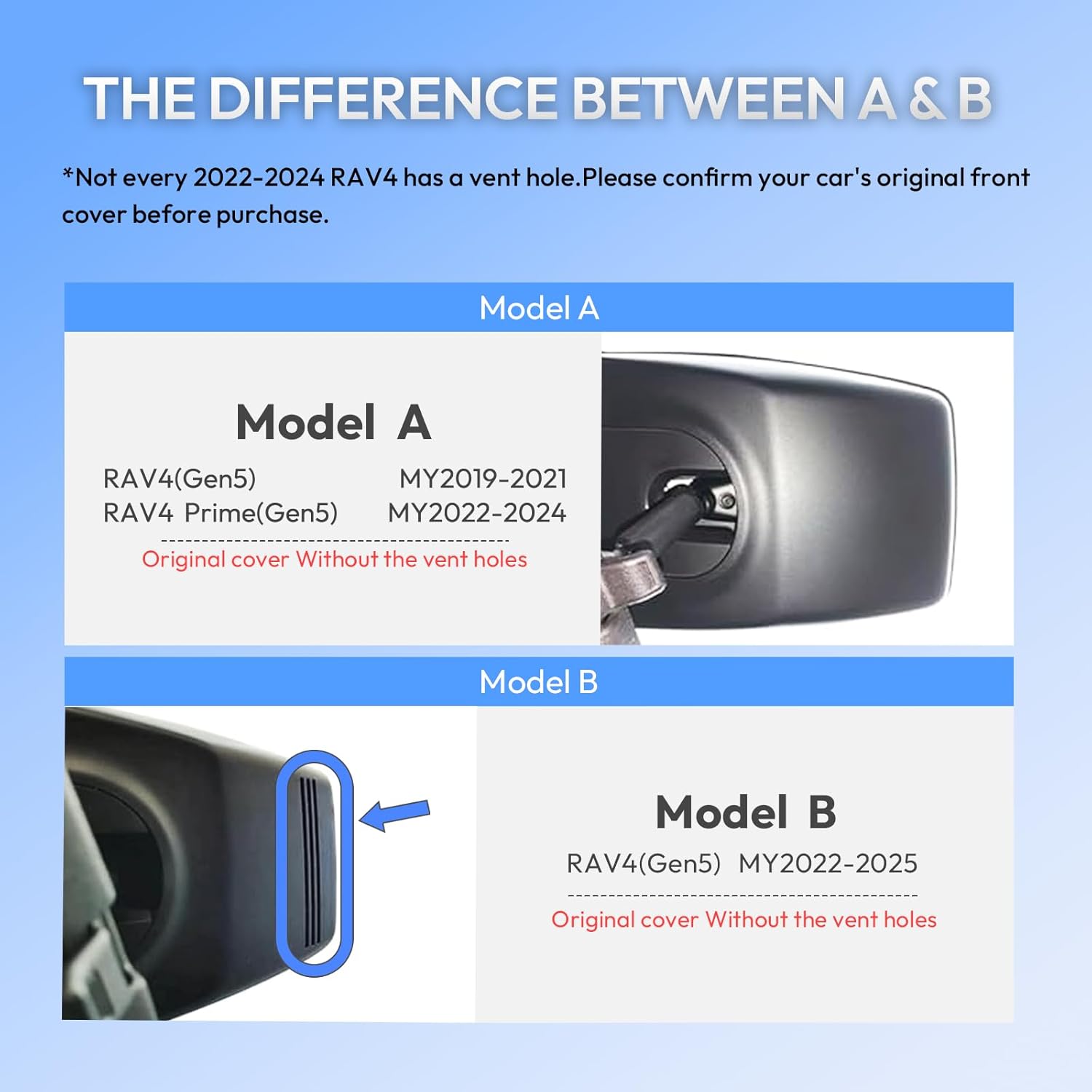
Image: Comparison of Toyota RAV4 front covers, highlighting the required vent hole for Model B compatibility.
1.2 Installation Steps
Follow these steps to install your FUVYMYT dash cam:
- Remove Covers: Carefully take off the front cover and then the rear cover around the rearview mirror assembly.
- Unplug 12-Pin Connector: Locate and unplug the 12-pin connector on the left side of the mirror assembly.
- Connect Y-Type Cable: Connect the provided Y-type cable to the power supply and then to the rain-fall sensor.
- Connect Dash Cam: Connect the dash cam to the Y-type cable.
- Install Dash Cam: Securely install the dash cam into the housing.
- Reinstall Covers: Reinstall the dash cam rear cover and finish the installation.
Video: Detailed installation guide for the FUVYMYT dash cam in a Toyota RAV4, demonstrating each step from cover removal to final assembly.
1.3 App Installation and Connection
To utilize the full features of your dash cam, download and connect to the FUVYMYT app:
- Connect to Dash Cam WiFi: On your smartphone, go to WiFi settings and connect to the network named 'DVR_xxxx' (default password: 12345678).
- Open FUVYMYT App: Launch the FUVYMYT application on your smartphone.
- Connect Camera: The app should detect the camera. Click to connect and enter the dash cam's main page.
Video: Guide on connecting the FUVYMYT dash cam to the mobile application and navigating its features.
2. Operation
2.1 Basic Functions
The dash cam features intuitive controls for essential functions:
- Power Button: Controls recording start/stop and device power.
- Photo Button: Captures still images.
- Indicator Lights: Provide status feedback (e.g., recording, power).
Video: Instructions on using the dash cam's physical buttons for recording, taking photos, and understanding indicator lights.
2.2 Recording Modes
- Loop Recording: The dash cam continuously records, overwriting the oldest footage when the memory card is full. This ensures uninterrupted recording.
- G-Sensor: In the event of a sudden impact or collision, the built-in G-sensor automatically detects the event and locks the current video file, preventing it from being overwritten.

Image: Visual explanation of Loop Recording and G-Sensor functionality, showing continuous recording and automatic file protection during impacts.
2.3 Parking Monitor
The 24-hour parking monitor feature provides surveillance when your vehicle is parked. This function requires an additional hardwire kit (ASIN: B0F53NJRK3) for continuous power supply.

Image: Hardwire kit required for 24-hour parking monitoring.
2.4 GPS Functionality
The dash cam's GPS function allows for tracking and playback of your journey routes. This feature must be manually enabled each time you wish to use it; it does not activate automatically.

Image: Overview of the FUVYMYT app interface, showing live view, GPS tracking, and fast download options.
3. Maintenance
3.1 SD Card Management
The dash cam supports a 64GB TF card (included) and can accommodate up to a 256GB TF card. Regularly check the SD card for proper function and sufficient storage space. If you need to format the SD card, you can do so via the app settings or by performing a factory reset (see 3.2).
3.2 Resetting the Device
To reset the dash cam to its factory settings, press and hold the photo button for 10 seconds. Attention: This action will result in the formatting of the SD card, deleting all recorded data. To reset the dash cam to its default settings without formatting the SD card, press the reset button (requires a tool to press).
4. Troubleshooting
4.1 App Connection Issues
- If the app cannot show live view, preview, or fails to download videos, try turning off cellular data or Bluetooth on your phone.
- Ensure your phone is connected to the dash cam's WiFi network (named 'DVR_xxxx'). The dash cam's WiFi does not provide internet access; it is solely for video transmission.
- If issues persist, contact customer support.
4.2 General Issues
- Dash Cam Not Turning On: Check power connections. Ensure the Y-type cable is securely connected to both the power supply and the dash cam.
- Recording Not Starting: Verify that an SD card is inserted and has sufficient free space. The blue indicator light should be on when recording.
- Poor Video Quality: Ensure the camera lens is clean and free from obstructions. Adjust exposure settings via the app if needed, especially in low-light conditions.
- Time Sync Issues: The camera's time should sync with your phone upon connection. If not, try reconnecting or restarting both devices.
5. Specifications
| Brand | FUVYMYT |
| Model Name | RM |
| Vehicle Service Type | Toyota RAV4 22-25 |
| Connectivity Technology | Wi-Fi |
| Special Feature | App Control |
| Video Capture Resolution | 3840*2160 (4K) |
| Included Components | 64GB Card, Card Reader, Installation Tool, User Manual |
| Mounting Type | Windshield Mount |
| Field Of View | 145 Degrees |
| Control Method | App |
| Flash Memory Type | microSD |
| Maximum Aperture | 1.6 f |
| Photo Sensor Size | 0.23*0.17 Inches |
| Are Batteries Included | Yes |
| Battery Cell Type | Lithium Metal |
| Frame Rate | 30 FPS |
| Included Memory Card Size | 64 GB |
| Flash Memory Supported Size Maximum | 256 GB |
| Item Dimensions D x W x H | 3.9"D x 5.5"W x 3.5"H |
| Item Weight | 0.31 Milligrams |
6. Warranty & Support
6.1 Warranty Information
The FUVYMYT dash cam comes with a 1-year manufacturer's warranty. Please retain your proof of purchase for warranty claims.
6.2 Return Policy
A 30-day return policy is applicable for this product. Refer to the retailer's return guidelines for detailed information.
6.3 Customer Support
If you encounter any issues or have questions regarding your FUVYMYT dash cam, please contact us via Amazon. We aim to respond within 12 hours to assist you.