
VOOPEAK TC31
VOOPEAK TC31 Cellular Trail Camera User Manual
Model: TC31
Product Overview
The VOOPEAK TC31 Cellular Trail Camera is designed for wildlife monitoring, hunting, and home security. It features 4G LTE connectivity, a built-in SIM card, 32MP photo resolution, 1080P video recording, and lifelong free cloud storage. Its robust design is suitable for outdoor use.
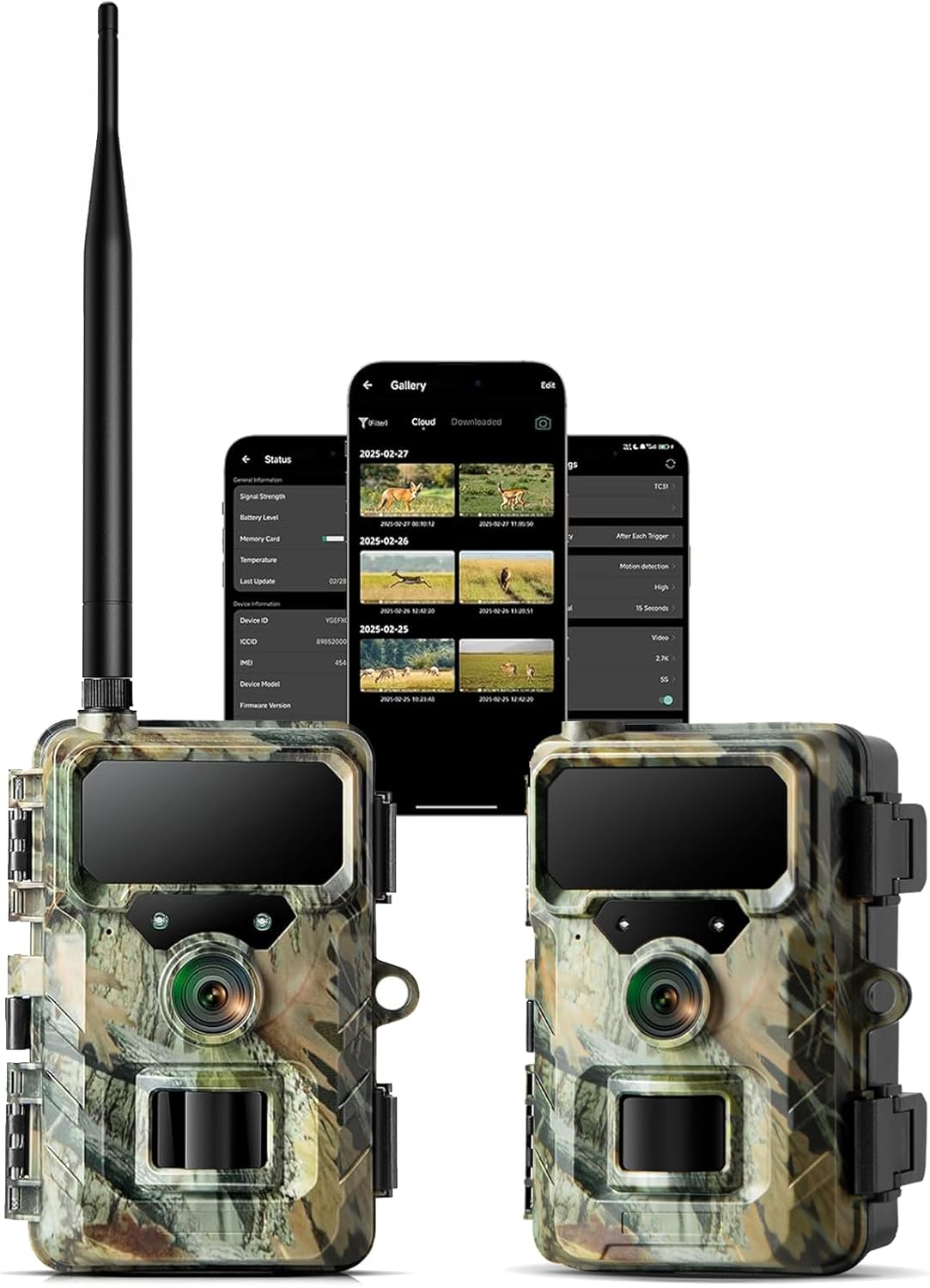
Image: Two VOOPEAK TC31 cellular trail cameras, one with an antenna, alongside a smartphone showing the camera's app gallery and settings. This illustrates the camera's design and its mobile app integration.
Key Features
- 4G Cellular Connectivity: Transmits footage directly to your smartphone using a built-in SIM card, compatible with Verizon, AT&T, and T-Mobile networks.
- Lifelong Free Cloud Storage: Provides complimentary cloud storage for all captured footage without additional fees.
- High-Resolution Imaging: Captures crystal-clear 32MP photos and 1080P videos.
- 2.0-Inch LCD Screen: Allows for instant playback and configuration directly on the device.
- PIR Motion Detection: Features a 120-degree wide detection angle and 0.1s fast trigger time, with real-time alerts to your smartphone.
- Flexible Power Options: Operates on 8 AA batteries (not included) or can be powered by a 6V 2A solar panel (sold separately).
- Loop Recording: Automatically deletes the oldest files to make space for new recordings when the micro SD card is full.
Package Contents
Ensure all items are present before proceeding with setup:
- 2 x VOOPEAK Cellular Trail Camera (with built-in SIM card)
- 2 x Mounting Strap and Bracket
- 2 x Set of Screws
Setup Guide
1. Powering the Camera
The camera requires 8 AA batteries (not included). Ensure correct polarity when inserting. For extended use, a 6V 2A solar panel (sold separately, ASIN: B0DPG2CGFW) can be connected.
2. Built-in SIM Card Activation
The camera comes with a built-in SIM card. No manual installation is required. Data plans are available starting from $3.59/month or $35.99/year. New users can access 1,000+ images for $0.01 for the first month.
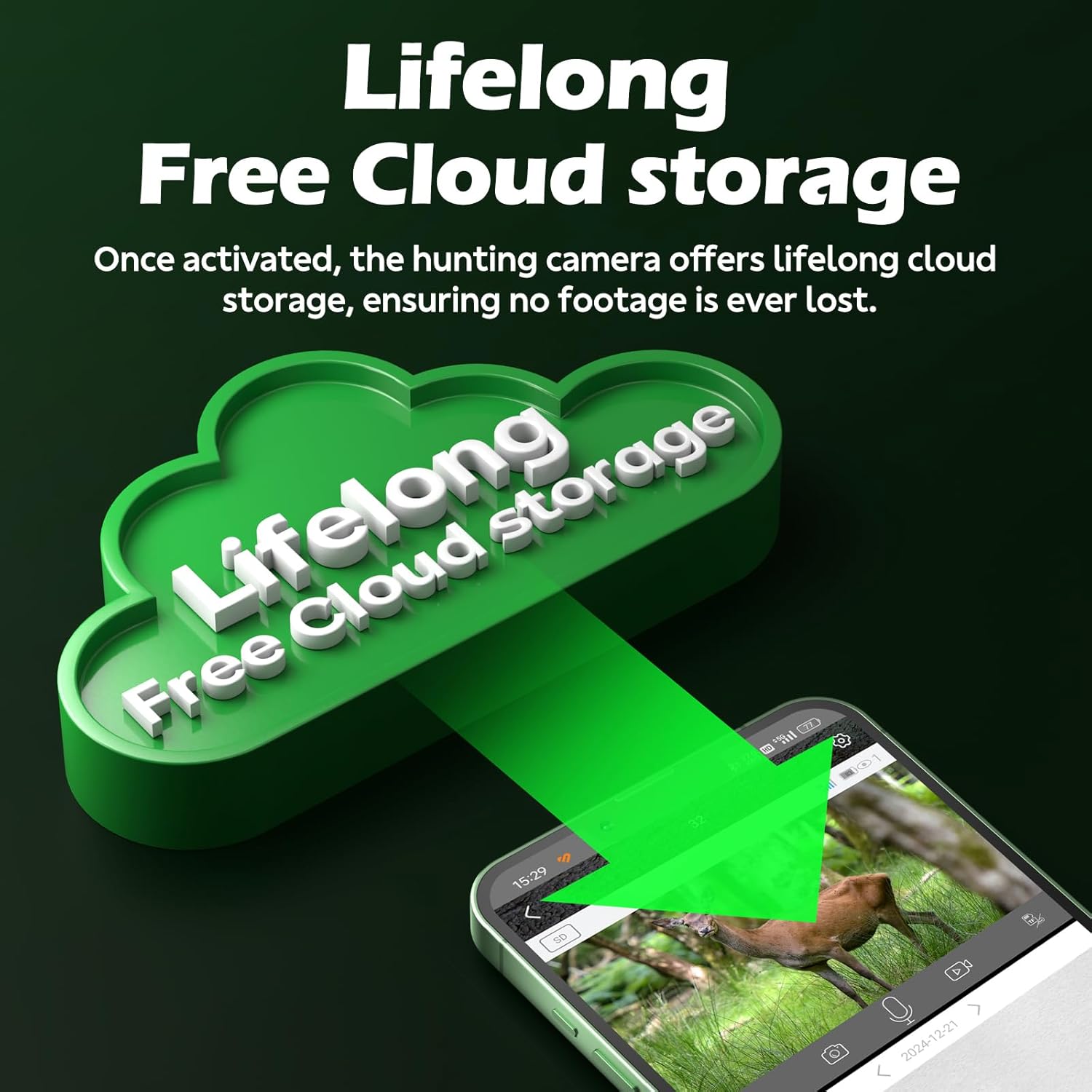
Image: A close-up view of the VOOPEAK TC31 trail camera's interior, highlighting the pre-installed SIM card. This demonstrates that the SIM card is integrated and does not require user installation.

Image: A detailed table outlining the monthly and annual data plans available for the VOOPEAK cellular trail camera, showing different tiers for photos/videos and associated costs. This helps users choose a suitable data plan.
3. App Installation and Pairing
Download the "TrailCam Go" app from your smartphone's app store. Follow the in-app instructions to register an account and pair your camera by scanning the QR code displayed on the camera's screen or provided in the packaging.

Image: A user interacting with the "TrailCam Go" app on their smartphone, illustrating the initial login or sign-up process for the application.

Image: A trail camera mounted on a tree, with a smartphone screen showing a QR code. This depicts the process of pairing the camera with the mobile app by scanning the QR code.
For direct app download or more information, visit: App Download Link
Operating Instructions
1. Basic Operation
Turn the camera ON using the power switch. The 2.0-inch LCD screen allows you to navigate menus and view captured media directly. Use the navigation buttons to select options and confirm settings.

Image: An internal view of the VOOPEAK TC31 trail camera, highlighting the 2-inch LCD screen and the control buttons. A hand icon points to the playback button, indicating how to access recorded content directly on the camera.
2. Capturing Photos and Videos
The camera automatically captures 32MP photos and 1080P videos when motion is detected within its 120-degree detection angle. The fast 0.1s trigger time ensures minimal delay.

Image: A diagram illustrating the PIR motion detection capabilities of the trail camera, showing the 30-degree preactivated zones and the 60-degree trigger zone, along with the 65ft detection distance and 0.1s trigger time.
3. Accessing Media via App
Once captured, footage is uploaded to the cloud and accessible through the "TrailCam Go" app on your smartphone. You will receive real-time motion alerts. Note that the camera does not support live streaming.

Image: A smartphone screen displaying the gallery within the "TrailCam Go" app, showing thumbnails of captured images and videos from the trail camera. This demonstrates how users can easily access and review their recordings.

Image: A split image showing the trail camera mounted on a tree in a forest setting on one side, and a person viewing real-time alerts and captured footage on their smartphone via the app on the other. This highlights the remote monitoring capability.
Maintenance
1. Battery Management
Regularly check the battery level through the app or on the camera's LCD screen. Replace all 8 AA batteries simultaneously to ensure optimal performance. Consider using the compatible solar panel for continuous power in remote locations.
2. Cloud Storage and Loop Recording
The camera offers lifelong free cloud storage. When the micro SD card (not included) becomes full, the loop recording feature automatically overwrites the oldest files to make space for new recordings. Periodically download important footage from the cloud to your device.

Image: A visual representation of the loop recording feature, showing a timeline of images and videos being captured, with older files being automatically deleted to accommodate new ones when the memory card is full.
3. Cleaning and Storage
Wipe the camera lens and housing with a soft, dry cloth to remove dirt and debris. Ensure the camera is clean and dry before storing it in a cool, dry place when not in use for extended periods.
Troubleshooting
| Problem | Possible Cause | Solution |
|---|---|---|
| Camera not powering on. | Low or dead batteries; incorrect battery insertion. | Replace all 8 AA batteries with new ones, ensuring correct polarity. Check solar panel connection if used. |
| No images/videos captured. | PIR sensor blocked; camera in OFF mode; memory card full or missing. | Ensure clear line of sight for PIR sensor. Switch camera to ON or SETUP mode. Insert a micro SD card or check if loop recording is functioning. |
| No cellular transmission to app. | No data plan; poor cellular signal; app not paired correctly. | Verify active data plan. Relocate camera to an area with better signal. Re-pair camera with the "TrailCam Go" app. |
| Poor image/video quality. | Dirty lens; low light conditions; subject too far. | Clean the camera lens. Ensure adequate lighting or utilize night vision. Position camera closer to the target area. |
Specifications
| Feature | Detail |
|---|---|
| Model Number | TC31 |
| Indoor/Outdoor Usage | Outdoor |
| Power Source | Battery Powered (8 AA batteries, not included), 6V 2A Solar Panel compatible |
| Connectivity Protocol | Cellular (4G LTE, Built-in SIM) |
| Video Capture Resolution | 1080p (H.264) |
| Photo Resolution | 32MP |
| Viewing Angle | 120 Degrees |
| Night Vision Range | 65 Feet |
| Display Screen | 2.0-Inch LCD |
| Product Dimensions | 5 x 6 x 7 inches |
| Item Weight | 2.27 pounds |
| Included Components | 2*cellular trail camera (built-in SIM card), 2*some screws, 2*strap and bracket |
Warranty and Support
VOOPEAK is committed to providing high-quality products and professional service. We offer:
- 30-Day Return Policy: Hassle-free returns and exchanges within 30 days of purchase.
- Lifetime Continuous Support: Dedicated support for your VOOPEAK trail cameras.
- 24-Hour Response: Customer inquiries are responded to within 24 hours.
For assistance, please contact VOOPEAK customer service. Refer to your purchase documentation for specific contact details or visit the official VOOPEAK store on Amazon: VOOPEAK Store.

Image: Icons illustrating VOOPEAK's customer service commitments: 24-hour response time, 30-day hassle-free returns and exchanges, and lifetime continuous support for trail cameras.
Ask a question about this manual
Ask about setup, troubleshooting, compatibility, parts, safety, or missing instructions. Manuals+ will review the question and use this page’s manual context to help answer it.