
1. Introduction
This manual provides essential instructions for the safe operation, maintenance, and troubleshooting of your DREAME D20 Pro Plus Robot Vacuum and Mop. Please read this manual thoroughly before using the product and retain it for future reference.
The DREAME D20 Pro Plus is designed to provide efficient cleaning with features such as 13,000Pa suction, self-emptying dust collection, a DuoBrush for pet hair, smart navigation, and integrated vacuuming and mopping capabilities.
2. What's in the Box
Verify that all components are present upon unpacking.

Image Description: An illustration showing all items included in the DREAME D20 Pro Plus package. These include the robot vacuum, auto-empty base station, main brush & brush guard, side brush, two dust bags, dust box, water tank, mop pad, mop pad holder, base station ramp extension plate, user manual, and quick start guide.
- Robot Vacuum (x1)
- Auto-Empty Base Station (x1)
- Main Brush & Brush Guard (pre-installed) (x1)
- Side Brush (pre-installed) (x1)
- Dust Bag (x2, one pre-installed)
- Dust Box (pre-installed) (x1)
- Water Tank (pre-installed) (x1)
- Mop Pad (pre-installed) (x1)
- Mop Pad Holder (x1)
- Base Station Ramp Extension Plate (x1)
- User Manual (x1)
- Quick Start Guide (x1)
3. Safety Instructions
Always adhere to the following safety precautions to prevent injury or damage to the device.
- Read all instructions before use.
- Do not allow children to operate the robot vacuum. Supervise children and pets when the device is in operation.
- Ensure the charging base is placed on a level surface against a wall, with adequate clear space around it.
- Keep hair, loose clothing, fingers, and all parts of the body away from openings and moving parts.
- Do not use the robot vacuum to pick up large objects, sharp objects, liquids, or burning/smoking materials.
- Only use the charging adapter provided by the manufacturer.
- Do not operate the robot vacuum in environments with open flames or explosive materials.
- Disconnect the power before cleaning or performing maintenance.
- Operate the machine under a 2.4GHz network connection for app control.
4. Setup
4.1 Unpacking and Placement
- Remove all packaging materials and protective films from the robot vacuum and the auto-empty base station.
- Place the auto-empty base station against a wall on a hard, level surface. Ensure there is at least 0.5 meters (1.6 feet) of clear space on both sides and 1.5 meters (4.9 feet) in front of the base station for optimal navigation.
- Connect the power cord to the base station and plug it into a power outlet.

Image Description: The DREAME D20 Pro Plus robot vacuum docked with its auto-empty base station, alongside a smartphone displaying the DREAME app icon. This illustrates the integrated system and app control.
4.2 Initial Charging
Place the robot vacuum onto the charging contacts of the auto-empty base station. The robot will automatically power on and begin charging. Ensure the robot is fully charged before its first use (approximately 6 hours).
4.3 App Connection
- Download the "Dreamehome" app from your smartphone's app store.
- Open the app and follow the on-screen instructions to create an account and add your DREAME D20 Pro Plus device.
- Ensure your smartphone is connected to a 2.4GHz Wi-Fi network during the pairing process.
- The app allows for advanced custom cleaning, mapping, and scheduling.
5. Operating Instructions
5.1 Starting a Cleaning Cycle
- Manual Start: Press the power button on the robot vacuum once to start a cleaning cycle.
- App Start: Use the Dreamehome app to initiate cleaning, select cleaning modes (Vacuum, Mop, Vacuum & Mop), adjust suction power, and set water levels.
- Voice Control: Connect to Alexa, Google Home, or Apple Siri. Use commands like "Hey Google, start vacuuming" to begin cleaning.

Image Description: A smartphone screen displaying the Dreamehome app interface for controlling the D20 Pro Plus, showing options for cleaning modes, suction power, and room selection. This highlights the personalized cleaning features.
5.2 Cleaning Modes
- Vacuum Only: Ideal for carpets and general dry debris. The robot uses its 13,000Pa Vormax suction.
- Mop Only: For hard floors, using the 350ml water tank and mop pad. 32 moisture levels are available via the app.
- Vacuum & Mop: Simultaneous cleaning for hard floors.

Image Description: The DREAME D20 Pro Plus robot vacuum on a hard floor with a visible water tank and dust box, demonstrating its 2-in-1 vacuum and mop capability. A small spill is shown on the floor, indicating its cleaning function.
5.3 Smart Navigation and Obstacle Avoidance
The D20 Pro Plus utilizes LDS Navigation and Smart Pathfinder technology for efficient mapping and obstacle avoidance. It creates editable maps of your home for comprehensive coverage.
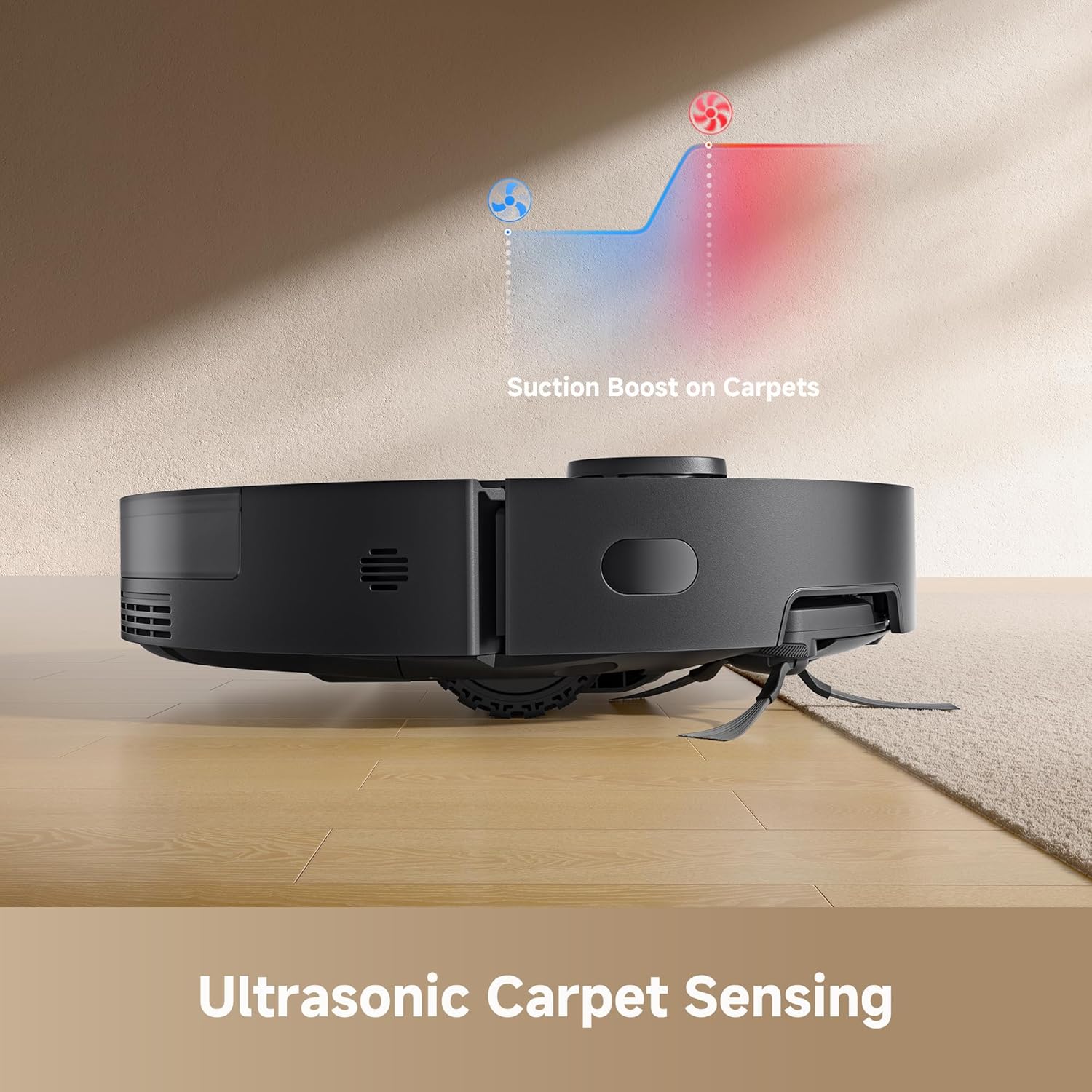
Image Description: The DREAME D20 Pro Plus robot vacuum moving across a floor, with red and blue light beams indicating its laser navigation and obstacle avoidance sensors detecting slippers and other household items. This illustrates its smart path routing.
5.4 Carpet Boost
The robot automatically detects carpets using ultrasonic sensors and boosts suction power for deeper cleaning. To protect carpets from getting wet, it is recommended to remove the mop pad before cleaning carpeted areas.
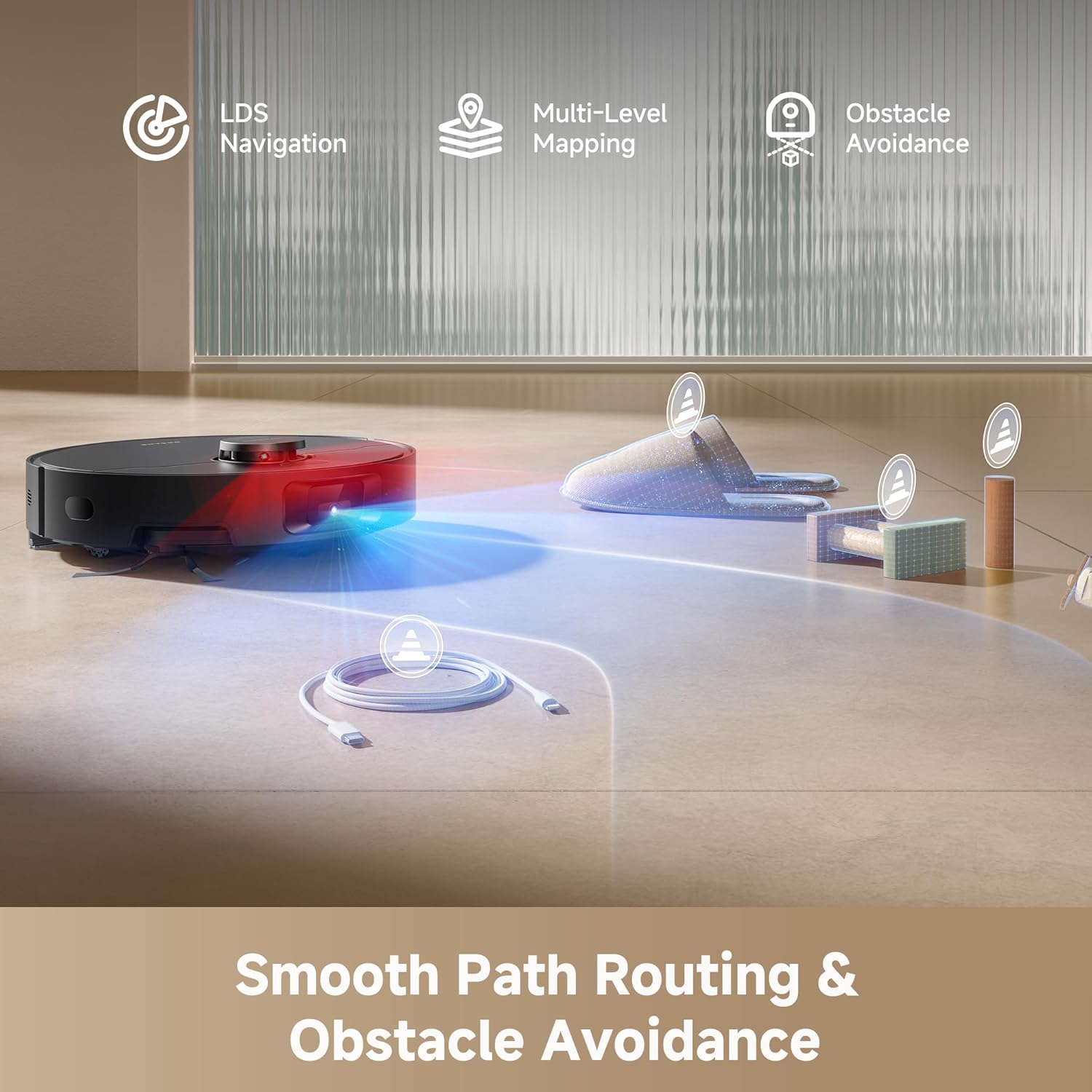
Image Description: A side view of the DREAME D20 Pro Plus robot vacuum transitioning from a hard floor to a carpet, with an overlay graphic showing increased suction (red fan icon) on the carpet compared to standard suction (blue fan icon) on the hard floor. This demonstrates the ultrasonic carpet sensing and suction boost feature.
6. Maintenance
Regular maintenance ensures optimal performance and extends the lifespan of your DREAME D20 Pro Plus.
6.1 Auto-Empty Dust Bag
The auto-empty base station features a 5L dust bag, providing up to 150 days of hands-free dust collection. Replace the dust bag when the app indicates it is full or when you notice reduced suction performance.
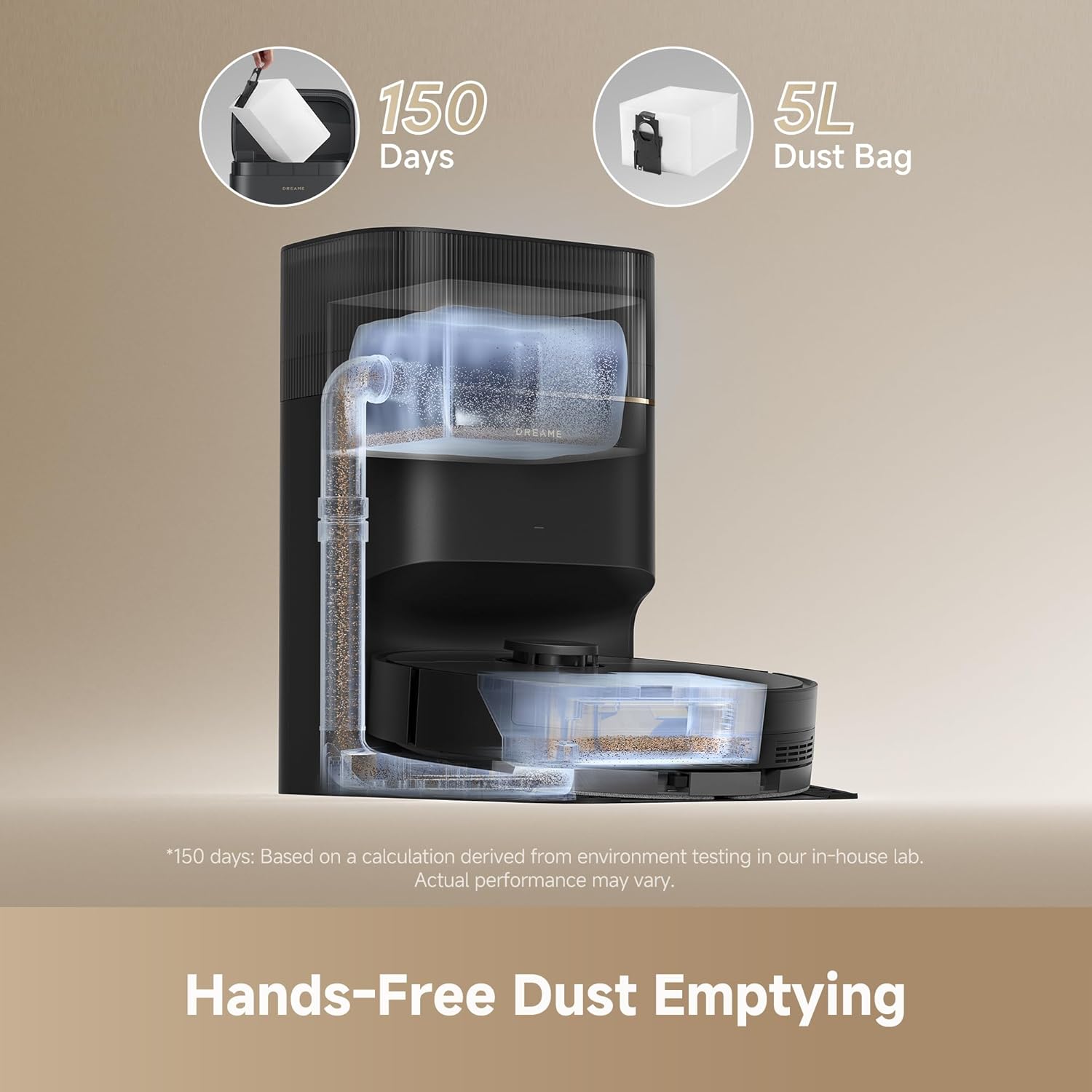
Image Description: A cutaway view of the DREAME D20 Pro Plus auto-empty base station, showing the internal mechanism for transferring dust from the robot's dust box into the 5L dust bag. Icons indicate "150 Days" and "5L Dust Bag," emphasizing the hands-free dust emptying feature.
6.2 DuoBrush and Side Brush
Inspect the DuoBrush and side brush regularly for tangled hair or debris. Use the cleaning tool provided to remove any obstructions. The HyperStream detangling DuoBrush is designed to minimize tangles, but occasional cleaning is still necessary.
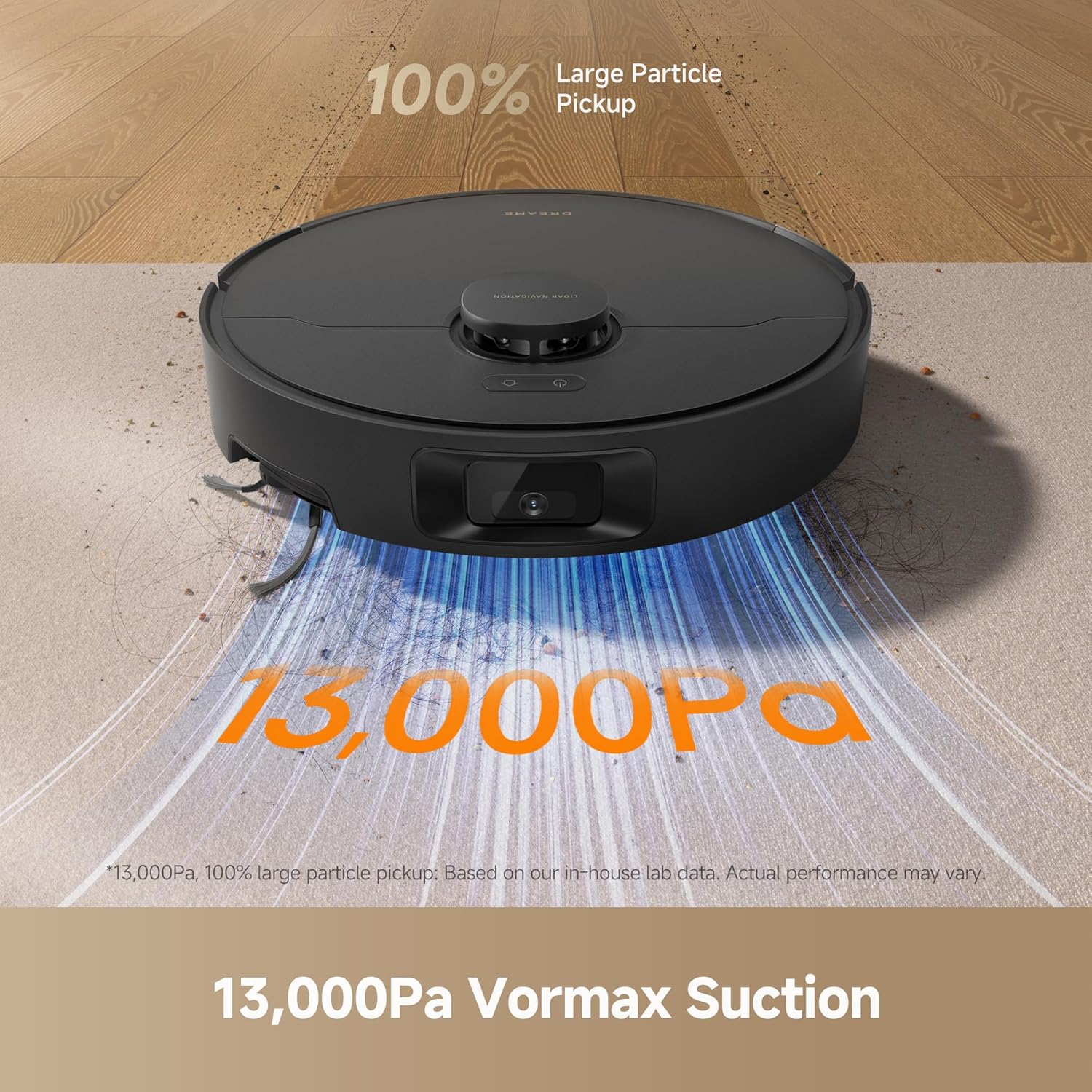
Image Description: A split image comparing the D20 Pro Plus's DuoBrush (left, clean) with a generic brush (right, tangled with hair). The D20 Pro Plus brush is shown with a TUV SUD certification for detangling, illustrating its effectiveness in preventing hair tangles.
6.3 Dust Box and Water Tank
- Dust Box: Although the robot self-empties, periodically remove and clean the 500ml dust box and its filter to ensure optimal suction.
- Water Tank: Empty and rinse the 350ml water tank after each mopping session to prevent mold or odors. Use only clean water or manufacturer-approved cleaning solutions.
6.4 Sensors and Charging Contacts
Wipe all sensors (LDS, cliff, infrared) and charging contacts on both the robot and the base station with a clean, dry cloth to ensure proper function.
7. Troubleshooting
If you encounter issues with your DREAME D20 Pro Plus, refer to the following common problems and solutions.
| Problem | Possible Cause | Solution |
|---|---|---|
| Robot does not start or respond. | Low battery; power switch off; robot stuck. | Charge the robot; ensure power switch is on; clear any obstructions. |
| Reduced suction power. | Full dust bag; clogged filter; main brush tangled. | Replace dust bag; clean/replace filter; clean main brush. |
| Robot gets stuck frequently. | Small obstacles; dark surfaces (cliff sensors); tangled wires. | Clear floor of small items; use no-go zones for dark areas; secure loose cables. |
| App connection issues. | Incorrect Wi-Fi band; poor signal; incorrect pairing. | Ensure 2.4GHz Wi-Fi; move robot closer to router; re-pair device in app. |
| Mop not dispensing water. | Empty water tank; clogged water outlet; incorrect mop settings. | Refill water tank; clean water tank outlet; adjust water level in app. |
8. Specifications
| Feature | Detail |
|---|---|
| Brand | DREAME |
| Model Name | D20 Pro Plus |
| Model Number | RLD43SD |
| Suction Power | 13,000Pa Vormax |
| Dust Bag Capacity | 5L (up to 150 days hands-free) |
| Dust Box Capacity | 500ml |
| Water Tank Capacity | 350ml (32 moisture levels) |
| Navigation | LDS Navigation, Smart Pathfinder |
| Battery Life | Up to 285 minutes (Vac & Mop Mode) |
| Battery Type | 5,200mAh |
| Control Method | App (Dreamehome), Voice (Alexa, Google Home, Apple Siri) |
| Product Dimensions | 17.65"L x 13.78"W x 17.8"H |
| Item Weight | 23.6 pounds |
| UPC | 810142561228 |
9. Warranty and Support
For warranty information and customer support, please refer to the official DREAME website or contact their customer service directly. Keep your purchase receipt as proof of purchase.
- Online Support: Visit the DREAME Store on Amazon for product information and support resources.
- Protection Plans: Extended protection plans are available for purchase separately.


