
1. Introduction
The Amazon Basics 3-Axis Smartphone Gimbal Stabilizer (AB-M01) is designed to provide smooth, stable footage for smartphone videography. This manual provides essential information for setting up, operating, and maintaining your gimbal to achieve professional-quality videos and photos.
2. What's in the Box
Verify that all components are present in your package:
- Gimbal Stabilizer
- Tripod
- USB-C Charging Cable
- User Manual
- Storage Bag

Image: All items included in the Amazon Basics 3-Axis Smartphone Gimbal Stabilizer package.
3. Product Overview and Controls
Familiarize yourself with the main parts and control buttons of your gimbal:

Image: Labeled diagram of the gimbal's controls and components.
- Button/Power Button: Used to switch gimbal modes, toggle horizontal/vertical shooting, and display remaining power.
- Rocker: Controls the gimbal's movement for precise adjustments.
- Trigger Key: Activates features like lock follow, gimbal return, inception mode, lock mode, and mad dog mode.
- Fill Light Power Button: Controls the integrated fill light's brightness and modes.
- Camera Button: Initiates photo capture or video recording, and switches between front and rear cameras.
4. Setup and First Use
4.1 Unfolding the Gimbal
The gimbal features a foldable design for portability. Gently unfold the gimbal until it locks into its operational position.

Image: The gimbal in its folded and unfolded states, highlighting its compact design.
4.2 Mounting and Balancing Your Smartphone
- Extend the phone clamp and securely place your smartphone in the center.
- Ensure the phone is balanced. If the phone tilts to one side, adjust its position within the clamp until it remains level when the gimbal is off. Proper balancing is crucial for optimal performance and battery life.
4.3 Powering On/Off
Press and hold the Power Button for a few seconds to turn the gimbal on or off. The indicator lights will illuminate or extinguish accordingly.
4.4 App Installation
For full functionality, download and install the "Gimbal Show" app on your smartphone. Scan the QR code provided in the product packaging or search for it in your device's app store. Connect the gimbal to the app via Bluetooth.

Image: QR code for downloading the Gimbal Show App and a preview of app features.
5. Operating Modes
The gimbal offers multiple operational modes to suit various shooting scenarios:

Image: Visual representation of the gimbal's 3-axis operational modes.
- Semi-Follow Mode (Pan Follow): The gimbal follows your pan movements while keeping the tilt and roll axes locked.
- All-Follow Mode (Pan + Tilt Follow): The gimbal follows both your pan and tilt movements, providing dynamic tracking.
- Full Lock Mode (Three-Axis Lock Mode): All three axes are locked, keeping the camera fixed on a single point regardless of gimbal movement.
- POV Mode (Three-Axis Following/FPV Mode): The gimbal follows all three axes, allowing for immersive first-person view shots.
5.1 Horizontal and Vertical Switching
Double-press the M Key (Mode Button) to quickly switch between horizontal and vertical shooting orientations, ideal for different social media platforms.
5.2 Creative Modes
Utilize the "Gimbal Show" app to unlock creative shooting modes such as slow motion, hyper-lapse, panorama, and Inception Mode for dynamic visual effects.

Image: Multiple shooting modes available through the companion app.
6. AI Tracking Features
The gimbal incorporates advanced AI for intelligent subject tracking:

Image: Smart AI Tracking features for face and body focus.
- AI Smart Tracking: Automatically locks onto and follows your chosen subject or face, keeping them centered in the frame.
- Gesture Controls: Use specific hand gestures to initiate recording or other functions without touching the gimbal or phone.
- Hitchcock Zoom Effect: Create dramatic zoom-in effects while maintaining focus on your subject, available through the app.
7. Adjustable Fill Light
Enhance your shots in various lighting conditions with the built-in adjustable fill light:
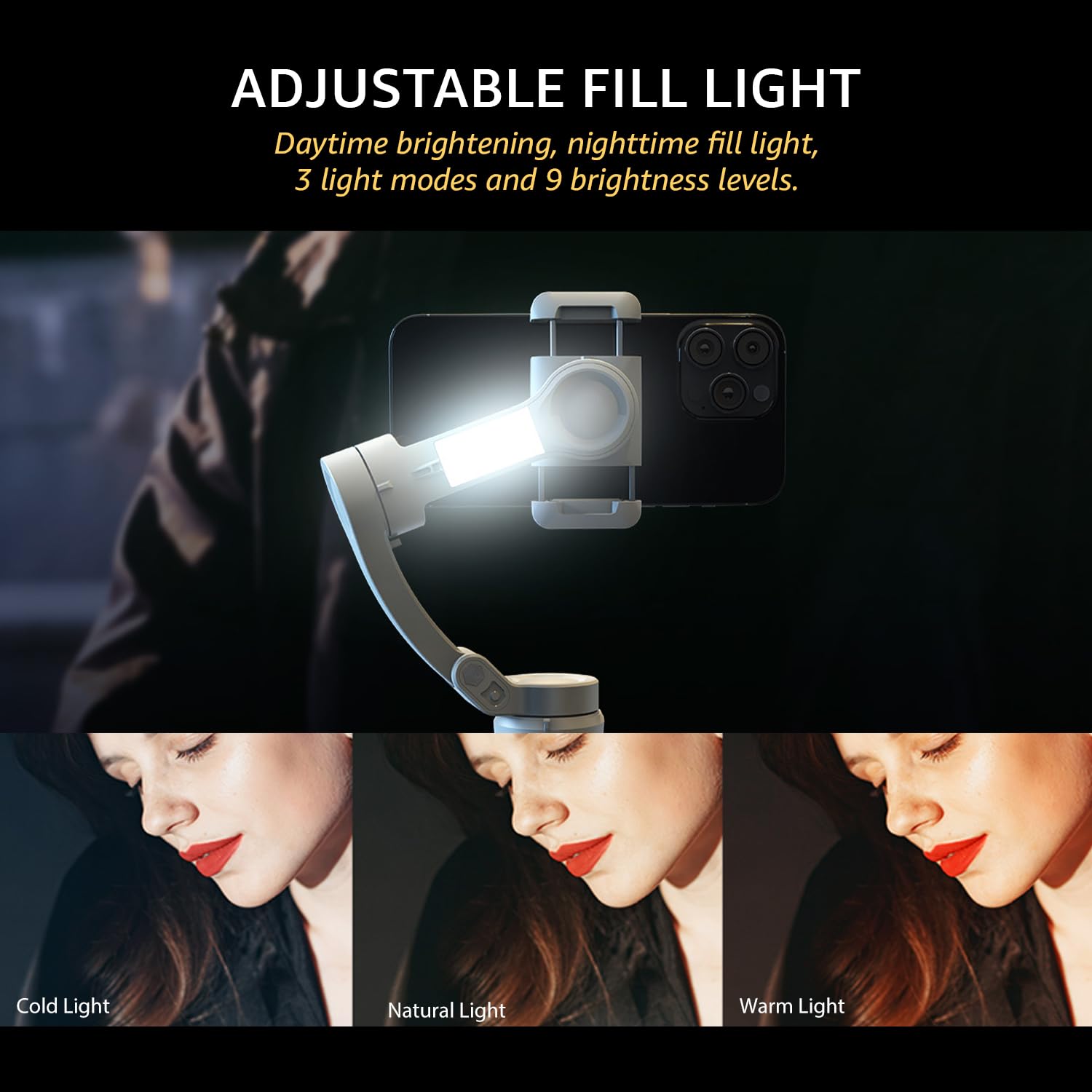
Image: The adjustable fill light with different color temperatures.
- The fill light offers 3 light modes (Cold, Natural, Warm) and 9 brightness levels.
- Press the Fill Light Power Button to cycle through modes and adjust brightness.
8. Battery and Charging
The gimbal is equipped with a high-capacity battery for extended use:
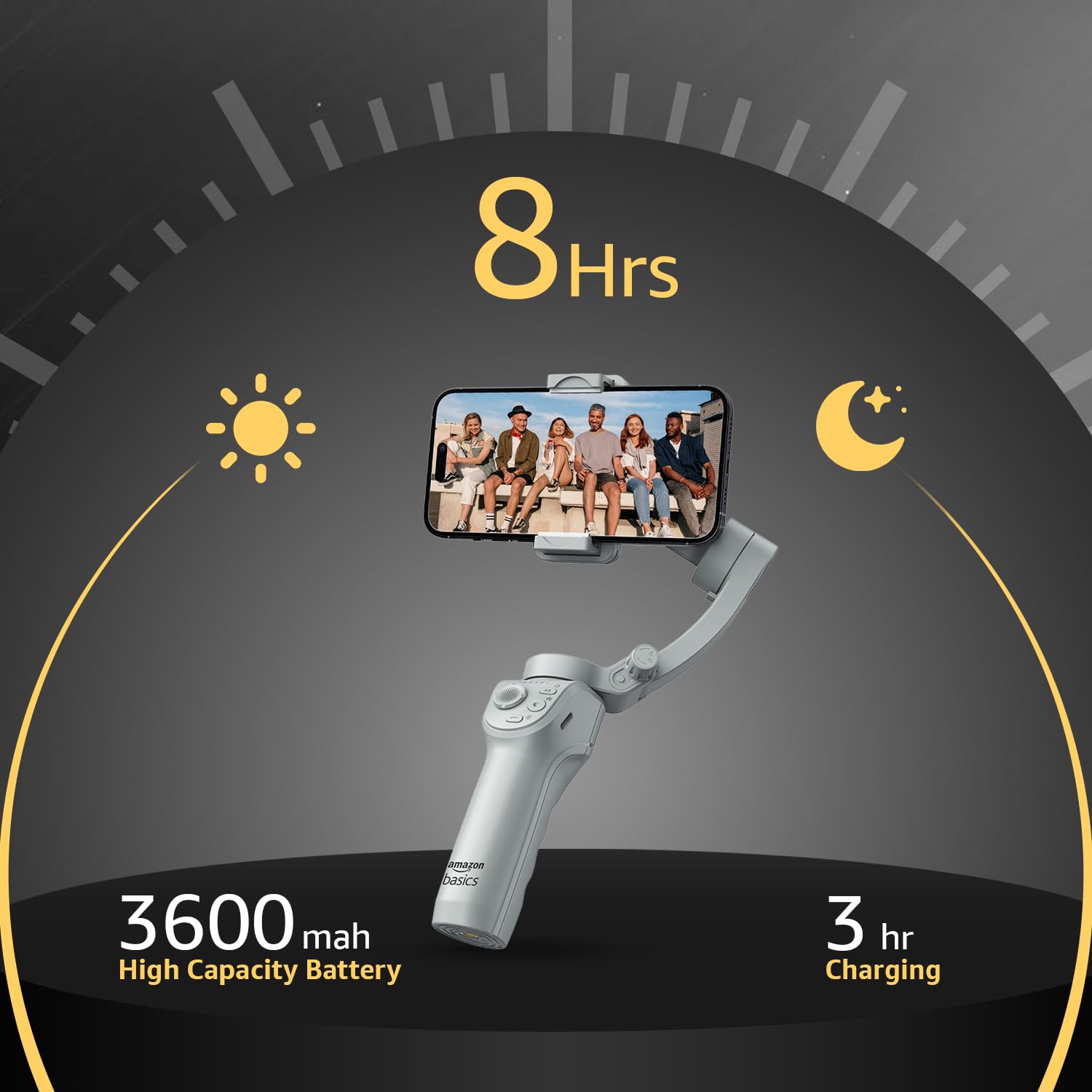
Image: Battery life and charging details.
- Battery Life: Up to 8 hours of continuous operation on a full charge.
- Charging: Use the provided USB-C cable to charge the gimbal. A full charge typically takes approximately 3 hours.
- The battery indicator lights on the gimbal will show the current charge level.
9. Maintenance
To ensure the longevity and optimal performance of your gimbal, follow these maintenance guidelines:
- Cleaning: Use a soft, dry cloth to clean the gimbal. Avoid using liquid cleaners or solvents.
- Storage: When not in use, fold the gimbal and store it in the provided storage bag to protect it from dust and damage. Store in a cool, dry place.
- Battery Care: For long-term storage, charge the battery to approximately 50-60% every three months to prevent deep discharge.
- Avoid Impact: Protect the gimbal from drops or strong impacts, which can damage the motors and internal components.
10. Troubleshooting
If you encounter issues with your gimbal, refer to the following common problems and solutions:
| Problem | Possible Cause | Solution |
|---|---|---|
| Gimbal not powering on | Low battery; Power button not pressed correctly | Charge the gimbal fully; Press and hold the power button for 3 seconds. |
| Unstable footage/vibration | Smartphone not balanced; Gimbal not calibrated | Re-balance the smartphone in the clamp; Perform a gimbal calibration via the "Gimbal Show" app. |
| App not connecting to gimbal | Bluetooth off; App permissions; Gimbal not discoverable | Ensure Bluetooth is enabled on your phone; Grant necessary permissions to the app; Restart both gimbal and phone. |
| AI tracking not working | Poor lighting; Subject too far/close; App issue | Ensure adequate lighting; Maintain optimal distance from subject; Restart the app and gimbal. |
11. Specifications
| Feature | Detail |
|---|---|
| Model Number | AB-M01 |
| Product Dimensions (folded) | 166mm x 105.2mm x 45.9mm |
| Tripod Dimensions (folded) | 94.7mm x 32.3mm x 32.3mm |
| Item Weight | 388 g |
| Battery Life | Up to 8 hours |
| Charging Time | Approx. 3 hours (via USB-C) |
| Special Feature | AI Face & Body Tracking, Adjustable Fill Light |
| Compatible Devices | Smartphones (iPhone, Android) |
| Material | Aluminium |
12. Official Product Video
Video: An overview of the Amazon Basics 3-Axis Smartphone Gimbal Stabilizer, demonstrating its folding design, 3-axis stability, multiple shooting modes, AI intelligent tracking for faces and objects, inception auto shooting, and the beauty fill light feature. This video highlights the gimbal's ease of use and advanced capabilities for mobile photography and videography.
13. Warranty and Support
For warranty information and customer support, please refer to the warranty card included in your product packaging or visit the official Amazon Basics support page. Keep your purchase receipt for warranty claims.