
TCL 55T8C
TCL 55T8C 4K Ultra HD Smart QLED Google TV User Manual
Model: 55T8C
1. Introduction
Welcome to the user manual for your new TCL 139 cm (55 inches) 4K Ultra HD Smart QLED Google TV, model 55T8C. This manual provides essential information for setting up, operating, maintaining, and troubleshooting your television. Please read it thoroughly to ensure optimal performance and longevity of your device.

Figure 1.1: Front view of the TCL 55T8C 4K QLED Google TV.
The TCL 55T8C features a 4K QLED display with a 120Hz refresh rate (VRR 144 Hz/DLG 240 Hz), powered by a 64-bit Quad Core Processor. It runs on Google TV, offering 3GB RAM and 32GB ROM for a smooth smart TV experience. Key features include Dolby Atmos sound, multiple HDMI and USB ports, and advanced display technologies like AiPQ Processor and Dolby Vision.
2. What's in the Box
Upon opening the package, please verify that all the following components are included:
- 1N LED TV
- 1N Audio Cable
- 1N Stand (for table mounting)
- 1N Power cord
- 1N Remote Control
- 2N Batteries (AAA)

Figure 2.1: Illustration of included accessories.
3. Setup Guide
3.1 Attaching the Stand
- Carefully place the TV screen-down on a soft, flat surface to prevent damage.
- Align the TV stand(s) with the screw holes on the bottom of the TV.
- Secure the stand(s) using the provided screws. Ensure they are tightened firmly.
3.2 Connecting Peripherals
Your TCL TV offers various connectivity options. Refer to the port diagram below for connection points.

Figure 3.1: Rear and side port connections.
- HDMI Ports: Connect your gaming consoles, Blu-ray players, or set-top boxes to any of the 4 HDMI ports. HDMI 1 supports 4K@144Hz, HDMI 2 supports 4K@120Hz, and HDMI 3 & 4 support 4K@60Hz. HDMI 4 also supports eARC/ARC for audio return channel functionality.
- USB Port: Use the USB 3.0 port to connect external storage devices for media playback.
- LAN Port: For a stable wired internet connection, connect an Ethernet cable to the LAN port.
- Antenna Input: Connect your antenna or cable TV signal.
- Digital Audio Out (Optical): For connecting to external audio systems or soundbars.
- Headphone: Connect headphones for private listening.
3.3 Power Connection
After connecting all desired peripherals, plug the power cord into the TV's power input and then into a wall outlet. The TV will enter standby mode.
4. Operating Your TV
4.1 First-Time Setup
When you power on the TV for the first time, it will guide you through the initial setup process, including language selection, network connection, and Google account sign-in.
4.2 Using the Remote Control
The smart remote control provides quick access to various functions and streaming services.

Figure 4.1: Smart Remote Control with Quick Access Buttons.
- Power Button: Turns the TV on or off.
- Navigation Pad (Up/Down/Left/Right/OK): Used to navigate menus and select options.
- Back Button: Returns to the previous screen.
- Home Button: Takes you to the Google TV home screen.
- Volume Up/Down: Adjusts the volume.
- Channel Up/Down: Changes TV channels.
- Dedicated App Buttons: Quick access to popular streaming services like Netflix, Prime Video, and YouTube.
- Google Assistant Button: Press to activate voice commands for searching content, controlling smart home devices, and more.
4.3 Google TV Interface
Google TV organizes your favorite content from various streaming services into one personalized home screen.

Figure 4.2: Google TV Home Screen with various apps.
- For You Tab: Discover new movies and shows based on your viewing habits and subscriptions.
- Live Tab: Access live TV channels if connected to an antenna or supported streaming services.
- Apps Tab: Browse and launch installed applications. You can download more from the Google Play Store.
- Library Tab: Access your purchased or rented content.
5. Display and Audio Features
5.1 4K QLED Display
The 55T8C features a Quantum Dot LED (QLED) panel, delivering over a billion hues of vivid color for an immersive viewing experience. This technology enhances color volume and accuracy.

Figure 5.1: QLED technology for vibrant colors.
5.2 AiPQ Pro Processor
The AiPQ Pro Processor intelligently optimizes picture quality by perceiving, thinking, and producing enhanced visuals. It improves contrast, color, and clarity in real-time.

Figure 5.2: AiPQ Pro Processor for intelligent picture optimization.
5.3 HVA Panel
The Advanced HVA (High-Value Angle) Panel provides higher contrast and more details, along with a wide 178-degree viewing angle, minimal halo effect, and anti-glare properties.
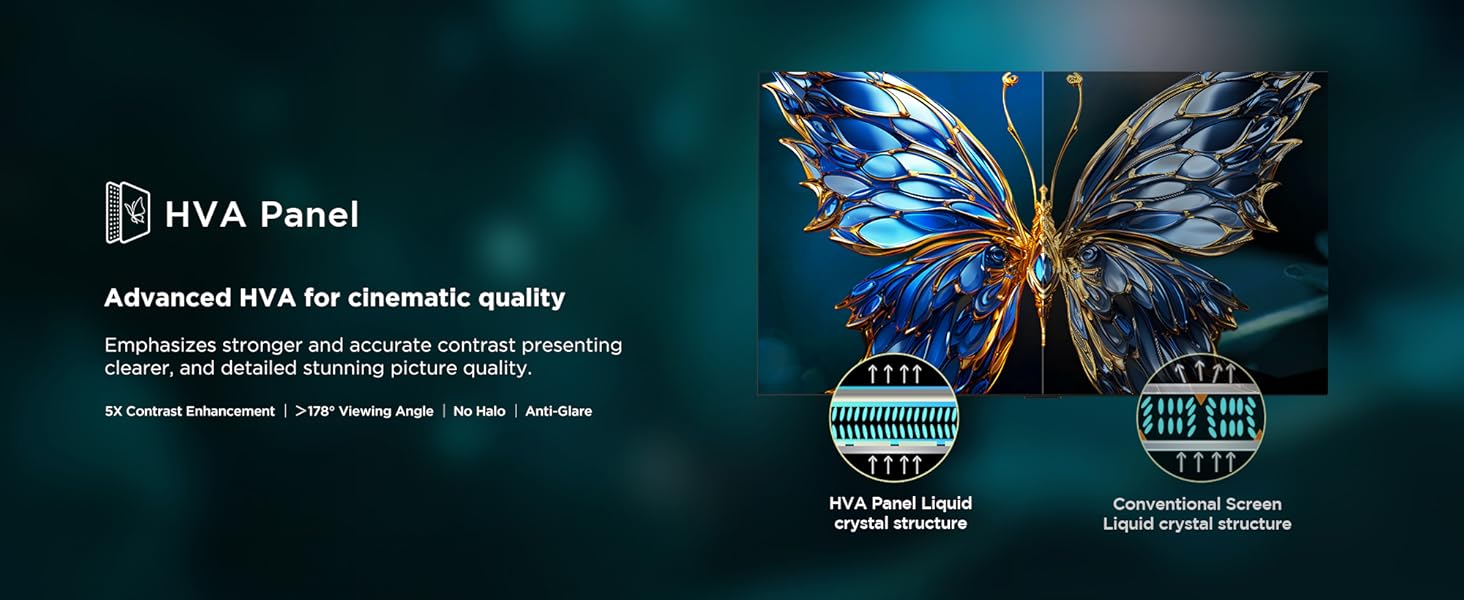
Figure 5.3: HVA Panel for enhanced contrast and viewing angles.
5.4 Dolby Vision & HDR Multi-Format
Experience stunning visuals with Dolby Vision and HDR10+ support. These technologies deliver incredible brightness, contrast, and color, bringing scenes to life with greater detail.

Figure 5.4: Dolby Vision for immersive visual experience.
5.5 Audio Features: Dolby Atmos & ONKYO Sound System
The TV features a 35 Watts output with Dolby Atmos, providing theatrical, room-filling sound. Integrated ONKYO speakers and an independent subwoofer deliver powerful and immersive audio.

Figure 5.5: ONKYO 2.1ch Hi-Fi System for home theater sound.

Figure 5.6: Integrated Subwoofer for deep bass.
Additionally, DTS Virtual:X provides virtualized 3D sound, creating an enveloping audio experience that appears to emerge from all directions. The 360-degree Spatial Surround Sound feature further enhances immersion.
6. Gaming Features
6.1 Game Master & 144Hz VRR
The Game Master feature, combined with 144Hz Variable Refresh Rate (VRR), ensures a smooth and responsive gaming experience by eliminating screen tearing and stuttering.

Figure 6.1: Game Master for optimized gaming.

Figure 6.2: 144Hz VRR for smooth gameplay.
6.2 HDMI 2.1 & ALLM
With HDMI 2.1 connectivity and Auto Low Latency Mode (ALLM), the TV automatically switches to game mode, reducing input lag for a more responsive gaming session.

Figure 6.3: HDMI 2.1 and ALLM for exceptional gaming.
6.3 Super Wide Gameview
The Super Wide Gameview feature allows for 21:9 and 32:9 aspect ratios, providing a wider display and sharper reaction time in compatible games.

Figure 6.4: Super Wide Gameview for an expanded field of view.
7. Smart Features
7.1 Google Assistant
Your TV comes with Google Assistant built-in. Use your voice to quickly find movies, stream apps, play music, and control the TV. You can also ask it questions and see answers on screen.

Figure 7.1: Google Assistant on your TV.
7.2 Kids Profile
Create a Kids Profile to provide a safe and curated viewing environment for children. This feature allows you to manage content access and screen time.

Figure 7.2: Kids Profile for a safe viewing experience.
7.3 Watchlist
The Watchlist feature allows you to compile a single list of movies and shows you want to watch, across all your streaming services. You can add to your Watchlist from your phone or laptop as well.

Figure 7.3: Watchlist for managing your content.
8. Technical Specifications

Figure 8.1: Product Dimensions and Weight.
| Feature | Specification |
|---|---|
| Brand | TCL |
| Model | 55T8C |
| Screen Size | 55 Inches (139 cm) |
| Display Technology | QLED |
| Resolution | 4K UHD (3840 x 2160 Pixels) |
| Refresh Rate | 120 Hz (VRR 144 Hz / DLG 240 Hz) |
| Operating System | Google TV |
| RAM Memory | 3 GB |
| Storage Capacity | 32 GB |
| Processor | 64-bit Quad Core Processor |
| Connectivity | Wi-Fi 5, USB (1 port), Ethernet, HDMI (4 ports) |
| HDMI Ports | 4 (HDMI 1: 4K@144Hz, HDMI 2: 4K@120Hz, HDMI 3 & 4: 4K@60Hz, HDMI 4 with eARC/ARC) |
| Audio Output | 35 Watts, Dolby Atmos, ONKYO 2.1ch Hi-Fi System, Subwoofer |
| Viewing Angle | 178 Degrees |
| Power Consumption (On-mode) | 150 Watts |
| Annual Energy Consumption | 180 kWh/Year |
| Item Weight | 11 kg |
| Product Dimensions (LxWxH) | 29.2 x 122.4 x 29.2 cm (with stand) |
| Remote Control | Smart remote with dedicated hotkeys, IR, Bluetooth |
| Mounting Type | Wall Mount & Table Mount |

Figure 8.2: Energy Rating Label.
9. Maintenance
9.1 Cleaning the Screen
To clean the screen, gently wipe it with a soft, lint-free cloth. For stubborn marks, lightly dampen the cloth with water or a specialized screen cleaner. Avoid using harsh chemicals, abrasive materials, or direct spraying of liquids onto the screen.
9.2 Cleaning the TV Body
Wipe the TV body and stand with a soft, dry cloth. Do not use solvents or alcohol-based cleaners, as they may damage the finish.
9.3 General Care
- Keep the TV away from direct sunlight, heat sources, and excessive dust.
- Ensure proper ventilation around the TV to prevent overheating.
- Unplug the TV from the power outlet during lightning storms or when it will be left unattended for long periods.
10. Troubleshooting
This section addresses common issues you might encounter with your TV. Before contacting support, please try the following solutions.
| Problem | Possible Solution |
|---|---|
| No Power | Ensure the power cord is securely plugged into both the TV and a working wall outlet. Try a different outlet. Check if the power indicator light on the TV is on. |
| No Picture, but Sound is Present | Check the input source. Press the 'Source' button on your remote to cycle through inputs. Ensure all cables (HDMI, AV) are securely connected. |
| No Sound, but Picture is Present | Check the volume level. Ensure the TV is not muted. If using external audio, check its connections and power. Try changing the audio output settings in the TV menu. |
| Remote Control Not Working | Replace the batteries in the remote control. Ensure there are no obstructions between the remote and the TV's IR sensor. For Bluetooth remote, try re-pairing it (refer to TV settings). |
| Cannot Connect to Wi-Fi | Ensure your Wi-Fi router is on and working. Restart your router and the TV. Re-enter the Wi-Fi password carefully. Try connecting via Ethernet cable if possible. |
| Smart TV Apps Not Loading/Crashing | Check your internet connection. Clear the cache and data for the problematic app in the TV's settings. Update the app or the TV's firmware. Restart the TV. |
| Picture Quality Issues (Blurry, Distorted) | Check the resolution settings of your input device. Ensure the cables are not damaged. Try adjusting picture settings (brightness, contrast, sharpness) on the TV. |
11. Warranty and Support
11.1 Warranty Information
Your TCL 55T8C television comes with a 2-year warranty provided by the manufacturer from the date of purchase. To avail warranty services, please retain your purchase invoice.
11.2 Customer Support
For further assistance, technical support, or warranty claims, please contact TCL customer service. You can find contact details on the official TCL India website or refer to the documentation included with your product.
Additional information and user manuals can often be accessed from the brand's official website under the 'About this item' or 'Product details' section.
Related Documents - 55T8C
 |
Manual de Operação TV TCL QLED Modelo 75X915 Este manual de operação detalha a montagem, configuração, uso e solução de problemas da TV TCL QLED modelo 75X915. Inclui informações sobre recursos Smart TV, conexões, controles, especificações técnicas e garantia. |
 |
TCL G300 QLED TV User Guide: Setup, Operations, and Safety Information Comprehensive user guide for the TCL G300 QLED TV, covering setup, connections, basic operations, advanced settings, troubleshooting, safety information, and warranty details. |
 |
TCL Google TV User Guide: Setup, Operation, and Troubleshooting This user guide provides comprehensive instructions for setting up and operating your TCL Google TV, including connections, basic functions, advanced settings, troubleshooting tips, and warranty information. |
 |
TCL Q750G Q-Series Google TV: Quick Start Guide and Setup Get started with your new TCL Q750G Q-Series 4K QLED Google TV. This guide provides setup instructions, safety information, and warranty details for your TCL television. |
 |
Información para el usuario sobre SmartTV: Ley de Datos de la UE Este documento de TCL explica los tipos de datos que los Smart TVs generan, cómo se utilizan y comparten, y los derechos del usuario según la Ley de Datos de la UE. Incluye información sobre identificación del producto, configuración de datos, y acceso. |
 |
TCL QM8K Series 65-inch 4K UHD Smart TV with Google TV - Quick Start Guide This quick start guide provides essential setup instructions, safety information, warranty details, and troubleshooting tips for your TCL QM8K Series 65-inch 4K UHD Smart TV with Google TV. |
Ask a question about this manual
Ask about setup, troubleshooting, compatibility, parts, safety, or missing instructions. Manuals+ will review the question and use this page’s manual context to help answer it.