
1. Product Overview
The Swokely Smart Lock offers advanced keyless entry solutions for your home or office. This intelligent door lock integrates multiple access methods, including fingerprint, password, IC card, mechanical key, and remote control via the TY or Smart Life application. It is designed for doors with a thickness of 35-60mm, providing enhanced security and convenience.

Image 1.1: Front and back panels of the Swokely Smart Lock.
Package Contents:
- 1 * Front Door Panel
- 1 * Back Door Panel
- 1 * 5050 Lock Body (3 components) (22 * 160)
- 2 * Mechanical Key
- 2 * IC Card
- 1 * User Manual
- 1 * Installation Diagram
- 8 * Screws
- 1 * Pin
- 2 * Screw Tubes
- 1 * Needle
- 2 * Fixed Rubber Pads

Image 1.2: All components included in the package, including the installation diagram.
Component Identification:

Image 1.3: Key components of the smart lock. This includes the Battery Cover, Keypad, Doorbell button, Fingerprint Reader, Indoor Handle, Outdoor Handle, Reverse Locked Button, and Keyhole with Type-C Port for emergency power.
2. Safety Information
- Do not expose the lock to direct water or corrosive substances.
- Use only specified battery types (4 * 2A batteries, not included).
- Ensure proper installation to prevent malfunction and maintain security.
- Keep mechanical keys in a secure location outside the property.
- Regularly check battery levels and replace batteries when the low voltage alarm activates.
3. Setup and Installation
The Swokely Smart Lock is compatible with most lever locks and suitable for doors with a thickness between 35mm and 60mm. The lock features a universal design, allowing for adjustment to either right or left-hand door orientations.

Image 3.1: Product dimensions and lock body measurements, indicating universal right/left direction adjustment.
Installation Steps:
- Prepare the Door: Ensure your door meets the thickness requirements (35-60mm). Refer to the included 'Installation Diagram' for precise drilling and cutting templates.
- Install the Lock Body: Insert the 5050 lock body into the door edge. Secure it with the provided screws.
- Install Front and Back Panels: Connect the front and back panels, ensuring all cables are properly routed and connected. Secure the panels using the provided screws and screw tubes.
- Insert Batteries: Open the battery cover on the back panel. Insert 4 * 2A batteries (not included), ensuring correct polarity. Close the battery cover.
- Test Functionality: After installation, test all unlocking methods (mechanical key, default password if any) to ensure proper operation before closing the door.
For detailed visual instructions, please refer to the 'Installation Diagram' included in your package.
4. Operating Instructions
The Swokely Smart Lock offers five primary methods for unlocking:

Image 4.1: Visual representation of the five unlock methods: App remote unlock, Fingerprint unlock, IC card unlock, Password unlock, and Mechanical key unlock.
4.1 Fingerprint Unlock
The lock supports up to 50 unique fingerprints. To unlock, place your registered finger on the fingerprint reader. The lock will verify your fingerprint and unlock the door.

Image 4.2: Demonstrates the one-touch fingerprint unlock feature, capable of storing up to 50 fingerprints.
4.2 Password Unlock (Keypad)
Enter your 6-10 digit password on the keypad. The lock also supports a virtual password feature, allowing you to enter random digits before or after your correct password (up to 16 bits total) to prevent onlookers from guessing your code.

Image 4.3: Explanation of the phantom password feature, where random codes can be entered before or after the correct password for enhanced security.
4.3 IC Card Unlock
Present a registered IC card to the card reader area on the lock. The lock will verify the card and unlock.
4.4 Mechanical Key Unlock
In case of emergency or battery depletion, use the provided mechanical key to manually unlock the door via the keyhole.
4.5 APP Remote Unlock (TY / Smart Life App)
Connect your smart lock to the TY or Smart Life app via WiFi. This allows for remote unlocking and management of the lock. When someone presses the doorbell button on the lock, you will receive a notification on your smartphone, allowing you to grant access remotely.
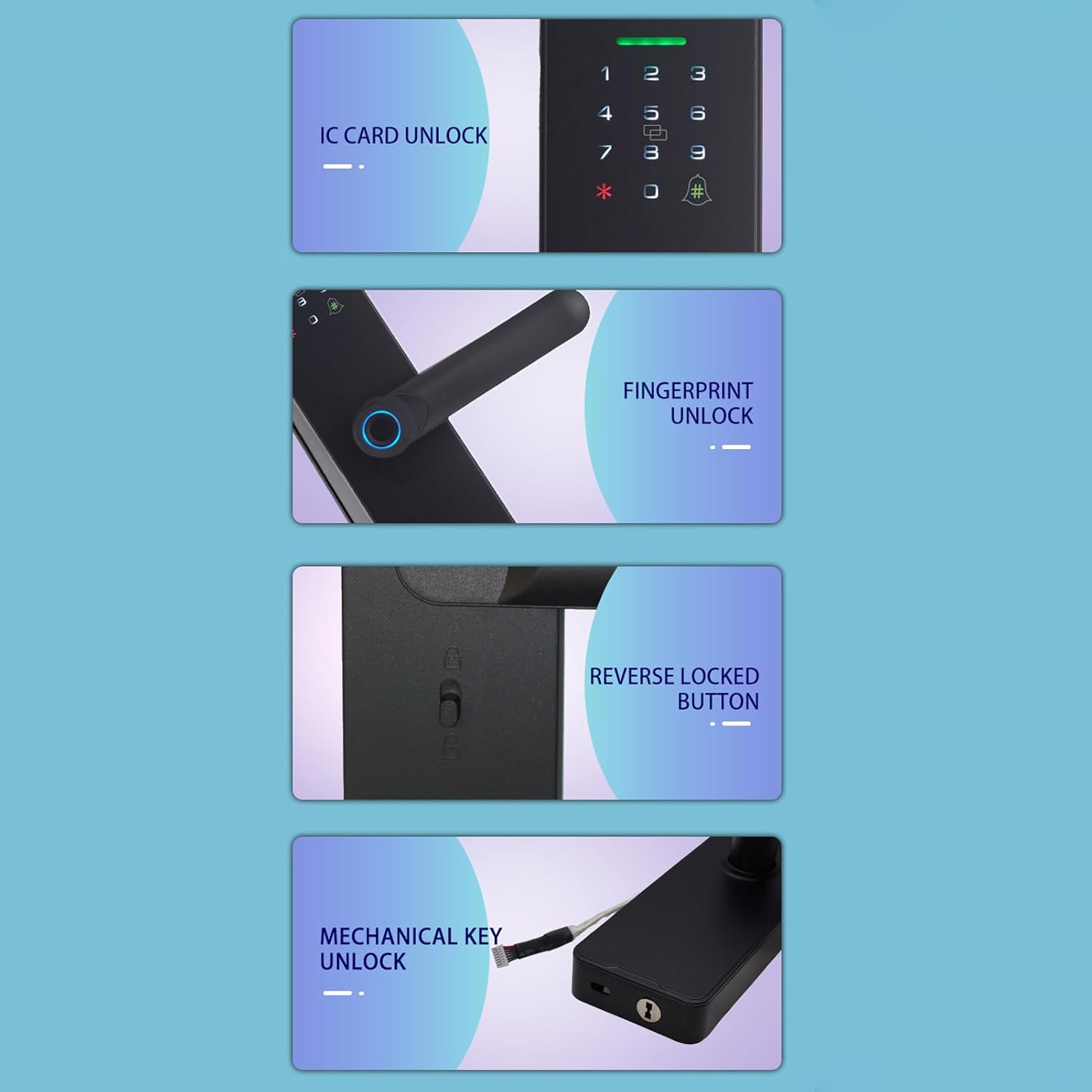
Image 4.4: Illustrates the WiFi connectivity and app integration, showing how a doorbell press on the lock sends a message to the app for remote access control.
4.6 Administrator Management
The lock supports up to 10 administrator groups. Administrators have full control over user management, including adding/deleting fingerprints, passwords, and IC cards. Refer to the app instructions for detailed administrator setup.
4.7 Reverse Locked Button
The reverse locked button, located on the indoor handle, provides an additional layer of security. When activated, it prevents anyone from unlocking the door from the outside, except for authorized administrators using specific methods.
5. Maintenance
5.1 Battery Replacement
The lock is powered by 4 * 2A batteries. When the battery voltage drops to 4.8V ± 0.2V, a low voltage alarm will sound. Replace all four batteries promptly to ensure continuous operation. The battery life is approximately six months under normal usage.
5.2 Emergency Power Supply
If the batteries are completely depleted, you can use a DC 5V power source connected via the Type-C port on the outdoor panel to temporarily power the lock and gain entry.
5.3 Cleaning
Clean the lock's surface with a soft, dry cloth. Avoid using abrasive cleaners or solvents that could damage the finish or electronic components.
6. Troubleshooting
- Lock not responding: Check battery levels. If low, replace batteries or use emergency Type-C power.
- Fingerprint not recognized: Ensure your finger is clean and dry. Re-register your fingerprint if issues persist.
- Password not working: Verify the correct password. Ensure no random digits are accidentally entered if not using the virtual password feature.
- App connectivity issues: Ensure your lock is within WiFi range and your router is functioning correctly. Restart the app and the lock if necessary.
- Temporary Online Code Issue (as reported by users): If using temporary online codes via the app, some users have reported that the code may fail on the first attempt and work on the second after a sync. If this occurs, try entering the code a second time. This may be resolved with future software updates.
- Door will not lock: Check for any obstructions in the door frame or latch. Ensure the lock body is correctly aligned.
7. Specifications
| Working Voltage | 6V |
| Low Voltage Alarm | 4.8V ± 0.2V |
| Emergency Power Supply | DC 5V (Type-C Port) |
| Administrator Capacity | 10 Groups |
| Fingerprint Capacity | 50 Pieces |
| User Capacity | 110 Groups Total |
| Unlock Methods | Fingerprint, Password, ID Card, Mechanical Key, APP |
| Password Length | 6-10 Digits |
| Virtual Password Length | ≤ 16 Bits |
| Supported Apps | Smart Life, TY |
| Standby Current | 80uA |
| Working Current | 250mA |
| Working Humidity | 20%-90%RH |
| Working Temperature | -25℃ ~ +70℃ |
| Lock Body Language | Chinese and English |
| Battery Type | 4 * 2A Batteries (not included) |
| Product Material | Carbon Steel |
| Product Color | Black |
| Product Dimensions (approx.) | 26 * 6.5 * 2.5 cm / 10.2 * 2.6 * 1 inch |
| Product Weight (approx.) | 685 g / 24.2 oz |
8. Warranty and Support
For information regarding warranty coverage, technical support, or service, please refer to the documentation provided at the time of purchase or visit the official Swokely website. Please retain your proof of purchase for warranty claims.
